
Introduction to How to Cancel Shopify Subscription
If you’ve been asking yourself “How to Cancel Shopify Subscription,” you’re not alone. Many store owners eventually reach a point where they need to stop their Shopify plan, whether it’s due to cost, switching platforms, or simply taking a break. In this guide, we’ll walk through exactly how to cancel my Shopify subscription safely, without losing your valuable store data or getting unexpected charges. By the end, you’ll know how to cancel subscription on Shopify step by step, understand alternative options, and have a clear picture of what happens after cancellation. This comprehensive guide will also cover extra tips, mistakes to avoid, and common FAQs so you feel confident throughout the process.
Find More: Creative Upsell & Cross-Sell Strategies for Shopify Using Branded Socks
Understanding Shopify Subscriptions
What is a Shopify Subscription?
A Shopify subscription is your gateway to one of the most popular e-commerce platforms worldwide. It provides tools for creating and managing an online store, from designing your website to processing payments and tracking orders. Depending on your plan, you’ll have access to a range of features, including themes, apps, analytics, and support. You pay a monthly fee, and as long as your subscription is active, your store operates fully without interruptions. Understanding exactly what your plan includes will help you make informed decisions before cancelling.
Why You Might Want to Cancel Your Shopify Subscription
People choose to cancel their Shopify subscriptions for many reasons:
-
Financial reasons: Monthly fees can add up, and some owners find more affordable platforms or tools.
-
Switching platforms: Perhaps you want features Shopify doesn’t offer, or a new platform fits your business model better.
-
Seasonal or temporary usage: Some stores operate only during holidays or special seasons, making a permanent subscription unnecessary.
-
Business changes: You may be closing your store, merging operations, or pivoting to a different product line.
-
Technical challenges: If Shopify’s tools feel overwhelming or certain integrations aren’t working, owners might explore other options.
Before You Cancel: Important Considerations
Backup Your Store Data
Before cancelling, it’s crucial to back up everything. This includes products, customer information, order history, website content, images, and app data. Shopify does not store all your information indefinitely, and losing it can be costly and stressful. Consider exporting CSV files, downloading images, and making notes of app integrations.
Review Outstanding Payments or Charges
Go through your billing section and make sure there are no pending charges. Understand the timing of your final payment to avoid unexpected fees. This helps you budget appropriately and ensures there are no surprises after you cancel.
Consider Downgrading or Pausing Instead of Cancelling
If your primary concern is cost, Shopify offers two helpful alternatives:
-
Pause your store: Temporarily stops the store from being live to customers while retaining your data. You pay a reduced fee during the pause.
-
Downgrade to a cheaper plan: Maintain your store online but pay less monthly. Both options give you flexibility if you might return to Shopify later.
Step-by-Step Guide: How to Cancel Shopify Subscription
Step 1: Log in to Your Shopify Admin Account
Start by logging into your Shopify admin dashboard. Make sure you have full account access because cancelling requires administrative permissions. Take a moment to ensure all your data is updated before proceeding.
Step 2: Navigate to Account Settings
Click your account name in the top-right corner, then select Settings. From there, navigate to Plan or Billing, depending on your dashboard version. This section contains all the controls for your subscription.
Step 3: Select “Plan” or “Billing” Section
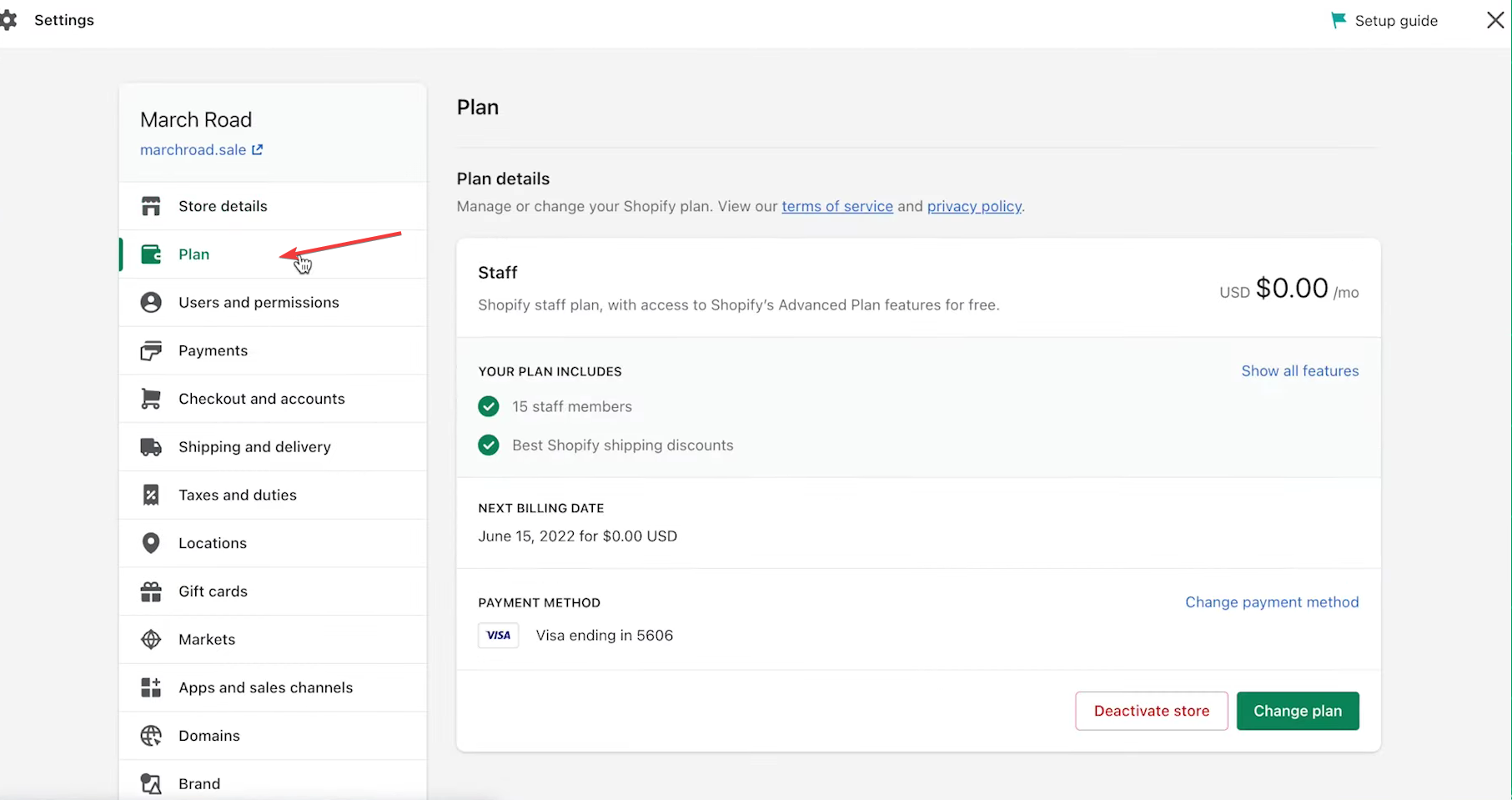
Here you can see your current plan, billing details, and payment methods. Review the information carefully. Understanding your billing cycle and features included in your plan ensures you won’t miss anything important when cancelling.
Step 4: Choose “Cancel Subscription”
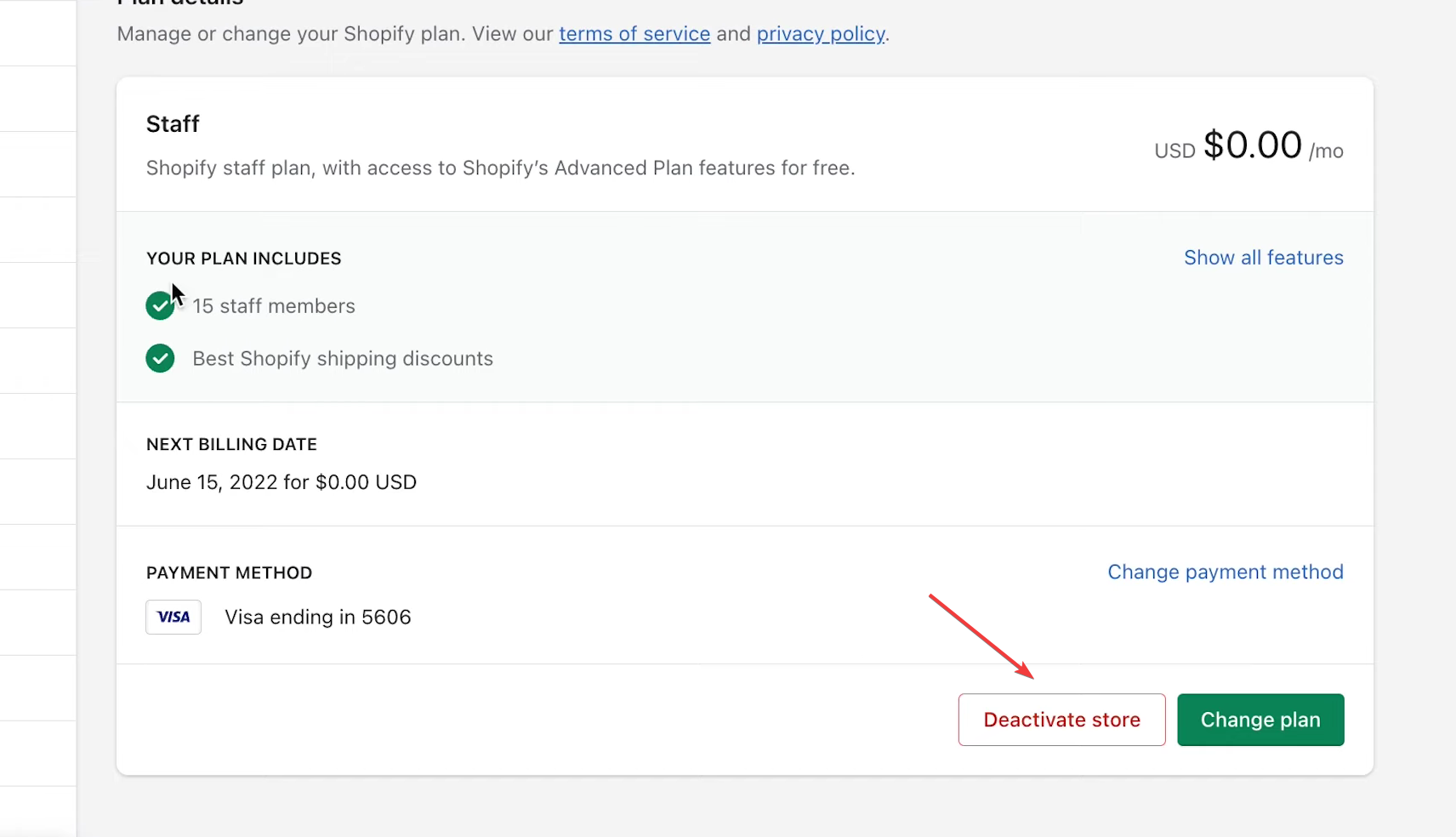
Click the Cancel Subscription or Close Store button. Shopify will guide you through the process, including steps to review your options and confirm the cancellation.
Step 5: Provide a Reason for Cancelling
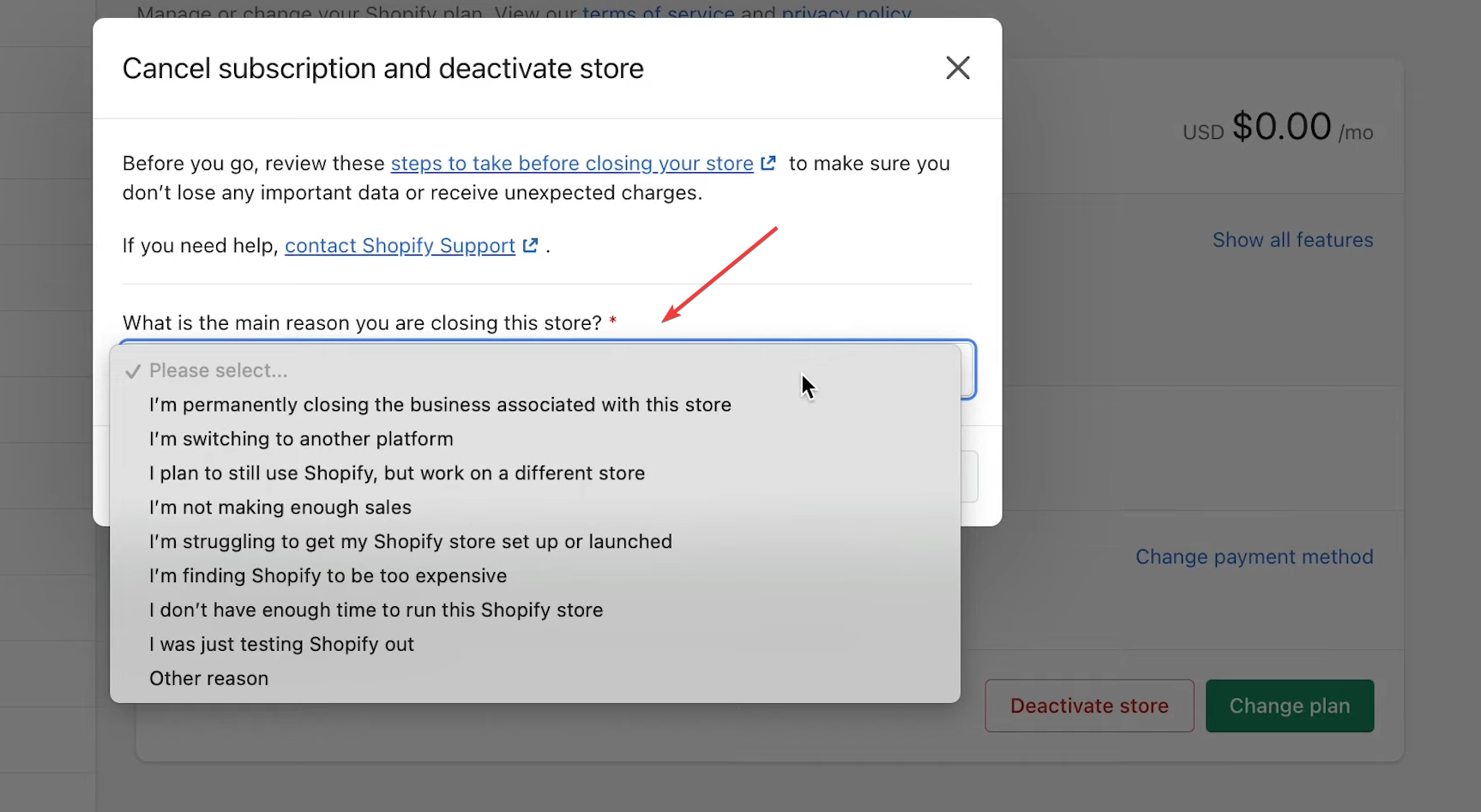
Shopify requests a reason for cancellation to collect feedback. This is optional but selecting a reason helps Shopify understand why users leave, and it can highlight areas where the platform may improve. Be honest to ensure the process is smooth.
Step 6: Confirm Your Cancellation
Before finalizing, review all the details. Confirm any final charges, the date your subscription officially ends, and what access you will lose. Double-check that you’ve backed up your data.
Step 7: Check for Confirmation Email and Final Charges
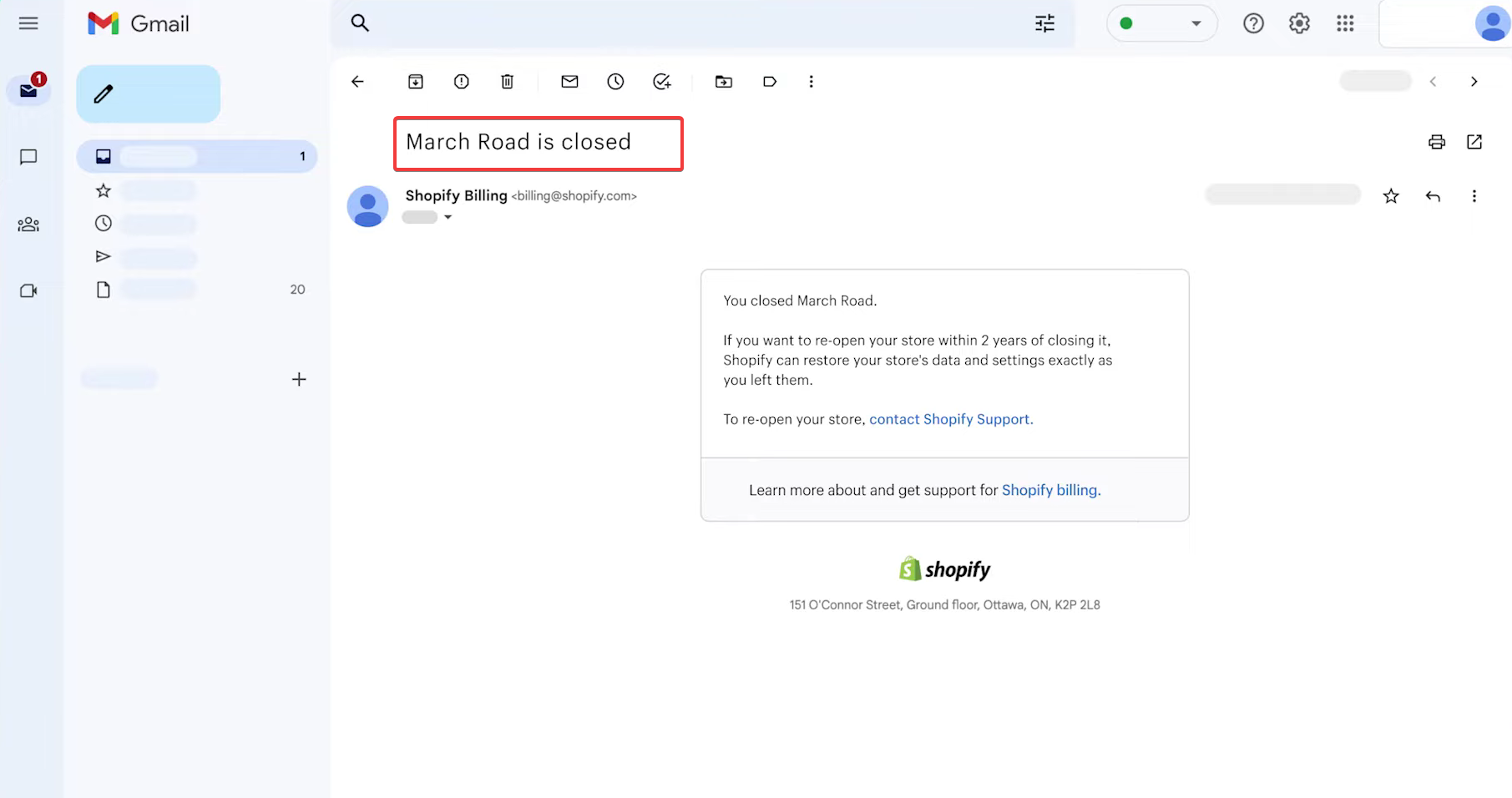
Once cancelled, Shopify will send a confirmation email. Keep this for your records. Verify the final charge matches your expectations and keep a copy of all communication in case of discrepancies.
Alternatives to Cancelling Your Shopify Subscription
Pause Your Shopify Store Temporarily
Pausing your store allows you to take a break without permanently shutting down. This option keeps your data intact, reduces costs, and gives you the flexibility to return when ready. You can resume full functionality later without rebuilding your store from scratch.
Downgrade to a Cheaper Plan
Downgrading is a great option if you want to maintain your store live but reduce monthly expenses. It’s ideal for small stores or businesses adjusting their budgets. Review what features might be limited on a lower plan and ensure it fits your business needs.
Export Your Store Data Before Leaving
Even if you’re fully cancelling, export all your products, customers, orders, and other data. This ensures a smooth transition if you decide to move to a different platform. Proper backups also protect your intellectual property and customer information.
What Happens After You Cancel Shopify Subscription
Access to Your Store After Cancellation
After cancellation, your store is no longer publicly accessible, but Shopify usually allows short-term access to export data. Make sure to complete all necessary downloads and note any important account details.
Refunds and Billing Information
Shopify generally does not provide refunds for partial months, so understanding your billing cycle is important. Any outstanding charges should be settled upon cancellation. Keep a record of all transactions to avoid billing confusion.
Reopening or Resuming Your Shopify Store
You can reactivate your store later by subscribing to a plan again. Note that some apps or settings may require reinstallation. If you have backups, restoring your store is much easier and ensures minimal downtime.
Conclusion
Summary of How to Cancel Shopify Subscription Safely
Cancelling Shopify doesn’t have to be intimidating. By backing up your data, checking billing, and carefully following the steps above, you can cancel your subscription safely. Consider alternatives like pausing or downgrading if cost or temporary needs are your main concern. Being prepared ensures a smooth transition and protects your business information.
Final Tips for a Smooth Cancellation Process
-
Double-check your billing cycle and final charges.
-
Keep multiple backups of your store data.
-
Read Shopify’s cancellation policy carefully to avoid surprises.
-
Explore alternatives like pausing or downgrading to maintain flexibility.
-
Document every step and confirmation for future reference.
Find More: Boost Your Sales With SEO Services
FAQs
1. Can I Cancel Shopify Anytime?
Yes, you can cancel your Shopify subscription at any time through your admin dashboard. While you won’t typically receive a refund for the remaining days of your billing cycle, you can plan your cancellation to minimize costs and avoid extra charges.
2. Will I Lose My Store Data After Cancelling?
You will lose public access, but exporting your products, customer data, order history, and images before cancellation ensures nothing is lost. Keeping your data organized also makes it easier to migrate to another platform.
3. How Do I Avoid Being Charged After Cancelling?
Confirm cancellation through the Shopify admin and check for a confirmation email. Ensure your payment methods are updated, no automatic charges remain, and that the cancellation has been processed fully.
4. Can I Reopen My Shopify Store Later?
Yes, reactivation is possible by selecting a new plan. While most core data can be restored if exported, certain apps or custom settings may need reconfiguration. Planning ahead helps make the process seamless.
5. Are There Alternatives to Fully Cancelling My Shopify Subscription?
Yes, pausing the store or downgrading to a lower plan are both excellent options. They reduce costs while keeping data intact and give you flexibility to resume full operations in the future.