...
UK: +44 2038074555 info@atamgo.com
MP3 vs MP4: 10 Differences to Finally Understand

MP3 vs MP4: 10 Differences to Finally Understand

mp3 vs mp4

Introduction: Understanding the Real Difference Between MP3 and MP4

When it comes to digital media formats, few debates are as common as MP3 vs MP4. Whether you’re organizing your music library, uploading videos, or converting files for your phone, you’ve probably seen both formats pop up everywhere. But what’s the real difference between MP3 and MP4? And more importantly — which one should you actually use?

In this guide, we’re going to break it all down in plain language. You’ll understand what each format is, how they work, their strengths, and their limitations. By the end, you’ll have a clear picture of when to use MP3 vs MP4 (and vice versa) depending on your needs. So, let’s dive in!

Find More: 7 Fast Ways to Convert WebM to MP4 (Without Losing Quality)

What Is MP3? – The World’s Most Popular Audio Format

How MP3 Compression Works

audio

MP3, short for MPEG-1 Audio Layer III, is one of the most widely used audio formats in the world. It became popular in the late 90s and early 2000s when digital music started taking off. The main reason? It compresses audio files to make them much smaller without a noticeable loss in sound quality. Basically, MP3 removes parts of the sound that our ears can’t easily detect — that’s called lossy compression. The result is a smaller file that still sounds good to most listeners.

Advantages of Using MP3 Files

MP3 files are lightweight, easy to share, and compatible with almost every device out there. Whether you’re using a smartphone, laptop, or even an old MP3 player, this format just works. It’s also perfect for streaming and downloading because it doesn’t eat up much storage or data.

Limitations of MP3 Format

However, MP3 isn’t perfect. Because it’s a lossy format, it sacrifices some audio quality during compression. For casual listening, this might not matter, but if you’re an audiophile or working with professional sound production, the difference can be noticeable. Another limitation is that MP3 only supports audio — no video, no images, and no subtitles.

What Is MP4? – More Than Just a Video Format

How MP4 Handles Audio and Video Together

Multiple Video and Audio Formats

MP4, also known as MPEG-4 Part 14, is a multimedia format that can hold audio, video, images, and even text like subtitles — all in one file. Think of it as a digital container rather than a single media format. Inside that container, you can have a variety of codecs (compression types) for different media types.

Benefits of the MP4 Format

The biggest benefit of MP4 is its flexibility. It’s perfect for streaming, storing videos, and even saving podcasts that include visuals. MP4 files are supported across almost all modern platforms — YouTube, TikTok, iTunes, Android, Windows, and iOS — making it the go-to format for video content.

Common Uses of MP4 in Streaming and Storage

You’ll find MP4 everywhere in the digital world. From online video platforms and video courses to movies and short social media clips, MP4 dominates. It’s not limited to video either; some people use it to store high-quality audio or music videos with lyrics embedded as text.

MP3 vs MP4 – 10 Key Differences You Must Know

1. File Type and Structure

The most obvious difference is that MP3 is strictly an audio format, while MP4 is a container format that can hold audio, video, and more. Think of MP3 as a music-only box, and MP4 as a multimedia suitcase.

2. Compression and Quality

MP3 uses lossy compression, meaning some data gets removed permanently. MP4 can also use lossy compression, but since it can store higher-quality audio (like AAC), it often provides better sound for the same file size.

3. Supported Media (Audio vs Multimedia)

MP3 only supports audio files. MP4 supports audio, video, images, and even text tracks. So, if you’re watching a video with subtitles, it’s probably MP4.

4. File Size and Storage Efficiency

MP3 files are smaller because they only carry audio data. MP4 files are usually larger since they contain multiple types of data — audio, video, and more.

5. Compatibility with Devices

Both formats are widely compatible, but MP3 has the edge in simplicity. Every device that can play music can handle MP3. MP4 works almost everywhere too, especially for video playback, but older audio devices might not recognize it.

6. Streaming and Playback Capabilities

MP4 is built for modern streaming. Platforms like YouTube and Netflix use MP4 because it efficiently handles both video and audio. MP3 is mainly for music and podcasts, where video isn’t needed.

7. Metadata and Subtitles Support

MP3 files can store basic metadata like artist name, album, and track info. MP4 goes further — it can include subtitles, thumbnails, chapters, and more advanced tags.

8. Use Cases and Applications

Use MP3 when you only need sound — for example, songs, audiobooks, and podcasts. Use MP4 for anything involving visuals or multimedia — like music videos, tutorials, or vlogs.

9. Editing and Conversion Flexibility

Editing MP3 is simple because it’s audio-only. Editing MP4 can be more complex, but it also gives you more creative freedom with video and sound. You can convert between MP3 and MP4 using free online converters or editing software.

10. Future Relevance and Popularity

MP3 will always have its place for music and audio storage, but MP4 is the future of multimedia. As video continues to dominate the internet, MP4 is only becoming more essential.

Which Format Should You Use – MP3 or MP4?

When to Choose MP3

Go for MP3 if your main focus is audio. It’s ideal for storing songs, recording podcasts, or sharing sound files quickly without worrying about file size.

When to Choose MP4

Choose MP4 when you need video or when audio quality is your top priority. MP4 is also great if you want to embed album art, lyrics, or subtitles — making it a more dynamic choice.

How to Convert Between MP3 and MP4 Easily

Converting between formats is easy. There are free online converters and apps that can turn an MP3 into an MP4 or the other way around. Just keep in mind that converting MP3 to MP4 won’t magically add video — it’ll still be audio-only unless you attach a visual component like an image or waveform.

Conclusion – MP3 vs MP4 Simplified

At the end of the day, mp3 vs mp4 isn’t about which is better overall — it’s about which is better for you. If you care about simplicity and small file sizes, MP3 wins. But if you need multimedia capabilities and modern versatility, MP4 takes the crown. The best way to decide? Try both. Convert your favorite audio or video files, compare them, and see which one fits your workflow or entertainment needs better. Once you understand what each format does best, choosing between MP3 and MP4 becomes effortless.

Find More: Boost Your Sales With SEO Services

FAQs

1. Is MP4 better than MP3 for music?

It depends on your priorities. If you want smaller files that work everywhere, go with MP3. If you want better quality and are okay with slightly larger files, MP4 (with AAC audio) might sound better.

2. Can MP3 files contain video?

No, MP3 files can only contain audio data. If you want both video and audio together, you’ll need an MP4 file or another multimedia format.

3. Why are MP4 files usually larger than MP3?

MP4 files can hold more than just audio — they may include video, subtitles, and images, which all take up extra space.

4. How can I convert MP3 to MP4 or vice versa?

You can use free online converters or apps like VLC Media Player, Audacity, or dedicated file conversion tools. The process usually takes just a few clicks.

5. Which format offers better quality for mobile devices?

Both perform well, but MP4 with AAC compression often delivers clearer sound on mobile devices while still keeping file sizes reasonable.

Tags:
What Is Micro SaaS? The Future of Niche Software Businesses in 2025

What Is Micro SaaS? The Future of Niche Software Businesses in 2025

Have you ever wondered how companies in the small software industry are earning colossal profits with no huge teams or investors? That is the magic in the Micro SaaS, the lean and focused brother of the old SaaS businesses.

It is one of the most interesting trends redefining the startup ecosystem at the link building agency  FHSEOHub, the new frontier in the latest of SEO, digital marketing, and SaaS innovation. It could be the model that can make you a success whether you are a solopreneur, developer or digital marketer and need to create something scalable but easily manageable.

Learning the SaaS and Micro SaaS Difference

Let us get out of the way: what is the difference between SaaS and Micro SaaS?

  • SaaS-based (Software as a Service) businesses such as HubSpot, Slack and Salesforce are large-scale platforms serving wide markets. They need enormous teams, large amounts of money and infrastructure.
  • This Saas, in its turn, is aimed at a particular problem or niche market. It is usually constructed and operated by 1 or two individuals. Would it be the smallest, brightest, and very profitable SaaS?
  • An illustration is as follows: rather than developing an all-in-one CRM, a SaaS founder can create a basic plug-in that monitors Google Ads leads.

Why Is It Trending in 2025

The simplification and accuracy are the way startups and freelancers are turning in the digital landscape, which is becoming more competitive. Ideas of micro-SaaS startups in 2025 are going on due to:

  • There is no high barrier to entry you do not require millions of funding.
  • With the help of automation and AI, it becomes possible to run operations individually.
  • Remote tools enable an individual to operate a whole business.
  • Special solution is accepted by niche audiences.

It is the dream of the developers, online marketers, and creators who do not want to work with big teams and to take care of them. This rise of niche-specific software isn’t limited to digital marketing. Trade and construction professionals increasingly rely on hyper-focused tools too. For example, ArcSite’s deck estimating software enables contractors to sketch deck layouts, calculate materials, and generate accurate estimates on-site — a perfect example of how specialized micro-SaaS solutions provide outsized value by solving one problem exceptionally well.

Micro Saas Startup Ideas For 2025

Seeking micro-SaaS innovation which will launch in 2025? These are some of the new niches to consider:

Artificial Intelligence Content Optimization Software

As the key to online success is established through the process of SEO and digital marketing, content-analyzing AI that works with other services such as WordPress or Shopify is a trend.

Dashboards of Automated Reporting

Imagine a tool, which is connected to Google Analytics, Meta Ads and SEO platforms to create automatic reports to the marketers.

Management Plugins Subscription management plugins facilitate the management of subscriptions.

A software add-on that helps to get recurring payments to freelancers or small creators.

Micro SaaS to Email Outreach

An email personalization Chrome extension that helps digital marketers use LinkedIn data to personalize cold emails.

Niche SEO Rank Tracker

A ranking tracker that is focused on a given market such as local businesses or e-commerce brands.

The Micro SaaS Anatomy

To create one, the following is what makes it successful:

  • Minimal Overhead: You do not have to have an office or large staff.
  • Concentrated Solution: specialize in one thing and make it excellent.
  • Automation: Reduce manual work with the help of tools and AI.
  • Scalability: And sell once, build forever.

The digital marketing insights offered by FHSEOHub can even be used to introduce and market your product.

How Does it Work?

It is similar to any other software company – people pay a subscription fee to have unlimited access to your product. Its difference is in the simplicity and lean form.

Here’s the process:

  • Find a problem niche (e.g., bloggers that have issues with SEO titles).
  • Create an information lightweight tool to deal with that issue.
  • Introduce it with the help of online marketing techniques, such as SEO, content marketing, or PPC.
  • Growth by word of mouth or affiliate program.

You do not need 100,000 users, even 500 paying subscribers will help your business become profitable.

Successful Marketing Strategies

The most brilliant micro-SaaS concepts do not work without marketing. The following is the way to market your startup:

SEO and Content Marketing

Produce content on problems that your software addresses. Positioning in Google on niche keywords (such as AI content checker to bloggers).

Leverage SaaS Directories

Post your product on such sites as Product Hunt, G2, and AppSumo. These platforms will be able to generate early traction.

Influencer Marketing and Email

Contact micro-influencers and small companies that may be interested in your tool.

Freemium Models

Provide a free access to your SaaS. As soon as users realize the value, they will move up to paid plans.

How to Test a Micro SaaS Idea?

Asking yourself whether your idea is going to work or not? And here is an explanation of how to debug it out first before you write months in code:

  • Research the Market: Visit Reddit, Facebook communities, and Quora in order to identify common issues.
  • Design a prototype (Minimum Viable Product): Develop a simple one with no-code applications, such as Bubble or Glide.
  • Get Feedback: Provide it with no charge to early adopters, and take feedback.
  • Pricing Test Models: Try monthly pricing, lifetime pricing and or tier pricing.

Conclusion

This SaaS is an invention that heralds the new era of digital entrepreneurs. With creators being able to focus on particular issues and finding solutions that scale efficiently with minimal investment, creators are able to create a high-revenue business.

Knowing the distinction between SaaS and Micro SaaS will make you understand the strength of simplicity less complexity, greater control and quicker outcomes.

We are sure that the future of the FHSEOHub is in the hands of nimble innovators who employ clever tools, SEO, and automation to make a difference. And, having the right attitude, your SaaS concept might become the next in the list of successful stories.

FAQs

How does Micro SaaS work?

It is a slimmed down SaaS that serves only one purpose to a narrow niche audience. It is usually founded and operated by one or small groups of people.

How to validate a Micro SaaS idea?

Begin with identifying pain points, create a bare-bones version of your product, test it with real users and then polish what you have created based on the feedback.

How to launch a profitable Micro SaaS with low budget?

Development Use no-code Development, marketing Use organic SEO, scaling Use automation. This ensures the cost is kept at a minimum and profit maximized.

5 Best HDToday.tv Legal Alternatives That You Should Use

5 Best HDToday.tv Legal Alternatives That You Should Use

Introduction: What Is HDToday.tv and Why People Are Searching for Legal Alternatives

hdtoday.tv is one of those streaming sites that popped up out of nowhere and quickly gained massive attention. People loved how easy it was to find movies and TV shows without paying a dime. You could type in almost any title, and boom—it was there, ready to stream. Many users also searched for related versions like hdtoday tv, hdtoday.tv app, hdtoday-tv, and even hdtoday. tv. But here’s the problem: as popular as HDToday.tv is, it’s not exactly a legal or safe way to watch your favorite shows. These types of sites often host pirated content, which means watching from them could put you at risk of viruses, annoying popups, or even legal trouble. That’s why so many people are now looking for legal alternatives that offer the same streaming freedom—without the risks. Luckily, there are a few amazing and completely legitimate platforms that give you high-quality entertainment safely and legally. Let’s go through the best ones.

Find More: 7 Fast Ways to Convert WebM to MP4 (Without Losing Quality)

1. Netflix – The Safest and Most Popular HDToday.tv Alternative

Netflix

When people think of streaming, Netflix instantly comes to mind—and for good reason. It’s easily the most well-known and reliable legal alternative to HDToday.tv. With thousands of movies, TV shows, and documentaries, Netflix has something for everyone. From trending originals like Stranger Things and The Witcher to timeless classics and hidden gems, the platform constantly updates its library so there’s always something new to watch.
You can check it out here: Netflix Official Site

Why Netflix Is the Go-To Legal Streaming Platform

Netflix gives you a premium streaming experience without worrying about ads or legal issues. It’s supported on every device imaginable—smart TVs, laptops, tablets, and even phones. Whether you’re into romance, horror, or comedy, Netflix has categories tailored to your taste.

Best Features You’ll Love

  • Massive global library with high-quality content

  • Award-winning Netflix Originals

  • Personalized recommendations

  • Multiple device streaming

  • Offline viewing option

Subscription Plans and Availability

Netflix offers different plans depending on your budget and desired video quality. Prices vary by country, but you can expect options for both HD and 4K streaming. Plus, you can cancel anytime—no strings attached.

2. Amazon Prime Video – A Powerful HDToday.tv Alternative with Exclusive Originals

Amazon Prime Video is another powerhouse in the streaming world. It’s one of the best HDToday.tv alternatives if you’re after exclusive movies and shows that aren’t available anywhere else. From The Boys to The Lord of the Rings: The Rings of Power, Amazon invests heavily in original content that keeps getting better every year.
Visit it here: Amazon Prime Video

What Makes Amazon Prime Video Stand Out

Aside from offering a great mix of movies, series, and documentaries, Prime Video also allows you to rent or buy newly released films that aren’t yet available on streaming. It’s the perfect blend of subscription and on-demand entertainment.

Top Shows and Movies You Can Watch

  • The Boys

  • Jack Ryan

  • Invincible

  • Reacher

  • Good Omens

Pricing and Free Trial Details

If you already have an Amazon Prime membership, Prime Video is included for free. Otherwise, you can subscribe separately and even test it with a 30-day free trial to see if it’s right for you.

3. Hulu – The Best HDToday.tv Alternative for TV Series Fans

If your main reason for visiting HDToday.tv was to binge TV shows, then Hulu will probably become your new favorite. It focuses heavily on current TV series, with next-day access to new episodes from major networks. You can watch everything from The Handmaid’s Tale to Brooklyn Nine-Nine and tons of reality TV and anime.
Visit Hulu here: Hulu Official Website

What Content Hulu Offers That HDToday.tv Doesn’t

Hulu doesn’t rely on pirated content—it has official licensing deals with major studios and networks. That means you’re getting the latest and greatest shows safely and in high quality.

Pros and Cons of Using Hulu

Pros:

  • Excellent for TV lovers and binge-watchers

  • Great mix of live TV and on-demand content

  • Affordable with flexible plans
    Cons:

  • Not available in all countries

  • Ads in the basic plan unless you upgrade

How to Access Hulu from Any Country

If Hulu isn’t available in your region, you can use a reliable VPN to access it safely. Just make sure you’re using it within legal guidelines for personal streaming.

4. Disney+ – A Family-Friendly HDToday.tv Alternative for All Ages

Disney+ is perfect if you’re looking for something safe, family-friendly, and filled with blockbuster hits. It’s one of the most popular streaming platforms in the world, bringing you all the magic of Disney, Pixar, Marvel, Star Wars, and National Geographic in one place.
Visit it here: Disney+

What You Can Stream on Disney+

Whether you’re watching The Mandalorian, Loki, or Encanto, Disney+ guarantees high-quality, ad-free entertainment. Plus, it keeps expanding its catalog every month.

Why Disney+ Is Worth It for Movie Lovers

The visual quality, smooth streaming, and huge library of family-safe content make it a perfect legal alternative to hdtoday.tv. You can also download movies for offline viewing, so it’s great for travel or when your Wi-Fi is acting up.

Subscription Options and Device Compatibility

Disney+ offers flexible plans—monthly or annual—and supports almost every device, from smart TVs and gaming consoles to smartphones and tablets.

5. Tubi TV – The Best Free HDToday.tv Legal Alternative

Tubi

Now let’s talk about the best part—a free legal option. Tubi TV is a fantastic platform that offers thousands of movies and TV shows completely free. Unlike HDToday.tv, it’s 100% legal because it’s ad-supported, meaning you watch short ads instead of paying.
Check it out here: Tubi TV

Why Tubi TV Is a Hidden Gem Among Free Streaming Sites

Tubi partners with big studios like Paramount, Lionsgate, and MGM, which means you’re getting real, licensed content. The app works perfectly on all devices, including smart TVs and mobile phones.

How Tubi Stays 100% Legal and Safe

It’s simple—Tubi makes money through ads instead of pirated content. You never have to worry about malware or pop-ups that come with illegal streaming sites like hdtoday tv or hdtoday. tv.

What to Expect from Its Content Library

While you won’t find every blockbuster, you’ll get a surprisingly diverse selection—comedies, dramas, horror films, and even anime.

How to Choose the Right HDToday.tv Alternative for You

Choosing a streaming platform depends on your preferences. If you want premium originals and high-quality exclusives, Netflix and Amazon Prime Video are unbeatable. For TV show addicts, Hulu is a top pick. If you have a family or love Marvel and Star Wars, Disney+ is a must. And if you want something free and safe, Tubi TV delivers amazing value.

Factors to Consider Before Switching

  • Your budget and willingness to pay for premium content

  • The type of shows or movies you prefer

  • Device compatibility (smart TV, mobile, console)

  • Whether you want ad-free streaming or don’t mind ads

Comparing Paid vs. Free Legal Options

Paid services like Netflix and Disney+ offer premium quality and zero ads. Free platforms like Tubi rely on ads, but they’re still 100% safe and legal. It all depends on what you value more—price or convenience.

Tips for Safe and Ad-Free Streaming

  • Always use official apps or websites

  • Avoid clicking pop-up ads or unknown links

  • Use antivirus protection and update your browser regularly

  • Stick to trusted legal platforms only

Conclusion: Stream Smart — Pick Legal Alternatives to HDToday.tv

At the end of the day, while HDToday.tv might look tempting, it’s not worth the risks that come with illegal streaming. You can enjoy everything you love—movies, shows, documentaries—without worrying about malware, pop-ups, or copyright violations. The five platforms above—Netflix, Amazon Prime Video, Hulu, Disney+, and Tubi TV—give you everything HDToday offered and more, but safely and legally. So, stream smart and switch to a platform that respects your privacy and your peace of mind.

Find More: Boost Your Sales With SEO Services

FAQs

1. Is HDToday.tv legal to use?

No, HDToday.tv isn’t a legal platform. It hosts pirated content, which makes it risky and potentially illegal depending on your country’s copyright laws.

2. Can I watch HDToday.tv content without getting in trouble?

Technically, streaming from illegal sources can expose you to legal and cybersecurity issues. It’s always better to stick with legitimate streaming services.

3. What are the safest HDToday.tv alternatives in 2025?

The safest and most reliable alternatives are Netflix, Amazon Prime Video, Hulu, Disney+, and Tubi TV—all of which are 100% legal and secure.

4. Do I need a VPN to watch these legal streaming platforms?

In most cases, no. However, if a certain platform isn’t available in your region, using a VPN can help you access it safely and legally.

5. Are there any 100% free and legal movie streaming sites like HDToday.tv?

Yes, Tubi TV is completely free and legal. It’s ad-supported, which means you can watch as much as you want without paying a cent.

Tags:
7 Fast Ways to Convert WebM to MP4 (Without Losing Quality)

7 Fast Ways to Convert WebM to MP4 (Without Losing Quality)

convert webm to mp4

Introduction: Why You Might Need to Convert WebM to MP4

If you’re searching for how to convert WebM to MP4, you’re definitely not alone. WebM files are amazing for web-based videos because they’re lightweight, open-source, and specifically designed for streaming on browsers. But as great as they are, they’re not always compatible with every platform, device, or video editor. Maybe you tried to upload one to Instagram and it failed, or perhaps your video editor refused to recognize the file. That’s when you realize: it’s time to convert your WebM file to MP4.

The MP4 format is basically the universal language of video. Whether you’re watching on Windows, Mac, iPhone, or Android — or uploading to social platforms like YouTube and TikTok — MP4 just works. It also offers excellent compression without sacrificing too much quality. The good news? You can convert WebM to MP4 without losing quality if you use the right settings. In this article, we’ll explore 7 fast, reliable, and practical methods to get the job done — from quick online converters to professional-level software. By the end, you’ll know exactly which option suits your needs best.

Find More: 9 Free MPG to MP4 Converters That Actually Work (No Watermark!)

1. Use an Online Converter to Convert WebM to MP4 Instantly

How Online Converters Work

If you just need a quick fix, an online WebM to MP4 converter is perfect. These tools let you upload your WebM file directly from your computer or cloud storage, select MP4 as your desired output format, and download the finished video — all without installing a single program. It’s ideal for one-time conversions or if you’re using a shared computer.

Pros and Cons of Online Tools

The biggest advantage is convenience. You can access these converters on any device with an internet connection. They’re often free and super easy to use. However, there are trade-offs: some have upload limits, slow processing times, or may compress your video quality if they’re using basic encoding. Always stick to trusted sites to avoid privacy or security risks.

Recommended Free Online Converters

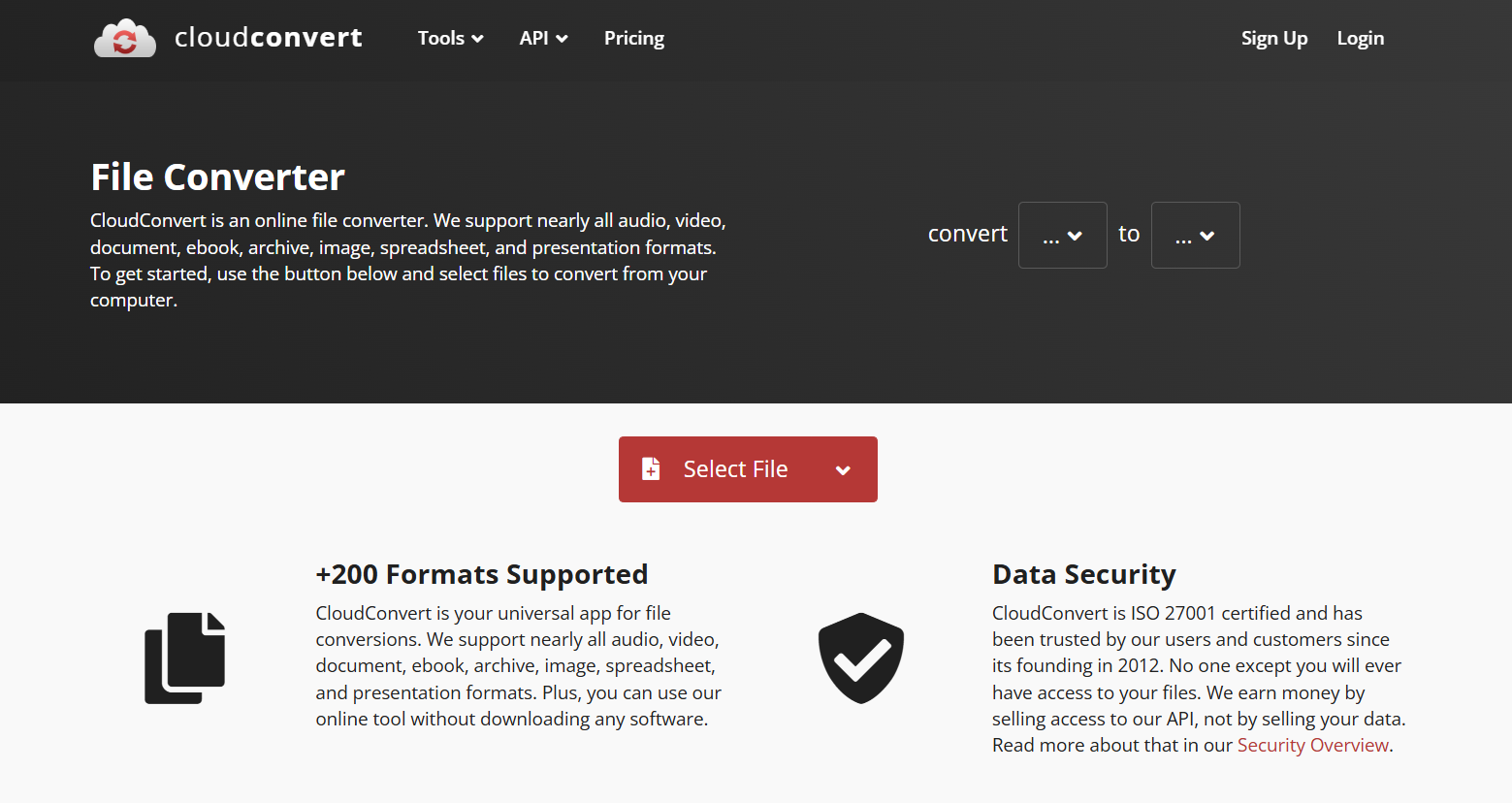
  • CloudConvert – Great for both speed and customization, supports various formats.
  • Convertio – Simple drag-and-drop interface, quick processing, and cloud integration.
  • FreeConvert – Reliable, no sign-up required, supports batch conversions.

If you’re converting small or medium-sized videos and don’t need advanced options, these online tools are your best bet. For larger files, you might want to use a desktop converter.

2. Convert WebM to MP4 Using VLC Media Player

Step-by-Step Guide with VLC

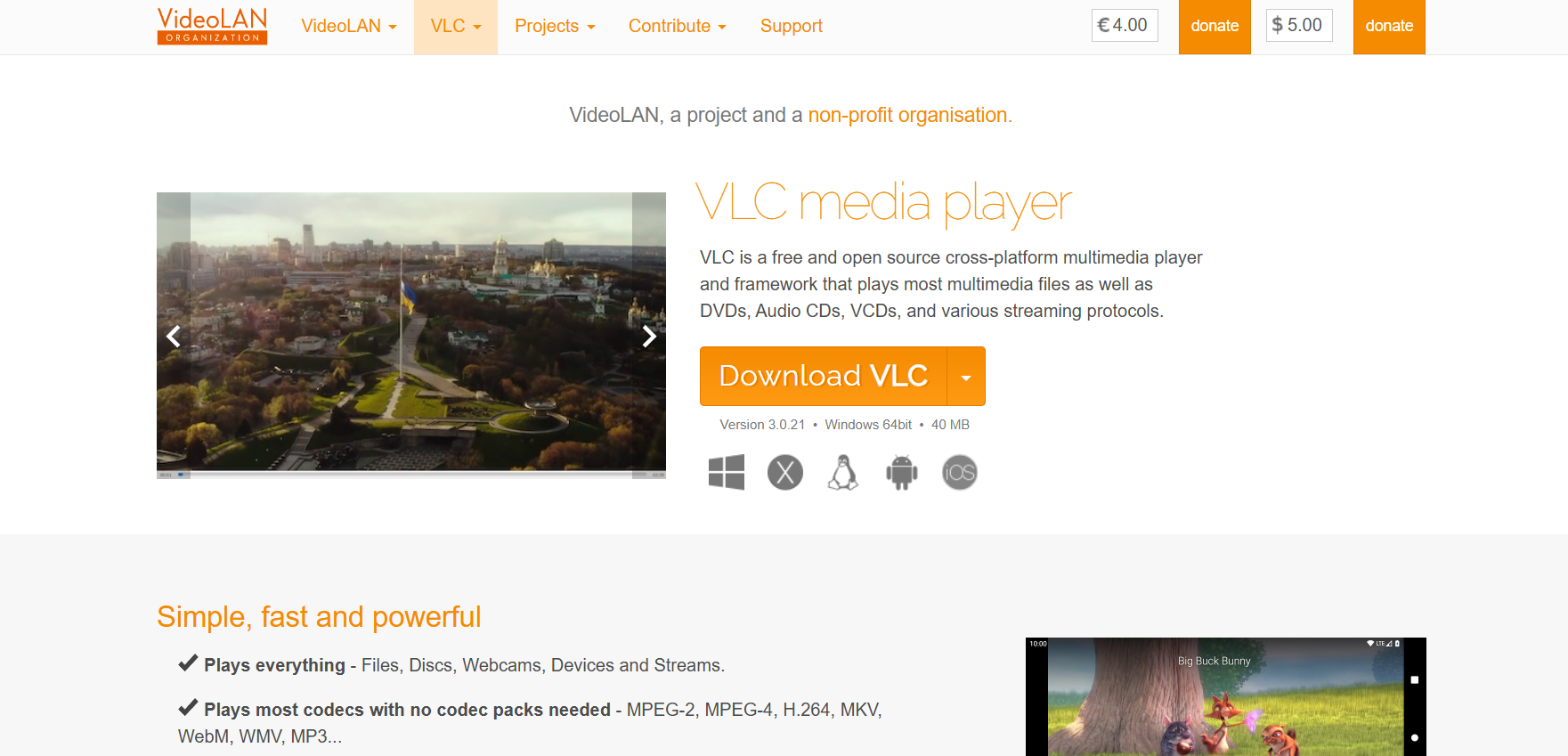
VLC Media Player

Most people don’t realize that VLC Media Player can do much more than play videos. It can also convert them easily. Here’s how you do it:

  1. Open VLC and click on Media > Convert/Save.
  2. Click Add and select your WebM video.
  3. Press Convert/Save again.
  4. Under Profile, select Video – H.264 + MP3 (MP4).
  5. Choose the output folder and click Start.

VLC will process the file and create an MP4 version without you needing any plugins or additional software.

How to Preserve Video Quality During Conversion

To ensure you don’t lose quality, go to Settings > Video Codec and match the bitrate and frame rate of your original WebM video. If your video is 1080p at 30fps, keep those same settings. Also, avoid lowering the resolution — that’s the fastest way to ruin visual clarity.

3. Convert WebM to MP4 with HandBrake (Free & Open Source)

Downloading and Setting Up HandBrake

HandBrake

HandBrake is one of the best free tools for anyone who wants full control over the conversion process. It’s open-source, reliable, and works on Windows, macOS, and Linux. Download it from handbrake.fr, install it, and open your WebM file.

Best HandBrake Settings for High-Quality MP4 Output

Inside HandBrake, choose MP4 as your output container. Then:

  • Set Video Codec to H.264 (x264) for maximum compatibility.
  • Keep Constant Quality between 18 and 22 — lower numbers mean higher quality.
  • Enable Web Optimized if you plan to upload the video online.
  • Maintain the original resolution and frame rate.

Press Start Encode, and within moments, your new MP4 file will be ready. HandBrake’s smart compression ensures your final video looks great while keeping file size reasonable.

If you’re handling multiple files, use its batch feature — you can convert entire folders in one go.

4. Use FFmpeg to Convert WebM to MP4 via Command Line

Basic FFmpeg Command for WebM to MP4 Conversion

FFmpeg

For tech-savvy users, FFmpeg is the most powerful option out there. It’s a command-line tool that can convert nearly any video format. The basic command is:

ffmpeg -i input.webm -c:v copy -c:a aac output.mp4

This tells FFmpeg to copy the video stream without re-encoding it, ensuring you don’t lose quality during conversion.

Advanced FFmpeg Options to Optimize File Size and Quality

If you want to fine-tune your conversion, try this command:

ffmpeg -i input.webm -vcodec libx264 -crf 20 -preset slow -acodec aac output.mp4

Here’s what’s happening:

  • libx264 ensures top-notch H.264 encoding.
  • CRF 20 balances quality and compression (lower CRF = better quality).
  • Preset slow improves output efficiency.

FFmpeg gives you surgical control over every aspect of conversion — perfect for professionals or anyone who values precision.

5. Convert WebM to MP4 on Windows (Built-In and Third-Party Options)

Using Windows Photos App or Movies & TV App

While Windows doesn’t have a native “convert” button, it does offer some workarounds. You can open a WebM video in the Photos app, click Edit & Create, and select Save a Copy — some versions automatically export as MP4. It’s not ideal for large-scale conversions but can work for quick fixes.

Best Free Software for Windows Users

If you prefer something more robust, here are great tools to try:

  • Any Video Converter – Offers customizable presets for every device.
  • Wondershare UniConverter – Perfect for large batches and supports 4K conversion.
  • Format Factory – A classic choice that handles audio, video, and image conversions.

Each of these tools allows you to adjust settings like bitrate, codec, and resolution, helping you achieve the perfect balance between file size and clarity.

6. Convert WebM to MP4 on Mac Without Losing Quality

Using QuickTime and iMovie

Mac users have it easy thanks to Apple’s built-in apps. With QuickTime, you can open WebM files (with a plugin such as Perian or WebM components) and export directly as MP4. For a bit more control, import your WebM video into iMovie, make any edits you want, then click Share > File and select MP4 as the export format.

Recommended Free Mac Converters

  • Permute – A simple yet powerful app that supports drag-and-drop.
  • Adapter – Ideal for batch processing and supports multiple output formats.
  • HandBrake – Works perfectly on macOS and gives full conversion control.

For most Mac users, Permute is the easiest option if you just need fast results without complex settings.

7. Convert WebM to MP4 on Mobile (iPhone & Android)

Best iOS Apps for WebM to MP4 Conversion

If you’re on iPhone, apps like The Video Converter or Media Converter are reliable. Upload your WebM video, select MP4 as the target format, and let the app handle the conversion. You can even send the output directly to your Photos app or cloud storage.

Top Android Apps for Fast Video Conversion

Android users can turn to VidCompact, Video Converter Android, or InShot Converter. They offer simple sliders for adjusting resolution and bitrate, and some even support background processing so you can multitask while your video converts.

Pro tip: When converting on mobile, always connect to Wi-Fi to avoid data usage spikes.

Tips to Maintain the Best Video Quality During Conversion

Recommended Output Settings (Bitrate, Resolution, Codec)

If you care about clarity, the secret lies in your settings. Use these as a guide:

  • Bitrate: For HD videos, aim between 3,000–8,000 kbps.
  • Resolution: Stick to the original (1080p, 720p, etc.).
  • Codec: Choose H.264 or H.265 — both deliver excellent results.
  • Frame rate: Match the source; don’t drop it unnecessarily.

Common Mistakes That Reduce Video Quality

  • Using free converters that compress excessively.
  • Changing aspect ratio or resolution randomly.
  • Converting the same file multiple times.
  • Forgetting to check audio settings, leading to muffled sound.

Consistency is key. One well-done conversion with the right settings always beats three poor ones.

Conclusion: Choose the Right Way to Convert WebM to MP4 for You

Now that you know all the main methods to convert WebM to MP4, the next step is deciding which one fits your workflow. If you just want something quick, online converters are fast and convenient. If you’re serious about quality or converting in bulk, use HandBrake or FFmpeg for more precision.

Whatever you choose, remember — the goal isn’t just to change the format, but to preserve your video’s quality and accessibility. Once you’ve found your favorite method, bookmark it or install the tool. That way, you’ll always be ready to convert any WebM file to MP4 without stress.

Find More: Boost Your Sales With SEO Services

FAQs

1. Does converting WebM to MP4 reduce video quality?

It can, but it doesn’t have to. If you use professional converters like HandBrake or FFmpeg and keep your bitrate and resolution consistent, you won’t notice any loss in clarity. Avoid cheap or unverified online tools that compress too heavily.

2. Can I convert WebM to MP4 without installing software?

Yes, absolutely. Websites like CloudConvert, Convertio, and FreeConvert work directly in your browser. They’re perfect for quick jobs — just upload, choose MP4, and download the result.

3. What is the fastest way to convert WebM to MP4 on PC?

If you want speed, FFmpeg is unbeatable. Its “copy” command converts almost instantly. For beginners, VLC Media Player offers a more visual interface with solid results.

4. Is MP4 better than WebM for uploading to social media?

Yes. Most social platforms — like YouTube, Facebook, and Instagram — prefer MP4. It’s more widely supported, processes faster, and delivers consistent playback on all devices.

5. Are there any size limits for online WebM to MP4 converters?

Most free tools limit file sizes to between 100MB and 1GB. For larger files, desktop tools like HandBrake or Wondershare UniConverter are far better choices since they handle massive files without compression issues.

What Cyber Readiness Looks Like in the Age of AI Threats

What Cyber Readiness Looks Like in the Age of AI Threats

If an AI can write code, generate a voice clone, and fake an entire conversation, how do you know what’s real anymore—especially in your network?

That’s the new cybersecurity problem. It’s not just about stopping a file from executing or keeping your passwords safe. It’s about facing threats that think faster, hide better, and evolve on their own. Artificial intelligence is no longer a tool used only by security teams. It’s in the hands of attackers now. And it’s changing the rules.

This shift doesn’t just affect large corporations. Small businesses, schools, hospitals, and local governments are all fair game. With deepfakes, AI-generated phishing emails, and adaptive malware, even cautious users are getting caught off guard. The reality is simple: cyberattacks aren’t just smarter—they’re faster, more targeted, and harder to detect until it’s too late.

In this blog, we will share what true cyber readiness means today, how organizations are adapting, and what steps you can take to stay ahead of AI-powered threats.

From One-Time Threats to Ongoing Campaigns

Traditional cyberattacks used to be events. Someone clicked a link. Malware got in. The IT team cleaned it up. Case closed.

That model is outdated.

Today, AI allows attackers to launch ongoing campaigns. They’re probing defenses constantly. They’re testing different angles, waiting for just one weak moment. Sometimes, they don’t even need to trick a user. They can just exploit a misconfigured endpoint or an outdated credential set.

This is why modern readiness isn’t about having one good tool. It’s about having a connected, active system. That’s where Heimdal becomes relevant. Their unified approach to cybersecurity gives teams more than alerts. It provides real-time visibility, automated responses, and tools that adapt just as fast as the threats do.

For example, AI-generated phishing attacks now use language that mirrors a company’s tone. Instead of “urgent wire transfer,” it might sound like your boss actually wrote it. Heimdal’s email security modules are built to spot subtle signs of fraud—like domain impersonation or slightly altered sender details. These aren’t red flags you’d catch with a casual glance. But AI catches them, so your system has to be just as smart.

And that’s just the surface. Readiness today means visibility from the endpoint to the cloud, because threats don’t respect silos.

Speed Isn’t Optional Anymore

When people talk about threat detection, what they really mean is timing. How quickly can you notice something’s wrong? How fast can you isolate it? Can you shut it down before it spreads?

AI threats don’t wait. They don’t take weekends off. So if your system still depends on manual responses or once-a-day scans, you’re already behind.

Modern cyber readiness starts with automation. But not just any automation. You need layered defense that responds before a human can. For example, if ransomware starts encrypting files at 3:00 AM, your system can’t wait for someone to wake up. It has to detect abnormal behavior, lock down access, isolate the device, and notify the team—instantly.

That’s where intelligent endpoint protection comes in. Not all antivirus tools are built for speed at scale. The best platforms monitor activity, not just files. They notice when an application suddenly starts accessing sensitive folders. They flag when an employee logs in from two locations at once. And they take action before the damage spreads.

This isn’t about being paranoid. It’s about acknowledging that time is the most valuable asset in a breach.

Training Humans for a Machine-Led World

Let’s be honest. You can have the best tools in the world, but one distracted employee can bring it all down.

Cyber readiness isn’t just technical. It’s cultural. That means training employees to recognize AI-powered threats, think critically about unexpected messages, and question unusual requests—even if they appear to come from the top.

Take deepfake audio as an example. In one case, a company wired funds after receiving a call that sounded like their CEO. It wasn’t him. It was an AI-generated clone. The voice was accurate. The context sounded real. But the timing was just a little off.

Employees need to be trained to spot those little inconsistencies. A request that bypasses standard channels. A message with no paper trail. Even a voice call that feels rushed or out of character.

Security awareness training used to be a once-a-year video. Now, it needs to be part of weekly culture. Real-world examples. Practice phishing tests. Micro-drills. Teams that expect threats are better at resisting them.

Every Weak Link Is Now a Target

With AI in the mix, attackers don’t need a huge vulnerability. They just need one weak spot. That could be an old VPN configuration, a missed software update, or a forgotten contractor account.

Inventory is part of readiness. If you don’t know what’s running, what’s exposed, or what’s still active in your environment, you’re not ready. Shadow IT—apps and services that aren’t officially tracked—is a growing problem. And AI tools can scan the web for exposed credentials or overlooked entry points in seconds.

Strong organizations run regular audits. They keep patch management on a tight schedule. They monitor inactive accounts. And most importantly, they centralize oversight so nothing gets missed across departments or teams.

If your systems are scattered, your risk multiplies.

Resilience Is the Real Goal

Readiness isn’t about avoiding every breach. That’s impossible. It’s about minimizing impact. Recovering fast. Learning quickly. Adapting faster than the attacker.

Think of it like disaster preparedness. You can’t stop a storm, but you can have a plan for it. You know where the supplies are. You know how to reach people. You know what to fix first.

Cybersecurity works the same way. When an AI-generated attack hits, readiness means your response is smooth. Not perfect. Just fast and decisive.

You isolate the damage. You contain the risk. You communicate clearly. And you get back to business.

That level of resilience only happens with preparation. With unified tools. With teams that train often. And with systems that talk to each other without delay.

What Comes Next

AI threats aren’t going away. They’re only getting better, faster, and more convincing. But that doesn’t mean they’re unbeatable.

With smart tools, smart people, and smart strategy, your organization can stay ready. Not reactive. Not afraid. Just prepared.

Cyber readiness in the AI era isn’t a one-time project. It’s a mindset. One that says, “We’re watching. We’re learning. And we’re ready before you even hit send.”

7zip vs WinRAR: The Ultimate Compression Showdown (Who Really Wins?)

7zip vs WinRAR: The Ultimate Compression Showdown (Who Really Wins?)

7zip vs winrar

Introduction: 7zip vs WinRAR — Which File Compressor Truly Delivers?

If you’ve ever downloaded large files, backed up your system, or sent a project folder to a client, you’ve probably faced the classic question: 7zip vs WinRAR — which one should you use? Both are legends in the world of file compression, but they take very different paths to get the job done. And let’s be honest — you’ve probably been using one of them for years without ever wondering if the other might be better. Today, we’re going to find out.

In this ultimate showdown, we’ll dig into everything that makes these tools great (or not-so-great): compression performance, speed, ease of use, features, and value. By the end, you’ll know exactly which one fits your workflow best. Let’s unpack it.

 Find More: 7 Best YT to WAV Converters That Deliver Studio-Quality Sound Instantly

What Is 7zip?

A Quick Overview of 7zip

files

7zip has been around since 1999, created by Igor Pavlov, and it’s completely free and open-source. That’s a big deal. You can use it for personal or commercial use without worrying about licenses or payments. It supports most of the popular formats like ZIP, TAR, GZIP, and its own 7z format, which is known for its incredible compression ratio.

Key Features of 7zip

One of the reasons people love 7zip is how lightweight it is. It doesn’t clutter your system or slow things down. But what really stands out is its high compression ratio. When you compress files in the .7z format, you often end up with smaller files than if you used ZIP or RAR.

Another advantage? 7zip integrates perfectly with Windows Explorer, so you can right-click on any file and instantly compress or extract it. Plus, it supports AES-256 encryption — one of the strongest encryption standards out there.

Pros and Cons of 7zip

Pros:

  • 100% free and open-source
  • Excellent compression ratio (especially with .7z format)
  • Strong AES-256 encryption
  • Lightweight and fast

Cons:

  • The interface is a bit outdated
  • Limited advanced settings compared to WinRAR
  • Some people find it less intuitive for beginners

What Is WinRAR?

winrar

A Quick Overview of WinRAR

WinRAR is practically a household name. It’s been the go-to file compressor for millions of people since the early 2000s. Developed by Eugene Roshal, it introduced the proprietary .RAR format, which quickly became popular for its balance between speed and efficiency.

Unlike 7zip, WinRAR isn’t open-source. It comes with a 40-day trial, but here’s the funny part: it never really expires. You can technically use it forever even after the trial ends (though you’ll get that infamous reminder pop-up).

Key Features of WinRAR

WinRAR supports a wide variety of formats, including RAR, ZIP, and CAB. It’s also known for its file recovery feature, which can repair damaged archives — something 7zip doesn’t do quite as well.

Its interface is a bit more polished than 7zip’s, and it gives you more control over compression levels, file splitting, and password protection. It’s also available on Windows, macOS, and Linux.

Pros and Cons of WinRAR

Pros:

  • Excellent file recovery feature
  • More user-friendly interface
  • Strong compression and encryption
  • Handles corrupted files better

Cons:

  • Technically paid software (even if you never pay)
  • Slightly slower compression than 7zip in some tests
  • Uses more system resources

7zip vs WinRAR — Head-to-Head Comparison

Compression Speed and Efficiency

When it comes to raw compression performance, 7zip often wins. In most tests, 7zip produces smaller file sizes than WinRAR, especially when using the .7z format. However, WinRAR can sometimes be faster when dealing with very large files or archives with mixed content (like videos and documents together).

If your goal is maximum compression and you don’t mind waiting a few extra seconds, go with 7zip. If speed matters more than a few megabytes, WinRAR holds its own.

File Format Support

7zip supports a wide range of formats, but it shines with its own .7z format. WinRAR, on the other hand, supports both .RAR and .ZIP, which are more universally recognized. If you often share compressed files with others, WinRAR might have a slight edge because not everyone has 7zip installed.

Ease of Use and Interface

This one depends on personal taste. 7zip’s interface is minimalist — it gets the job done, but it looks like it hasn’t changed since 2005. WinRAR’s interface, while still old-school, feels a bit more intuitive and polished. It also has more options available right from the main window.

If you like clean and simple, 7zip wins. If you prefer something that feels familiar and gives you more visual feedback, WinRAR is the better pick.

Security and Encryption Options

Both 7zip and WinRAR support AES-256 encryption, which is extremely secure. However, WinRAR adds an extra layer of usability with its password manager and built-in recovery records, making it easier to handle encrypted archives.

If you’re mainly compressing personal files or backups, 7zip’s security is more than enough. But if you regularly deal with sensitive data or need recovery features, WinRAR gives you more peace of mind.

Pricing and Licensing

This is where things get interesting. 7zip is 100% free — no catch, no reminders, no limits. WinRAR technically costs money, though you can continue using it after the trial. Still, if you want to stay legal and fully licensed, you’d need to pay for WinRAR.

For anyone on a budget (or just wanting to avoid unnecessary costs), 7zip is the obvious winner.

Platform Compatibility

7zip works on Windows, Linux, and macOS (with unofficial ports). WinRAR is also available across platforms, but its Linux and macOS versions are less feature-rich. If you’re a Windows user, both are great; for Linux, 7zip is a better choice.

Which One Should You Choose — 7zip or WinRAR?

For Everyday Users

If all you need is to compress a few folders, unzip downloads, or make backups, 7zip is perfect. It’s free, fast, and easy to use. You don’t need to think about licensing, and it integrates seamlessly with Windows.

For Professionals and Power Users

If you handle massive data files, need recovery features, or just prefer more control over your archives, WinRAR is a solid choice. Its ability to repair corrupted files and manage password-protected archives makes it ideal for professionals.

Verdict: The Final Winner

It’s a close call, but here’s the honest truth: 7zip wins overall. It’s faster in most compression tests, completely free, and secure. WinRAR is still an excellent tool, and in some cases (like repairing archives), it’s unbeatable. But for most people, 7zip offers the best balance of power, simplicity, and value.

Conclusion: The Compression Battle Settled

At the end of the day, both 7zip and WinRAR are excellent tools, and you can’t go wrong with either. But if we’re calling a winner, 7zip takes the crown for being lightweight, free, and impressively efficient. It’s the ideal choice for anyone who values performance and simplicity.

WinRAR, meanwhile, remains a strong option for users who prioritize convenience, recovery tools, and a slightly smoother experience. So here’s your best move: try both. Compress the same folder in each, check the size and speed, and decide which one fits your workflow best. The results might just surprise you.

Find More: Boost Your Sales With SEO Services

FAQs

1. Is 7zip really free forever?

Yes. 7zip is 100% free and open-source. You can use it for personal or business purposes without any limitations or payments.

2. Does WinRAR stop working after the trial period?

Technically, no. WinRAR shows a reminder after the 40-day trial ends, but it doesn’t lock you out. You can keep using it, though it’s meant to encourage you to buy a license.

3. Which is safer: 7zip or WinRAR?

Both use AES-256 encryption, which is very secure. However, WinRAR has additional recovery options and a slightly more user-friendly encryption setup.

4. Can 7zip open RAR files?

Yes, 7zip can extract (open) RAR files, but it can’t create them. Only WinRAR can create RAR archives.

5. Which one compresses better — 7zip or WinRAR?

In most cases, 7zip produces smaller archives than WinRAR, especially when using the .7z format. However, WinRAR is sometimes faster and more consistent with mixed file types.

Tags: