...
UK: +44 2038074555 info@atamgo.com
Why iOS Apps Offer Better Monetization Opportunities for Businesses

Why iOS Apps Offer Better Monetization Opportunities for Businesses

IOS Apps Monetization

App monetization provides businesses with strategies for making stable revenue streams and serving their customers digitally over the long term. When it comes to businesses choosing one of the platforms, iOS apps come out as a great choice, and most businesses prefer to build iOS apps. This is because, with iOS app development,  businesses can attract a much premium user base and have access to the best return on investments (ROIs). 

But how do we know which platform – iOS or Android provides a loyal user base and enhanced growth opportunities? This blog will help you understand how iOS app monetization facilities stand out the most when compared with Android. We will also help you in choosing one of these by providing you with a detailed tabular comparison of iOS and Android app development. 

How iOS App Monetization Outperforms Android?

iOS outperforms Android in in-app monetization and revenue, generating roughly 60 to 65% of global app revenue, mainly due to IAP (In-app purchase, which includes premium features and subscriptions). By collaborating with an iOS app development agency, you can avail iOS app services which is supported by Apple’s tightly integrated ecosystem, consisting of software, hardware, and services. This helps you build high-performing iOS apps that provide you with regular and consistent revenue streams, resulting in brand growth and success. 

Now, let’s look at the reasons why businesses are switching from Android and investing more in iOS platforms:

1. Changing Users Preferences

Many users nowadays prioritize premium experiences, camera quality, device longevity, etc. iOS apps deliver these qualities to their loyal end users, which means that users preferring these experiences can pay more for premium subscriptions or any features. For businesses, iOS app development results in accessing a premium user base and thus boosting their ROIs and operational growth. 

2. Seamless Payment Experience

When building an iOS app, businesses can integrate a dedicated payment system through Apple Pay or In-App Purchases (IAP). This type of convenience attracts a high-spending power user base and helps them to complete transactions without visiting any third-party payment gateway providers. With a built-in smooth payment transaction system and a customer-focused iOS app solution, businesses can gain more user conversion rates and thus extend their revenue lifecycle. 

3. Advanced Data Security

iOS apps often come with a robust layered defense system to avoid cyberattacks and breaches and safeguard users’ private information. It offers security measures such as boot chains, sandboxing, etc., therefore users tend to download and regularly use apps that are built with these security measures. By developing an iOS app with advanced security protocols, businesses can retain maximum users and thus increase in-app purchases. 

4. Higher User Engagement

iOS apps are known for their intuitive design, which offers an ultimate experience to their users. Businesses creating iOS apps can definitely benefit in the long term as users engage and spend more time on apps that offer premium content and fast load times. This leads to consistent revenue growth and users also keep renewing their subscriptions and indulging in new in-app features. 

5. In-App Purchase Model

Businesses that are looking for predictable and continuous income streams can leverage iOS apps’ in-app purchase model (IAP). The in-app purchase model allows users to purchase premium digital goods or services in just a few taps. iOS, with support from Apple, handles worldwide end-to-end payment processing from receiving payments to decrypting them. With this strategic model, businesses can achieve increased revenue per user and repeat purchases. 

6. Credible & Consistent Ecosystem

A well-planned iOS app development process results in delivering higher app performance and stable apps with fewer compatibility issues. For businesses, developing an iOS app with powerful capabilities builds user satisfaction and trust. Users rely more on apps that provide a consistent and well-optimized platform every time they use them. This results in businesses having a high-value and loyal user base with maximum revenue opportunities. 

7. Access to Advanced Technologies

With emerging and cutting-edge technologies such as Machine Learning analytics and models, SwiftUI, ARKit (Augmented Reality), businesses get opportunities to integrate these technologies and create innovative iOS apps. These innovatively built iOS apps can offer interactive features and personalized recommendations to users, resulting in improved satisfaction levels. This enhances user experiences, and businesses directly benefit and gain access to long-term monetization success.  

iOS vs. Android App Development: A Detailed Tabular Comparison 

When it comes to choosing between the two- iOS and Android app development, there are some factors that you need to consider. Below, we’ll be providing a detailed comparison that highlights crucial factors. This will help you choose one of these platforms while keeping it naturally aligned with your business-specific needs and requirements.  

Factor iOS  Android
Release Year 2007 2008
Creator Apple Inc. Google
Latest Version iOS 26.0.1 Android 16
Monetization Opportunities High as users typically are from the high-spending power range Lower than iOS, as it mainly relies on ad revenue
In-App Purchase Model iOS users spend more on premium in-app services Android users prefer free or ad-supported apps and services
App Speed  Provides faster and consistent speed across various devices Moderate and depends on the type of device
App Quality Due to Apple’s robust ecosystem, iOS apps are built with premium and stable features Varies due to device fragmentation
Voice Assistant Support Siri – a built-in feature in almost all iOS platforms or apps Google Assistant – Not available in all Android platforms (Depends on the device)
Advanced Technologies  Integration of advanced APIs, core ML, and ARKit within most iOS apps Slower adoption, but supports emerging technologies

Summing Up

iOS app development continues to be the ideal choice for businesses looking for maximum revenue potential and a larger and premium user base. For a correct iOS app implementation, you can partner with a mobile app development company in USA that can help you leverage in-app purchase models, advanced security, etc., for boosting ROIs. 

Whether you are deciding to choose between iOS and Android, the ultimate choice depends on your business goals and target audience. For example, you can choose to create iOS apps if your motive is to get more conversion rates. If you are looking to gain a higher user base, irrespective of their spending powers, and your goal is to reach the maximum audience, you can go for Android app services. 

7 Best Dailymotion to MP4 Converters That Actually Work in 2026

7 Best Dailymotion to MP4 Converters That Actually Work in 2026

dailymotion to mp4

Introduction: The Easiest Way to Convert Dailymotion to MP4 in 2026

Dailymotion to MP4 is one of the most searched topics among people who love saving their favorite videos for offline viewing. Whether it’s a short music clip, an educational tutorial, or a travel vlog, downloading it as an MP4 gives you the freedom to enjoy it anywhere and anytime — no buffering, no ads, and no interruptions. Over the past few years, the demand for reliable video converters has skyrocketed as more users want to store and share their favorite Dailymotion content conveniently.

In 2026, there are hundreds of sites claiming to help you convert Dailymotion to MP4, but only a handful truly deliver smooth, safe, and high-quality results. Some are overloaded with ads, while others compromise on speed or video resolution. That’s why this guide exists — to show you the 7 best Dailymotion to MP4 converters that genuinely work in 2026. You’ll discover their strengths, learn how to use them properly, and get practical tips to fix common download problems.

If you’ve ever been frustrated by a slow converter or a tool that fails halfway, you’ll find this list a game changer. Let’s dive into the best options that make converting videos easier than ever.

Find More: 7 Powerful Dailymotion Downloaders You Need to Try Today

What Is a Dailymotion to MP4 Converter and Why Use One?

A Dailymotion to MP4 converter is an online or desktop tool that allows you to download videos from Dailymotion and save them in MP4 format. The MP4 format is universally compatible with nearly every modern device — from smartphones to smart TVs — making it ideal for offline viewing.

Understanding How Dailymotion to MP4 Tools Work

These tools function by extracting the video’s data from Dailymotion servers and re-encoding it into the MP4 format. Most of them require just a link — no account or app needed. The process happens automatically in the background, converting your video within seconds.

Some converters use online interfaces, while others come as downloadable software offering faster speeds and extra control, such as batch downloading or resolution adjustments.

The Benefits of Converting Videos to MP4 Format

  • You can watch videos anytime, anywhere, even without an internet connection.

  • MP4 provides a perfect balance between quality and file size.

  • You can transfer and share videos easily across platforms and devices.

  • It’s supported by nearly all video players and editors, making it versatile for both personal and professional use.

Legal and Safe Ways to Download Dailymotion Videos

It’s important to download responsibly. Only save videos for personal use and avoid re-uploading copyrighted material. Stick to reputable converters that don’t ask for personal data or install suspicious extensions.

Key Features to Look for in a Dailymotion to MP4 Converter

Choosing the right converter can make a big difference in your download experience. Here are the top features that define a trustworthy Dailymotion to MP4 converter:

Speed and Video Quality

A great converter should handle both speed and quality seamlessly. Look for tools that allow 720p, 1080p, or even 4K downloads without excessive buffering or compression loss.

Compatibility With Devices and Browsers

Some converters are optimized for desktop browsers like Chrome and Edge, while others work perfectly on mobile devices. The best ones work across all platforms without needing plugins or add-ons.

Security, Privacy, and No-Watermark Downloads

Avoid any converter that floods your screen with pop-ups or requests for personal details. The safest tools require no login, no payment, and offer clean downloads free from watermarks.

Extra Features to Consider

If you often download multiple videos, look for tools that support batch downloading or audio extraction (MP3). Some even allow choosing subtitle languages or file compression options.

7 Best Dailymotion to MP4 Converters That Actually Work in 2026

After testing dozens of tools, these seven stood out for reliability, safety, and consistent performance.

1. SnapSave.io – Best for Fast and Clean Conversions

SnapSave

SnapSave.io tops the list as one of the fastest and most user-friendly Dailymotion to MP4 converters. It supports high-quality downloads in 720p and 1080p without adding any watermark. The platform runs smoothly on both mobile and desktop browsers, offering a minimalistic design free from annoying pop-ups.

Why it’s great:

  • Compatible with Dailymotion, YouTube, Facebook, and Instagram

  • Lightning-fast conversion times

  • No sign-up or extensions required

  • Works across mobile, tablet, and desktop

2. SaveFrom.net – Reliable and Easy to Use

savefrom

SaveFrom.net remains one of the most well-known and trusted names for downloading online videos. It supports a wide range of sites beyond Dailymotion and consistently delivers reliable results. You can also install their browser extension for one-click downloads directly from Dailymotion pages.

Why it’s great:

  • Multi-site compatibility (Vimeo, YouTube, TikTok)

  • Simple interface for quick use

  • Browser integration available

  • Offers MP4 and WebM formats

3. Y2Mate.is – Great for High-Resolution MP4 Downloads

Y2Mate

Y2Mate.is is ideal for users who value crisp image quality. It supports HD, Full HD, and 4K resolutions, depending on the source video. The converter works fast and doesn’t require registration or external software.

Why it’s great:

  • High-quality MP4 downloads

  • Clean and easy-to-navigate interface

  • No daily limits on usage

  • Supports audio extraction (MP3)

4. 9Convert – Simple Interface, Powerful Results

9Convert delivers impressive performance for those who just want to paste a link and hit download. It’s lightweight, efficient, and perfect for people who need quick downloads without distractions. In addition to Dailymotion, it works with YouTube, Facebook, and SoundCloud.

Why it’s great:

  • Fast and straightforward

  • Converts both MP3 and MP4

  • Works perfectly on smartphones

  • Consistent quality across platforms

5. OnlineVideoConverter.pro – Supports Multiple Formats

OnlineVideoConverter

If flexibility is what you need, OnlineVideoConverter.pro is unbeatable. It allows users to choose from multiple formats such as MP4, AVI, MOV, and M4A. You can also customize video quality or extract audio only.

Why it’s great:

  • Offers a wide range of formats

  • Smooth and ad-free experience

  • Excellent for high-quality conversions

  • No sign-up needed

6. ByClick Downloader – Best Desktop Option for Bulk Downloads

ByClick

For users who frequently download multiple videos or entire playlists, ByClick Downloader is a dream come true. This Windows-based application automatically detects Dailymotion URLs and offers one-click downloads. You can choose resolution, format, and even rename files automatically.

Why it’s great:

  • Supports playlist and bulk downloads

  • Detects copied URLs automatically

  • Download up to 4K resolution

  • Perfect for frequent users

7. SSYouTube – Handy Browser-Based Tool for Quick Saves

SSYouTube

SSYouTube may have a misleading name, but it works surprisingly well with Dailymotion videos too. Just add “ss” before your Dailymotion link, and you’ll be taken to an instant download page. It’s incredibly fast and doesn’t require navigating through multiple pages.

Why it’s great:

  • Ultra-fast and simple method

  • Works without extensions or installations

  • Compatible with mobile browsers

  • No hidden redirects or pop-ups

How to Convert Dailymotion to MP4 Step by Step

Here’s an easy guide for beginners who’ve never used a Dailymotion converter before:

Step 1 – Copy the Dailymotion Video URL

Visit Dailymotion, open your desired video, and copy its URL from the browser bar or the share option.

Step 2 – Paste the Link Into the Converter

Open any of the tools above, such as SnapSave.io, and paste your copied link into the input field.

Step 3 – Choose MP4 as the Output Format

Select MP4 as the format and choose your preferred quality. If you’re on a slow connection, 720p is usually the best balance of size and clarity.

Step 4 – Download and Save the Video to Your Device

Hit the download button, wait for the process to finish, and check your device’s default downloads folder. Now you can enjoy your video anytime.

Common Problems and How to Fix Them

Even the best tools can occasionally face issues. Here’s how to troubleshoot them:

Video Not Downloading or Stuck Loading

Refresh the converter page, clear your browser cache, or try another site. Sometimes, temporary encryption updates on Dailymotion block specific converters.

Poor Video Quality After Conversion

Always select the highest resolution available before downloading. Using converters like Y2Mate.is ensures top-tier video quality.

How to Bypass Converter Errors Safely

Avoid using sketchy sites filled with redirects or pop-ups. Stick with trusted options like SnapSave.io and ByClick Downloader, which are stable and regularly updated.

Audio Out of Sync or Missing

Try re-downloading the file or use another converter that re-encodes the audio stream properly. Desktop converters like ByClick Downloader usually handle this better.

Conclusion – The Best Way to Download and Enjoy Dailymotion Videos in 2026

Converting Dailymotion to MP4 in 2026 is faster and easier than ever. With dozens of options available, the seven tools listed here stand out for their speed, simplicity, and security. If you just want quick, clean downloads, go for SnapSave.io or SaveFrom.net. For advanced features and offline access, ByClick Downloader is the best choice.

Whichever you choose, these converters will save you time, give you more control over your media, and make watching your favorite Dailymotion videos a smooth, ad-free experience. Try one today and build your personal video collection — safe, high-quality, and always ready to play.

Find More: Boost Your Sales With SEO Services

FAQs

1. Is it legal to download Dailymotion videos as MP4?

Downloading for personal, offline use is typically fine, but re-uploading or distributing copyrighted content is not allowed. Always check Dailymotion’s policies to stay compliant.

2. Which Dailymotion to MP4 site is the safest in 2026?

SnapSave.io and OnlineVideoConverter.pro are among the safest because they don’t bombard users with spam or force unwanted extensions.

3. Can I convert Dailymotion videos on mobile?

Yes! Most of the recommended tools are mobile-friendly and run directly in your browser. You can download and watch videos even on iPhone or Android.

4. Do these tools support HD or 4K videos?

Yes. Tools such as Y2Mate.is and ByClick Downloader offer resolutions up to 4K depending on the original upload.

5. Are there any offline converters for Dailymotion?

Absolutely. ByClick Downloader and some open-source programs like 4K Video Downloader can handle offline conversions efficiently.

6. Why do some converters stop working suddenly?

Dailymotion occasionally updates its code, which can break converter functionality. In such cases, switching to an alternative like SaveFrom.net or 9Convert solves the problem.

7. Can I download private or age-restricted videos?

No, most converters can’t access private content. Stick to publicly available videos for safe and ethical downloading.

Tags:
7 Powerful Tools to Instantly Convert MP4 to M4A Without Losing Quality

7 Powerful Tools to Instantly Convert MP4 to M4A Without Losing Quality

mp4 to m4a

Introduction: Why Converting MP4 to M4A Matters in 2025

The process of converting mp4 to m4a is something many creators, editors, and music lovers do daily. Whether you want to extract audio from a video or simply save space while keeping high sound quality, having a reliable MP4 to M4A converter can make a huge difference. You might also find yourself needing the reverse — an m4a to mp4 converter — when adding audio back to a video project. Either way, understanding how these tools work and which ones are worth your time will save you frustration and deliver crystal-clear results.

So, in this article, we’re going to explore 7 powerful MP4 to M4A converters that are fast, easy to use, and maintain top-notch sound quality — no technical skills required.

Find More: 7 Powerful Vimeo to MP4 Converters You’ll Wish You Found Sooner

1. Online Audio Converter — Fast & Simple MP4 to M4A Conversion

Online Audio Converter

Online Audio Converter is one of the most popular and user-friendly tools for converting MP4 to M4A. It’s completely free, works directly in your browser, and doesn’t require registration.

Key Features:

  • Supports a wide range of audio formats including MP4, MP3, WAV, FLAC, and more.
  • Lets you choose the quality (from 64 kbps to 320 kbps).
  • Offers batch conversion if you have multiple files.

How to Use It:

  1. Visit the website.
  2. Upload your MP4 file.
  3. Select M4A as the output format.
  4. Click “Convert” — and download your file when done.

Pros: Free, no installation, works on all browsers.
Cons: Limited customization options compared to professional software.

2. CloudConvert — Reliable MP4 to M4A Converter for Professionals

CloudConvert

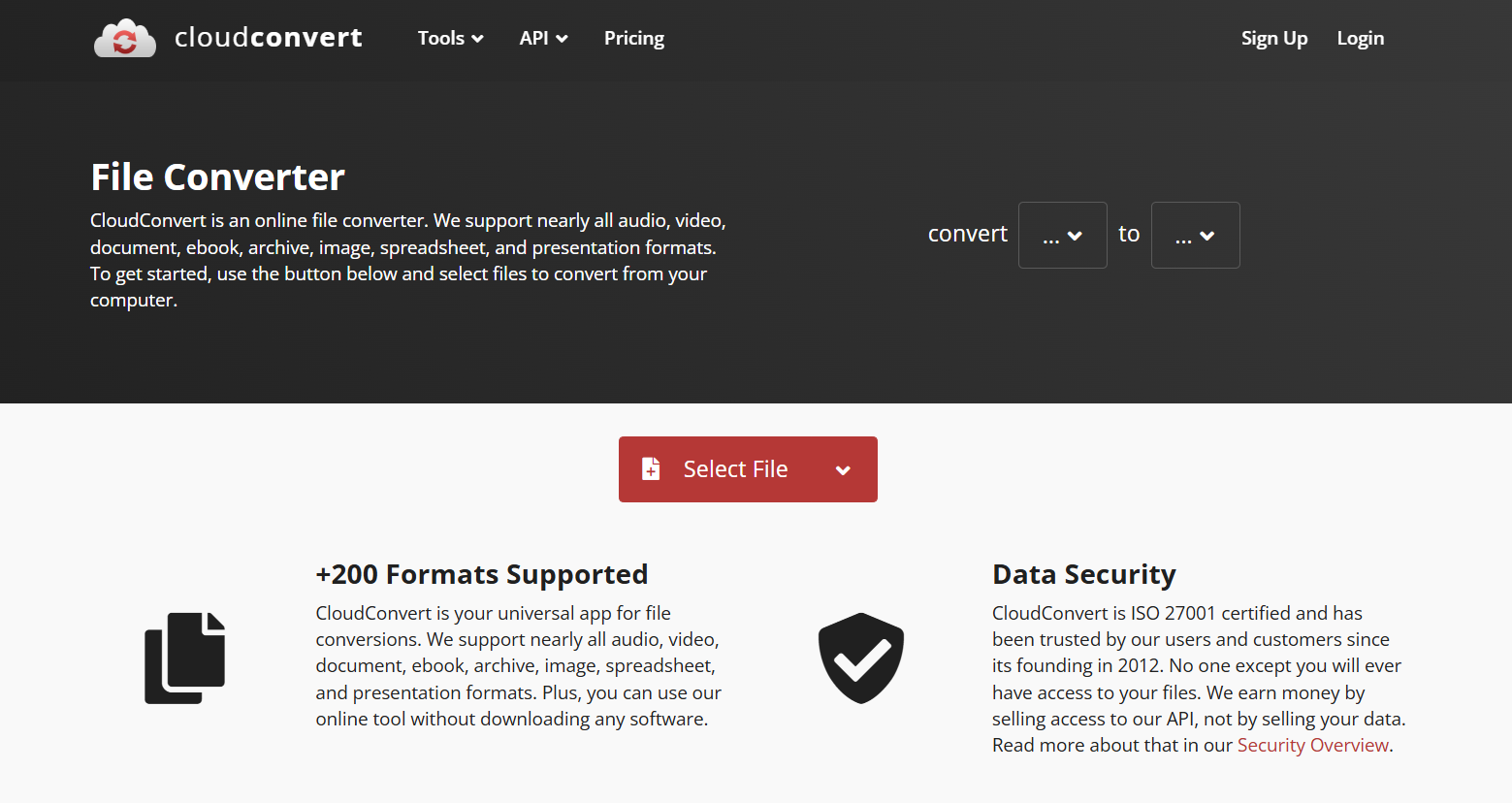
CloudConvert is a trusted online tool known for its reliability and wide file format support. It’s often used by professionals who want both convenience and advanced customization.

Key Features:

  • Supports 200+ formats including MP4, M4A, MP3, AAC, and WAV.
  • Lets you adjust bitrate, volume, and even trim audio.
  • Integrates with Google Drive and Dropbox.

How to Use It:

  1. Go to CloudConvert.
  2. Upload your MP4 file.
  3. Choose M4A as the target format.
  4. Adjust settings (optional) and hit “Convert.”

Pros: High-quality conversion, cloud integration, professional-grade tool.
Cons: Free tier limits daily conversions.

3. VLC Media Player — The Hidden MP4 to M4A Converter You Already Have

VLC Media Player

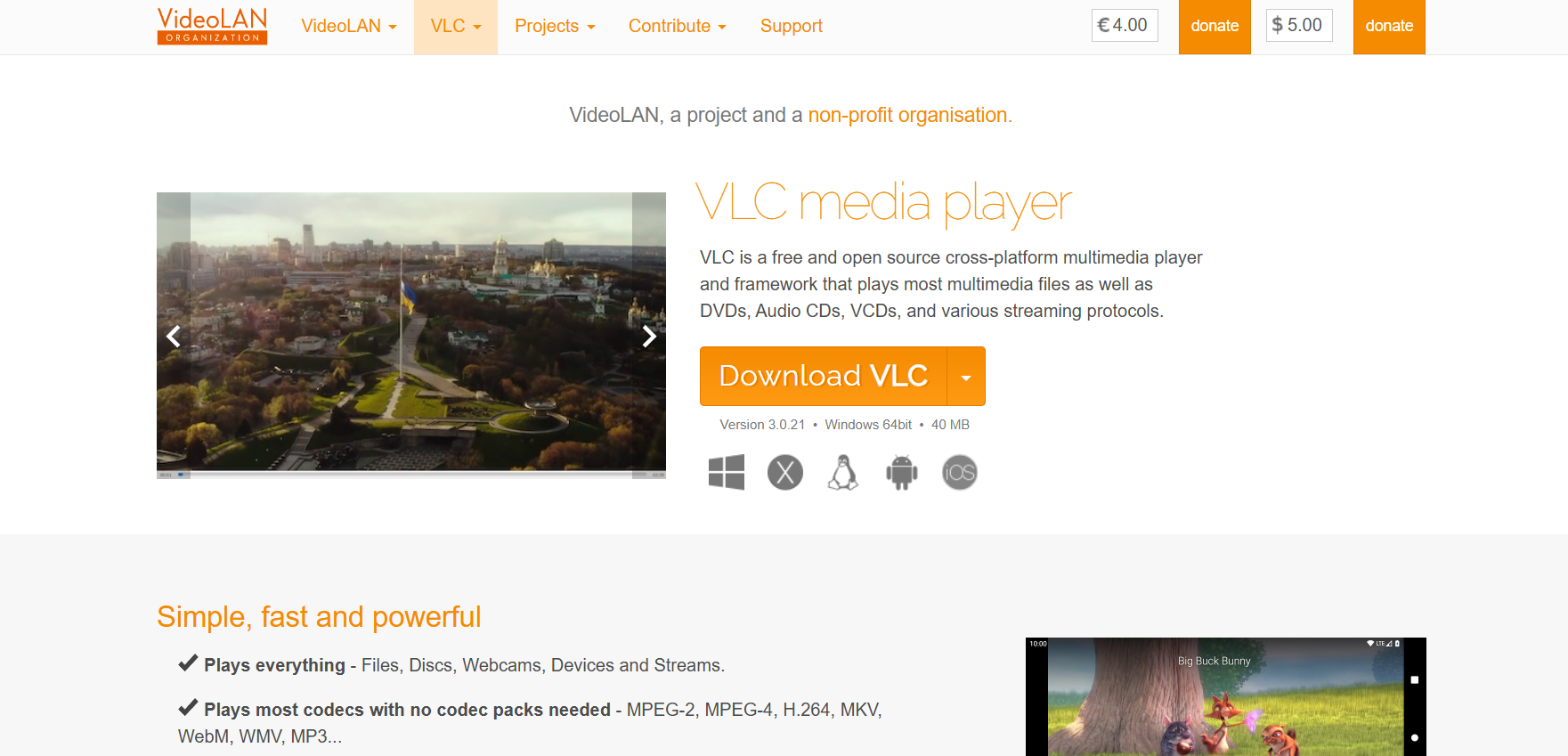
Most people don’t realize that VLC Media Player isn’t just for watching videos — it can also convert MP4 to M4A files effortlessly. If you already have VLC installed, you don’t even need to download anything else.

How to Convert MP4 to M4A with VLC:

  1. Open VLC and click on “Media” → “Convert/Save.”
  2. Add your MP4 file.
  3. Choose “Convert” and select an audio profile such as AAC or M4A.
  4. Click “Start.”

Tips: Adjust the audio codec settings if you want higher sound quality. VLC gives you total control.

Pros: Free, offline, reliable.
Cons: Interface can feel a bit technical for beginners.

4. Zamzar — A Trusted Online Converter with Quick Results

Zamzar

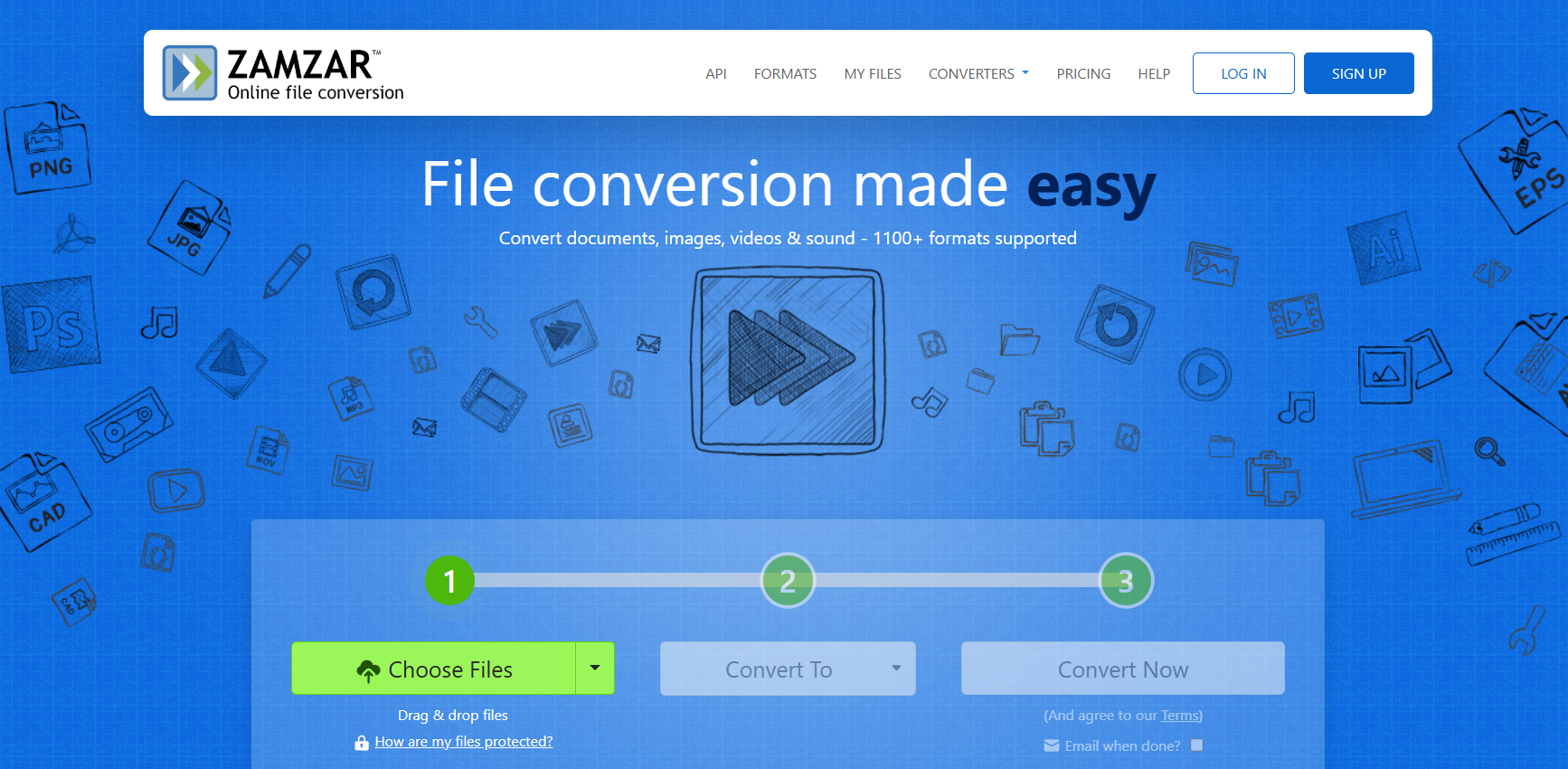
Zamzar has been around since 2006, and it remains one of the easiest and safest file converters online. You don’t need to install anything, and conversions usually take less than a minute.

How It Works:

  1. Visit the Zamzar website.
  2. Upload your MP4 file.
  3. Choose M4A as the output format.
  4. Click “Convert Now.”

Why It’s Great: Zamzar prioritizes simplicity and security. Files are deleted automatically after 24 hours.

Pros: Secure, simple interface, fast conversion.
Cons: 50MB file limit for free users.

5. AnyConv — The Simplest Way to Convert MP4 to M4A for Free

AnyConv

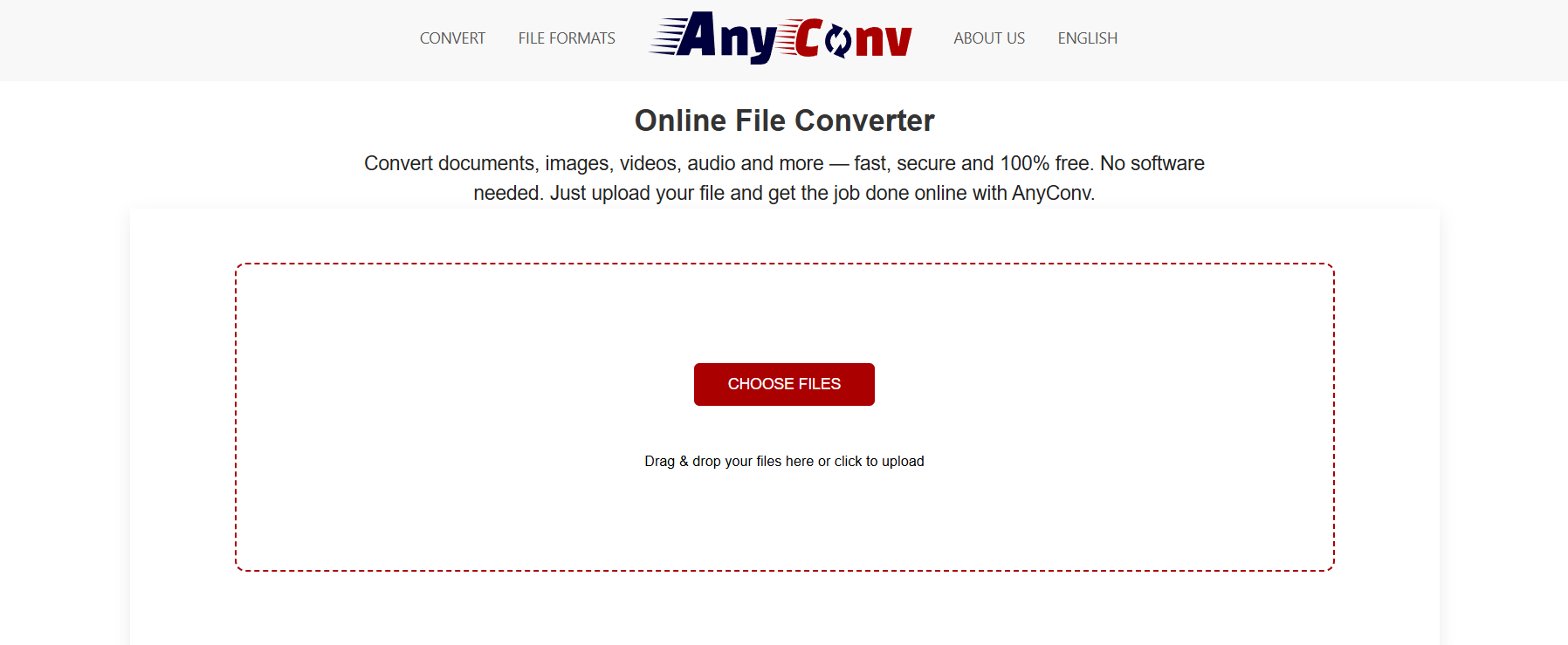
AnyConv is another excellent online converter that requires zero technical knowledge. It works on all devices — desktop, tablet, and mobile.

Key Features:

  • Converts video, audio, image, and document formats.
  • Automatically detects and optimizes conversion quality.
  • Files are auto-deleted after 1 hour for privacy.

How to Use It:

  1. Upload your MP4 file.
  2. Select M4A from the dropdown menu.
  3. Click “Convert.”

Pros: Free, simple, and mobile-friendly.
Cons: Limited customization and file size.

6. Movavi Video Converter — Premium Software for Flawless Conversion

Movavi Video Converter

Movavi Video Converter is a powerful desktop app for those who value both quality and speed. It’s not just for conversion — you can also cut, merge, and compress files without losing audio clarity.

Key Features:

  • Converts MP4 to M4A and hundreds of other formats.
  • Includes built-in editing tools.
  • GPU acceleration for lightning-fast processing.

Performance: Movavi consistently delivers top-tier sound quality during MP4 to M4A conversion — ideal for professionals or content creators.

Pros: Ultra-fast, no ads, premium quality output.
Cons: Paid software (free trial available).

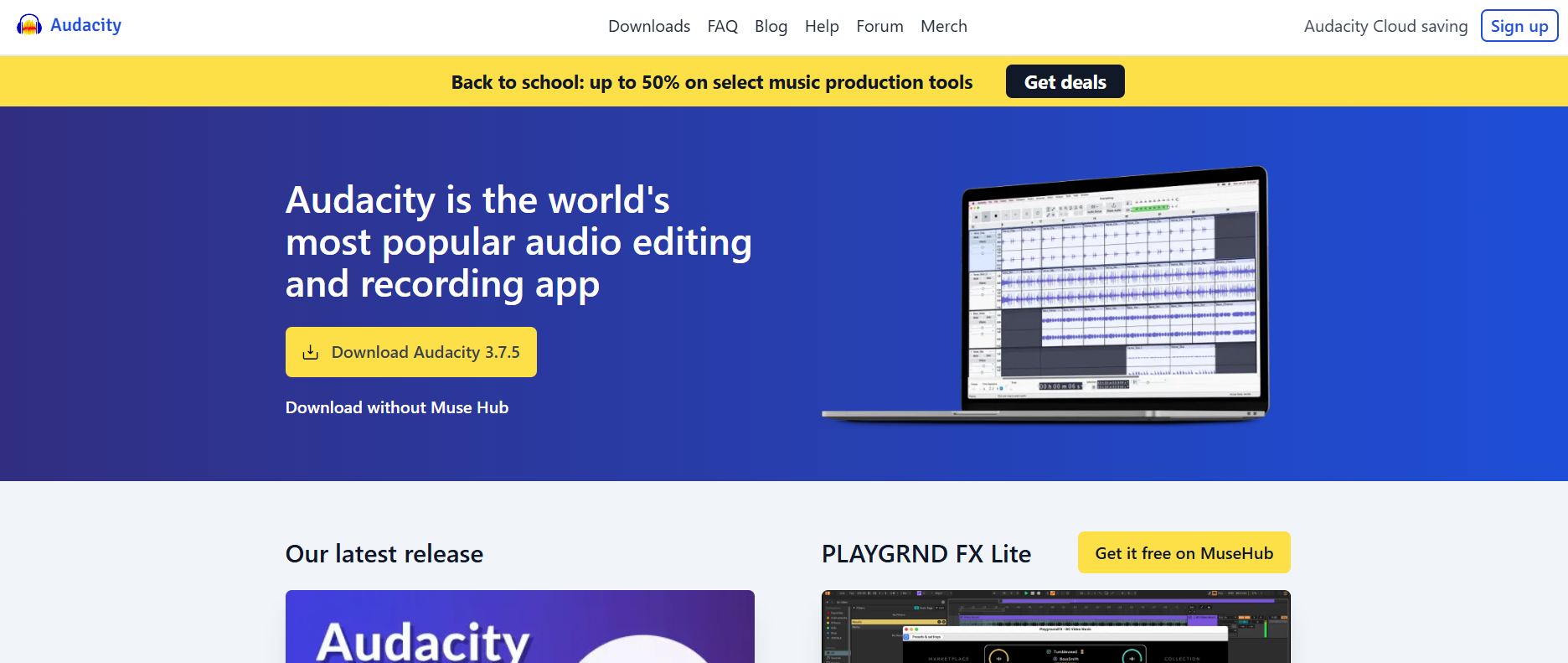
7. Audacity — Convert MP4 to M4A and Edit Audio Like a Pro

Audacity

Audacity is one of the most respected open-source audio editors out there. It’s perfect if you want more control over your audio after conversion.

How to Use It:

  1. Import your MP4 file (you might need to install FFmpeg).
  2. Edit or trim your audio.
  3. Export it as an M4A file.

Bonus: You can also use plugins to enhance sound, reduce noise, or adjust frequencies.

Pros: Free, open-source, professional-grade editing.
Cons: Slight learning curve for beginners.

How to Choose the Best MP4 to M4A Converter for Your Needs

When selecting a converter, consider the following factors:

  • Speed: If you’re handling large files, look for GPU-accelerated software like Movavi.
  • Audio Quality: CloudConvert and Movavi excel in maintaining crisp, lossless sound.
  • Ease of Use: Online Audio Converter and Zamzar are perfect for quick, simple conversions.
  • Security: Ensure the platform automatically deletes uploaded files — AnyConv and Zamzar both do this well.
  • Extra Features: If you want editing tools, go with Audacity or Movavi.

Tips for Perfect MP4 to M4A Conversion Every Time

  • Use the Right Bitrate: For best sound quality, aim for 256 kbps or higher.
  • Avoid Re-encoding Multiple Times: Repeated conversions can slightly degrade quality.
  • Choose the Right Tool: If you only convert occasionally, stick to free web tools. For regular use, invest in a premium option.
  • Batch Convert When Possible: Save time by converting multiple files at once with CloudConvert or Movavi.

Conclusion: Get Crisp Audio with the Right MP4 to M4A Tool

Converting MP4 to M4A doesn’t have to be complicated. Whether you prefer simple online tools like Online Audio Converter or powerful software like Movavi Video Converter, there’s an option for every need and skill level. The key is to choose one that balances speed, quality, and convenience.

So go ahead — try one of these tools today and enjoy pure, clean, and lightweight audio from your favorite videos.

Find More: Boost Your Sales With SEO Services

FAQs

1. Does converting MP4 to M4A reduce quality?

Not necessarily. If you use a high-quality converter and choose the right bitrate (256–320 kbps), the audio will sound identical to the original.

2. Can I convert MP4 to M4A on mobile?

Yes. Websites like AnyConv and CloudConvert work perfectly on mobile browsers.

3. What’s the difference between M4A and MP3?

M4A generally provides better sound quality at smaller file sizes compared to MP3, thanks to its more advanced compression technology.

4. Are there any file size limits for free MP4 to M4A tools?

Yes. Free online tools like Zamzar and AnyConv have limits (usually 50–100 MB). For larger files, use desktop apps like Movavi or VLC.

5. Is it safe to use online converters for MP4 to M4A?

Yes, as long as you use reputable websites like CloudConvert, Zamzar, or Online Audio Converter — they automatically delete your files after conversion.

Tags:
25 Powerful PDF Submission Sites to Skyrocket Your Backlinks

25 Powerful PDF Submission Sites to Skyrocket Your Backlinks

pdf submission sites

Introduction: Why PDF Submission Sites Still Matter for SEO in 2025

PDF submission sites are one of those classic off-page SEO tools that never go out of style. Even in 2025, they remain a goldmine for marketers, bloggers, and SEO professionals looking to build authority and backlinks the smart way. Think about it—every time you upload a useful, keyword-rich PDF to a trusted sharing platform, you’re opening a new door for people (and search engines) to discover your content. It’s simple, free, and incredibly powerful.

When you publish your PDF on free PDF submission sites, you create a valuable backlink opportunity. These links can help your website climb up in Google’s rankings, attract referral traffic, and give your brand more exposure. The best part? You can turn your existing blog posts, guides, or infographics into PDFs without creating anything new from scratch. This makes it one of the most time-efficient SEO strategies available.

So before we jump into the ultimate pdf submission site list, let’s talk about what these platforms actually do and why they’re still worth your time.

Find More: Finding the Best Online Services for Faxing PDF Documents

What Are PDF Submission Sites? (And How They Work)

The Concept Behind PDF Sharing Platforms

pdf

A PDF submission site allows you to upload and share your documents publicly with the world. These platforms are like digital libraries where anyone can publish educational, promotional, or creative content in PDF format. Whether you’re uploading a product catalog, a how-to guide, or a case study, these sites can help you reach audiences beyond your usual channels.

When you upload a PDF file that includes clickable links, search engines crawl those links and count them as part of your backlink profile. Over time, that can increase your website’s authority and trust in Google’s eyes.

How Search Engines Treat PDF Links

Google and Bing index PDF files the same way they index normal web pages. They read the text inside, analyze headings and keywords, and follow the embedded links. This means your optimized PDFs can appear directly in search results—sometimes even outranking your original blog post!

Here’s the kicker: PDFs often rank faster for long-tail keywords because there’s less competition. So when you create a document titled something like “The Ultimate Guide to Free PDF Submission Sites for SEO”, you’re increasing your chances of ranking for that exact phrase.

Benefits of Using PDF Submission for Link Building and Branding

Submitting PDFs isn’t just about backlinks—it’s also about exposure. Let’s break it down:

  • 🏗️ Earn quality backlinks from reputable domains with high DA scores.
  • 🌍 Boost visibility by spreading your content across multiple platforms.
  • 🚀 Drive referral traffic from users who read your PDFs and click your links.
  • 💼 Build brand trust by offering professional, shareable content.

In short, PDF submissions combine SEO, content marketing, and branding in one easy step.

The Advantages of Using PDF Submission Sites for SEO

Get High-Authority Backlinks Effortlessly

Many free PDF submission sites have domain authorities above 80 or even 90. Backlinks from these websites are considered valuable by search engines. You don’t need to pitch guest posts or run outreach campaigns—just upload and go.

Boost Indexing and Visibility of Your Content

Uploading PDFs ensures that your content appears in both regular search results and the “file” section of search engines. This means two potential ranking spots for one piece of content.

Increase Referral Traffic and Brand Exposure

When readers find your PDFs informative, they’re more likely to share them with others or visit your site for more information. This organic sharing can bring in consistent referral traffic without paid ads.

Strengthen Your Content Marketing Strategy

If you already publish blog posts or videos, repurpose them into PDFs. Add your insights, infographics, or visual summaries to make them more engaging. This not only saves time but also gives your old content new life.

How to Use PDF Submission Sites Effectively

Step 1 – Create a Well-Optimized PDF for SEO

Your PDF should look professional and be packed with useful information. Add your focus keywords like pdf submission sites, free pdf submission site, and pdf submission site list naturally in the content. Include your brand name, contact info, and website URL.

Step 2 – Add Strategic Links Inside Your PDF

Add hyperlinks to your most valuable pages—like your homepage, service pages, or case studies. Make sure they’re relevant to the topic of your PDF.

Step 3 – Optimize Your File Name and Metadata

A common mistake people make is uploading files with generic names like “document1.pdf.” Instead, use descriptive names such as “free-pdf-submission-sites-2025.pdf.” Update the metadata (title, subject, keywords) with relevant SEO phrases.

Step 4 – Submit to High-DA PDF Sharing Platforms

Don’t just upload everywhere blindly. Choose websites that are indexed regularly, have strong user bases, and allow external links. The list below includes some of the most powerful ones available right now.

Step 5 – Promote and Track Your PDF Submissions

After publishing, share your PDF links on social media, LinkedIn, or niche forums. Use tracking tools like Google Analytics and Ahrefs to monitor traffic and backlinks.

25 Powerful PDF Submission Sites to Skyrocket Your Backlinks

pdf

Here’s your complete pdf submission site list for 2025—featuring trusted, high-authority platforms perfect for getting your content noticed:

  1. https://www.scribd.com/ – Massive document-sharing community with millions of readers.
  2. https://issuu.com/ – Great for magazines, portfolios, and visual-rich PDFs.
  3. https://www.slideshare.net/ – Owned by LinkedIn; ideal for business content.
  4. https://www.calameo.com/ – Offers strong SEO visibility and easy embedding options.
  5. https://www.authorstream.com/ – Perfect for professional and educational PDFs.
  6. https://www.docdroid.net/ – Simple, clean, and free to use.
  7. https://www.yumpu.com/ – Converts PDFs into interactive publications.
  8. https://www.mediafire.com/ – Reliable for file hosting and sharing.
  9. https://www.4shared.com/ – Allows document sharing and community access.
  10. https://www.box.com/ – Great for storing and sharing business files.
  11. https://www.academia.edu/ – High authority in academic and research content.
  12. https://www.researchgate.net/ – Excellent for scientific papers and case studies.
  13. https://www.slideserve.com/ – Great for presentation-style documents.
  14. https://www.edocr.com/ – SEO-friendly platform owned by AppSumo.
  15. https://www.uploaded.net/ – Offers global reach for file sharing.
  16. https://www.keepandshare.com/ – Great for small business owners and freelancers.
  17. https://www.joomag.com/ – Creates digital magazines and interactive PDFs.
  18. https://www.ziddu.com/ – Known for easy uploads and downloads.
  19. https://www.slides.com/ – Excellent for design-focused content.
  20. https://www.coursera.org/ – Upload educational materials for visibility.
  21. https://www.scribonline.com/ – A newer platform with growing traffic.
  22. https://www.filefactory.com/ – Long-standing file hosting site.
  23. https://www.talktyper.com/ – Creative community with sharing tools.
  24. https://www.wattpad.com/ – Perfect for creative storytelling in PDF format.
  25. https://www.smashwords.com/ – Ideal for self-published authors and marketers.

Best Practices for PDF Submission Success

Do’s and Don’ts of PDF Link Building

Do: Use unique, keyword-optimized titles. Add relevant anchor text to your links, and make sure your document provides real value.
Don’t: Upload spammy or copied content. Avoid repeating the same PDF on every site without adjustments.

Common Mistakes to Avoid When Submitting PDFs

  • Don’t neglect the description or title section when uploading.
  • Avoid low-quality visuals or hard-to-read fonts.
  • Don’t forget to test your hyperlinks to ensure they work properly.

How Often Should You Use PDF Submissions in Your SEO Strategy?

Think quality over quantity. Submitting one well-designed PDF every couple of weeks can do more good than flooding dozens of sites with low-effort files. The key is to make each document unique and optimized.

Conclusion – Turn Your PDFs into Backlink Machines

The truth is, PDF submission might seem like an old-school SEO trick—but that’s exactly why it works so well. Most people overlook it, which means less competition for you. By uploading valuable, well-optimized PDFs to these 25 free PDF submission sites, you can dramatically expand your online presence, boost your SEO score, and attract consistent referral traffic.

So don’t let this strategy sit on the sidelines. Start small—create a simple guide or checklist, optimize it, and upload it to a few of the top sites from this list. You’ll be amazed how fast your backlinks start to grow.

Find More: Boost Your Sales With SEO Services

FAQs

1. Are PDF submission sites still effective for SEO in 2025?

Yes, absolutely. Search engines continue to index and rank PDF files. The backlinks may be nofollow, but the visibility and traffic benefits are undeniable.

2. Do PDF backlinks count as dofollow or nofollow?

Most PDF backlinks are nofollow, but that doesn’t make them worthless. They still improve your link diversity, visibility, and authority signals.

3. How many PDF submissions should I do per month?

You can start with 2 to 4 per month. Focus on consistency and quality rather than volume.

4. Can I use the same PDF on multiple sites?

Yes, but tweak the file name, title, and description slightly for each upload. This helps prevent duplicate content flags.

5. What is the best way to track backlinks from PDF submissions?

Use tools like Ahrefs, SEMrush, or Google Search Console to track backlinks and monitor which sites bring the most referral traffic.

Tags:
7 Powerful Ways Scamalytics Detects Online Scammers Instantly

7 Powerful Ways Scamalytics Detects Online Scammers Instantly

scamalytics

Introduction: How Scamalytics Detects Online Scammers Instantly

Scamalytics is one of those tools that quietly powers the internet’s defense system against fraud, scammers, and fake users. If you’ve ever wondered how websites can tell when someone’s using a VPN, or why your IP suddenly gets flagged, there’s a good chance Scamalytics had something to do with it. In simple terms, Scamalytics.com is a fraud detection platform that helps online businesses spot suspicious traffic in real time. It’s all about identifying risky IPs, detecting proxies, and revealing hidden scammers before they can do any harm.

In this article, we’ll break down exactly how Scamalytics works, what makes it so effective, and why it’s trusted by companies across the globe. From machine learning to geolocation analysis, you’ll discover the 7 powerful ways Scamalytics detects online scammers instantly — and how you can use that knowledge to protect your own website or business.

Find More: 7 Shocking Truths About Isp64 You Need to Know Now

1. Scamalytics IP Reputation Scoring System

At the core of everything Scamalytics does is its IP reputation scoring system. Every time someone visits a site that uses Scamalytics, their IP is checked and given a “fraud score.” This score helps websites decide whether that user might be a scammer or a legitimate visitor.

How Scamalytics Assigns a Fraud Score to Every IP Address

Scamalytics IP scores are calculated based on dozens of signals — everything from the user’s browsing behavior to whether their IP belongs to a data center or a consumer ISP. For example, if the IP has been seen on multiple dating scams, spam forms, or fake account attempts, Scamalytics.com flags it with a higher risk score. On the other hand, clean, consistent IPs get low-risk ratings.

What Factors Influence the Scamalytics Risk Score

The Scamalytics IP fraud score depends on factors like IP history, blacklists, connection type, and even how often it changes. It’s like a credit score for your internet connection — the more suspicious activity associated with it, the higher the risk.

2. Advanced Proxy and VPN Detection

A huge chunk of online scams come from users hiding behind proxies or VPNs. Scamalytics excels at detecting them.

How Scamalytics Identifies Hidden Proxies and Anonymizers

When someone connects through a VPN or proxy, their IP address often shows unusual traits — like mismatched locations, data center origins, or shared usage across multiple users. Scamalytics’ database recognizes these patterns and flags the IP almost instantly.

Why VPN Traffic Is Often Flagged as Suspicious

It’s not that all VPN users are scammers — far from it. But scammers rely on VPNs to mask their identity, so Scamalytics treats VPNs as a potential red flag. The tool cross-references the IP’s infrastructure to see if it belongs to known VPN providers, proxy networks, or Tor nodes.

3. Machine Learning and Behavioral Analysis

Scamalytics isn’t just looking at static data — it’s constantly learning. That’s where machine learning comes in.

How Scamalytics Learns from Millions of Fraud Patterns

Every scam attempt leaves digital breadcrumbs. Scamalytics collects these patterns from thousands of partner websites, feeding them into its AI system. Over time, it recognizes behavior that’s typical of fraudsters — like account farming, fake form submissions, or rapid IP switching.

Real-Time Decision Making with Predictive Algorithms

Scamalytics doesn’t just detect scammers — it predicts them. The AI model analyzes traffic as it happens, scoring each IP in milliseconds. This allows businesses to block or challenge suspicious users instantly, keeping operations smooth and safe.

4. Cross-Referencing Global Blacklists

One of Scamalytics’ most powerful tools is its global fraud database, constantly updated from different sources across the web.

How Scamalytics Uses Shared Fraud Databases

Scamalytics.com doesn’t work in isolation. It connects with various global blacklists — lists of IPs known for spam, malware, or scam activity. When your IP overlaps with one of those lists, your fraud score spikes.

The Role of User Reports in Detecting Scammers

Users and companies can report scam attempts directly to Scamalytics, enriching its data. This crowdsourced information helps it stay current, catching new threats faster than traditional systems.

5. Device Fingerprinting and Connection Insights

Sometimes, it’s not about who you are, but how you connect. Scamalytics tracks more than just your IP.

What Device Fingerprinting Is and How Scamalytics Uses It

Device fingerprinting collects information like browser type, screen size, and plugins to create a unique “fingerprint.” Even if scammers change IPs or use a VPN, Scamalytics can recognize the same device pattern returning under a new disguise.

Tracking Connection Anomalies and Behavioral Red Flags

Scamalytics also monitors how users interact with websites — how fast they type, how they move between pages, or how quickly they submit forms. Sudden, robotic, or repetitive patterns can trigger a higher fraud score.

6. Geolocation and ISP Risk Analysis

Some regions or ISPs have higher scam activity than others — a trend that also connects to broader threats like smishing in cybersecurity, where attackers exploit local carrier networks and user data.

How Scamalytics Evaluates Risk by Country and ISP

When a visitor connects, Scamalytics instantly identifies their location and ISP. If that ISP has a history of spam or bot activity, the system assigns extra risk weight. Likewise, countries with high levels of online fraud might raise the overall risk factor.

Identifying High-Risk Regions and Data Centers

Fraudsters often use hosting services instead of home networks. Scamalytics distinguishes between consumer ISPs and data centers, labeling the latter as higher risk when used for typical user activity.

7. Integration with Business Fraud Prevention Systems

Scamalytics isn’t just for tech experts — it’s built for businesses of all sizes.

How Companies Use the Scamalytics API for Real-Time Checks

Through the Scamalytics API, companies can automatically check every user or visitor in real time. For example, an eCommerce store could use it to stop suspicious orders, or a dating platform could block fake profiles instantly.

Combining Scamalytics with Other Security Tools

Many businesses combine Scamalytics with tools like Cloudflare, reCAPTCHA, or device verification. Together, they create a strong multi-layered defense system against online fraud.

The Accuracy and Limitations of Scamalytics

No fraud detection tool is perfect, and Scamalytics is no exception.

Can Scamalytics Misidentify Legitimate Users?

Yes — sometimes legitimate users get flagged if they use VPNs, public Wi-Fi, or shared networks. That’s why businesses should use Scamalytics as part of a broader fraud strategy, not the only filter.

How to Balance Security with User Experience

The best practice is to treat Scamalytics’ score as a signal, not a verdict. For instance, instead of blocking high-risk users immediately, websites can add extra verification steps — like email confirmation or CAPTCHA tests.

Conclusion — Why Scamalytics Is a Game Changer in Online Security

Online scams are evolving every day, and Scamalytics keeps pace by learning from real-world data. Its combination of IP reputation, AI, and behavior analysis gives businesses a real edge in identifying threats before they strike. Whether you’re running a small online store or managing a global platform, using Scamalytics can dramatically reduce fraud, fake accounts, and chargebacks.

So the next time you see an IP check or a fraud score pop up, remember — Scamalytics might be working behind the scenes to keep you safe.

Find More: Boost Your Sales With SEO Services

FAQs

1. Is Scamalytics a Reliable Tool for Fraud Detection?

Yes. Scamalytics is widely used by online businesses, dating platforms, and eCommerce sites to detect and block fraudulent users in real time. It’s considered one of the most accurate IP risk detection systems available.

2. Can I Use Scamalytics for Free?

Scamalytics.com offers limited free lookups — perfect for testing or personal use. Businesses that need bulk or API access can choose from paid plans based on usage volume.

3. Does Scamalytics Collect Personal User Data?

No. Scamalytics focuses on analyzing technical data such as IP addresses, device fingerprints, and behavior patterns. It doesn’t collect personal details like names or emails.

4. What Should I Do If Scamalytics Flags My IP as High Risk?

If your IP has a high fraud score, first check whether you’re using a VPN or proxy. Disable it and test again. If it’s still flagged, you can contact your ISP or Scamalytics support for review.

5. Are There Alternatives to Scamalytics?

Yes. Tools like IPQualityScore, MaxMind, and FraudScore offer similar IP reputation checks. However, Scamalytics stands out for its focus on real-time behavioral analysis and machine learning accuracy.

Tags:
7 Best YT to WAV Converters That Deliver Studio-Quality Sound Instantly

7 Best YT to WAV Converters That Deliver Studio-Quality Sound Instantly

yt to wav

Introduction: Why YT to WAV Conversion Matters for Perfect Audio Quality

If you’ve ever searched for a yt to wav converter, you’ve probably realized that not all tools are created equal. Some promise high-quality audio but deliver muffled sound, while others drown you in pop-ups before giving you what you want. Whether you’re a musician working on samples, a podcaster pulling audio references, or just someone who loves collecting clean soundtracks, converting YouTube videos to WAV format can make your life a lot easier.

Unlike MP3, which compresses and strips out data to save space, WAV files preserve every bit of audio detail. They sound fuller, richer, and more natural — exactly how the creator intended. If you’ve ever compared the two formats side by side, you can immediately hear the difference: WAV gives you depth, while MP3 gives you convenience.

In this guide, we’ll go through the 7 best YT to WAV converters that truly deliver studio-grade sound, fast conversions, and zero compromise. Whether you want a quick yt converter to wav for occasional use or a professional-grade yt to .wav solution for long-term audio projects, this list has something for you.

Let’s dive in and explore the tools that actually live up to their promises.

Find More: 8 Best YouTube to OGG Converters That Actually Work in 2025

How to Choose the Right YT to WAV Converter

Before we get to the list, let’s talk about what really makes a converter worth your time. With hundreds of tools online, knowing what to look for can save you hours of frustration.

Key Features to Look For (Speed, Bitrate, Quality, Safety)

A great YT to WAV converter should be fast, accurate, and safe. Speed is important, but not at the expense of quality. Look for converters that maintain at least a 44.1 kHz sample rate or higher — that’s the standard for studio-level sound. If you’re picky about fidelity, 48 kHz or more is ideal.
Security matters, too. Stick to sites with HTTPS encryption, avoid any converter that forces app installs or redirects you to shady websites, and always double-check what you’re downloading.

Online vs. Desktop Tools — Which One Is Better?

Online tools are perfect for quick jobs. You can use them from any browser — no installation, no setup. But desktop tools give you more control. They’re faster for batch conversions, allow you to tweak audio settings like bitrate or channels, and generally offer better reliability when converting large files.
So if you convert often, go with desktop software. If it’s just a one-off, an online converter will do the trick.

Are Free YT to WAV Converters Safe to Use?

Free doesn’t always mean dangerous, but you have to be cautious. Many free converters bombard users with pop-ups or bundle hidden software in their downloads. Stick to the trusted names below — they’ve been tested and used by thousands of creators safely.
Pro tip: After every download, scan your file using an antivirus or upload it to VirusTotal to make sure it’s clean.

7 Best YT to WAV Converters That Deliver Studio-Quality Sound Instantly

1. 4K YouTube to MP3 — Best Overall for Speed & Quality

4K Video Downloader

If you want something fast, safe, and capable of outputting flawless sound, 4K YouTube to MP3 is unbeatable. Don’t let the name fool you — it easily converts YT videos into WAV with zero loss in quality. The process is as simple as copy, paste, and click.
It supports playlists, entire channels, and even private videos if you’re logged in. For anyone serious about maintaining sound quality, this one’s gold.
Pros: Super-fast downloads, no ads, excellent fidelity.
Cons: Requires installation.
Website: 4kdownload.com

2. YTMP3.ch — Best for Quick Online Conversions

ytmp3

Need something lightweight and instant? YTMP3.ch is perfect. Just paste your link, hit convert, and get your WAV file within seconds. It’s fully online, works great on mobile, and doesn’t require any registration.
The audio quality is surprisingly good for an online tool. It’s the go-to for quick extractions when you don’t want to deal with downloads.
Pros: Free, mobile-friendly, simple interface.
Cons: Occasionally shows pop-ups, so keep your ad blocker on.
Website: ytmp3.ch

3. Y2Mate.is — Clean Interface and Consistent Quality

Y2Mate

If you want reliability and a clean experience, Y2Mate.is is a great choice. It has been around for years and continues to work flawlessly despite YouTube’s frequent updates. The conversion speed is solid, and the resulting WAV files retain most of the original sound quality.
Pros: Intuitive design, minimal ads, consistent performance.
Cons: Occasional redirects to partner sites.
Website: y2mate.is

4. Any Video Converter (AVC) — Best for YouTube Music Extraction

Professionals love AVC because it’s not just a converter — it’s a complete multimedia toolkit. You can download multiple videos, trim them, adjust volume levels, and export in various formats including WAV, FLAC, and AIFF. It’s perfect for creators who want precision and flexibility.
Pros: Batch conversions, advanced settings, supports HD and 4K.
Cons: Slight learning curve for beginners.
Website: any-video-converter.com

5. SnapDownloader — Offers Advanced Audio Settings

SnapDownloader

SnapDownloader is built for professionals who need full control over their conversions. You can select bitrate, adjust sample rate, and even trim the audio before saving. It also supports downloading from more than 900 websites, not just YouTube.
Pros: Customizable audio settings, great interface, ultra-high quality.
Cons: Paid after a free trial, but worth it.
Website: snapdownloader.com

6. Convertio — Cloud-Based Converter with High Output Quality

Convertio

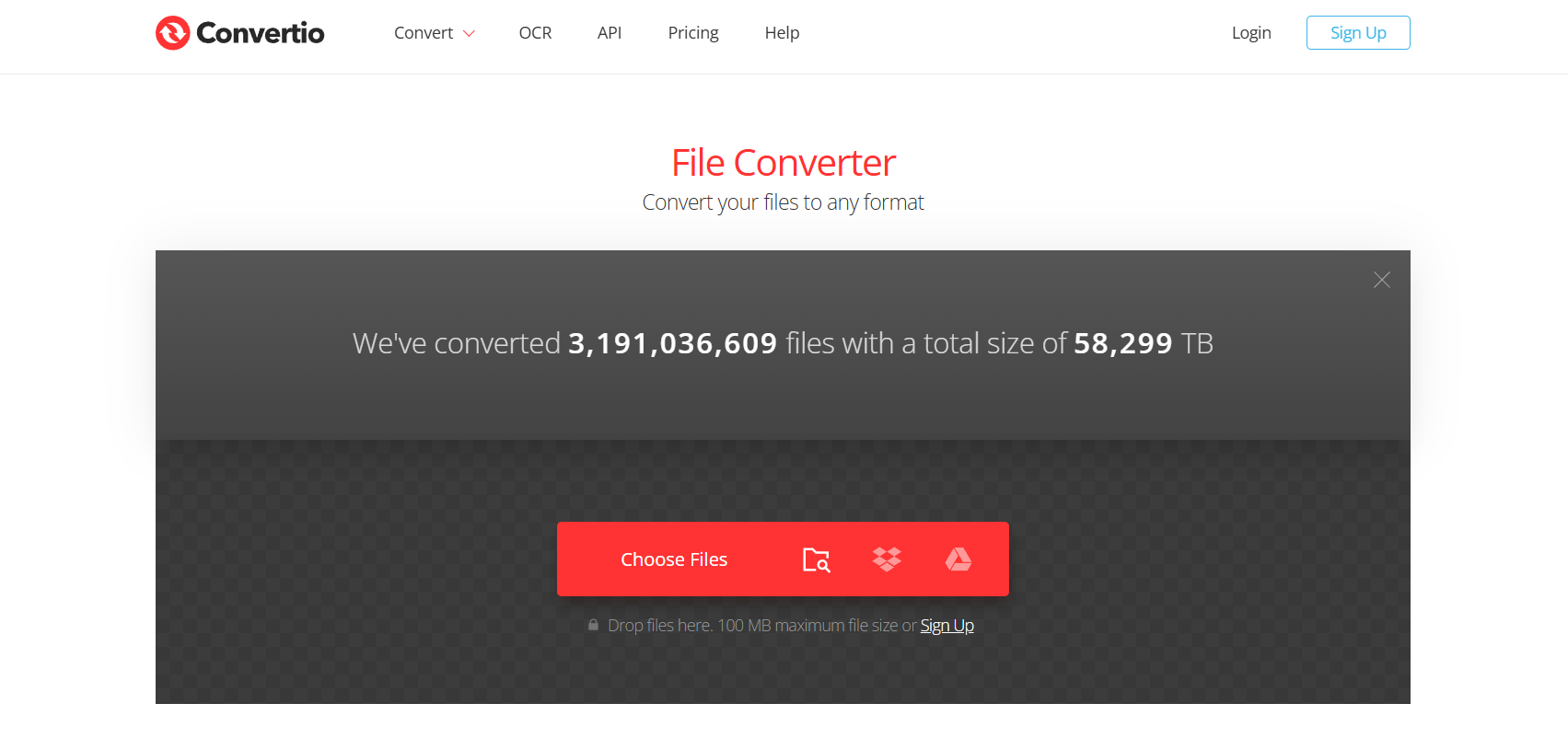
If you don’t want to download anything, Convertio is a dream. It’s a fully cloud-based tool that lets you drag, drop, and convert in a few clicks. The best part? Your files are processed on Convertio’s servers, which means your computer stays fast and clean.
Pros: Works on any device, high-speed cloud conversion, privacy-focused.
Cons: Free plan has file size limits.
Website: convertio.co

7. OnlineVideoConverter.pro — Best Free Option for Beginners

OnlineVideoConverter

If you’re looking for something simple that just works, OnlineVideoConverter.pro is your best bet. It’s a free site with a clean design and fast results. Great for users who don’t want to fuss with settings — just paste, choose WAV, and download.
Pros: No sign-up required, fast, supports multiple formats.
Cons: Audio quality depends on YouTube source.
Website: onlinevideoconverter.pro

Step-by-Step Guide: How to Convert YT to WAV in Minutes

You don’t have to be a tech genius to convert YouTube videos to WAV. Here’s how to do it the easy way:

Step 1 – Copy the YouTube Video URL

Open your chosen video on YouTube and copy the link from your browser’s address bar.
Pro tip: The longer the video, the more time it’ll take to process, so be patient with lengthy uploads.

Step 2 – Paste It Into a Trusted Converter

Head over to one of the tools listed above — say, YTMP3.ch or 4K YouTube to MP3 — and paste your link in the input box.

Step 3 – Select WAV as the Output Format

If you’re offered multiple format choices, always select WAV for the best quality. Avoid converting to MP3 first and then to WAV — that defeats the purpose of getting lossless audio.

Step 4 – Download and Save Your High-Quality Audio File

Click the convert or download button and let the tool do its job. Once done, save the file to your desktop or phone. Boom — you’ve got yourself a pristine, high-fidelity WAV file ready for editing or playback.

Tips to Preserve the Highest Audio Quality When Converting

Use Videos with Original High Bitrate Audio

Not all YouTube videos are uploaded in the same quality. If you start with a low-quality video, you’ll end up with low-quality sound. Always select videos uploaded in HD or 4K — these typically include higher bitrate audio.

Avoid Repeated Conversions Between Formats

Converting from MP3 to WAV doesn’t magically improve sound. Once quality is lost through compression, it’s gone for good. Always extract directly to WAV from the original video.

Choose Converters That Don’t Compress WAV Files

Some online tools claim to give you WAV files but secretly compress them to reduce file size. That defeats the purpose. Trusted converters like 4K YouTube to MP3 and SnapDownloader keep your files lossless.

Keep Storage Space in Mind

WAV files can be large — sometimes ten times bigger than MP3s. Make sure you have enough disk space before downloading multiple conversions.

Find More: Boost Your Sales With SEO Services

Conclusion: Get Crystal-Clear Sound with the Right YT to WAV Converter

When it comes to audio quality, cutting corners isn’t worth it. The converters we covered here strike the perfect balance between usability and quality. From the quick, browser-based YTMP3.ch to the professional-grade SnapDownloader, there’s a tool for every need and budget.

If you care about clarity, depth, and true sound reproduction, WAV is the way to go. Try one of these converters, and once you hear the difference, you’ll never go back to MP3 again.

So, whether you’re building a sample library, cleaning up podcast audio, or preserving your favorite music in its purest form — pick your favorite converter, grab your link, and start creating with sound that truly shines.

FAQs

1. Is converting YT to WAV legal?

It depends on how you use the files. Downloading videos for personal use or study is generally fine, but sharing copyrighted material isn’t. Always respect creators’ rights.

2. What’s the difference between WAV and MP3 sound quality?

WAV files are uncompressed and preserve every frequency, making them perfect for professional editing and music production. MP3s are compressed to save space, so they lose some clarity, especially in higher frequencies.

3. Can I convert YT to WAV on mobile devices?

Absolutely. Many converters like Y2Mate.is and YTMP3.ch work directly from your mobile browser — no app required.

4. Do YT to WAV converters reduce audio quality?

The good ones don’t. Converters like 4K YouTube to MP3, SnapDownloader, and Convertio retain the original bitrate and sampling rate, giving you nearly identical sound to the source video.

5. What’s the safest YT to WAV converter to use?

4K YouTube to MP3 and Convertio are among the safest. They’re secure, ad-free, and trusted by millions of users worldwide.

Tags: