
7 Genius Ways to Compress MP3 Files Without Losing Sound Quality
Introduction: Why Compress MP3 Files Without Losing Sound Quality
If you’ve ever struggled with large music files or podcast episodes taking up all your storage, you’ve probably wondered how to compress MP3 files without ruining the sound. Maybe you’re trying to send a song over email, upload an audio track to your website, or just make your phone’s storage breathe again. Whatever your reason, learning how to compress MP3 audio files efficiently can save you both time and space — without sacrificing the clarity you love.
When we talk about compressing MP3 files, it simply means reducing the file size while keeping the sound as close to the original as possible. Whether you’re a musician, podcaster, or just an average listener, the goal is the same: keep it small, keep it sharp. In this guide, we’ll explore 7 genius and practical ways to compress MP3 files like a pro.
Find More: 7 Best WebM to MP3 Converters You’ll Wish You Found Sooner
1. Use Online MP3 Compressors for Quick Results
Sometimes, you just want something fast and easy — no software, no downloads, no headaches. That’s where online MP3 compressors shine. These web-based tools allow you to compress an MP3 file instantly by uploading it to the site, adjusting the settings, and downloading the smaller version within seconds.
Best Free Online Tools to Compress MP3 Instantly
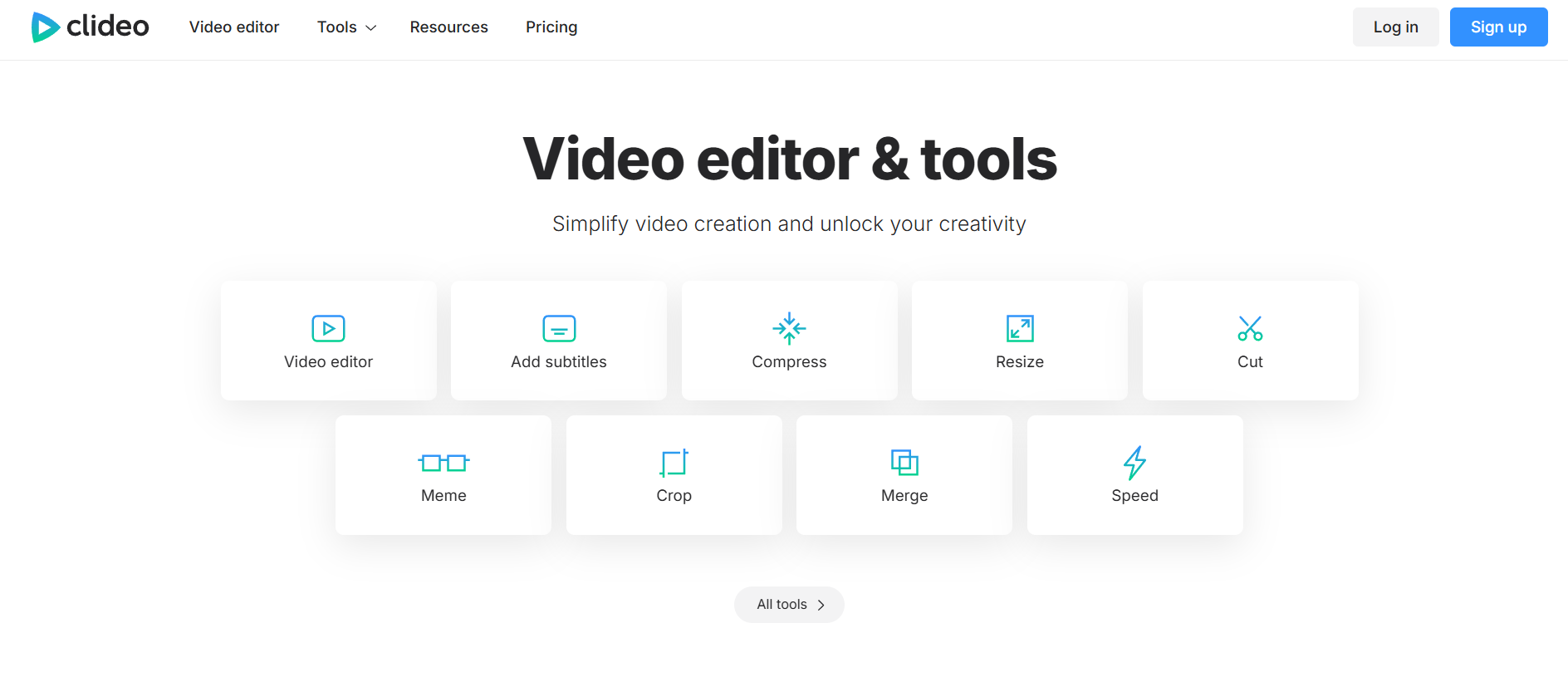
- Clideo – Perfect for quick compression with simple controls.
- VEED.io – Offers preview options and decent sound quality retention.
- Online-Audio-Converter – Lets you adjust bitrate, sample rate, and format.
Step-by-Step: How to Compress MP3 Files Online
- Visit one of the tools mentioned above.
- Upload your MP3 file.
- Choose your desired compression level or bitrate.
- Wait for processing and download the compressed version.
Pros and Cons of Online MP3 Compression
Pros: Super quick, easy to use, no installation needed.
Cons: Limited control over advanced settings and possible upload size limits.
2. Adjust Bitrate Settings to Optimize File Size
The bitrate is one of the biggest factors that decide how big your MP3 files are. Lower bitrate = smaller size. But here’s the trick: you can reduce the bitrate just enough to save space without noticeable quality loss.
Understanding Bitrate and Its Impact on Sound Quality
Bitrate is measured in kilobits per second (kbps). The higher the bitrate, the better the sound — but the larger the file. Most MP3s are 128 kbps to 320 kbps. For voice recordings or podcasts, 96 or 128 kbps is often enough.
Recommended Bitrate Settings for Music vs. Voice Files
- Music: 192 kbps or higher for good clarity.
- Podcasts / Voice: 96 kbps to 128 kbps.
How to Change Bitrate Using Free Software
You can easily change bitrate using programs like Audacity or VLC Media Player. In Audacity, open your MP3 file, go to File > Export > MP3, and select a lower bitrate from the options.
3. Convert MP3 Files Using Advanced Audio Codecs

Sometimes the best way to compress MP3 audio files is to not stick with MP3 at all. Modern audio codecs like AAC or OGG can deliver better sound at smaller sizes.
Why AAC or OGG Formats Can Reduce File Size Better
AAC (used by Apple and YouTube) provides higher efficiency, meaning it retains better sound at lower bitrates. OGG (used by Spotify) is also an excellent open-source option.
How to Convert MP3 to AAC Without Losing Clarity
You can use free converters like Freemake Audio Converter, AnyConv, or CloudConvert. Just select your MP3 file, choose AAC as the output format, and adjust the bitrate to your desired level.
Tools That Support Smart Format Conversion
- Audacity (free and open-source)
- Freemake Audio Converter (user-friendly interface)
- MediaHuman Audio Converter (great batch conversion features)
4. Use Dedicated MP3 Compression Software
If you want maximum control and consistency, desktop software is your best friend. Unlike online tools, these let you tweak every setting until your file is just right.
Top Desktop Tools for MP3 Compression (Windows & Mac)
- Audacity – The go-to free software for compressing MP3 files.
- VLC Media Player – Surprisingly good at audio compression.
- Adobe Audition – Professional-grade software for serious creators.
How to Compress MP3 Files with Audacity or VLC
In Audacity: open your file, go to Effect > Compressor, and export with a lower bitrate.
In VLC: go to Media > Convert/Save, select Convert, choose MP3 as the codec, and adjust the bitrate before saving.
Pro Tips for Balancing Compression and Sound Quality
Avoid going below 96 kbps unless it’s just voice audio. Test the file after compression by playing it on headphones and speakers to ensure it still sounds good.
5. Trim Unnecessary Audio Sections Before Compression
Before you even compress MP3 files, ask yourself: do you really need the entire track? Removing silence, intros, or outros can significantly cut down the file size.
How Cutting Silence and Intros Saves Space
Even 5 or 10 seconds of silence adds up, especially across multiple tracks. Cutting those parts gives you smaller files right from the start.
Recommended Audio Editors for Quick Trimming
- Audacity (Free)
- WavePad (User-friendly)
- MP3Cut.net (Online and fast)
Step-by-Step: Trim & Compress MP3 Efficiently
- Open your file in an editor.
- Highlight and delete unwanted sections.
- Export as a compressed MP3 at your chosen bitrate.
6. Use Batch Compression for Multiple MP3 Files

If you’re handling dozens or hundreds of MP3s, you’ll want batch compression. This lets you compress MP3 files in bulk, saving tons of time.
Tools That Support Bulk MP3 Compression
- MediaHuman Audio Converter
- Fre:ac Audio Converter
- FFmpeg (for advanced users)
Best Practices for Consistent Audio Quality
Use the same bitrate and compression settings for all files to maintain a consistent sound level. Test one file first before processing the whole batch.
Time-Saving Tips for Managing Large Music Libraries
Organize files into folders, label them properly, and back up originals before compressing. That way, you can always revert if needed.
7. Leverage Cloud Services for Smart MP3 Compression
Cloud services can automatically optimize and compress MP3 audio files for you while keeping your data safe and accessible.
How Cloud-Based Tools Optimize File Size Automatically
Platforms like Google Drive and Dropbox often optimize media uploads, creating lightweight versions for easier sharing and playback.
Comparing Google Drive, Dropbox, and Other Services
- Google Drive: Automatically adjusts audio for streaming.
- Dropbox: Maintains file quality while syncing compressed previews.
- OneDrive: Great integration with Windows users.
Security and Privacy Considerations When Compressing Online
Always use trusted platforms and avoid uploading sensitive audio to unknown sites. Read their privacy policies before using them.
Conclusion: Choose the Right MP3 Compression Method for Your Needs
You don’t need to be an audio engineer to compress MP3 files effectively. From quick online tools to full-featured software, you now have seven solid ways to reduce file size while keeping your sound crisp and clear. Experiment with bitrates, try trimming unnecessary parts, or explore smarter codecs — the right method depends on your needs.
Whether you’re a creator, editor, or just someone organizing your music, now’s the perfect time to start optimizing your MP3s. So pick your favorite tool and go compress your MP3 files like a genius!
Find More: Boost Your Sales With SEO Services
FAQs
1. Does compressing an MP3 reduce sound quality?
Yes, it can — but only if you compress it too much. By choosing the right bitrate (usually 128-192 kbps) and method, you can shrink file size without noticeable loss in sound quality.
2. What is the best free tool to compress MP3 files online?
Tools like Clideo, VEED.io, and Online-Audio-Converter are among the best free options. They’re fast, simple, and don’t require installation.
3. How can I compress MP3 files without changing the format?
You can use software like Audacity or VLC Media Player to export the same MP3 format but with a lower bitrate. This keeps the file type while reducing its size.
4. What’s the ideal bitrate for balancing quality and size?
For music, 192 kbps is ideal. For podcasts or voice recordings, 96-128 kbps works perfectly while keeping files lightweight.
5. Can I compress MP3 files on my phone?
Absolutely. Apps like MP3 Compressor (Android) or Audio Converter (iOS) let you compress MP3 audio files directly on your phone without using a computer.