
6 Genius Ways to Convert FLAC to MP3 Without Losing Quality (Fast & Free)
Introduction: Why Converting FLAC to MP3 Makes Sense in 2025
If you’ve ever tried to share a FLAC file and realized it’s too big to send or play on your phone, you’re not alone. The main keyword here, flac to mp3, has become one of the most searched audio conversion topics for a reason. People love FLAC because it delivers studio-quality sound, but when it comes to practicality, MP3 still wins the race.
So, why convert FLAC to MP3? Because MP3 files are smaller, more compatible, and still sound great if done right. The trick is finding a way to convert FLAC to MP3 without losing quality — and that’s exactly what we’ll cover here. Whether you’re using a PC, Mac, or phone, there’s a simple, fast, and free method for you.
Let’s dive into 6 genius ways to convert .flac to mp3 and keep that crystal-clear sound.
Find More: 7 Genius Ways to Compress MP3 Files Without Losing Sound Quality
1. Use Free Online FLAC to MP3 Converters
If you just need a quick conversion, online tools are the easiest way to go. No downloads, no installation — just upload your FLAC audio file to MP3 and you’re done.
Best Websites to Convert FLAC to MP3 Online
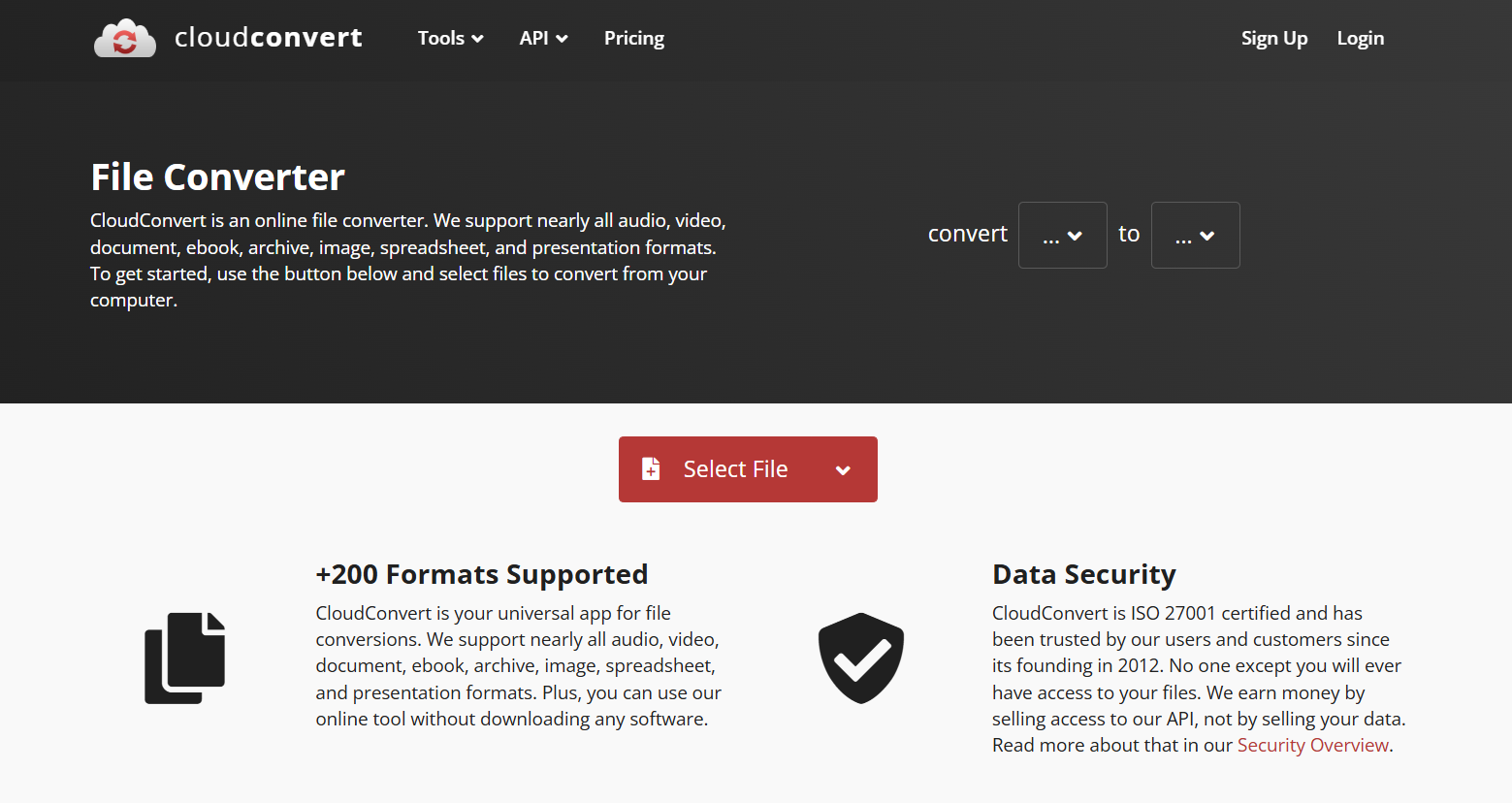
- CloudConvert – A trusted online tool that supports over 200 file formats. You can even adjust the bitrate and sample rate to maintain quality. It’s free for small conversions and super easy to use.
- Convertio – One of the most popular converters out there. Drag and drop your FLAC files, choose MP3, and download instantly. Works directly from Google Drive or Dropbox.
- Online Audio Converter – Fast, simple, and allows you to tweak output settings like bitrate and channels. Great for people who want a quick, no-fuss conversion.
Step-by-Step: How to Use an Online Converter
- Go to one of the sites above.
- Upload your FLAC file.
- Choose MP3 as your output format.
- Set your preferred bitrate (try 320 kbps for high quality).
- Click Convert, then download your file.
Pros and Cons of Online Conversion
Pros: Fast, easy, and works on any device.
Cons: Requires internet connection and may limit file size for free users.
2. Convert FLAC to MP3 with Desktop Software
If you often convert large batches of files, desktop apps are a better choice. They’re faster, more stable, and usually offer higher quality control.
Top Free & Paid FLAC to MP3 Software Options
- Fre:ac – A free and open-source converter that’s lightweight yet powerful. It supports multiple formats and lets you manage large playlists effortlessly.
- MediaHuman Audio Converter – Perfect for Mac and Windows users who want simple drag-and-drop functionality. Supports batch conversion and preserves metadata like album art and track names.
- Switch Audio File Converter – Offers both a free and premium version. It’s fast and reliable, making it ideal for converting entire music libraries.
Recommended Tools for Windows, macOS, and Linux
- Windows: Fre:ac or Switch
- Mac: MediaHuman or Switch
- Linux: Fre:ac or FFmpeg (for advanced users)
Tips to Maintain Sound Quality During Conversion
Always use a bitrate of at least 256 kbps, and avoid re-converting MP3 files multiple times, as it leads to cumulative quality loss.
3. Use VLC Media Player for FLAC to MP3 Conversion
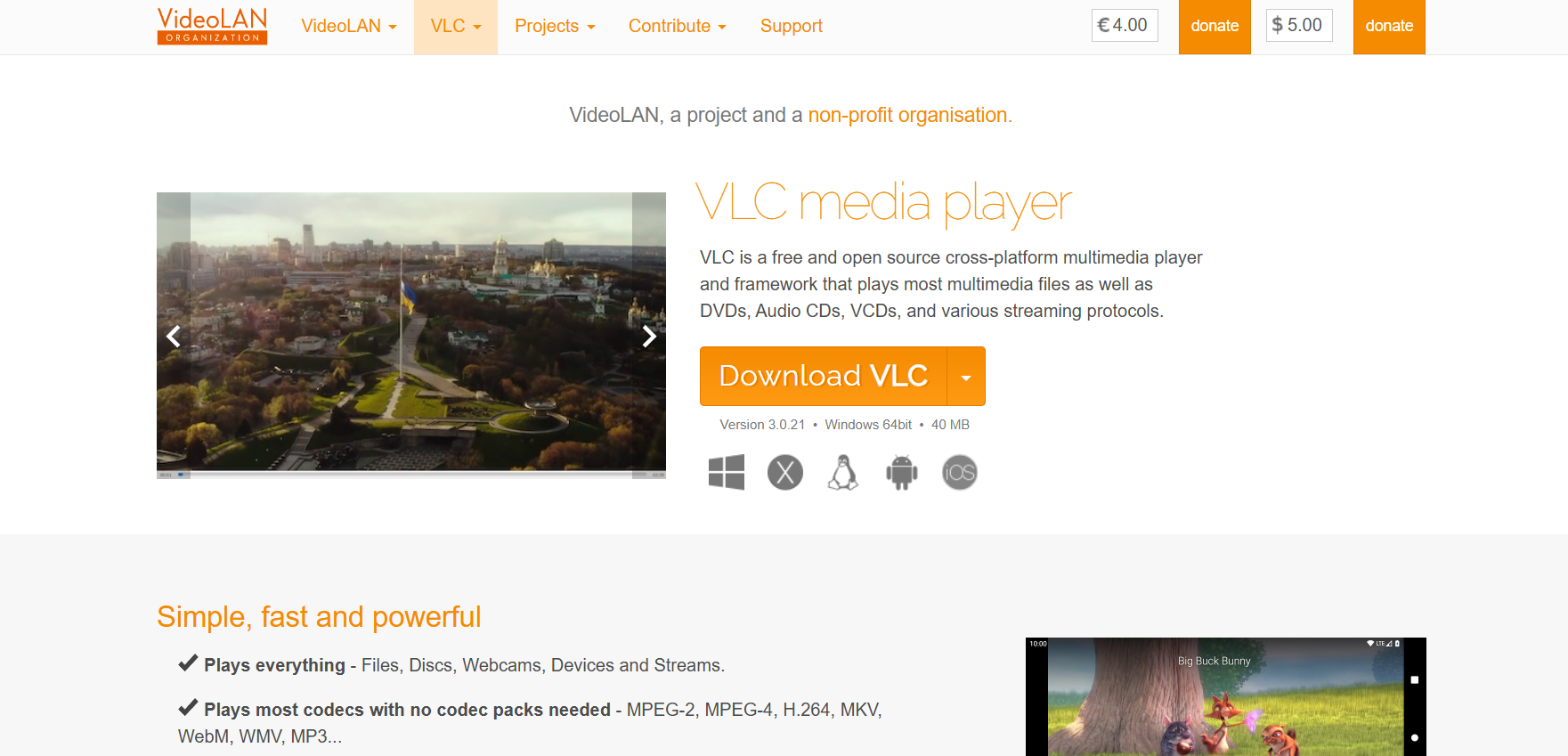
You might not realize it, but VLC Media Player can do way more than just play videos. It can also convert audio files — and it’s completely free.
Why VLC Is a Hidden Gem for Audio Conversion
VLC is already installed on millions of computers. It’s safe, fast, and doesn’t need any plugins.
Step-by-Step Guide: Converting FLAC to MP3 in VLC
- Open VLC and click Media > Convert / Save.
- Add your FLAC file.
- Choose Convert and set MP3 as your profile.
- Pick a destination folder and hit Start.
Common Issues & How to Fix Them
If you notice reduced volume or missing metadata, tweak the conversion settings or use a dedicated converter like MediaHuman for better tag handling.
4. Convert FLAC to MP3 Using Audacity
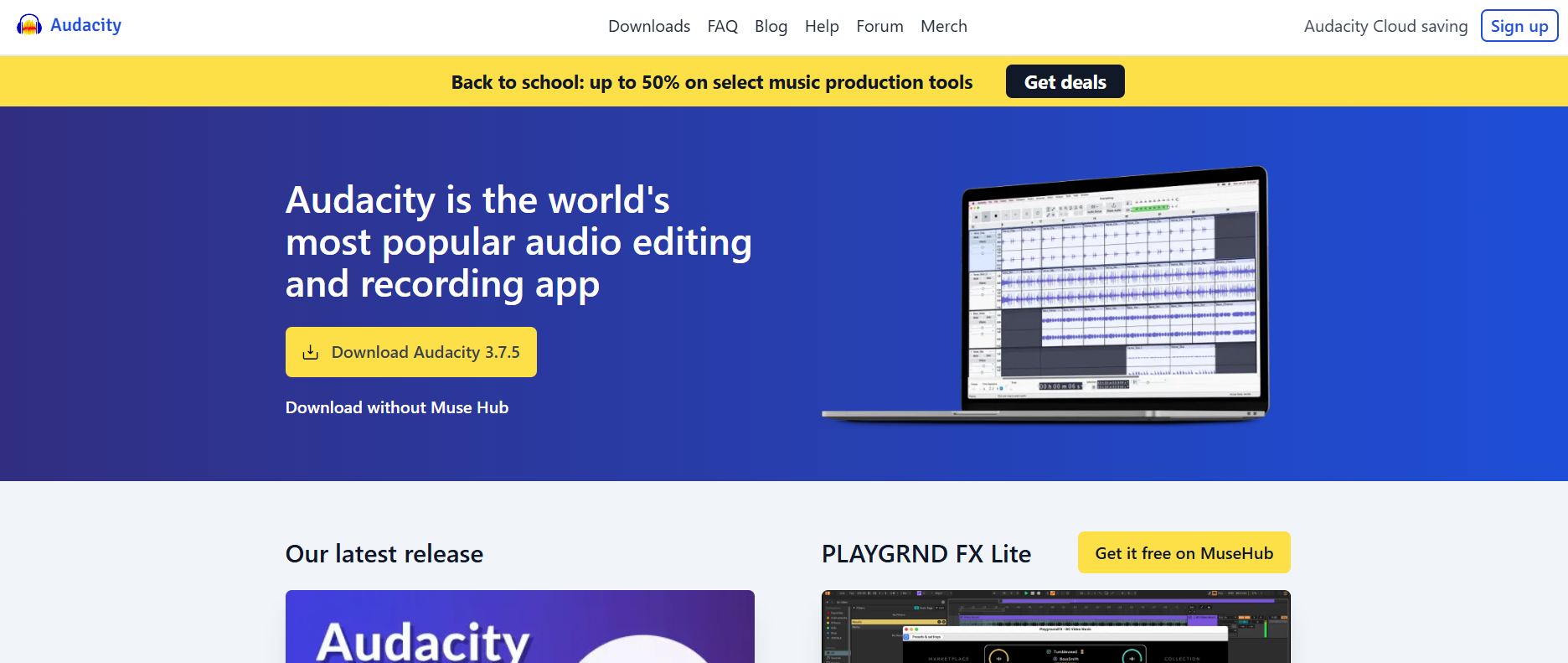
If you’re into editing audio, Audacity is one of the best free tools out there. It’s open-source and used by podcasters, musicians, and sound designers.
How to Import and Export FLAC Files in Audacity
- Launch Audacity.
- Drag and drop your FLAC file into the window.
- Go to File > Export > Export as MP3.
Best Audio Settings for MP3 Conversion
Set the bitrate mode to constant and select 320 kbps for the best mix of size and quality.
Installing the LAME Encoder for Better Results
If you’re on an older version of Audacity, you might need to install the LAME MP3 encoder, which improves export compatibility and compression.
5. Convert FLAC to MP3 on Mobile (Android & iPhone)
On the go? No problem. You can convert FLAC files directly from your smartphone.
Best Mobile Apps to Convert FLAC to MP3
- Audio Converter (Android) – Free, clean interface, and supports multiple formats. You can adjust bitrate, volume, and even trim audio.
- The Audio Converter (iOS) – Works directly with your Files app or cloud storage, offering fast, secure conversions.
How to Convert Directly from Your Phone Storage
- Open the app.
- Upload your FLAC file.
- Select MP3 as the output format.
- Choose your desired quality and start conversion.
Battery and Storage Tips During Conversion
Keep your phone plugged in during long conversions and avoid converting large albums if your storage is nearly full.
6. Use Cloud-Based Services for Seamless FLAC to MP3 Conversion
Cloud tools are perfect for people who want to keep everything synced and accessible across devices.
How Cloud Converters Work (Google Drive, Dropbox Integration)
Tools like Zamzar let you upload FLAC files from your cloud storage and automatically convert them to MP3. You can then download or directly save them back to the cloud.
Syncing Files Across Devices Automatically
Most cloud converters can connect to your Drive or Dropbox, so when you upload a FLAC file, it gets converted and synced automatically.
Security and Privacy Tips When Using Cloud Tools
Always choose services that use HTTPS encryption and avoid uploading sensitive or personal recordings.
Bonus Tips: How to Preserve Audio Quality While Converting
- 🎶 Understand Bitrate and Sample Rate: 320 kbps and 44.1 kHz are ideal for MP3 conversion.
- 🧠 Choose the Right Codec: LAME MP3 encoder produces the cleanest sound.
- 💾 Avoid Repeated Conversions: Every new conversion can slightly degrade quality.
- 🎧 Use Headphones to Test Output: Check for clarity and volume before deleting your original FLAC.
Conclusion: The Smart Way to Convert FLAC to MP3 Without Sacrificing Quality
So, we’ve covered the 6 best ways to convert FLAC to MP3, from quick online tools to powerful desktop apps and mobile solutions. Each method has its pros and cons — but if you want fast, free, and high-quality conversions, tools like CloudConvert, MediaHuman, and Audacity are your best bets.
Remember: converting your FLAC audio file to MP3 doesn’t have to mean losing quality. With the right settings and tools, you can enjoy smaller files with sound that’s nearly identical to the original.
Try one of the methods above today — your playlist (and your storage space) will thank you.
Find More: Boost Your Sales With SEO Services
FAQs
1. Is there really no quality loss when converting FLAC to MP3?
Technically, MP3 is a lossy format, so there will always be some compression. But if you use a high bitrate like 320 kbps, most people won’t hear the difference.
2. What bitrate should I use for the best MP3 audio quality?
Stick with 256–320 kbps for music. Anything lower can make complex sounds, like cymbals or vocals, lose clarity.
3. Can I convert FLAC to MP3 on my phone without an app?
Not easily. You’ll usually need an app or an online converter. Some cloud tools like Zamzar or CloudConvert work on mobile browsers, though.
4. Are online FLAC to MP3 converters safe to use?
Yes, as long as you use reputable sites like CloudConvert or Convertio. Avoid shady websites that spam pop-ups or request unnecessary permissions.
5. Which FLAC to MP3 converter works best for large files?
Fre:ac and Switch Audio Converter handle large libraries efficiently and don’t rely on internet speed, making them ideal for bulk conversions.