UK: +44 2038074555 info@atamgo.com
7zip vs WinRAR: The Ultimate Compression Showdown (Who Really Wins?)

7zip vs WinRAR: The Ultimate Compression Showdown (Who Really Wins?)

7zip vs winrar

Introduction: 7zip vs WinRAR — Which File Compressor Truly Delivers?

If you’ve ever downloaded large files, backed up your system, or sent a project folder to a client, you’ve probably faced the classic question: 7zip vs WinRAR — which one should you use? Both are legends in the world of file compression, but they take very different paths to get the job done. And let’s be honest — you’ve probably been using one of them for years without ever wondering if the other might be better. Today, we’re going to find out.

In this ultimate showdown, we’ll dig into everything that makes these tools great (or not-so-great): compression performance, speed, ease of use, features, and value. By the end, you’ll know exactly which one fits your workflow best. Let’s unpack it.

 Find More: 7 Best YT to WAV Converters That Deliver Studio-Quality Sound Instantly

What Is 7zip?

A Quick Overview of 7zip

files

7zip has been around since 1999, created by Igor Pavlov, and it’s completely free and open-source. That’s a big deal. You can use it for personal or commercial use without worrying about licenses or payments. It supports most of the popular formats like ZIP, TAR, GZIP, and its own 7z format, which is known for its incredible compression ratio.

Key Features of 7zip

One of the reasons people love 7zip is how lightweight it is. It doesn’t clutter your system or slow things down. But what really stands out is its high compression ratio. When you compress files in the .7z format, you often end up with smaller files than if you used ZIP or RAR.

Another advantage? 7zip integrates perfectly with Windows Explorer, so you can right-click on any file and instantly compress or extract it. Plus, it supports AES-256 encryption — one of the strongest encryption standards out there.

Pros and Cons of 7zip

Pros:

  • 100% free and open-source
  • Excellent compression ratio (especially with .7z format)
  • Strong AES-256 encryption
  • Lightweight and fast

Cons:

  • The interface is a bit outdated
  • Limited advanced settings compared to WinRAR
  • Some people find it less intuitive for beginners

What Is WinRAR?

winrar

A Quick Overview of WinRAR

WinRAR is practically a household name. It’s been the go-to file compressor for millions of people since the early 2000s. Developed by Eugene Roshal, it introduced the proprietary .RAR format, which quickly became popular for its balance between speed and efficiency.

Unlike 7zip, WinRAR isn’t open-source. It comes with a 40-day trial, but here’s the funny part: it never really expires. You can technically use it forever even after the trial ends (though you’ll get that infamous reminder pop-up).

Key Features of WinRAR

WinRAR supports a wide variety of formats, including RAR, ZIP, and CAB. It’s also known for its file recovery feature, which can repair damaged archives — something 7zip doesn’t do quite as well.

Its interface is a bit more polished than 7zip’s, and it gives you more control over compression levels, file splitting, and password protection. It’s also available on Windows, macOS, and Linux.

Pros and Cons of WinRAR

Pros:

  • Excellent file recovery feature
  • More user-friendly interface
  • Strong compression and encryption
  • Handles corrupted files better

Cons:

  • Technically paid software (even if you never pay)
  • Slightly slower compression than 7zip in some tests
  • Uses more system resources

7zip vs WinRAR — Head-to-Head Comparison

Compression Speed and Efficiency

When it comes to raw compression performance, 7zip often wins. In most tests, 7zip produces smaller file sizes than WinRAR, especially when using the .7z format. However, WinRAR can sometimes be faster when dealing with very large files or archives with mixed content (like videos and documents together).

If your goal is maximum compression and you don’t mind waiting a few extra seconds, go with 7zip. If speed matters more than a few megabytes, WinRAR holds its own.

File Format Support

7zip supports a wide range of formats, but it shines with its own .7z format. WinRAR, on the other hand, supports both .RAR and .ZIP, which are more universally recognized. If you often share compressed files with others, WinRAR might have a slight edge because not everyone has 7zip installed.

Ease of Use and Interface

This one depends on personal taste. 7zip’s interface is minimalist — it gets the job done, but it looks like it hasn’t changed since 2005. WinRAR’s interface, while still old-school, feels a bit more intuitive and polished. It also has more options available right from the main window.

If you like clean and simple, 7zip wins. If you prefer something that feels familiar and gives you more visual feedback, WinRAR is the better pick.

Security and Encryption Options

Both 7zip and WinRAR support AES-256 encryption, which is extremely secure. However, WinRAR adds an extra layer of usability with its password manager and built-in recovery records, making it easier to handle encrypted archives.

If you’re mainly compressing personal files or backups, 7zip’s security is more than enough. But if you regularly deal with sensitive data or need recovery features, WinRAR gives you more peace of mind.

Pricing and Licensing

This is where things get interesting. 7zip is 100% free — no catch, no reminders, no limits. WinRAR technically costs money, though you can continue using it after the trial. Still, if you want to stay legal and fully licensed, you’d need to pay for WinRAR.

For anyone on a budget (or just wanting to avoid unnecessary costs), 7zip is the obvious winner.

Platform Compatibility

7zip works on Windows, Linux, and macOS (with unofficial ports). WinRAR is also available across platforms, but its Linux and macOS versions are less feature-rich. If you’re a Windows user, both are great; for Linux, 7zip is a better choice.

Which One Should You Choose — 7zip or WinRAR?

For Everyday Users

If all you need is to compress a few folders, unzip downloads, or make backups, 7zip is perfect. It’s free, fast, and easy to use. You don’t need to think about licensing, and it integrates seamlessly with Windows.

For Professionals and Power Users

If you handle massive data files, need recovery features, or just prefer more control over your archives, WinRAR is a solid choice. Its ability to repair corrupted files and manage password-protected archives makes it ideal for professionals.

Verdict: The Final Winner

It’s a close call, but here’s the honest truth: 7zip wins overall. It’s faster in most compression tests, completely free, and secure. WinRAR is still an excellent tool, and in some cases (like repairing archives), it’s unbeatable. But for most people, 7zip offers the best balance of power, simplicity, and value.

Conclusion: The Compression Battle Settled

At the end of the day, both 7zip and WinRAR are excellent tools, and you can’t go wrong with either. But if we’re calling a winner, 7zip takes the crown for being lightweight, free, and impressively efficient. It’s the ideal choice for anyone who values performance and simplicity.

WinRAR, meanwhile, remains a strong option for users who prioritize convenience, recovery tools, and a slightly smoother experience. So here’s your best move: try both. Compress the same folder in each, check the size and speed, and decide which one fits your workflow best. The results might just surprise you.

Find More: Boost Your Sales With SEO Services

FAQs

1. Is 7zip really free forever?

Yes. 7zip is 100% free and open-source. You can use it for personal or business purposes without any limitations or payments.

2. Does WinRAR stop working after the trial period?

Technically, no. WinRAR shows a reminder after the 40-day trial ends, but it doesn’t lock you out. You can keep using it, though it’s meant to encourage you to buy a license.

3. Which is safer: 7zip or WinRAR?

Both use AES-256 encryption, which is very secure. However, WinRAR has additional recovery options and a slightly more user-friendly encryption setup.

4. Can 7zip open RAR files?

Yes, 7zip can extract (open) RAR files, but it can’t create them. Only WinRAR can create RAR archives.

5. Which one compresses better — 7zip or WinRAR?

In most cases, 7zip produces smaller archives than WinRAR, especially when using the .7z format. However, WinRAR is sometimes faster and more consistent with mixed file types.

Tags:
9 Free MPG to MP4 Converters That Actually Work (No Watermark!)

9 Free MPG to MP4 Converters That Actually Work (No Watermark!)

mpg to mp4

Introduction: Why You Need a Reliable MPG to MP4 Converter

The term mpg to mp4 might sound like simple file conversion, but if you’ve ever tried converting an old MPG video file, you know it’s not always that easy. Many online tools promise to convert MPG to MP4 fast, but most of them either add ugly watermarks, limit file sizes, or ruin the video quality. That’s why finding the right MPG to MP4 converter is essential — especially if you care about video clarity, speed, and convenience.

Before we dive into the list, let’s quickly talk about what MPG files actually are. MPG (or MPEG) is an older video format that compresses files efficiently, but it’s not as compatible or modern as MP4. If you want to transfer MPG to MP4, you’re essentially giving your video a new life — making it easier to share, edit, and play on almost any device.

Below, I’ve rounded up 9 free MPG to MP4 converters that actually work — no watermarks, no shady download buttons, just real tools that do the job well.

Find More: 10 Powerful Reasons Why YTMO4 Is the Easiest YouTube MP4 Converter Ever

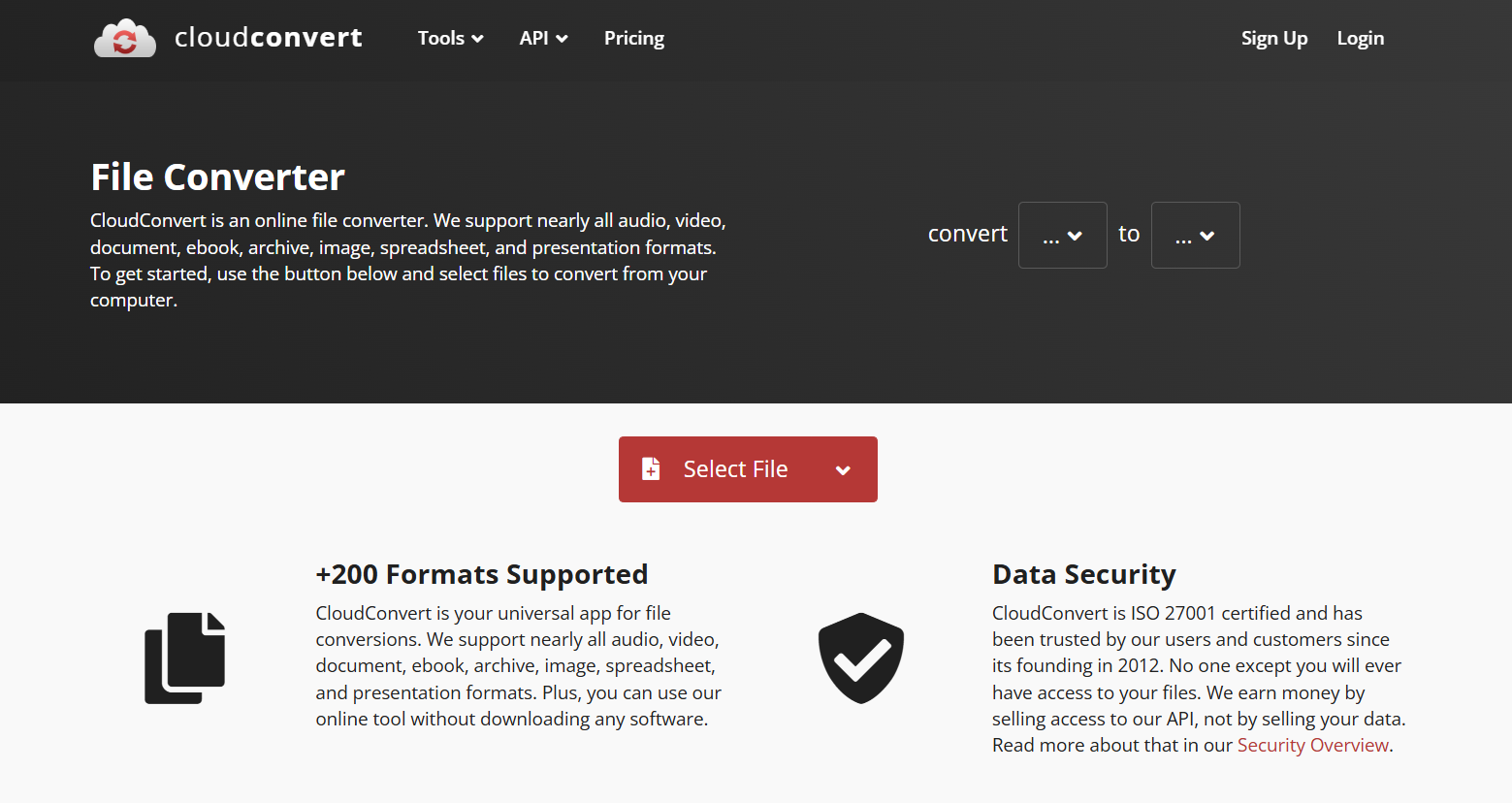
1. CloudConvert — The Most Flexible Online MPG to MP4 Converter

CloudConvert

If you want a simple, reliable, and fast way to convert your MPG file to MP4, CloudConvert should be your first stop. It’s an online platform that supports over 200 formats, including video, audio, and document conversions.

Key Features

  • 100% online, no software installation needed
  • Convert multiple files at once
  • Allows bitrate, resolution, and codec customization
  • No watermark on converted files

Pros & Cons

Pros: Fast, flexible, high-quality output, privacy-friendly
Cons: Limited free conversions per day

How to Use CloudConvert

  1. Go to the link above.
  2. Upload your MPG file.
  3. Choose “MP4” as your output format.
  4. Adjust settings if needed, and hit Convert.

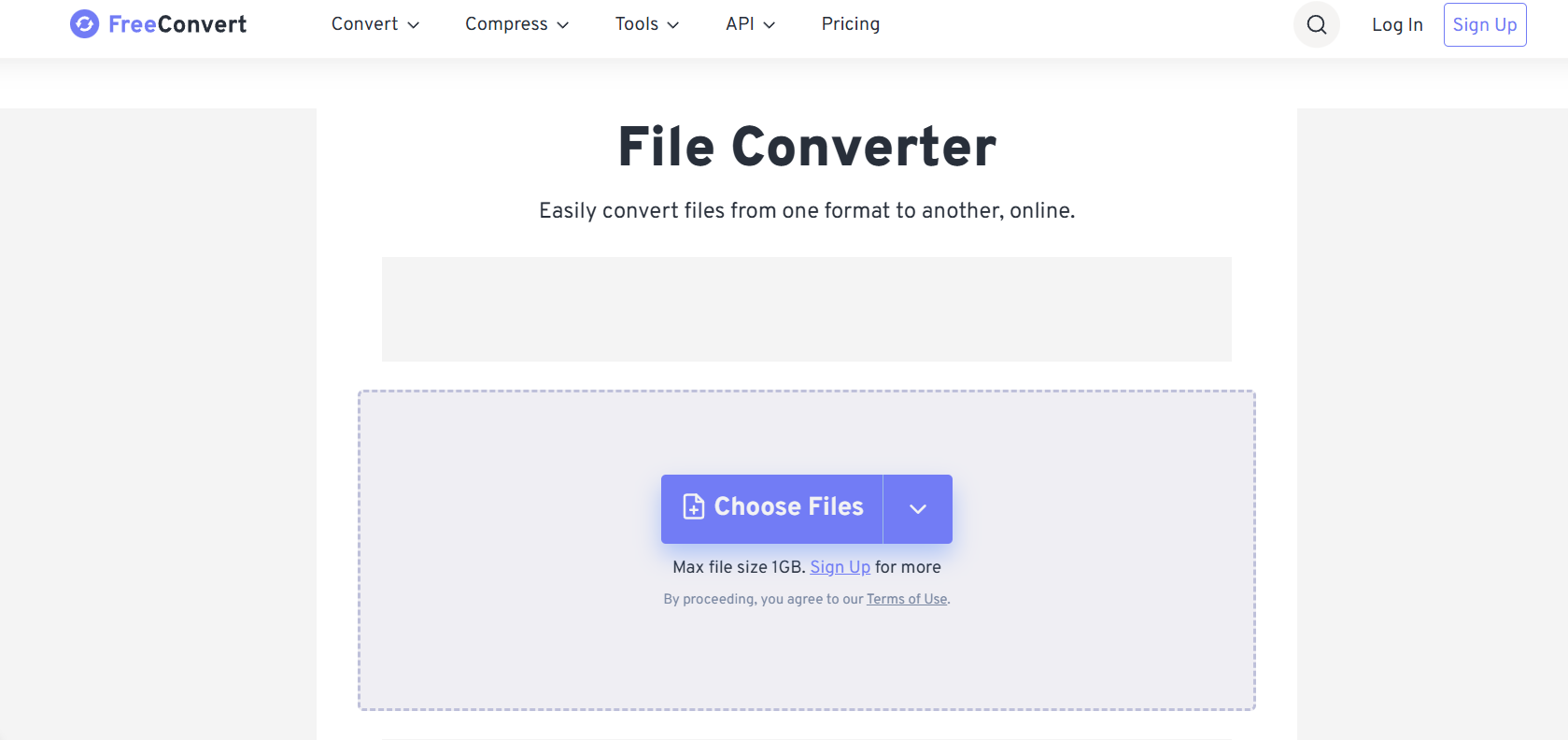
2. FreeConvert — Fast and Easy MPG to MP4 Conversion

FreeConvert is another solid online converter that’s completely free and supports large file sizes. You can drag and drop your video and get an MP4 file in minutes.

Supported Formats and Customization Options

It supports many video formats, and you can tweak the resolution, aspect ratio, and codecs. It’s also completely watermark-free.

Step-by-Step Conversion Guide

  1. Head over to the FreeConvert website.
  2. Upload your MPG video.
  3. Choose MP4 as your output format.
  4. Click Convert to MP4 and download your new file.

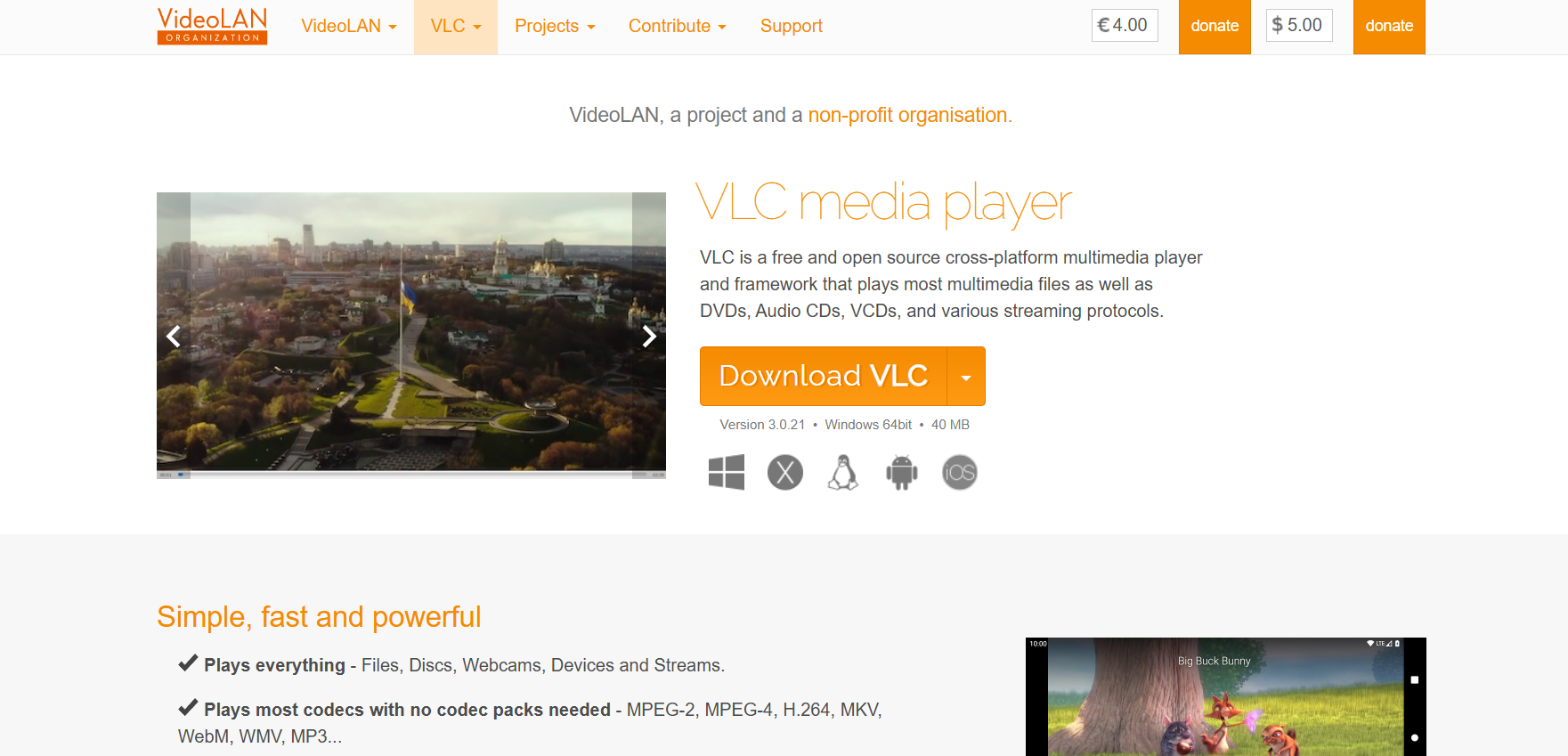
3. VLC Media Player — The Hidden MPG to MP4 Converter on Your PC

VLC Media Player

Most people know VLC as a video player, but it’s also a powerful MPG to MP4 converter. The best part? You probably already have it installed.

VLC Media Player is open-source, free, and works on Windows, Mac, and Linux.

How to Convert MPG to MP4 Using VLC

  1. Open VLC and click Media > Convert/Save.
  2. Add your MPG file.
  3. Choose the MP4/MOV profile.
  4. Click Start to begin conversion.

Why It’s Still One of the Best Free Options

VLC is secure, watermark-free, and can handle almost any video format. Plus, you don’t need an internet connection.

4. Convertio — Convert MPG Files to MP4 Right in Your Browser

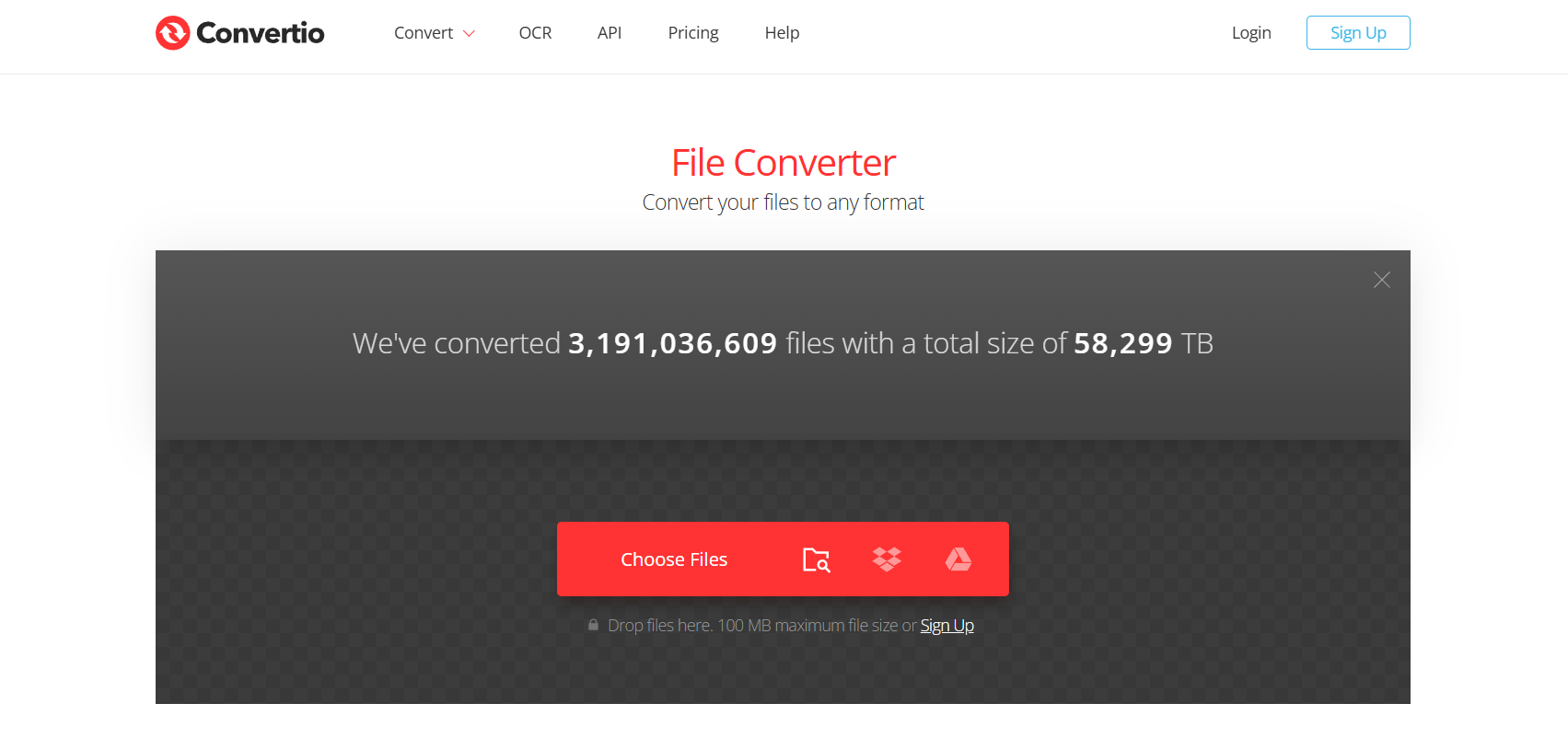
Convertio

Convertio is another web-based solution that’s perfect if you want a clean, ad-free experience. It supports drag-and-drop functionality and works directly in your browser.

Features and File Size Limits

Convertio lets you upload files up to 100MB for free. It also provides advanced settings for resolution, quality, and aspect ratio.

Pros, Cons, and Best Use Cases

Pros: Fast, simple, and supports cloud storage
Cons: File size limit on free plan
Best For: Quick conversions without installing anything

5. HandBrake — Powerful Open-Source MPG to MP4 Converter

HandBrake

If you’re looking for something more advanced, HandBrake is your go-to tool. It’s open-source software that converts virtually any video format into MP4 or MKV.

Why Professionals Love HandBrake

HandBrake is loved by editors and creators because of its deep customization options — from bitrate control to audio syncing.

How to Use It for Batch Conversion

  1. Download and install HandBrake.
  2. Load your MPG files.
  3. Choose MP4 as the format.
  4. Adjust settings as you like and click Start Encode.

HandBrake might look intimidating at first, but once you get the hang of it, it’s one of the best free tools out there.

6. AnyConv — Simple Online MPG to MP4 Tool

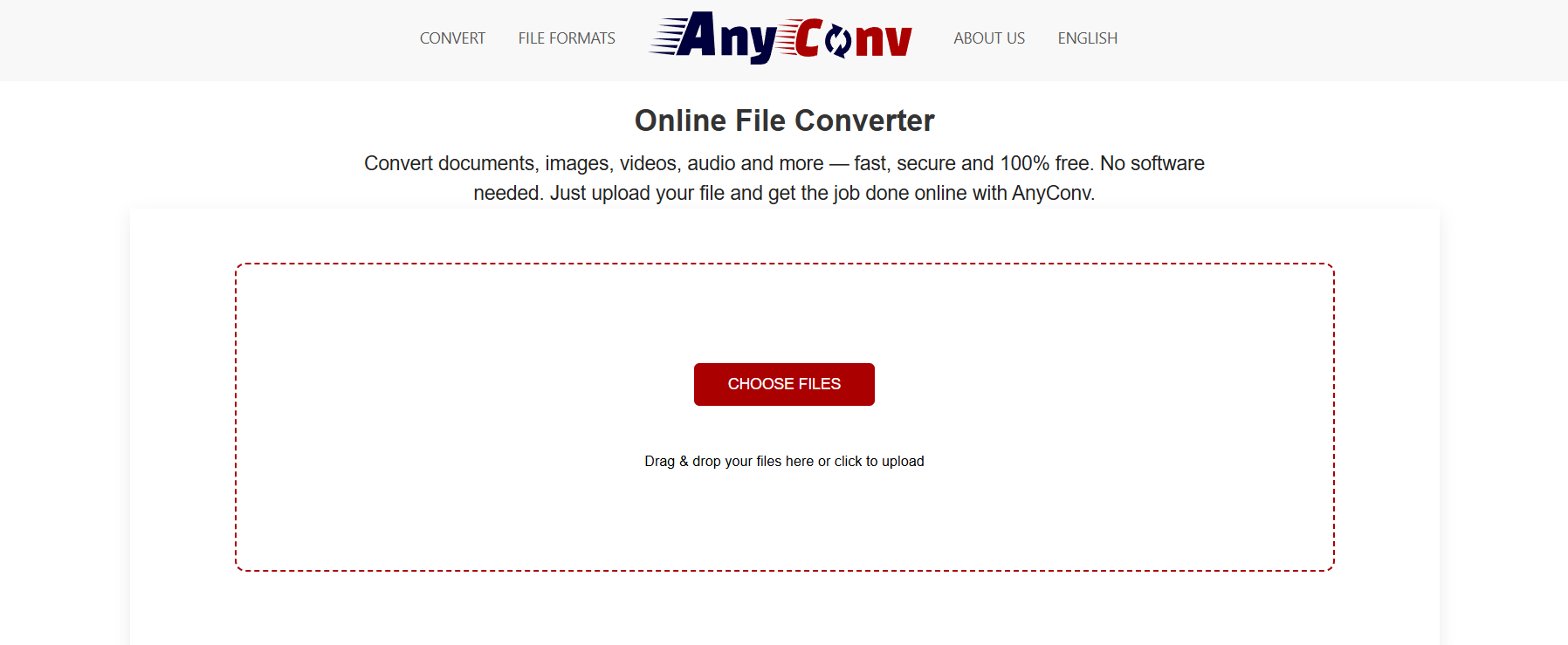
AnyConv

AnyConv is perfect if you just need a quick and simple conversion. No sign-ups, no installs.

Ease of Use and Supported Platforms

It works directly in your browser, supports both desktop and mobile, and provides instant conversions.

Privacy and File Handling

AnyConv deletes your uploaded files automatically after one hour, so your data stays private.

7. OnlineConvertFree — No Sign-Up, No Watermark

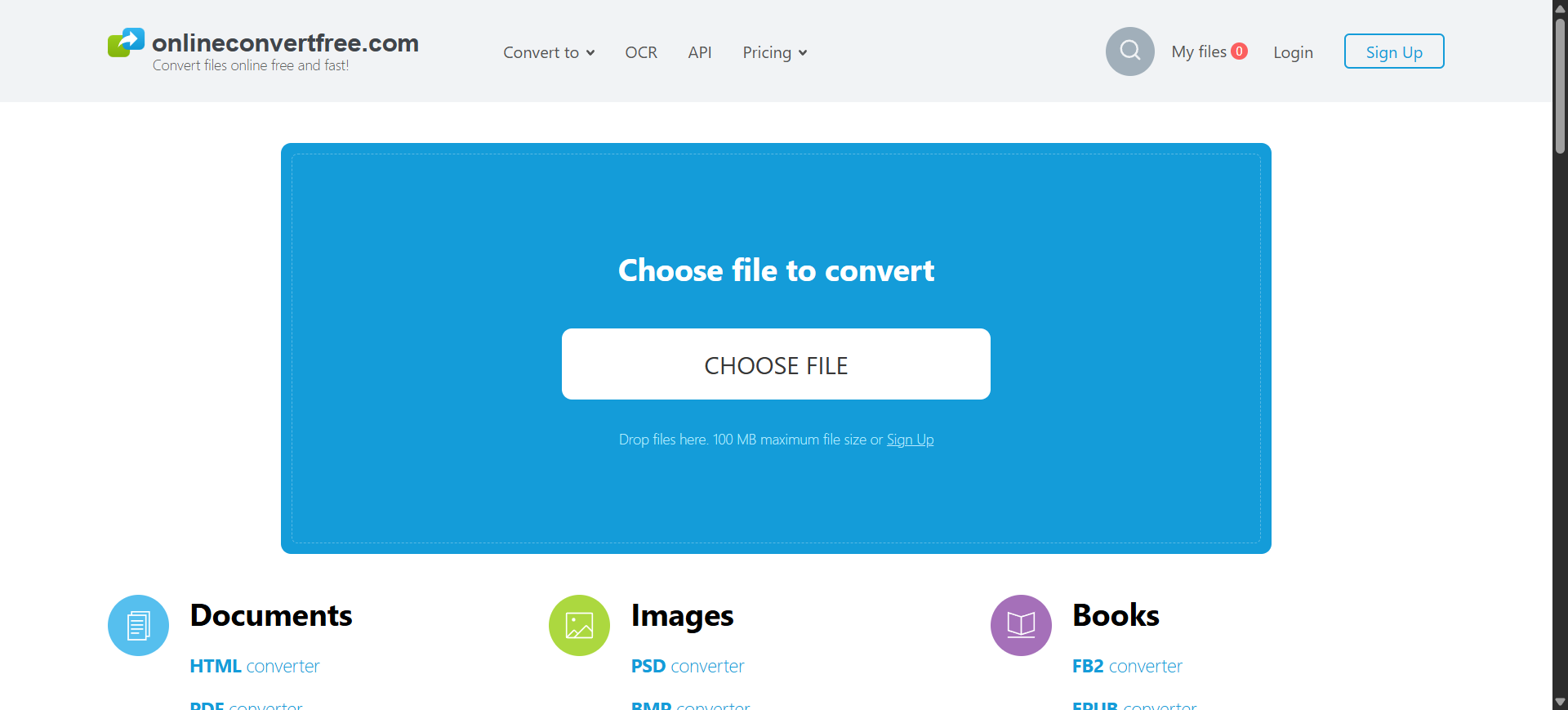
onlineconvertfree

With OnlineConvertFree, you can easily convert MPG to MP4 without dealing with annoying ads or registrations.

Speed and Conversion Quality

It’s fast, reliable, and the video quality remains almost identical to the original.

Limitations You Should Know

Free users might face a smaller file size cap, but for regular clips, it works perfectly fine.

8. Zamzar — Reliable MPG to MP4 Conversion Since 2006

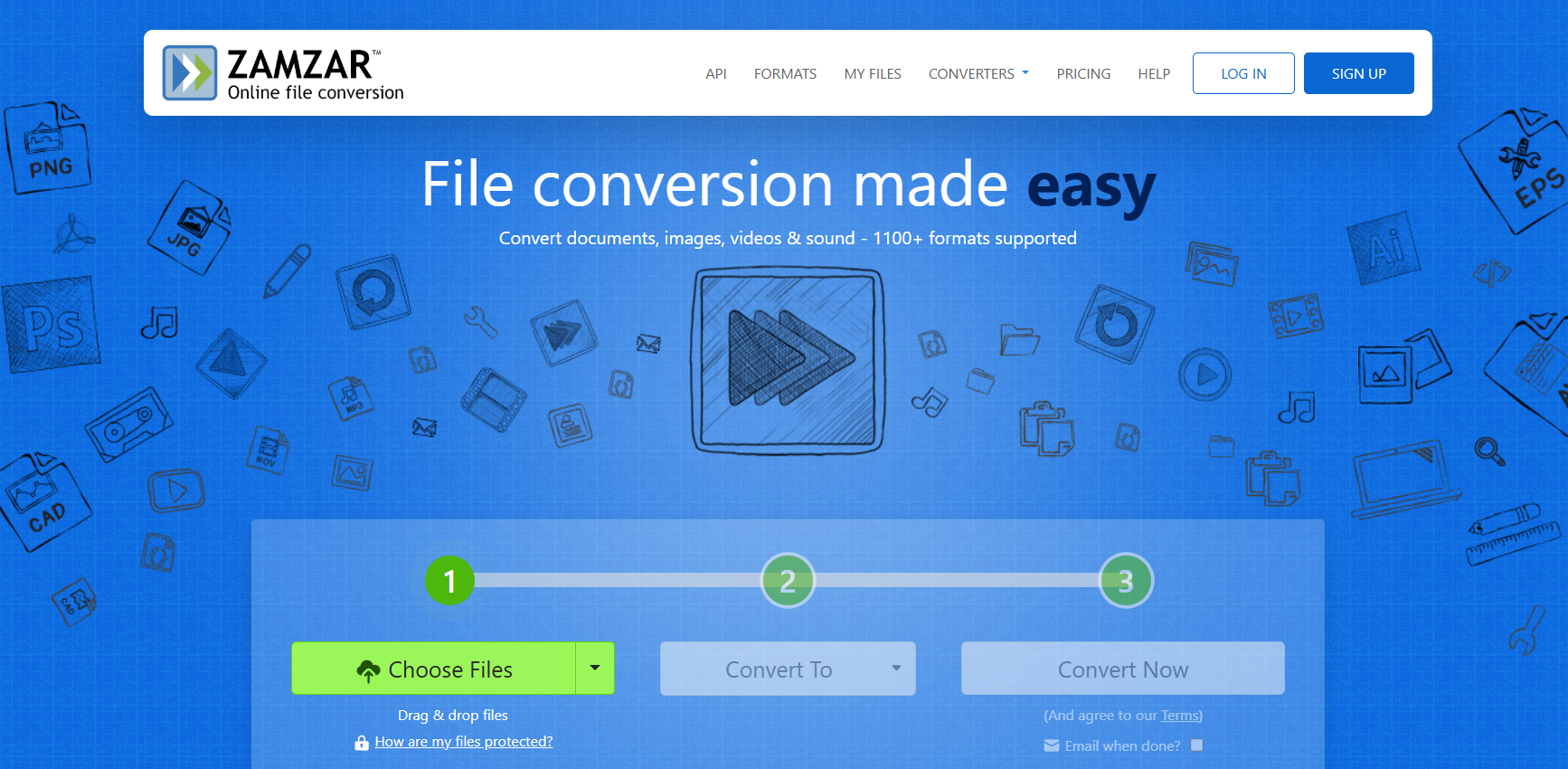
Zamzar

Zamzar has been around for nearly two decades, making it one of the most trusted online converters.

How It Works

  1. Go to the Zamzar link above.
  2. Upload your MPG file.
  3. Choose MP4 as the format.
  4. Click Convert Now.

Pros, Cons, and File Limits

Pros: Simple, reliable, and beginner-friendly
Cons: File size capped at 50MB on the free plan

9. Movavi Free Video Converter — Clean, Fast, and User-Friendly

Movavi Video Converter

If you prefer software with a sleek interface, Movavi Free Video Converter is an excellent choice.

Interface and Key Features

Movavi’s free version offers fast conversions, batch processing, and high-quality MP4 output with no watermark.

Is It Really Free and Watermark-Free?

Yes — the free version does not watermark your converted files, which is rare among free converters.

How to Choose the Best MPG to MP4 Converter for You

When choosing the right converter, think about your priorities:

  • Speed: If you want quick conversions, go for online tools like Convertio or FreeConvert.
  • Customization: If you need advanced settings, HandBrake or CloudConvert is ideal.
  • Offline Use: VLC is perfect for offline, watermark-free conversions.

Online vs. Offline Converters — Which Is Better?

Online converters are convenient but often limited by file size and internet speed. Offline software like VLC or HandBrake is better for larger videos or frequent conversions.

Security and Privacy Tips When Using Online Tools

Always choose sites with HTTPS and automatic file deletion. Avoid shady download links or pop-ups.

Pro Tips for Converting MPG to MP4 Without Losing Quality

  • Adjust Resolution and Bitrate: Lowering resolution too much can ruin quality. Keep it close to the original.
  • Choose the Right Codec: Use H.264 or H.265 for the best balance between quality and file size.
  • Avoid Multiple Conversions: Each re-encoding can reduce quality, so convert only once.

Conclusion: Get the Best Out of Your MPG Files Today

You don’t have to struggle with outdated MPG files anymore. With these free MPG to MP4 converters, you can easily modernize your video library without paying a dime or dealing with ugly watermarks. If you just need a quick online fix, try CloudConvert or FreeConvert. But if you want something more powerful, HandBrake and VLC are unbeatable.

Pick one, test it out, and give your old videos the upgrade they deserve.

Find More: Boost Your Sales With SEO Services

FAQs

1. What’s the difference between MPG and MP4 formats?

MPG is an older format that uses MPEG-1 or MPEG-2 compression. MP4 is newer, more efficient, and compatible with most devices and platforms.

2. Can I convert MPG to MP4 on my phone?

Yes! You can use browser-based converters like CloudConvert or Convertio directly from your phone.

3. Does converting MPG to MP4 reduce video quality?

Not necessarily. If you use the right settings (same resolution and bitrate), you’ll barely notice any difference.

4. Are online converters safe to use?

Most of the tools mentioned above are safe and privacy-conscious. Just make sure the site uses HTTPS and deletes files automatically.

5. What’s the fastest MPG to MP4 converter for large files?

For large files, offline tools like HandBrake or VLC are much faster and more stable than online converters.

7 Powerful Lightroom Alternatives That Beat Adobe at Its Own Game

7 Powerful Lightroom Alternatives That Beat Adobe at Its Own Game

lightroom alternative

Introduction: Why You Might Be Searching for a Lightroom Alternative

A Lightroom alternative has become a hot topic among photographers and creators lately. Maybe you’re tired of Adobe’s subscription model, or maybe you just want something simpler, faster, and more affordable that still gives you professional-level control. The truth is, Adobe Lightroom is great—but it’s not for everyone.

In this guide, we’ll explore seven powerful Lightroom alternatives that don’t just compete—they actually beat Adobe at its own game. Whether you’re a pro photographer, a hobbyist, or someone who wants to edit photos on the go, there’s something here for you.

And just for fun, if you ever deal with media conversions (like needing to convert WEBM file to MP4 or use a reliable WEBM to MP4 converter), I’ll also drop a few real, useful tools along the way that make life easier when working with different media formats. Because creatives need more than just photo editing tools—they need all-around flexibility.

Find More: FB Image Download: 7 Powerful Tools (No Login Needed)

What Makes a Great Lightroom Alternative?

Before jumping into the list, let’s get one thing straight: not every photo editor is a true Lightroom replacement. A great Lightroom alternative should let you edit RAW files, organize photos, and give you fine control over color, tone, and detail. It should also be reasonably fast and either free or affordable without locking you into a subscription.

Here are a few key things to look for:

  • RAW support: Essential for professional photography.
  • Non-destructive editing: Keeps your originals safe.
  • Organization tools: Tagging, rating, and sorting.
  • Speed and usability: A smooth workflow matters.
  • Price flexibility: One-time payment or free options are a plus.

Let’s dive into the real alternatives that photographers around the world are switching to.

The 7 Powerful Lightroom Alternatives That Beat Adobe at Its Own Game

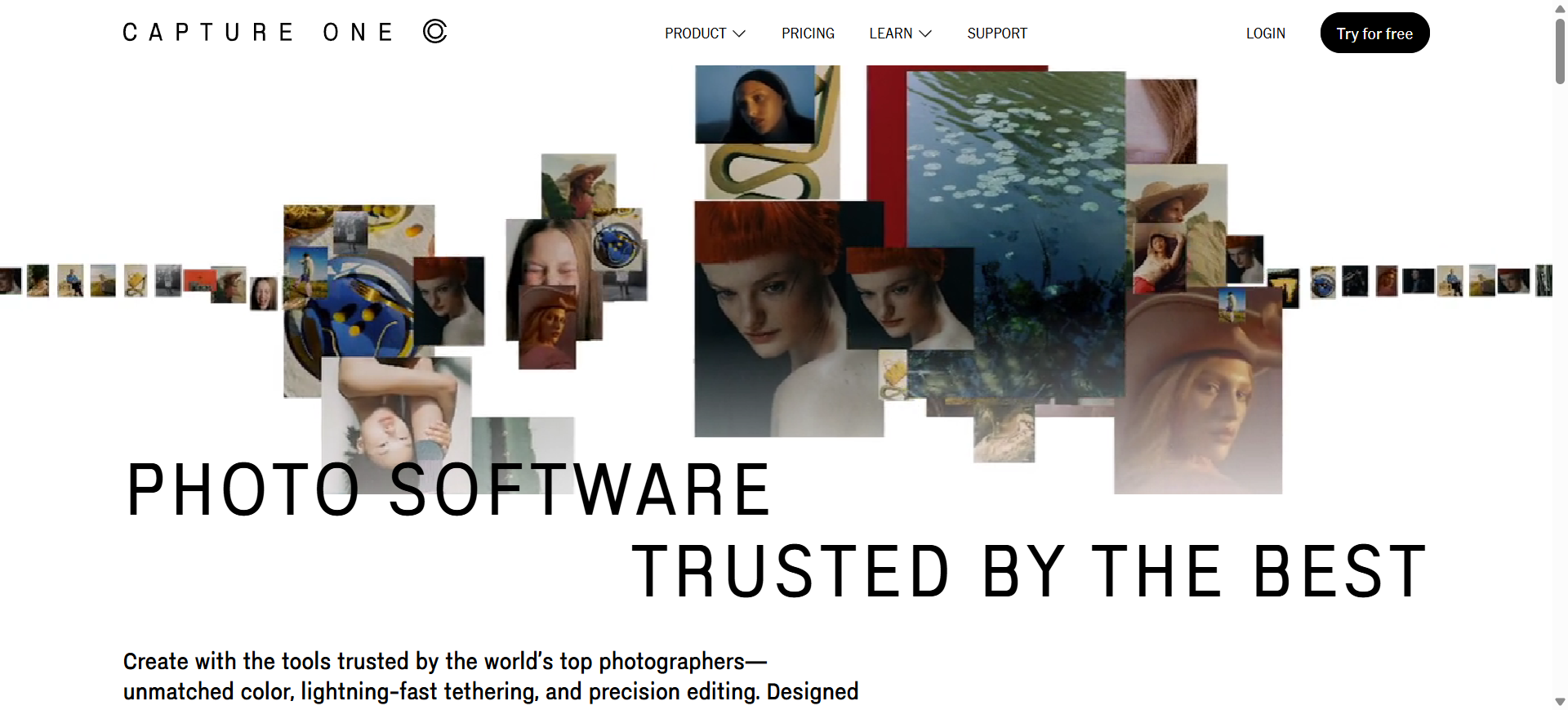
1. Capture One — The Professional’s Choice for Precision Editing

captureone

Capture One is often considered the go-to Lightroom alternative for professionals. It’s known for its incredible color accuracy, tethered shooting capabilities, and advanced layer system.

Why people love it: The color control is unmatched, and it’s fast—even with huge RAW files. Capture One also supports customizable workspaces, making it feel tailored to your editing style.

Pros:

  • Insanely accurate color editing
  • Powerful tethered shooting
  • Fast performance with large libraries

Cons:

  • Pricier than most alternatives
  • Slightly steeper learning curve

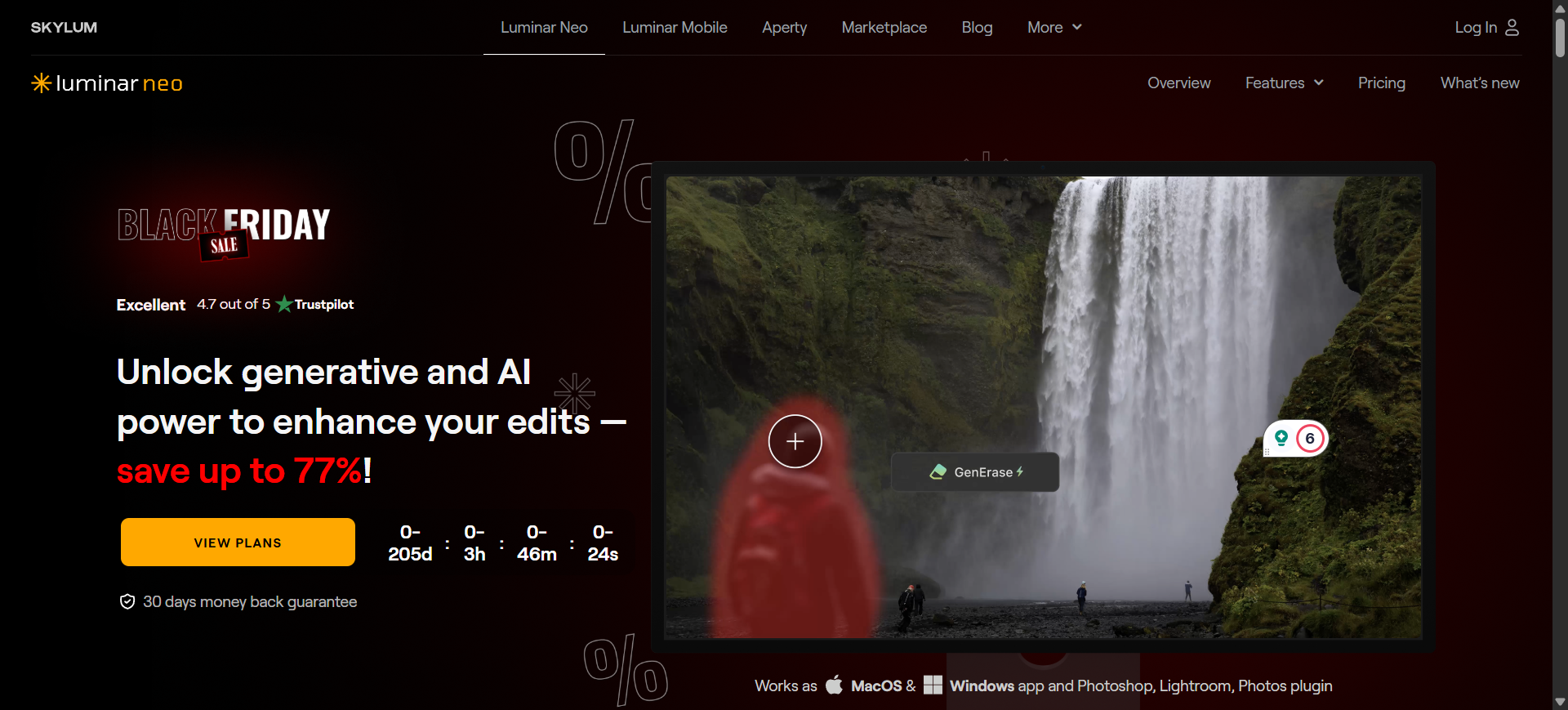
2. Skylum Luminar Neo — The Smart AI-Powered Lightroom Alternative

Luminar Neo brings artificial intelligence to the editing world in a way Lightroom never did. Its AI tools handle sky replacement, skin retouching, and background cleanup with just a click.

Why it’s great: It saves time. If you’re a content creator or social media photographer, Luminar Neo helps you achieve professional results fast.

Pros:

  • AI-driven editing tools
  • Intuitive and modern interface
  • One-time purchase (no subscription)

Cons:

  • Slightly heavy on system resources
  • Lacks deep catalog management

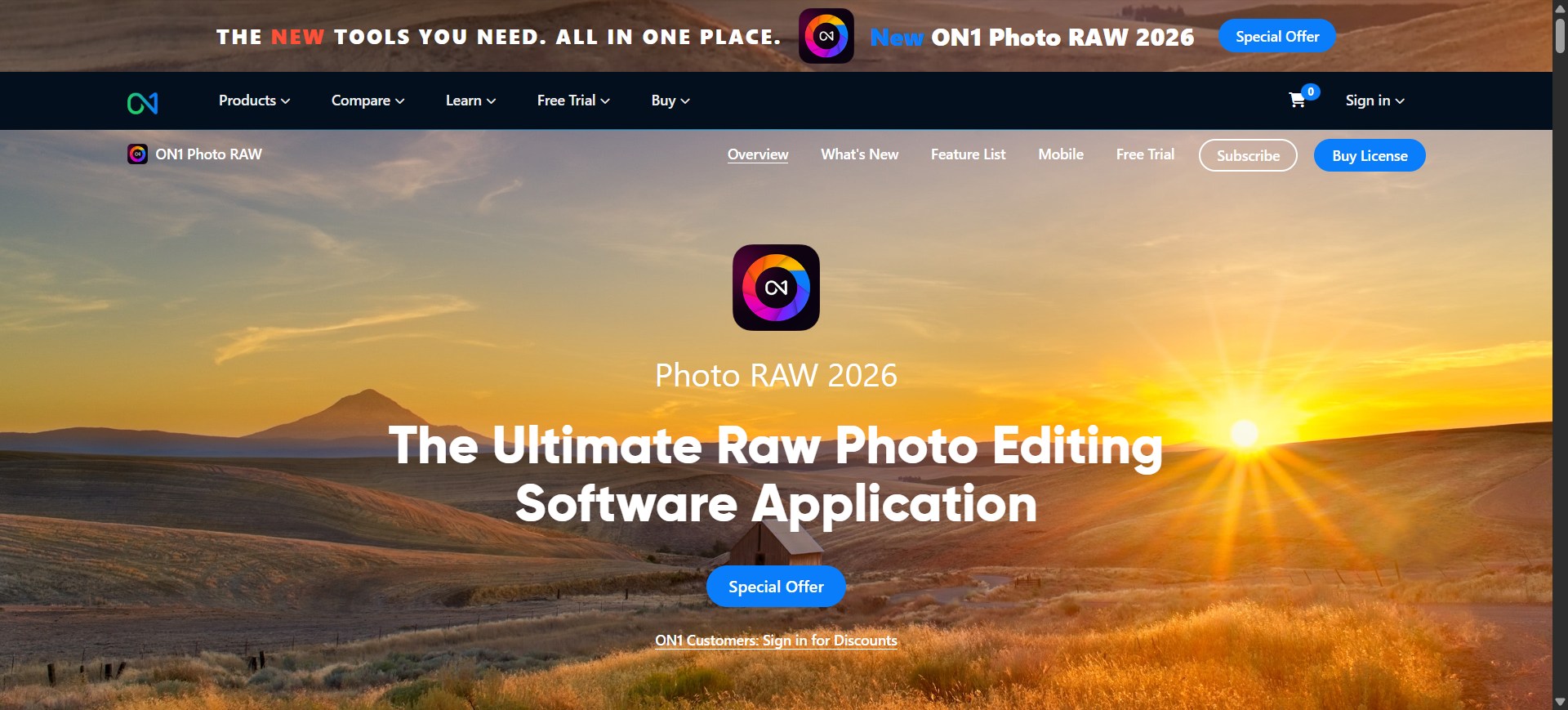
3. ON1 Photo RAW — The All-in-One Workflow Solution

on1

ON1 Photo RAW is like Lightroom and Photoshop combined. It lets you organize, edit, retouch, and even add creative effects—all in one place.

Why photographers switch: It gives you a complete workflow without having to jump between different apps.

Pros:

  • All-in-one photo editing suite
  • Works well offline
  • Affordable lifetime license option

Cons:

  • Interface can feel cluttered
  • Some tools require extra learning

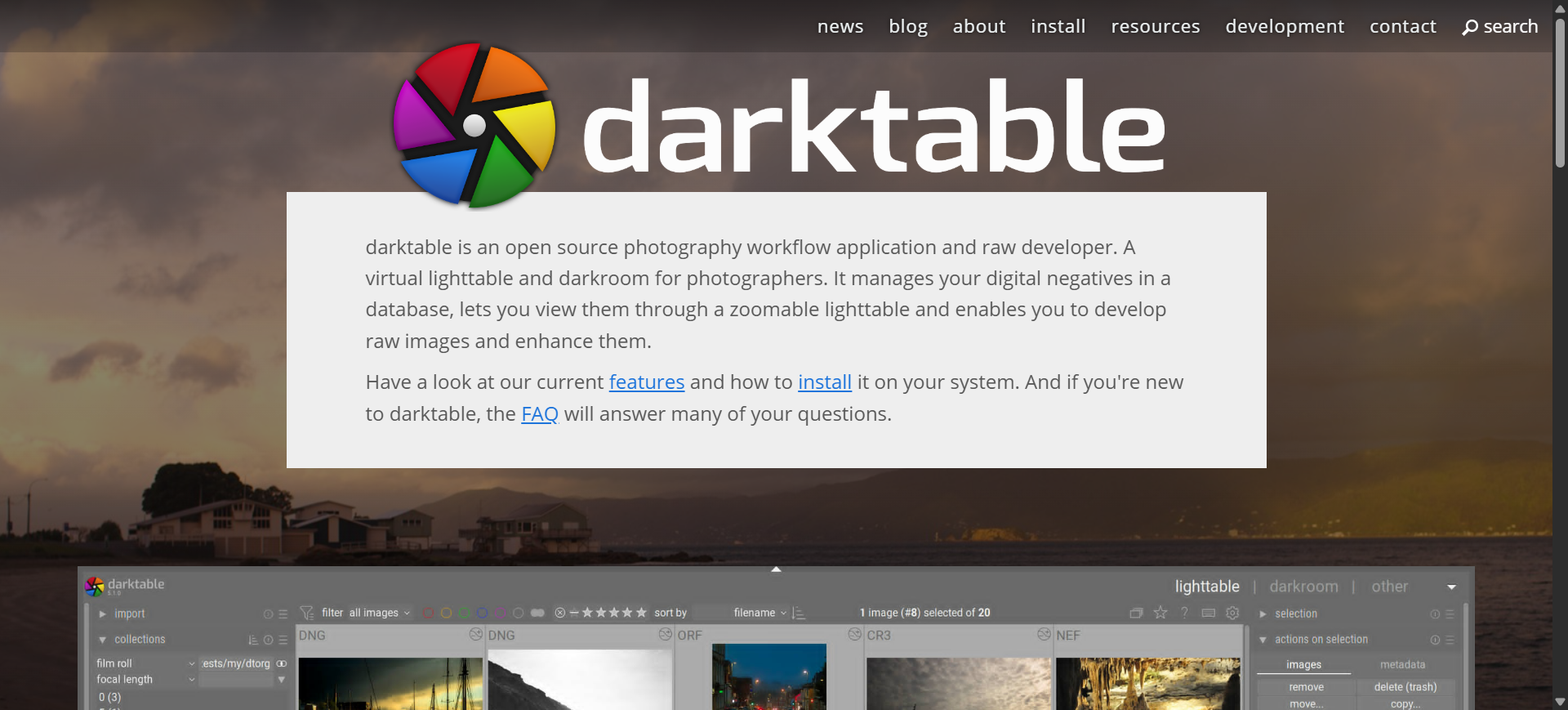
4. Darktable — The Best Free Lightroom Alternative for Professionals

darktable

Darktable is open-source and completely free, but don’t let that fool you. It’s powerful enough to compete with Adobe on editing depth.

Why it stands out: It’s open-source, so it’s continuously improved by a passionate community of developers and photographers.

Pros:

  • 100% free
  • Advanced RAW editing
  • Non-destructive workflow

Cons:

  • Less polished UI
  • Occasional bugs or slowdowns

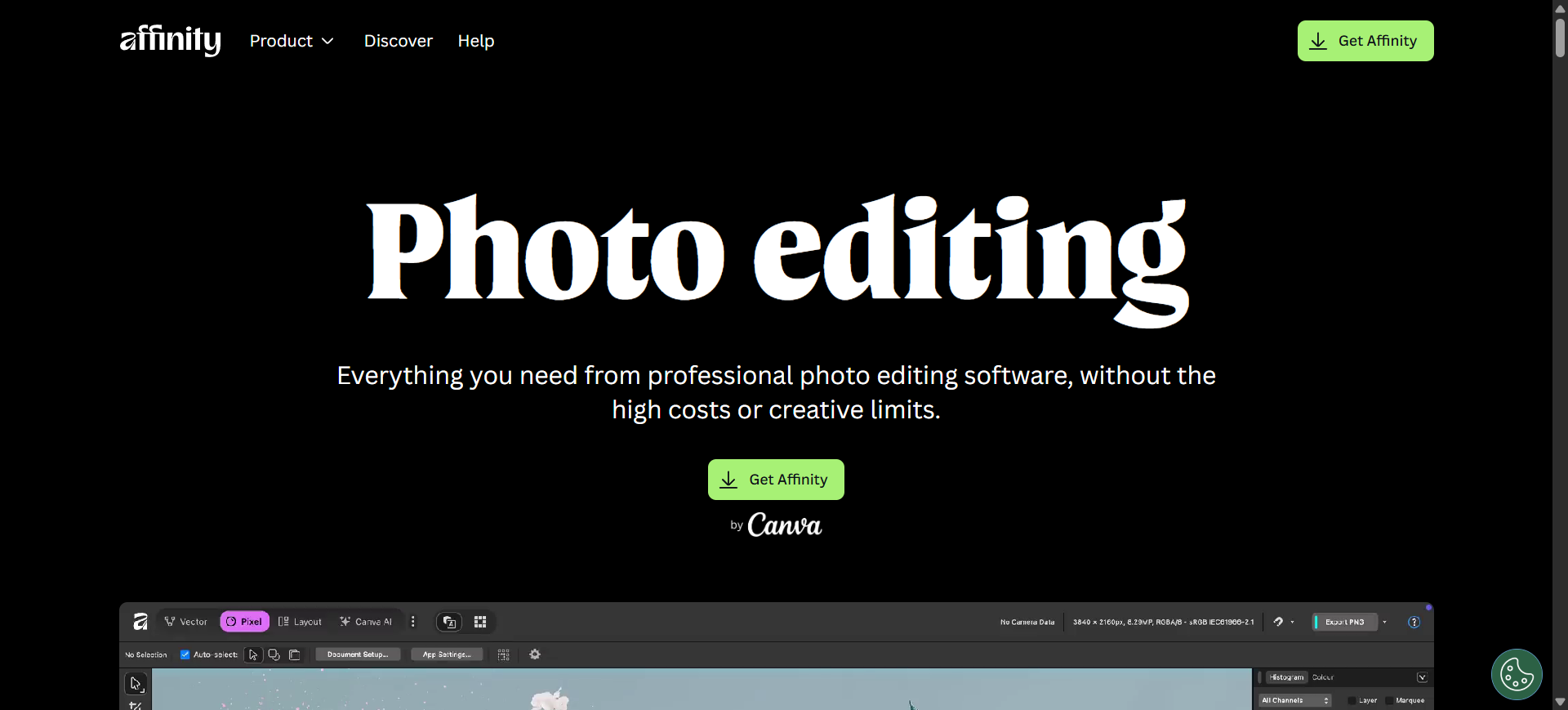
5. Affinity Photo — The Budget-Friendly Lightroom Alternative with Pro Results

affinity

Affinity Photo is a one-time purchase tool that offers serious professional-grade editing. It’s ideal for photographers who need Photoshop-like power without subscriptions.

Why it’s special: It supports 32-bit editing, HDR merging, focus stacking, and more—for a fraction of the price.

Pros:

  • No subscription fees
  • Excellent performance
  • Works across Windows, macOS, and iPad

Cons:

  • No photo cataloging system
  • Slightly different workflow from Lightroom

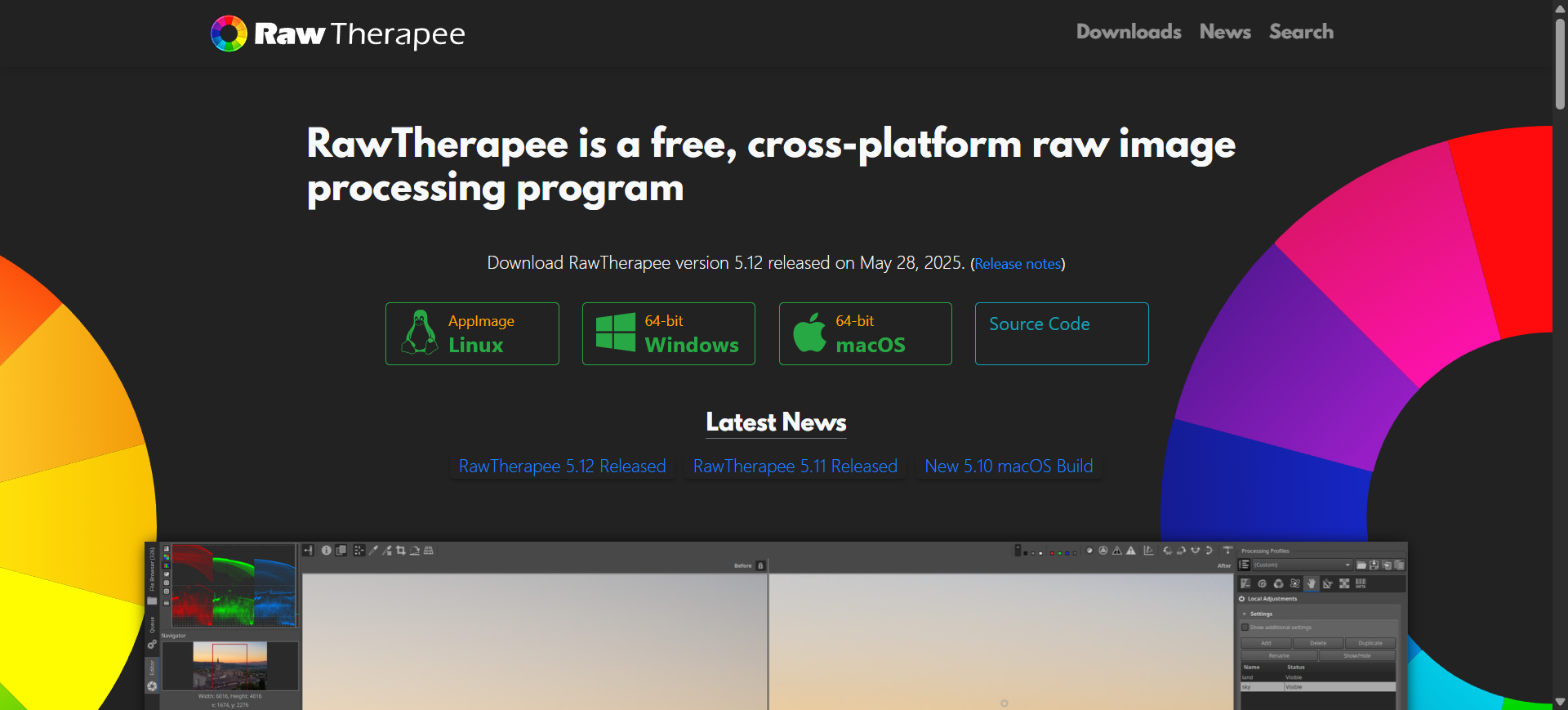
6. RawTherapee — The Hidden Gem for RAW Image Processing

RawTherapee

RawTherapee is another open-source Lightroom alternative designed for users who love control. It gives you extremely fine-tuned editing over your RAW files.

Why it’s awesome: It’s free, lightweight, and great for photographers who want manual control over every aspect of image processing.

Pros:

  • Free and open-source
  • Exceptional RAW control
  • Lightweight and fast

Cons:

  • Interface looks outdated
  • No built-in image organizer

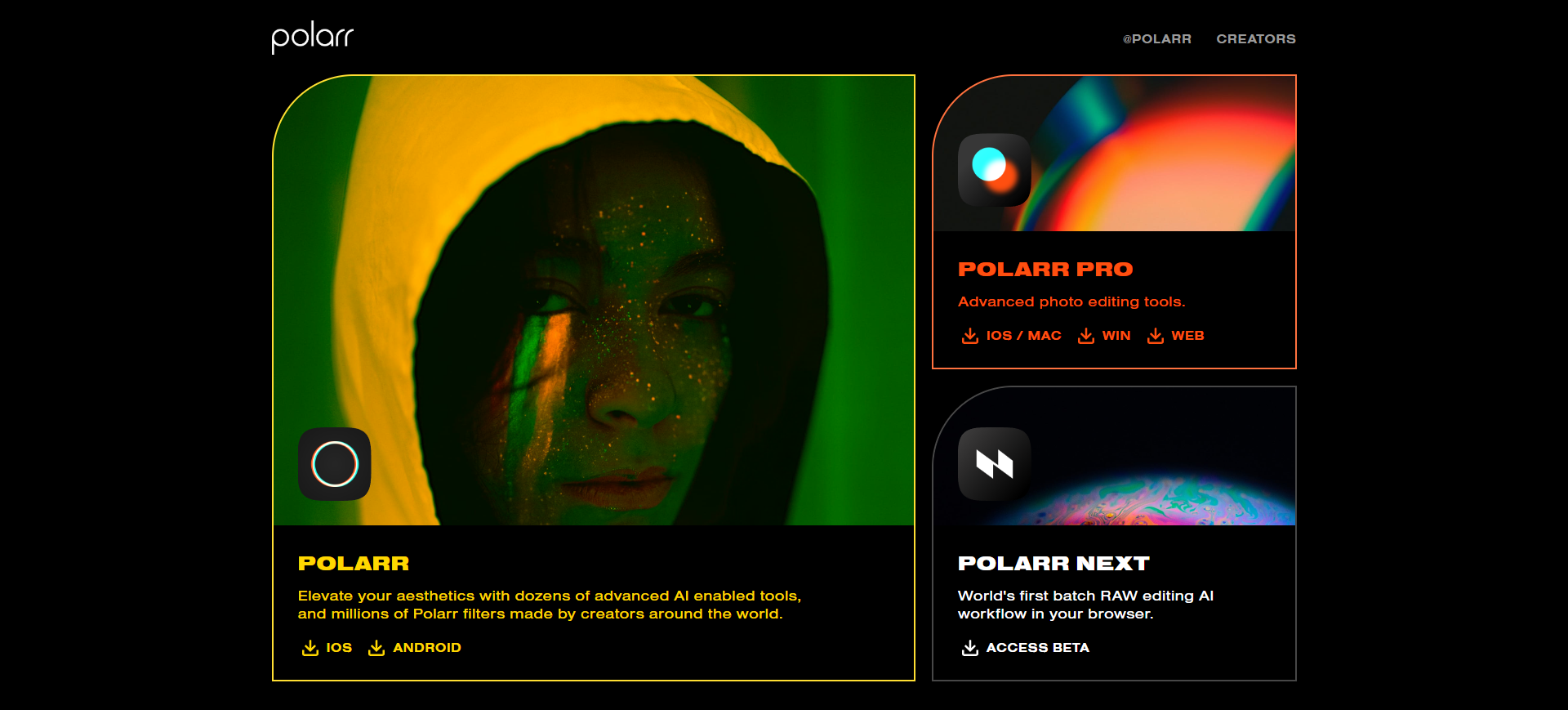
7. Polarr — The Minimalist Lightroom Alternative for Creators on the Go

polarr

Polarr is built for simplicity. It’s cloud-based, fast, and great for editing on mobile or web. Think of it as the minimalistic, creative cousin of Lightroom.

Why people love it: It’s perfect for quick edits, filters, and stylized looks—especially for social media.

Pros:

  • Easy to use
  • Cross-platform (desktop, web, mobile)
  • Affordable premium features

Cons:

  • Limited advanced tools
  • Requires internet for full functionality

Lightroom vs Lightroom Alternatives: Head-to-Head Comparison

So, how do these tools stack up against Adobe Lightroom?

Performance: Capture One and ON1 Photo RAW are faster, especially with large RAW libraries.

Pricing: Tools like Darktable, RawTherapee, and Polarr offer free or one-time payment options—no subscriptions.

Ease of use: Luminar Neo and Polarr win here, offering intuitive workflows ideal for beginners and content creators.

Editing power: Capture One remains the top contender for professionals needing full control and color accuracy.

Which Lightroom Alternative Is Right for You?

Choosing the best Lightroom alternative depends on your needs:

  • For professionals: Capture One or ON1 Photo RAW for their robust control.
  • For beginners: Luminar Neo or Polarr for simplicity and automation.
  • For budget users: Darktable or RawTherapee for full features at zero cost.
  • For mobile users: Polarr for easy, anywhere editing.

If you’re moving away from Adobe, you’re not losing quality—you’re gaining flexibility.

Bonus: Quick Tools for Video Conversions (Because Creatives Need More)

Since many photographers also handle video content, here are some reliable tools if you ever need to convert WEBM file to MP4 or use a WEBM to MP4 converter:

  • CloudConvert – Convert WEBM to MP4 online quickly with no quality loss.
  • Convertio – Simple drag-and-drop interface for converting WEBM to MP4.
  • VEED.io – Great if you want to edit and convert in one place.

All of these are trusted by creators and work smoothly across browsers.

Conclusion: Your Next Step Toward Better Photo Editing

Switching to a Lightroom alternative doesn’t mean downgrading. In fact, it’s often the opposite—you’ll gain freedom, creativity, and control over your workflow without being locked into Adobe’s ecosystem.

Try one or two from this list, explore how they fit your style, and find the tool that makes editing exciting again. Whether you’re after raw power, simplicity, or budget freedom, your perfect Lightroom alternative is waiting.

Find More: Boost Your Sales With SEO Services

FAQs

1. What is the best free Lightroom alternative?

Darktable and RawTherapee are the best free options for professional-quality editing without any cost.

2. Can I import my Lightroom presets into these alternatives?

Some, like ON1 Photo RAW and Capture One, allow preset imports or have equivalent profiles you can recreate easily.

3. Do Lightroom alternatives support RAW files?

Yes! Every tool listed here supports RAW image editing, with varying levels of depth and control.

4. Which Lightroom alternative is best for beginners?

Luminar Neo and Polarr are beginner-friendly thanks to their simple interfaces and AI tools.

5. Are there any cloud-based Lightroom alternatives?

Yes, Polarr and Luminar Neo both offer cloud features that make cross-device editing simple and seamless.

Tags:
10 Best Online C Compilers for Coding Practice (2025-26 List)

10 Best Online C Compilers for Coding Practice (2025-26 List)

best online c compilers

C programming has shaped the world of software development for decades. Even today, it continues to be one of the most essential languages for anyone planning to build strong fundamentals in computer science. Whether preparing for college practicals or sharpening skills for technical interviews, a free online C compiler makes the journey simpler, faster, and more comfortable for learners.

Instead of spending hours configuring software and fixing installation issues, learners can open an online C compiler, write code, and run it instantly from any device. This simple approach helps new programmers stay focused on logic, understanding, and improving coding skills step-by-step.

This detailed guide explores the best online C compiler platforms to practice C programming in 2025. These compilers are designed for effortless learning, and will help you explore reliable options to choose the right tool based on learning style and goals.

What is an Online C Compiler?

An online C compiler is a browser-based tool that allows learners to write, compile, and run C programs without installing anything on their system. It brings the entire compilation process to the cloud, so students can practice anytime and anywhere. Instead of configuring IDEs, environment paths, or compilers manually, learners simply focus on building logic and executing programs.

With an online compiler for C programming, even a basic device like a Chromebook or smartphone becomes a reliable coding tool. This provides a friction-free learning experience for beginner-level programmers.

How an Online C Compiler Works

Online C compilers work through a simple process:

  1. Online C compilers work simply by writing your C code in a text editor in your web browser.
  2. The platform sends your code to a server-side C compiler (such as GCC or other alternatives).
  3. To securely compile the program.
  4. And to dispense output back to your screen.

This eliminates setup challenges, letting beginners jump straight into coding and practice C syntax, functions, loops, arrays, pointers, structures, and other concepts efficiently.

Many students searching for how to run a C program in an online compiler or how an online compiler works appreciate this mechanism because it brings clarity without technical hurdles.

Key Features to Expect in the Best Online C Compiler

When choosing a C language compiler online, focus on these core features:

  • Clean, simple interface for smooth practice
  • Fast code execution with clear output
  • Support for stdin input/output
  • Helpful error messages and line numbers
  • Accessible from mobile and laptops
  • No login forced for basic use
  • Beginner-friendly experience for college students

An online C compiler free experience should feel natural and focused on learning.

Benefits of Using an Online C Compiler

Using an online tool to run C programs offers several advantages:

  • No installation is required — begin coding immediately
  • Great for beginners practicing basic concepts
  • Saves time on college lab work and assignments
  • Access to coding from anywhere
  • Aids in building consistency and discipline in a coding practice
  • Works well on low-end systems

When Should You Use an Online Compiler for C Language?

An online compiler for C language is ideal when:

  • Learning basic syntax and logical thinking
  • Practicing coding assignments and viva programs
  • Preparing for tests and interviews
  • Running short program examples daily
  • Revising pointers, strings, arrays, and functions
  • Testing code quickly before writing full projects locally

Whether you are in college, preparing for placements, or learning coding fundamentals, a best online C compiler simplifies learning and maximizes time.

How to Choose the Best Online Compiler for C Programming

The right platform depends on what stage you are in:

If You Are… Recommended Experience
Complete Beginner Clean, simple free online compiler for C
Intermediate Learner Editor with input support and readable errors
Advanced Debugging, multi-file support, and version control

Top 10 Best Online C Compilers (2025)

Starting with the most student-friendly and accessible option

1. WsCube Tech Online C Compiler

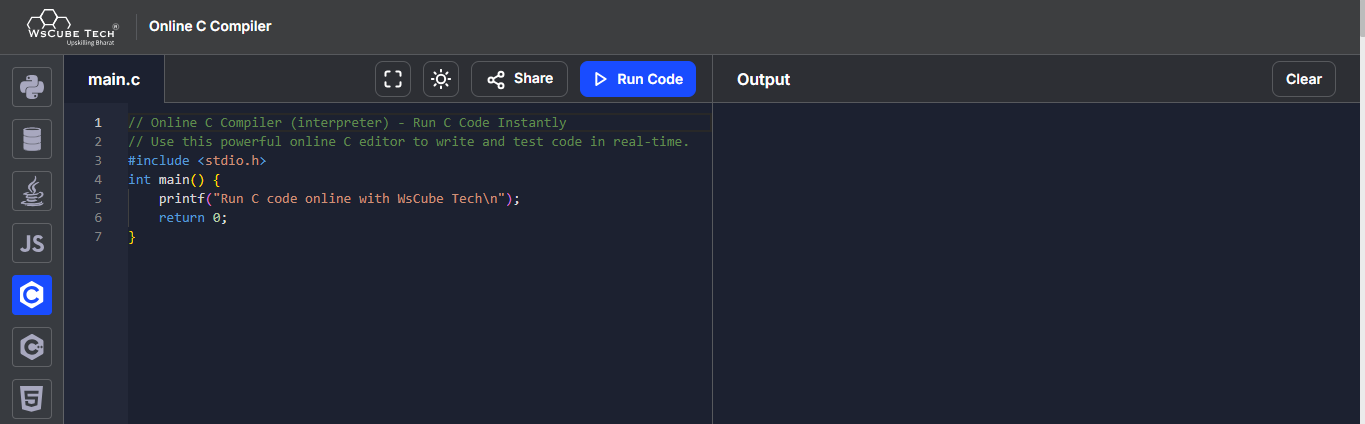
WsCube Tech Online C Compiler

A seamless learning experience can change how an aspiring coder approaches learning and working with computer code (i.e., coding). 

The online C compiler provided through WsCube Tech is designed to avoid confusion and promote clear thinking and repetitive practice. It opens quickly, runs code quickly, and presents output in an easy-to-understand format. For students who want a dependable environment to practice C syntax, loops, functions, and logic every day, this tool keeps everything simple.

Many new learners feel anxious about errors, compiling problems, or complex menus. This platform removes those distractions so the student can focus purely on understanding how C works. Whether you’re printing your first output or practicing a linked-list function tomorrow, the environment stays stable and predictable.

Along with the compiler, learners can also explore the detailed C tutorial for step-by-step guidance and structured practice.

What makes it especially helpful is the availability of learning resources around it — clean explanations, practical programs, quizzes, and structured guidance for C programming learners. It does not push your experience toward a more involved process too soon. It treats the parallel journey of the beginner and makes coding accessible.

Ideal for:

  • Students learning C from scratch
  • College or post-secondary program practical preparation
  • Regular practice between semesters of learning
  • Problem-solving skills and thinking logically
  • Anyone in need of a free online C compiler that works the way it should work.

2) OnlineGDB

OnlineGDB is a useful tool once basic syntax and simple programs feel comfortable. It includes a debugger feature that walks through code step-by-step, making pointer behaviour, recursion, and loops easier to understand. It takes a bit of getting used to, but creates clarity for deeper logic.

3) JDoodle

JDoodle is designed for fast execution and quick testing. Students commonly use it during tight study sessions or while attending online lectures. The editor keeps things simple and supports input testing, which is key for assignments and practice problems.

4) Ideone

Ideone helps run and share small C programs with ease. It’s straightforward and ideal for cases where learners want to understand a concept, test a short logic, or share a code snippet with peers or mentors for feedback.

5) Replit

Replit supports everything from beginner practice to multi-file coding mini-projects. As students progress from basics to real programs, this platform becomes a comfortable space to experiment and collaborate with others.

6) Programiz C Compiler

Programiz helps connect practice with learning. It is comfortable for beginners who prefer reading clear explanations before running programs. Its simple interface acts like a learning companion rather than just an editor.

7) CodeChef IDE

CodeChef IDE is useful for competitive programming training. It compiles C code quickly and supports input-based challenges. Students preparing for exams or coding rounds often practice here for time-bound logic tests.

8) Scaler Playground

Scaler Playground offers a fresh interface and is suitable for practicing C fundamentals rapidly. Many learners use it to test functions and logic while studying DSA-related topics in C.

9) TutorialsPoint Online Compiler

A simple C code editor tied to a large educational resource platform, often used during theory study. Helps quickly test examples from lessons.

10) OneCompiler

OneCompiler allows easy everyday practice and supports fast execution. It feels lightweight, so learners can quickly revisit C skills and progress without friction.

Side-by-Side Comparison Table

This comparison table gives a clear, practical view of what each online C compiler offers, so learners can choose the one that fits their study style and goals.

Platform Ease of Use Login Needed
WsCube Tech Very easy for beginners No
OnlineGDB Moderate No
JDoodle Easy No
Ideone Easy Optional
Replit Moderate Yes
Programiz Very easy No
CodeChef IDE Easy Optional
Scaler Playground Easy Optional
TutorialsPoint Compiler Easy No
OneCompiler Easy Optional

Takeaway:

For pure learning and smooth practice, a simple and clean interface helps build confidence faster. Tools with collaborative or debugging features become useful once core C concepts feel comfortable.

Common Issues & Fixes

Issue Reason Solution
Compilation error Missing header or semicolon Check syntax, include stdio.h
Wrong output Wrong format specifier Revisit scanf/printf
Crash or segmentation fault Pointer misuse Check pointer initialization
Program stuck Waiting for input Provide input when prompted

FAQs About Online C Compilers

1. What is an online C compiler?

An online C compiler lets you write and run C programs directly in your browser without installing any software.

2. How do I use it effectively?

Start with small programs, test often, learn from errors, and slowly move to more complex logic and inputs.

3. Is it free, and do I need to log in?

Most online C compilers are free and don’t require login unless you want extra features like saving files or projects.

4. Can I debug C code online?

Yes. Some platforms support step-by-step debugging. Others rely on print statements, which work well for beginners.

Conclusion

Learning C encompasses problem-solving, critical thinking, and solid understanding of programming basics. With a dependable online C compiler, students can focus on logic development, practice daily, and gain self-assurance as they improve without being concerned with installation.

WsCube Tech’s  online compiler for C language offers a comfortable and distraction-free space to begin and build a strong foundation. Once fundamentals are clear, students can explore more complex coding and eventually work on advanced projects.

Whether preparing for exams, sharpening coding logic, or beginning the journey into programming, start simple, practice daily, and keep improving. The right learning environment makes all the difference — and online tools, used the right way, accelerate growth and confidence step by step.

6 Genius Ways to Convert FLAC to MP3 Without Losing Quality (Fast & Free)

6 Genius Ways to Convert FLAC to MP3 Without Losing Quality (Fast & Free)

flac to mp3

Introduction: Why Converting FLAC to MP3 Makes Sense in 2025

If you’ve ever tried to share a FLAC file and realized it’s too big to send or play on your phone, you’re not alone. The main keyword here, flac to mp3, has become one of the most searched audio conversion topics for a reason. People love FLAC because it delivers studio-quality sound, but when it comes to practicality, MP3 still wins the race.

So, why convert FLAC to MP3? Because MP3 files are smaller, more compatible, and still sound great if done right. The trick is finding a way to convert FLAC to MP3 without losing quality — and that’s exactly what we’ll cover here. Whether you’re using a PC, Mac, or phone, there’s a simple, fast, and free method for you.

Let’s dive into 6 genius ways to convert .flac to mp3 and keep that crystal-clear sound.

Find More: 7 Genius Ways to Compress MP3 Files Without Losing Sound Quality

1. Use Free Online FLAC to MP3 Converters

If you just need a quick conversion, online tools are the easiest way to go. No downloads, no installation — just upload your FLAC audio file to MP3 and you’re done.

Best Websites to Convert FLAC to MP3 Online

CloudConvert

  • CloudConvert – A trusted online tool that supports over 200 file formats. You can even adjust the bitrate and sample rate to maintain quality. It’s free for small conversions and super easy to use.
  • Convertio – One of the most popular converters out there. Drag and drop your FLAC files, choose MP3, and download instantly. Works directly from Google Drive or Dropbox.
  • Online Audio Converter – Fast, simple, and allows you to tweak output settings like bitrate and channels. Great for people who want a quick, no-fuss conversion.

Step-by-Step: How to Use an Online Converter

  1. Go to one of the sites above.
  2. Upload your FLAC file.
  3. Choose MP3 as your output format.
  4. Set your preferred bitrate (try 320 kbps for high quality).
  5. Click Convert, then download your file.

Pros and Cons of Online Conversion

Pros: Fast, easy, and works on any device.
Cons: Requires internet connection and may limit file size for free users.

2. Convert FLAC to MP3 with Desktop Software

If you often convert large batches of files, desktop apps are a better choice. They’re faster, more stable, and usually offer higher quality control.

Top Free & Paid FLAC to MP3 Software Options

  • Fre:ac – A free and open-source converter that’s lightweight yet powerful. It supports multiple formats and lets you manage large playlists effortlessly.
  • MediaHuman Audio Converter – Perfect for Mac and Windows users who want simple drag-and-drop functionality. Supports batch conversion and preserves metadata like album art and track names.
  • Switch Audio File Converter – Offers both a free and premium version. It’s fast and reliable, making it ideal for converting entire music libraries.

Recommended Tools for Windows, macOS, and Linux

  • Windows: Fre:ac or Switch
  • Mac: MediaHuman or Switch
  • Linux: Fre:ac or FFmpeg (for advanced users)

Tips to Maintain Sound Quality During Conversion

Always use a bitrate of at least 256 kbps, and avoid re-converting MP3 files multiple times, as it leads to cumulative quality loss.

3. Use VLC Media Player for FLAC to MP3 Conversion

VLC Media Player

You might not realize it, but VLC Media Player can do way more than just play videos. It can also convert audio files — and it’s completely free.

Why VLC Is a Hidden Gem for Audio Conversion

VLC is already installed on millions of computers. It’s safe, fast, and doesn’t need any plugins.

Step-by-Step Guide: Converting FLAC to MP3 in VLC

  1. Open VLC and click Media > Convert / Save.
  2. Add your FLAC file.
  3. Choose Convert and set MP3 as your profile.
  4. Pick a destination folder and hit Start.

Common Issues & How to Fix Them

If you notice reduced volume or missing metadata, tweak the conversion settings or use a dedicated converter like MediaHuman for better tag handling.

4. Convert FLAC to MP3 Using Audacity

Audacity

If you’re into editing audio, Audacity is one of the best free tools out there. It’s open-source and used by podcasters, musicians, and sound designers.

How to Import and Export FLAC Files in Audacity

  1. Launch Audacity.
  2. Drag and drop your FLAC file into the window.
  3. Go to File > Export > Export as MP3.

Best Audio Settings for MP3 Conversion

Set the bitrate mode to constant and select 320 kbps for the best mix of size and quality.

Installing the LAME Encoder for Better Results

If you’re on an older version of Audacity, you might need to install the LAME MP3 encoder, which improves export compatibility and compression.

5. Convert FLAC to MP3 on Mobile (Android & iPhone)

On the go? No problem. You can convert FLAC files directly from your smartphone.

Best Mobile Apps to Convert FLAC to MP3

  • Audio Converter (Android) – Free, clean interface, and supports multiple formats. You can adjust bitrate, volume, and even trim audio.
  • The Audio Converter (iOS) – Works directly with your Files app or cloud storage, offering fast, secure conversions.

How to Convert Directly from Your Phone Storage

  1. Open the app.
  2. Upload your FLAC file.
  3. Select MP3 as the output format.
  4. Choose your desired quality and start conversion.

Battery and Storage Tips During Conversion

Keep your phone plugged in during long conversions and avoid converting large albums if your storage is nearly full.

6. Use Cloud-Based Services for Seamless FLAC to MP3 Conversion

Cloud tools are perfect for people who want to keep everything synced and accessible across devices.

How Cloud Converters Work (Google Drive, Dropbox Integration)

Tools like Zamzar let you upload FLAC files from your cloud storage and automatically convert them to MP3. You can then download or directly save them back to the cloud.

Syncing Files Across Devices Automatically

Most cloud converters can connect to your Drive or Dropbox, so when you upload a FLAC file, it gets converted and synced automatically.

Security and Privacy Tips When Using Cloud Tools

Always choose services that use HTTPS encryption and avoid uploading sensitive or personal recordings.

Bonus Tips: How to Preserve Audio Quality While Converting

  • 🎶 Understand Bitrate and Sample Rate: 320 kbps and 44.1 kHz are ideal for MP3 conversion.
  • 🧠 Choose the Right Codec: LAME MP3 encoder produces the cleanest sound.
  • 💾 Avoid Repeated Conversions: Every new conversion can slightly degrade quality.
  • 🎧 Use Headphones to Test Output: Check for clarity and volume before deleting your original FLAC.

Conclusion: The Smart Way to Convert FLAC to MP3 Without Sacrificing Quality

So, we’ve covered the 6 best ways to convert FLAC to MP3, from quick online tools to powerful desktop apps and mobile solutions. Each method has its pros and cons — but if you want fast, free, and high-quality conversions, tools like CloudConvert, MediaHuman, and Audacity are your best bets.

Remember: converting your FLAC audio file to MP3 doesn’t have to mean losing quality. With the right settings and tools, you can enjoy smaller files with sound that’s nearly identical to the original.

Try one of the methods above today — your playlist (and your storage space) will thank you.

Find More: Boost Your Sales With SEO Services

FAQs

1. Is there really no quality loss when converting FLAC to MP3?

Technically, MP3 is a lossy format, so there will always be some compression. But if you use a high bitrate like 320 kbps, most people won’t hear the difference.

2. What bitrate should I use for the best MP3 audio quality?

Stick with 256–320 kbps for music. Anything lower can make complex sounds, like cymbals or vocals, lose clarity.

3. Can I convert FLAC to MP3 on my phone without an app?

Not easily. You’ll usually need an app or an online converter. Some cloud tools like Zamzar or CloudConvert work on mobile browsers, though.

4. Are online FLAC to MP3 converters safe to use?

Yes, as long as you use reputable sites like CloudConvert or Convertio. Avoid shady websites that spam pop-ups or request unnecessary permissions.

5. Which FLAC to MP3 converter works best for large files?

Fre:ac and Switch Audio Converter handle large libraries efficiently and don’t rely on internet speed, making them ideal for bulk conversions.

Tags:
7 Genius Ways to Compress MP3 Files Without Losing Sound Quality

7 Genius Ways to Compress MP3 Files Without Losing Sound Quality

Compress MP3

Introduction: Why Compress MP3 Files Without Losing Sound Quality

If you’ve ever struggled with large music files or podcast episodes taking up all your storage, you’ve probably wondered how to compress MP3 files without ruining the sound. Maybe you’re trying to send a song over email, upload an audio track to your website, or just make your phone’s storage breathe again. Whatever your reason, learning how to compress MP3 audio files efficiently can save you both time and space — without sacrificing the clarity you love.

When we talk about compressing MP3 files, it simply means reducing the file size while keeping the sound as close to the original as possible. Whether you’re a musician, podcaster, or just an average listener, the goal is the same: keep it small, keep it sharp. In this guide, we’ll explore 7 genius and practical ways to compress MP3 files like a pro.

Find More: 7 Best WebM to MP3 Converters You’ll Wish You Found Sooner

1. Use Online MP3 Compressors for Quick Results

Sometimes, you just want something fast and easy — no software, no downloads, no headaches. That’s where online MP3 compressors shine. These web-based tools allow you to compress an MP3 file instantly by uploading it to the site, adjusting the settings, and downloading the smaller version within seconds.

Best Free Online Tools to Compress MP3 Instantly

clideo

  • Clideo – Perfect for quick compression with simple controls.
  • VEED.io – Offers preview options and decent sound quality retention.
  • Online-Audio-Converter – Lets you adjust bitrate, sample rate, and format.

Step-by-Step: How to Compress MP3 Files Online

  1. Visit one of the tools mentioned above.
  2. Upload your MP3 file.
  3. Choose your desired compression level or bitrate.
  4. Wait for processing and download the compressed version.

Pros and Cons of Online MP3 Compression

Pros: Super quick, easy to use, no installation needed.
Cons: Limited control over advanced settings and possible upload size limits.

2. Adjust Bitrate Settings to Optimize File Size

The bitrate is one of the biggest factors that decide how big your MP3 files are. Lower bitrate = smaller size. But here’s the trick: you can reduce the bitrate just enough to save space without noticeable quality loss.

Understanding Bitrate and Its Impact on Sound Quality

Bitrate is measured in kilobits per second (kbps). The higher the bitrate, the better the sound — but the larger the file. Most MP3s are 128 kbps to 320 kbps. For voice recordings or podcasts, 96 or 128 kbps is often enough.

Recommended Bitrate Settings for Music vs. Voice Files

  • Music: 192 kbps or higher for good clarity.
  • Podcasts / Voice: 96 kbps to 128 kbps.

How to Change Bitrate Using Free Software

You can easily change bitrate using programs like Audacity or VLC Media Player. In Audacity, open your MP3 file, go to File > Export > MP3, and select a lower bitrate from the options.

3. Convert MP3 Files Using Advanced Audio Codecs

audio

Sometimes the best way to compress MP3 audio files is to not stick with MP3 at all. Modern audio codecs like AAC or OGG can deliver better sound at smaller sizes.

Why AAC or OGG Formats Can Reduce File Size Better

AAC (used by Apple and YouTube) provides higher efficiency, meaning it retains better sound at lower bitrates. OGG (used by Spotify) is also an excellent open-source option.

How to Convert MP3 to AAC Without Losing Clarity

You can use free converters like Freemake Audio Converter, AnyConv, or CloudConvert. Just select your MP3 file, choose AAC as the output format, and adjust the bitrate to your desired level.

Tools That Support Smart Format Conversion

  • Audacity (free and open-source)
  • Freemake Audio Converter (user-friendly interface)
  • MediaHuman Audio Converter (great batch conversion features)

4. Use Dedicated MP3 Compression Software

If you want maximum control and consistency, desktop software is your best friend. Unlike online tools, these let you tweak every setting until your file is just right.

Top Desktop Tools for MP3 Compression (Windows & Mac)

  • Audacity – The go-to free software for compressing MP3 files.
  • VLC Media Player – Surprisingly good at audio compression.
  • Adobe Audition – Professional-grade software for serious creators.

How to Compress MP3 Files with Audacity or VLC

In Audacity: open your file, go to Effect > Compressor, and export with a lower bitrate.
In VLC: go to Media > Convert/Save, select Convert, choose MP3 as the codec, and adjust the bitrate before saving.

Pro Tips for Balancing Compression and Sound Quality

Avoid going below 96 kbps unless it’s just voice audio. Test the file after compression by playing it on headphones and speakers to ensure it still sounds good.

5. Trim Unnecessary Audio Sections Before Compression

Before you even compress MP3 files, ask yourself: do you really need the entire track? Removing silence, intros, or outros can significantly cut down the file size.

How Cutting Silence and Intros Saves Space

Even 5 or 10 seconds of silence adds up, especially across multiple tracks. Cutting those parts gives you smaller files right from the start.

Recommended Audio Editors for Quick Trimming

  • Audacity (Free)
  • WavePad (User-friendly)
  • MP3Cut.net (Online and fast)

Step-by-Step: Trim & Compress MP3 Efficiently

  1. Open your file in an editor.
  2. Highlight and delete unwanted sections.
  3. Export as a compressed MP3 at your chosen bitrate.

6. Use Batch Compression for Multiple MP3 Files

audio

If you’re handling dozens or hundreds of MP3s, you’ll want batch compression. This lets you compress MP3 files in bulk, saving tons of time.

Tools That Support Bulk MP3 Compression

  • MediaHuman Audio Converter
  • Fre:ac Audio Converter
  • FFmpeg (for advanced users)

Best Practices for Consistent Audio Quality

Use the same bitrate and compression settings for all files to maintain a consistent sound level. Test one file first before processing the whole batch.

Time-Saving Tips for Managing Large Music Libraries

Organize files into folders, label them properly, and back up originals before compressing. That way, you can always revert if needed.

7. Leverage Cloud Services for Smart MP3 Compression

Cloud services can automatically optimize and compress MP3 audio files for you while keeping your data safe and accessible.

How Cloud-Based Tools Optimize File Size Automatically

Platforms like Google Drive and Dropbox often optimize media uploads, creating lightweight versions for easier sharing and playback.

Comparing Google Drive, Dropbox, and Other Services

  • Google Drive: Automatically adjusts audio for streaming.
  • Dropbox: Maintains file quality while syncing compressed previews.
  • OneDrive: Great integration with Windows users.

Security and Privacy Considerations When Compressing Online

Always use trusted platforms and avoid uploading sensitive audio to unknown sites. Read their privacy policies before using them.

Conclusion: Choose the Right MP3 Compression Method for Your Needs

You don’t need to be an audio engineer to compress MP3 files effectively. From quick online tools to full-featured software, you now have seven solid ways to reduce file size while keeping your sound crisp and clear. Experiment with bitrates, try trimming unnecessary parts, or explore smarter codecs — the right method depends on your needs.

Whether you’re a creator, editor, or just someone organizing your music, now’s the perfect time to start optimizing your MP3s. So pick your favorite tool and go compress your MP3 files like a genius!

Find More: Boost Your Sales With SEO Services

FAQs

1. Does compressing an MP3 reduce sound quality?

Yes, it can — but only if you compress it too much. By choosing the right bitrate (usually 128-192 kbps) and method, you can shrink file size without noticeable loss in sound quality.

2. What is the best free tool to compress MP3 files online?

Tools like Clideo, VEED.io, and Online-Audio-Converter are among the best free options. They’re fast, simple, and don’t require installation.

3. How can I compress MP3 files without changing the format?

You can use software like Audacity or VLC Media Player to export the same MP3 format but with a lower bitrate. This keeps the file type while reducing its size.

4. What’s the ideal bitrate for balancing quality and size?

For music, 192 kbps is ideal. For podcasts or voice recordings, 96-128 kbps works perfectly while keeping files lightweight.

5. Can I compress MP3 files on my phone?

Absolutely. Apps like MP3 Compressor (Android) or Audio Converter (iOS) let you compress MP3 audio files directly on your phone without using a computer.

Tags: