...
UK: +44 2038074555 info@atamgo.com
How to Fund SEO for a Shopify Store in 2025

How to Fund SEO for a Shopify Store in 2025

SEO for a Shopify

Shopify has become the backbone of countless small and midsized online retailers, but in 2025, traffic no longer comes free. Algorithm updates, higher competition, and shifting buyer intent mean store owners must treat search optimization as a funded business function, not a side project. Funding your SEO the right way can transform slow organic growth into a predictable channel that compounds over time.

An SEO strategy for Shopify in 2025 typically involves three cost layers: technical cleanup, content expansion, and digital PR. Each layer has its own price range, timeline, and expected ROI, making it vital to budget strategically before seeking funding.

Mapping a Realistic Shopify SEO Budget

Before asking how to fund SEO, it helps to define what a healthy budget looks like. A full-scale Shopify SEO project touches multiple parts of your store’s infrastructure and marketing ecosystem. Typical ranges include:

  • Technical optimization: $1,000 to $5,000 for fixing Core Web Vitals, mobile responsiveness, and structured data.
  • Content strategy: $2,000 to $8,000 per quarter for collection-page copy, blog articles, and product descriptions built around target keywords.
  • Digital PR and link-building: $3,000 to $10,000 for outreach campaigns that secure backlinks from relevant industry sites.
  • Ongoing audits and reporting: $500 to $2,000 per month for continuous tracking, crawl updates, and seasonal content refreshes.

A small store might operate on a lean $5,000 annual plan, while a high-growth brand could invest $30,000 or more for measurable results within six months. The key is treating SEO as an investment cycle with defined milestones, not an expense to be trimmed when cash flow tightens.

Funding SEO Like a Business Project

Shopify merchants now have more flexible financing routes than ever. Traditional and fintech lenders both recognize that digital visibility drives revenue. Platforms such as Lendio connect merchants to diverse options that can support marketing and SEO initiatives, allowing founders to compare rates and repayment terms before committing.

Some of the most practical options include:

  • Business lines of credit: Provide revolving access to capital for ongoing SEO retainers or unexpected campaign costs.
  • Term loans: Ideal for large, one-time SEO overhauls like a full site restructure or migration to Shopify 2.0.
  • SBA microloans: Offer favorable rates for smaller eCommerce operators with limited collateral or shorter operating histories.
  • Revenue-based financing: Let you repay lenders as a percentage of your monthly sales, which helps preserve liquidity during slower months.

Preparing Financial Documents Before Applying

To secure SEO funding, lenders expect transparency in financial reporting. Having your documentation ready not only accelerates approval but also demonstrates business maturity. Commonly required materials include:

  • Profit and loss statements from at least six months of operations.
  • Bank statements and credit card summaries showing consistent cash flow.
  • Tax returns for verification of business income and compliance.
  • A written marketing plan outlining how the SEO investment will increase sales or conversion rates.

Providing a detailed SEO roadmap gives lenders confidence that borrowed capital will generate returns rather than vanish into generic marketing costs.

Estimating ROI and Payback Periods

SEO ROI calculation can be more complex than paid ads, but with the right metrics, you can estimate realistic payback windows. Key indicators include:

  • Organic traffic growth: How quickly new pages start ranking and attracting search clicks
  • Conversion uplift: Increases in average order value or checkout rates from organic visitors
  • Customer acquisition cost: A declining CAC over time signals SEO efficiency
  • Lifetime value: Organic customers often have higher repeat-purchase rates compared to ad-driven buyers

A well-structured Shopify SEO campaign should start showing measurable ROI within six to nine months, with compounding benefits extending over multiple years. Mapping this payback horizon helps determine which financing structure fits your revenue cycle best.

Avoiding Cash Flow Crunches

Even profitable campaigns can strain liquidity if payments and returns don’t sync. To prevent cash flow issues:

  • Negotiate milestone-based payments with your SEO provider to match deliverables
  • Keep at least two months of operating reserves untouched by your marketing budget
  • Reinvest early wins into scaling the next SEO phase
  • Use automated cash flow forecasts to visualize repayment timelines and seasonal fluctuations

Building an Internal Review and Approval Cycle

Before seeking outside financing, many Shopify merchants benefit from setting up an internal approval process. This approach helps maintain accountability and ensures that borrowed funds go toward measurable outcomes. Create checkpoints where your marketing and finance teams jointly review:

  • SEO milestone progress, such as indexation rates or authority score improvements
  • Actual vs. projected ROI across key metrics like traffic or sales
  • Recommendations for reinvestment or refinancing based on results

Exploring Strategic Partnerships and Internal Financing

Not all SEO funding has to come from external lenders. Shopify store owners can also look inward and sideways:

  • Supplier financing: Negotiate longer payment terms on inventory to free up cash for SEO
  • Affiliate collaborations: Partner with non-competing brands to co-fund digital PR or content marketing
  • Investor-backed campaigns: Present SEO growth as part of your next funding round pitch, complete with forecasted ROI
  • Internal reinvestment: Divert profits from paid ad channels once SEO starts producing measurable organic gains

The Future of SEO Funding for Shopify Entrepreneurs

As SEO merges with automation, AI-driven keyword clustering, and user experience scoring, budgets will continue to evolve. 

Treating SEO like a capital project positions your store for stability even when algorithms shift. The right funding strategy bridges the gap between ambition and sustained online visibility.

6 CRO Wins for Creator-Led Shopify Stores

6 CRO Wins for Creator-Led Shopify Stores

CRO Wins

When you’re heading up a Shopify store, you’re accountable for more than the products you offer. Buyers want to invest their hard-earned dollars in your brand and online persona. As a shop owner, you’ll need to invest in building your conversion rate optimization (CRO) through an intentional set of steps.

If you’re curious to learn how to make more conversions, you’ve come to the right place. Let’s look at six CRO wins that can help creators like musicians and streamers maximize their Shopify presence. You’ll discover vital e-commerce skills that can help you maintain a unique brand while building your base.

1. Share Your Numbers to Build Credibility

Streaming stats can score you a stronger and more loyal fan base. That means sharing your numbers publicly can help build brand credibility. Whether your podcast has earned thousands of followers or your latest track is a popular download, you should post these details on your Shopify site. On your merchandise pages, for instance, display your download count near your latest podcast episode. Sprinkle in some fan testimonials to add more heft to each page. 

Don’t assume that your efforts are working. Verify that they are. Check add-to-cart rates after adding track download counts to your Shopify store page. Or use streaming widgets to track viewers and clicks. When you add more numbers to demonstrate fan engagement, you’ll help persuade curious visitors to your site to become loyal fans. 

2. Provide Audio Previews

You want to give fans a glimpse of what you’re offering. And if you’re trying to promote a new track or album, that means adding audio clips to your site. While this sounds easy enough, adding track snippets has the potential to slow down your site, which could turn people away from your merchandise and other content. 

Turning to lightweight players like SoundCloud can ensure that your Shopify page continues to offer fast load times. You can introduce 30-second track previews, for instance, to tease your newest releases. Make sure you’re using a service like DistroKid as you prepare your album release, too. You’ll be able to share your tracks with popular platforms like Apple Music, so users can access the latest songs more easily. 

You can compare conversion rates between products that offer previews, like track snippets, and those that don’t. You can also look at how long visitors spend on your page. Ultimately, your goal is to create interest in your offerings so that visitors seek out the complete track, album, or episode. 

3. Link Offers with Release Dates

How do you generate hype for your new release? Create a countdown clock for your album launch. You’ll direct attention to a specific date, helping fans see the date as an exciting event. And, in doing so, you’ll nudge fans to be ready to pounce on the latest merchandise and tracks. 

Consider offering a day-long discount on anything in your Shopify shop on your premier date. Fans will appreciate the gesture to help their budget while giving them fast access to your latest tracks. Or offer discounts on gear, like new jackets or T-shirts. Early-bird prices are another way to lure people to your site. Fans will love making pre-orders knowing they’ll be among the first people to receive their items. And, of course, don’t forget to promote your efforts on social media to maximize visibility. Use QR codes to help people reach your site faster, too. You’ll help draw fans into your orbit and set yourself up for potentially improved sell-through speed. 

  1. Bundle Physical and Digital Items

Yes, audio tracks are digital tracks, easily downloaded to most devices. But even with the convenience of technology, fans enjoy having something they can hold and touch, too. When you can satisfy the need for both convenience and a keepsake, you’ll earn even more respect from your fans. That’s why it pays to create fan-focused bundles that include both digital and tangible items.

Bundle a signed poster with a live track, for example, to create an appealing pairing for fans. Or offer your latest T-shirt design with access to a curated playlist available only to select fans. Shopify apps make it easy to create and add these unique bundles to your merch page. And with apps like Single Music, you can feel confident that a purchased download will reach its buyer quickly. 

As with other efforts to attract more interest, you’ll want to track key metrics, like the average order value (AOV). This number indicates how much a consumer spends in one shopping order. The hope is that some fun merch bundles might get them to spend a little more. As limited-time offers, bundles can be an excellent way to entice your biggest fans to make more purchases.

5. Showcase More User-Generated Content

Sure, you can invest energy in taking more photos of your products or crafting behind-the-scenes videos. While these efforts are essential to helping you build your brand, you don’t have to do all the work. User-generated content from superfans can boost your presence, too. Support your fans by sharing their photos, reels, and other social media posts. 

Use fan photos in a shoppable gallery, and use social media to encourage fans to add a specific hashtag to unboxing photos that they post online. Introduce fan videos and testimonials, too. You’ll help connect the dots among different fans and social media outlets. Fans will enjoy seeing themselves connected to your social media presence, and new customers will feel validated that following your brand is a good choice.

6. Focus on Post-Purchase Flows 

When you also focus on post-purchase flows, you’ll extend your reach and help maintain excitement for future releases. Follow up with fans after purchases by using automated emails and offering teasers for future drops. Take things a step further by providing tailored recommendations based on a fan’s most recent purchase. And you can never go wrong giving customers perks with their next purchases. Discounts and priority access to your next release will keep fans interested.

Track how many customers make repeat purchases to see how your efforts are working. And look at the click-through rates on emails to see if they’re making a positive impression. Your goal is to turn a new shopper into a curious fan who’s eager to see what your next offering is. 

Use the Right CRO Strategies

Creators need effective CRO strategies to keep fans engaged in their creative work. Podcasters, musicians, and other creatives running Shopify stores need to pay attention to all facets of a customer’s journey. That means providing audio previews, incentivizing repeat business, and offering perks like bundled merchandise. When fans see you reaching out in intentional ways, they’ll be appreciative. And they just might be more likely to stick around and support your future output.

When you’re heading up a Shopify store, you’re accountable for more than the products you offer. Buyers want to invest their hard-earned dollars in your brand and online persona. As a shop owner, you’ll need to invest in building your conversion rate optimization (CRO) through an intentional set of steps.

If you’re curious to learn how to make more conversions, you’ve come to the right place. Let’s look at six CRO wins that can help creators like musicians and streamers maximize their Shopify presence. You’ll discover vital e-commerce skills that can help you maintain a unique brand while building your base.

1. Share Your Numbers to Build Credibility

Streaming stats can score you a stronger and more loyal fan base. That means sharing your numbers publicly can help build brand credibility. Whether your podcast has earned thousands of followers or your latest track is a popular download, you should post these details on your Shopify site. On your merchandise pages, for instance, display your download count near your latest podcast episode. Sprinkle in some fan testimonials to add more heft to each page. 

Don’t assume that your efforts are working. Verify that they are. Check add-to-cart rates after adding track download counts to your Shopify store page. Or use streaming widgets to track viewers and clicks. When you add more numbers to demonstrate fan engagement, you’ll help persuade curious visitors to your site to become loyal fans. 

2. Provide Audio Previews

You want to give fans a glimpse of what you’re offering. And if you’re trying to promote a new track or album, that means adding audio clips to your site. While this sounds easy enough, adding track snippets has the potential to slow down your site, which could turn people away from your merchandise and other content. 

Turning to lightweight players like SoundCloud can ensure that your Shopify page continues to offer fast load times. You can introduce 30-second track previews, for instance, to tease your newest releases. Make sure you’re using a service like DistroKid as you prepare your album release, too. You’ll be able to share your tracks with popular platforms like Apple Music, so users can access the latest songs more easily. 

You can compare conversion rates between products that offer previews, like track snippets, and those that don’t. You can also look at how long visitors spend on your page. Ultimately, your goal is to create interest in your offerings so that visitors seek out the complete track, album, or episode. 

3. Link Offers with Release Dates

How do you generate hype for your new release? Create a countdown clock for your album launch. You’ll direct attention to a specific date, helping fans see the date as an exciting event. And, in doing so, you’ll nudge fans to be ready to pounce on the latest merchandise and tracks. 

Consider offering a day-long discount on anything in your Shopify shop on your premier date. Fans will appreciate the gesture to help their budget while giving them fast access to your latest tracks. Or offer discounts on gear, like new jackets or T-shirts. Early-bird prices are another way to lure people to your site. Fans will love making pre-orders knowing they’ll be among the first people to receive their items. And, of course, don’t forget to promote your efforts on social media to maximize visibility. Use QR codes to help people reach your site faster, too. You’ll help draw fans into your orbit and set yourself up for potentially improved sell-through speed. 

  1. Bundle Physical and Digital Items

Yes, audio tracks are digital tracks, easily downloaded to most devices. But even with the convenience of technology, fans enjoy having something they can hold and touch, too. When you can satisfy the need for both convenience and a keepsake, you’ll earn even more respect from your fans. That’s why it pays to create fan-focused bundles that include both digital and tangible items.

Bundle a signed poster with a live track, for example, to create an appealing pairing for fans. Or offer your latest T-shirt design with access to a curated playlist available only to select fans. Shopify apps make it easy to create and add these unique bundles to your merch page. And with apps like Single Music, you can feel confident that a purchased download will reach its buyer quickly. 

As with other efforts to attract more interest, you’ll want to track key metrics, like the average order value (AOV). This number indicates how much a consumer spends in one shopping order. The hope is that some fun merch bundles might get them to spend a little more. As limited-time offers, bundles can be an excellent way to entice your biggest fans to make more purchases.

5. Showcase More User-Generated Content

Sure, you can invest energy in taking more photos of your products or crafting behind-the-scenes videos. While these efforts are essential to helping you build your brand, you don’t have to do all the work. User-generated content from superfans can boost your presence, too. Support your fans by sharing their photos, reels, and other social media posts. 

Use fan photos in a shoppable gallery, and use social media to encourage fans to add a specific hashtag to unboxing photos that they post online. Introduce fan videos and testimonials, too. You’ll help connect the dots among different fans and social media outlets. Fans will enjoy seeing themselves connected to your social media presence, and new customers will feel validated that following your brand is a good choice.

6. Focus on Post-Purchase Flows 

When you also focus on post-purchase flows, you’ll extend your reach and help maintain excitement for future releases. Follow up with fans after purchases by using automated emails and offering teasers for future drops. Take things a step further by providing tailored recommendations based on a fan’s most recent purchase. And you can never go wrong giving customers perks with their next purchases. Discounts and priority access to your next release will keep fans interested.

Track how many customers make repeat purchases to see how your efforts are working. And look at the click-through rates on emails to see if they’re making a positive impression. Your goal is to turn a new shopper into a curious fan who’s eager to see what your next offering is. 

Use the Right CRO Strategies

Creators need effective CRO strategies to keep fans engaged in their creative work. Podcasters, musicians, and other creatives running Shopify stores need to pay attention to all facets of a customer’s journey. That means providing audio previews, incentivizing repeat business, and offering perks like bundled merchandise. When fans see you reaching out in intentional ways, they’ll be appreciative. And they just might be more likely to stick around and support your future output.

Shopify Mobile Apps: Barcode & QR Scanning Guide

Shopify Mobile Apps: Barcode & QR Scanning Guide

Shopify Mobile Apps: Barcode & QR Scanning Guide

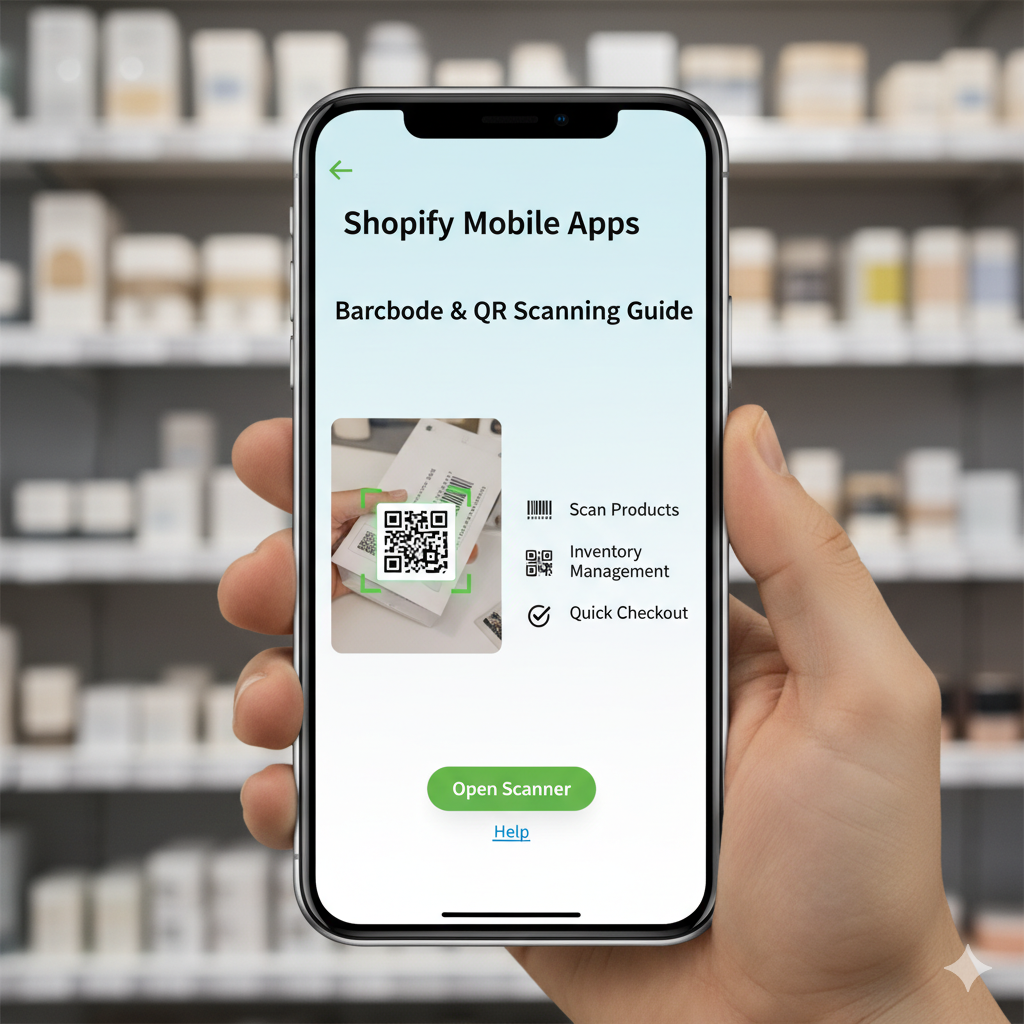
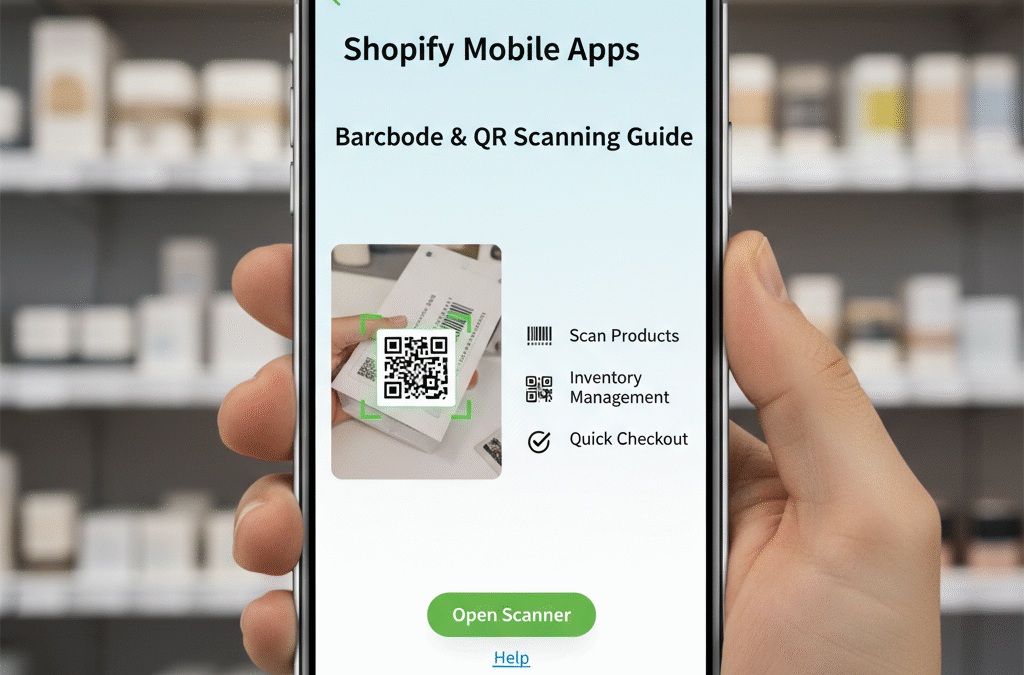
Turning a phone into a reliable scanner sounds simple—open the camera, point, and go. Anyone who’s tried to run inventory counts or pack orders with a jittery camera knows it’s not that easy. Good scanning in a Shopify mobile app depends on the right SDK, a few UX choices, and guardrails that keep performance solid in ugly real-world conditions like low light, wrinkled labels, or spotty Wi-Fi. This guide cuts through the noise so you can ship a scanner that your team actually trusts.

Why scanning belongs in your Shopify app

Speed is obvious, but the real win is accuracy. Barcodes remove guesswork from SKU selection, cut mis-picks, and make returns less painful. QR codes add a marketing angle: scan to redeem, scan to subscribe, scan to track offline campaigns. If you already have a Shopify storefront and some flavor of custom app, scanning is the next small feature that unlocks big process wins. If you’re still mapping your app path, this walkthrough on turning a store into a mobile app is a handy starting point from our library.

What to scan—and where it lives in Shopify

Most merchants start with product barcodes (EAN/UPC/ISBN) and location labels for bins or shelves. Some print internal barcodes that encode the Shopify variant ID for unambiguous picking. For QR, the targets are links to product pages, return portals, or subscriber flows. Shopify’s guidance on product barcodes is worth a skim when you’re deciding whether to adopt existing codes or assign your own ranges.

Once you know the payloads, decide when scanning appears. Inventory teams want scan-first screens—open the app, the camera is ready. Store associates running pop-ups need a quick toggle between scan and manual lookup. Marketing teams bury QR scanning behind a campaign tab and only light it up for events. The point is to fit the scanner to the job, not the other way around.

The short list: features a good mobile scanner must have

If you don’t write anything else into your brief, write this: it has to scan fast, handle the codes you actually use, and work when your connection is flaky. You can get fancy later.

On the technical side, focus on symbology support (UPCs, EANs, Code 128 for internal labels, and QR at minimum), continuous scanning (no extra taps between items), low-light tolerance with torch control, and crop/zoom for small codes. If you’re scanning PDFs or images from the photo roll, you’ll want a library that can decode from stills as well as live video. Many teams compare SDKs using a checklist; this explainer on on-device scanning requirements is a good reference when you evaluate accuracy, device coverage, and offline reliability.

For teams that prefer native or cross-platform code with a Google-maintained library, ML Kit’s barcode docs are a useful yardstick for supported formats and performance notes.

Picking a barcode SDK without getting lost

You’ve got three broad paths: platform APIs, open libraries, and commercial SDKs. Platform APIs (AVFoundation on iOS, CameraX + ML Kit on Android) are fine for basic needs, but you’ll spend time tuning edge cases across devices. Open libraries give you more formats and community fixes, though the maintenance burden is real. Commercial SDKs trade license fees for faster setup, support, and edge-case handling (glare, curved labels, motion blur).

Whichever route you choose, try a simple bake-off. Select five to ten barcodes you actually use—shiny packaging, tiny labels, a crumpled return slip, a shelf label at a distance—and time first read, misread rate, and behavior under dim lighting. Test on two or three device tiers: a flagship, a mid-range, and that old phone your warehouse still uses. Keep notes. A day of testing beats a month of refactoring.

UX patterns that make scanning feel snappy

A quick scanner still feels slow if the UI gets in the way. Launch to camera when scanning is the job to be done. Keep a large “hold to torch” icon near the thumb. Use a light haptic bump on successful reads so users don’t stare at the screen. Show the last scanned item as a small card with quantity controls; if the user is picking two of the same SKU, they shouldn’t have to aim twice. For batch work, let users set a default quantity increment.

When you encode business rules, show them at the right moment. If scanning a return requires an RMA status check, do it immediately and explain why an item is blocked rather than failing silently. If marketing scans unlock a subscriber flow, prefill known fields and avoid dumping people into generic forms.

Offline matters more than you think

Warehouses and back rooms have dead spots. Farmers’ market booths and festivals are worse. If the scanner dies without a connection, the team will revert to manual entry and never come back. Cache product metadata the app needs for lookups, queue offline scans with timestamps, and reconcile when the device comes back online. Quieter but equally important: store settings for “what to do” on read (add to picklist, add to cart, toggle inventory). With a default action, staff won’t hunt for buttons between scans.

Where scanning meets Shopify data

You’re not building a camera demo; you’re moving data. Before you code, decide the source of truth for inventory adjustments, order status, and customer actions. Many teams build a thin app layer that talks to Shopify APIs and pushes events to a lightweight middleware service—useful if you need to enrich a scan with location data or staff ID, or if you plan to add more endpoints later. If you’re not set up for custom app development, our primer on scoping and vendor selection walks through the trade-offs.

For marketing use cases, this is also a good time to think about attribution. QR codes can carry UTM parameters or link to campaign-specific landing pages. That’s basic, but it’s what helps you prove that a postcard or table tent pulled traffic you wouldn’t have seen otherwise. If you need help lining up the marketing side, our Shopify specialists can point you to the right building blocks.

Security and privacy aren’t afterthoughts

A scanner touches product data and sometimes customer details. Keep everything in transit over TLS, and store the minimum on the device—ideally just the short-term cache you need for offline work. If you print QR codes that link to account portals or discount pages, treat them as open entry points and guard the downstream action with normal auth and rate-limiting.

On the device side, permissions should be clear and narrow. Ask for camera access only when the user taps “Scan,” and explain why it’s needed. Don’t prompt on app launch. If you’re using analytics, disclose the events you track and keep PII out of them unless you’ve got explicit consent.

A lightweight way to roll this out

You don’t have to ship everything at once. Pick one workflow that causes the most pain—cycle counts, curbside pickup, pop-up checkout—and add scanning there. Debut with a small team, gather notes for a week, and fix the two or three things they complain about. Then expand. The win here is adoption. A scanner that staff trust in one context spreads on its own.

If you’re building a brand-new mobile app alongside scanning, keep the scope tight and sensible. The how-to we mentioned earlier on turning a store into a mobile app outlines a path that avoids six months of over-engineering. Once the base app is live, scanning becomes another screen instead of a project that delays everything else.

Troubleshooting quick hits

If reads are slow, check your frame rate and auto-focus settings before you blame the SDK. If small codes fail, give users a tap-to-zoom option or expand your scan window. If glare is the villain, nudge label design toward matte finishes and increase contrast on the print. And if your success rate tanks on one Android device, test the same scene on another to rule out a camera sensor quirk.

When all else fails, go back to the checklist. Symbology support, continuous scanning, low-light behavior, offline flow, clear UI. Get those right and the rest is just iteration.

The bottom line on Shopify mobile barcode & QR scanning

A solid Shopify mobile scanner isn’t magic. It’s a careful choice of SDK, a couple of UX details that remove friction, and a plan for offline and data handoff so your team isn’t left stranded. Start with real labels in real light, evaluate against sensible on-device scanning requirements, and add scanning to the one workflow that needs it most. Ship that, learn, and roll it out wider. You’ll save time in the aisles, cut errors at the packing table, and turn QR codes into a practical bridge between offline moments and your storefront.

Turning a phone into a reliable scanner sounds simple—open the camera, point, and go. Anyone who’s tried to run inventory counts or pack orders with a jittery camera knows it’s not that easy. Good scanning in a Shopify mobile app depends on the right SDK, a few UX choices, and guardrails that keep performance solid in ugly real-world conditions like low light, wrinkled labels, or spotty Wi-Fi. This guide cuts through the noise so you can ship a scanner that your team actually trusts.

Why scanning belongs in your Shopify app

Speed is obvious, but the real win is accuracy. Barcodes remove guesswork from SKU selection, cut mis-picks, and make returns less painful. QR codes add a marketing angle: scan to redeem, scan to subscribe, scan to track offline campaigns. If you already have a Shopify storefront and some flavor of custom app, scanning is the next small feature that unlocks big process wins. If you’re still mapping your app path, this walkthrough on turning a store into a mobile app is a handy starting point from our library.

What to scan—and where it lives in Shopify

Most merchants start with product barcodes (EAN/UPC/ISBN) and location labels for bins or shelves. Some print internal barcodes that encode the Shopify variant ID for unambiguous picking. For QR, the targets are links to product pages, return portals, or subscriber flows. Shopify’s guidance on product barcodes is worth a skim when you’re deciding whether to adopt existing codes or assign your own ranges.

Once you know the payloads, decide when scanning appears. Inventory teams want scan-first screens—open the app, the camera is ready. Store associates running pop-ups need a quick toggle between scan and manual lookup. Marketing teams bury QR scanning behind a campaign tab and only light it up for events. The point is to fit the scanner to the job, not the other way around.

The short list: features a good mobile scanner must have

If you don’t write anything else into your brief, write this: it has to scan fast, handle the codes you actually use, and work when your connection is flaky. You can get fancy later.

On the technical side, focus on symbology support (UPCs, EANs, Code 128 for internal labels, and QR at minimum), continuous scanning (no extra taps between items), low-light tolerance with torch control, and crop/zoom for small codes. If you’re scanning PDFs or images from the photo roll, you’ll want a library that can decode from stills as well as live video. Many teams compare SDKs using a checklist; this explainer on on-device scanning requirements is a good reference when you evaluate accuracy, device coverage, and offline reliability.

For teams that prefer native or cross-platform code with a Google-maintained library, ML Kit’s barcode docs are a useful yardstick for supported formats and performance notes.

Picking a barcode SDK without getting lost

You’ve got three broad paths: platform APIs, open libraries, and commercial SDKs. Platform APIs (AVFoundation on iOS, CameraX + ML Kit on Android) are fine for basic needs, but you’ll spend time tuning edge cases across devices. Open libraries give you more formats and community fixes, though the maintenance burden is real. Commercial SDKs trade license fees for faster setup, support, and edge-case handling (glare, curved labels, motion blur).

Whichever route you choose, try a simple bake-off. Select five to ten barcodes you actually use—shiny packaging, tiny labels, a crumpled return slip, a shelf label at a distance—and time first read, misread rate, and behavior under dim lighting. Test on two or three device tiers: a flagship, a mid-range, and that old phone your warehouse still uses. Keep notes. A day of testing beats a month of refactoring.

UX patterns that make scanning feel snappy

A quick scanner still feels slow if the UI gets in the way. Launch to camera when scanning is the job to be done. Keep a large “hold to torch” icon near the thumb. Use a light haptic bump on successful reads so users don’t stare at the screen. Show the last scanned item as a small card with quantity controls; if the user is picking two of the same SKU, they shouldn’t have to aim twice. For batch work, let users set a default quantity increment.

When you encode business rules, show them at the right moment. If scanning a return requires an RMA status check, do it immediately and explain why an item is blocked rather than failing silently. If marketing scans unlock a subscriber flow, prefill known fields and avoid dumping people into generic forms.

Offline matters more than you think

Warehouses and back rooms have dead spots. Farmers’ market booths and festivals are worse. If the scanner dies without a connection, the team will revert to manual entry and never come back. Cache product metadata the app needs for lookups, queue offline scans with timestamps, and reconcile when the device comes back online. Quieter but equally important: store settings for “what to do” on read (add to picklist, add to cart, toggle inventory). With a default action, staff won’t hunt for buttons between scans.

Where scanning meets Shopify data

You’re not building a camera demo; you’re moving data. Before you code, decide the source of truth for inventory adjustments, order status, and customer actions. Many teams build a thin app layer that talks to Shopify APIs and pushes events to a lightweight middleware service—useful if you need to enrich a scan with location data or staff ID, or if you plan to add more endpoints later. If you’re not set up for custom app development, our primer on scoping and vendor selection walks through the trade-offs.

For marketing use cases, this is also a good time to think about attribution. QR codes can carry UTM parameters or link to campaign-specific landing pages. That’s basic, but it’s what helps you prove that a postcard or table tent pulled traffic you wouldn’t have seen otherwise. If you need help lining up the marketing side, our Shopify specialists can point you to the right building blocks.

Security and privacy aren’t afterthoughts

A scanner touches product data and sometimes customer details. Keep everything in transit over TLS, and store the minimum on the device—ideally just the short-term cache you need for offline work. If you print QR codes that link to account portals or discount pages, treat them as open entry points and guard the downstream action with normal auth and rate-limiting.

On the device side, permissions should be clear and narrow. Ask for camera access only when the user taps “Scan,” and explain why it’s needed. Don’t prompt on app launch. If you’re using analytics, disclose the events you track and keep PII out of them unless you’ve got explicit consent.

A lightweight way to roll this out

You don’t have to ship everything at once. Pick one workflow that causes the most pain—cycle counts, curbside pickup, pop-up checkout—and add scanning there. Debut with a small team, gather notes for a week, and fix the two or three things they complain about. Then expand. The win here is adoption. A scanner that staff trust in one context spreads on its own.

If you’re building a brand-new mobile app alongside scanning, keep the scope tight and sensible. The how-to we mentioned earlier on turning a store into a mobile app outlines a path that avoids six months of over-engineering. Once the base app is live, scanning becomes another screen instead of a project that delays everything else.

Troubleshooting quick hits

If reads are slow, check your frame rate and auto-focus settings before you blame the SDK. If small codes fail, give users a tap-to-zoom option or expand your scan window. If glare is the villain, nudge label design toward matte finishes and increase contrast on the print. And if your success rate tanks on one Android device, test the same scene on another to rule out a camera sensor quirk.

When all else fails, go back to the checklist. Symbology support, continuous scanning, low-light behavior, offline flow, clear UI. Get those right and the rest is just iteration.

The bottom line on Shopify mobile barcode & QR scanning

A solid Shopify mobile scanner isn’t magic. It’s a careful choice of SDK, a couple of UX details that remove friction, and a plan for offline and data handoff so your team isn’t left stranded. Start with real labels in real light, evaluate against sensible on-device scanning requirements, and add scanning to the one workflow that needs it most. Ship that, learn, and roll it out wider. You’ll save time in the aisles, cut errors at the packing table, and turn QR codes into a practical bridge between offline moments and your storefront.

7 Common Shopify Performance Problems That Are Killing Your Sales

7 Common Shopify Performance Problems That Are Killing Your Sales

Shopify Performance Problems

Your Shopify store runs with many elements, including theme codes, graphics, videos, animations, third-party apps, customer reviews, and tracking scripts. All these features are important to perform your store smoothly, improving the buying experience, and increasing the overall functionality.

But here’s the catch: any of these features can also slow down things. Having too many apps, heavy graphics, and bloated code can slow down your Shopify store, frustrate users, and potentially affect your search rankings. These problems build up over time, slowly hurting your sales and client trust.

We’ll talk about the 7 most common problems that slow down Shopify stores in this article. We’ll also show you how Shopify speed optimization can turn the tables.

1. Bloated Themes and Unnecessary Codes

It’s great that Shopify has so many themes, but not all of them always work well. A lot of pre-made themes come with features, widgets, and animations that you might not even need.

This extra code makes pages heavy and can harm the smooth shopping experience. Bloated themes and unnecessary code are a problem because:

  • Pages take longer to load on both desktop and mobile.
  • Not compatible with some apps or customizations.
  • More complicated upkeep.

How to Make it Better:

  • Pick a Shopify theme that is light and focuses on performance, like Dawn or other Shopify 2.0 themes.
  • Remove any sections, scripts, or CSS in your theme files that you don’t utilize.
  • Check your theme often for code that isn’t needed.

For Shopify speed optimization, minify your CSS and JavaScript files. Minifier.org and Shopify apps like Hyperspeed can help you reduce the file size and speed up performance.

2. Having Too Many Apps On Your Store

Shopify’s app ecosystem is one of its best features. But every program you add to your site adds scripts, styles, and occasionally background processes that make it run more slowly. Even when you uninstall an app, code that is still in your theme can keep slowing down your computer. It creates problems because:

  • Apps load scripts from other servers, which makes rendering take longer.
  • Apps that don’t work together might cause problems, including glitches, errors, and layouts that don’t work.
  • Apps can duplicate the functionalities that are already in Shopify.

How to Fix it:

  • Check the apps you have installed and eliminate those you don’t need.
  • Use an all-in-one single tool instead of many programs.
  • Check your theme for residual code after uninstalling and remove it manually.

Shopify speed optimization tip: Whenever you can, use Shopify’s built-in tools like Discounts, Email Marketing, and Analytics instead of third-party apps.

3. Unoptimized Videos and Images

Visuals are important for e-commerce, but images and videos that aren’t compressed might make your site load far more slowly. A single high-resolution picture can take a few seconds to load, which can annoy clients and make them leave their carts. These heavy media files create problems:

  • Makes the page heavier and slows down the First Contentful Paint (FCP).
  • Uses more bandwidth, which is bad for mobile users in particular.
  • Changes Google’s Core Web Vitals and SEO ranking.

How to Optimize:

  • Use tools like Image Optimizer Pro to compress large images before you upload them.
  • Instead of JPEG or PNG, use newer formats like WebP and AVIF.
  • Allow images and videos to load only when they are visible on the screen ( lazy loading or deferred loading.

Shopify speed optimization Tip: Shopify automatically provides images in formats that are best for speed, but you can speed things up even more by using an image optimization Shopify app like Image Optimizer Pro.

4. Broken Links and Unnecessary Redirects

Sometimes you need to use redirects, such as when you change the URLs of your products or reorganise your store. However, too many redirects or broken links confuse search engines and frustrate customers by making pages significantly slower to access. It creates problems like:

  • Adds extra HTTP requests before the page itself is loaded.
  • Can create crawl errors, hurting SEO rankings.
  • Links that don’t work affect loading speed, hurting user experience.

How to Fix it:

  • Don’t use Shopify’s built-in URL redirect tool too much.
  • Use tools like Screaming Frog or Ahrefs to check your site for broken links on a regular basis.
  • Don’t use multiple chains of redirects; always redirect to the end destination to save load times.

Website Speed Optimization Tip: Make a personalized 404 page that helps people get back to shopping instead of sending them to a dead end.

5. Multiple Trackers and Third-Party Scripts

Analytics, ads, social media widgets, and heatmaps are crucial marketing needs, but they also increase the number of third-party scripts in your store. These scripts often load synchronously, blocking other resources and slowing down your store. It is problematic because:

  • Each script adds an external server request.
  • Scripts that aren’t well optimized can block the main thread, which makes page rendering slow.
  • Customers may face lagging or flickering content, hurting UX.

How to Optimize:

  • Remove unnecessary scripts and trackers that you don’t need.
  • Implement asynchronous loading for scripts that aren’t important or defer them until the main content loads.
  • Organize and speed up script loading with a tag manager, such as Google Tag Manager.

Shopify Speed Optimizing Tip: To speed up your Shopify store, load important things first (such as product photos and checkout buttons) and delay loading marketing scripts until the page is interactive.

6. Poor Mobile Optimization

The majority of people shop from their phones nowadays. If you’re missing website speed optimization for mobile, you may lose a lot of potential customers for your Shopify store. It creates a problem because

  • The internet on mobile devices is usually slower.
  • Clunky designs or oversized pictures ruin the mobile experience.
  • Google uses mobile-first indexing, which means that bad mobile performance hurts SEO.

How to Fix it:

  • Pick a responsive theme that automatically changes to fit smaller displays.
  • Try out your site on a variety of devices and screen sizes.
  • Simplify navigation, keep buttons big enough to tap, and reduce the clutter of components.

Shopify Store Speed Optimization Tip: To make your Shopify store run faster, check your mobile performance score with Google PageSpeed Insights and follow its advice.

7. Difficult Checkout Process

A slow or confusing checkout procedure can stop people from buying things, even if your store loads quickly. People leave their carts when the checkout is slow, has too many fields, or doesn’t offer a variety of payment methods. It has disadvantages like:

  • Customers get impatient while they are checking out.
  • Limited payment gateways discourage international buyers.
  • Slow-loading checkout pages increase cart abandonment rates.

How to Optimize it:

  • Use Shop Pay from Shopify to check out faster with only one click.
  • Allow people to pay with multiple options like PayPal, Apple Pay, and Google Pay.
  • Keep the number of required fields as few as possible and allow guests to check out.

Tip for speeding up Shopify: Shopify Plus merchants can make their checkout faster and easier, but even ordinary Shopify plans can speed up checkout with Shop Pay.

Last Thoughts

A smooth performance of your Shopify site provides a purchasing experience that is faster and smoother, promotes trust, encourages more people to buy, and helps strengthen your search rankings. Fixing these 7 common Shopify performance problems will not only enhance user experience but will multiply your business revenue.

Investing in Shopify speed optimization is investing in the future of your store. Start by auditing your theme, apps, images, and scripts, then focus on creating a lightning-fast, mobile-friendly, and streamlined shopping journey. Remember, speed is the key to sales in e-commerce.

FAQs

Q1. Why is Shopify Speed Optimization Important for my Store?

Shopify speed optimization is important for your store because site speed directly affects customer experience, conversion rates, and SEO rankings. A slow store can frustrate shoppers, increase bounce rates, and reduce sales. Moreover, Google also considers page speed in its ranking algorithm, so faster stores are more likely to appear higher in search results.

Q2. How can I check the speed of my Shopify Store?

You can test your Shopify store speed using tools like Google PageSpeed Insights, GTmetrix, Pingdom, or Shopify’s built-in speed report (available in your admin dashboard). These tools show how quickly your store loads on both desktop and mobile devices, along with recommendations for improvement.

Q3. What are the most common causes of a Slow Shopify Store?

Some common causes include:

  • Heavy or bloated themes with unnecessary code
  • Too many installed apps or leftover app scripts
  • Large, unoptimized images and videos
  • Excessive third-party scripts and trackers
  • Poor mobile optimization
  • Inefficient checkout processes

Fixing these issues with Shopify speed optimization techniques can significantly improve load times.

Q4. Do Shopify Apps Slow Down My Website?

Yes, many Shopify apps add extra scripts and files that increase page load times. Even after uninstalling, some apps leave behind unused code. That’s why it’s important to audit your apps regularly, remove unnecessary ones, and clean up leftover code.

Q5. How can I Optimize Images on Shopify without Losing Quality?

To optimize images on Shopify:

  • Compress images with tools like TinyPNG or ImageOptim
  • Use modern formats like WebP
  • Enable lazy loading for media
  • Upload images in the correct dimensions instead of resizing them in code

This ensures high-quality visuals without hurting speed.

How to Protect Your Shopify Business While Traveling

How to Protect Your Shopify Business While Traveling

Protect Your Shopify Business While Traveling

Running a Shopify store offers freedom, flexibility, and the chance to take your business anywhere. But what happens when “anywhere” means another country? Whether you’re on vacation, attending a trade show, or spending months abroad, managing your online store from a different region comes with unique risks. From internet restrictions to cybersecurity concerns, protecting your Shopify business while abroad requires a little preparation and a lot of smart decision-making.

The Risks of Managing Shopify Overseas

Running your store from abroad isn’t the same as working from home. You’ll face new challenges that can impact your ability to keep operations running smoothly. Some common issues include:

  • Internet restrictions: Certain countries limit access to platforms, tools, or even Shopify itself, and this becomes even more complex if you manage your store while traveling with setups like internet for RV, where connectivity depends on mobile networks that may face additional regional blocks or throttling
  • Cybersecurity risks: Public Wi-Fi networks in airports, cafés, or hotels often lack security. 
  • Payment and banking issues: Logging in from foreign IP addresses can trigger fraud alerts. 
  • Communication breakdowns: Time zones and unreliable connections make it harder to reach suppliers or customers. 

Knowing these risks upfront means you can take steps to reduce disruptions.

Secure Your Connection With a VPN

One of the smartest moves you can make when running your store abroad is to use a VPN. A VPN (Virtual Private Network) encrypts your internet traffic and hides your location, making your connection safer. This not only protects your login credentials and customer data but also ensures you can access platforms that might be restricted.

For instance, Shopify and related tools may not be fully accessible in places like China. That’s where a China VPN becomes essential. It allows you to securely access your store and run operations without interruptions caused by internet restrictions.

Keep Customer Trust a Priority

When you’re far away, it’s easy to assume your store will run itself. But customers notice when responses are slow or updates are missing. To maintain trust, make sure you:

  • Use auto-replies to acknowledge customer inquiries quickly. 
  • Schedule social media posts and email campaigns in advance. 
  • Communicate transparently about shipping delays if traveling affects fulfillment. 
  • Ensure your website displays accurate inventory levels. 

Trust is fragile in e-commerce, and even short lapses in communication can hurt customer loyalty.

Protecting Payments and Data

Financial security is a huge part of protecting your Shopify store while abroad. Fraud detection systems may flag logins from unusual locations, and public Wi-Fi can expose sensitive data. To safeguard your business:

  • Enable two-factor authentication (2FA) on all logins. 
  • Avoid accessing your store from unsecured networks. 
  • Use password managers to create strong, unique credentials. 
  • Regularly back up store data, including product listings and customer info. 

Taking these steps minimizes the chances of unauthorized access or data loss while you’re away.

Stay Connected With Your Team

If you have a team supporting your Shopify business, delegation becomes even more important when you’re traveling. Cloud-based tools like Slack, Trello, or Asana keep projects moving even if you’re in a different time zone.

You can also create clear SOPs (standard operating procedures) so your team knows exactly what to do if issues arise. Think of it as leaving a playbook behind—this ensures the store doesn’t grind to a halt if you’re offline for a few hours. If your travel plans involve entering countries with strict visa policies, it’s smart to research how to get an onward ticket to avoid immigration issues that could disrupt your remote work setup.

Expand Into Niche Markets

Not every product will appeal to everyone and that’s okay. Some of the most successful Shopify businesses thrive because they serve a passionate niche. Sports fans, hobbyists, and collectors are often willing to spend more when the product feels tailored to them.

Take sports, for example. Adding products like custom soccer jerseys allows you to tap into a loyal, global community. These items don’t just sell because they’re functional. They sell because they connect with people’s identities, teams, and passions. By focusing on niches, you can stand out in a crowded e-commerce space and build stronger customer loyalty.

The Global E-Commerce Landscape

Managing a Shopify store abroad also means paying attention to global e-commerce trends. According to eMarketer, retail e-commerce sales worldwide are projected to reach $8.1 trillion by 2026. This growth means opportunity but also competition. By preparing for the risks of working overseas, you’re giving your store a stronger foundation to compete in this rapidly expanding space.

Final Thoughts

Protecting your Shopify business while abroad comes down to preparation and smart practices. From securing your connection with a VPN to maintaining customer trust and safeguarding data, the right steps ensure your store runs smoothly no matter where you are. Travel should be an opportunity, not a liability for your business. With the right tools and strategies, you can grow your store while exploring the world with confidence.

SEO and User Experience: The Twin Engines of Shopify Success

SEO and User Experience: The Twin Engines of Shopify Success

SEO and User Experience

Running a Shopify store is exciting, but it also comes with endless decisions. Should you focus on getting more traffic, or spend time improving how people interact with your site? The truth is, both matter. Search engine optimization (SEO) and user experience (UX) are like two sides of the same coin. One helps people find your store, and the other makes sure they enjoy shopping once they arrive. When these two work together, growth becomes much easier to achieve.

In this article, we’ll explore how SEO and UX connect, why both are essential, and what you can do to strengthen each area without overwhelming your team.

Why SEO and UX Work Hand in Hand

SEO gets shoppers in the door. UX convinces them to stay. If your store ranks high in search results but feels confusing to use, visitors leave before buying. On the other hand, if your store looks great but no one can find it through search, you miss out on traffic.

Think of SEO as the magnet pulling people in, while UX is the warm welcome that makes them feel at home. Shopify brands that want long-term success need both. This combination not only drives sales but also builds credibility with customers who are more likely to return.

The Role of SEO in Shopify Growth

SEO for Shopify is more than adding keywords to product descriptions. It involves structuring your site in a way that makes sense to both search engines and shoppers.

Key SEO factors for Shopify:

  • Site structure: Organize your products into clear categories with logical navigation. This helps Google understand your site and makes it easier for customers to browse.


  • Keyword optimization: Use keywords naturally in product titles, descriptions, blog posts, and metadata. Keywords should reflect how customers actually search for products.


  • Technical SEO: Pay attention to page speed, mobile-friendliness, and clean URLs. Search engines reward sites that provide a smooth experience.


  • Content strategy: Blog posts, guides, and resource pages give you opportunities to target more keywords and build authority.


One often overlooked part of SEO is building authority through links. Backlinks act like referrals from other sites, signaling that your store is trustworthy. For example, a feature in an industry blog or a review site not only drives direct traffic but also strengthens your store’s search rankings. Many brands choose to partner with agencies like Growth Partners Media, which specialize in building high-quality backlinks that improve visibility and long-term authority.

The Role of User Experience in Shopify Growth

If SEO is about visibility, UX is about trust and ease. A great user experience ensures shoppers can move smoothly from browsing to checkout without frustration.

Key UX factors for Shopify:

  • Navigation: Menus and filters should be intuitive. Customers need to find what they want in just a few clicks.


  • Design clarity: Use consistent colors, fonts, and layouts. Cluttered designs make people hesitate.


  • Mobile optimization: More than half of e-commerce traffic comes from mobile. If your site isn’t optimized, you risk losing buyers instantly.


  • Checkout simplicity: Complicated checkout processes lead to cart abandonment. Offer guest checkout and multiple payment options.


  • Trust signals: Reviews, secure payment icons, and clear return policies all reassure shoppers.


UX is about guiding customers with as little friction as possible. The goal is to make shopping feel natural, almost effortless.

Where SEO and UX Overlap

Although SEO and UX sound like separate disciplines, many of the same improvements help both. For example, fast-loading pages keep visitors engaged while also boosting your rankings. Similarly, mobile optimization is valued by both customers and Google’s algorithms.

Content is another point of overlap. A product guide or how-to article improves your keyword coverage (SEO) while also educating and helping your audience (UX). This dual role makes content one of the most valuable investments for a Shopify store.

Practical Strategies to Strengthen Both

Let’s look at specific actions you can take that improve SEO and UX at the same time.

1. Improve Page Speed

A slow site frustrates shoppers and lowers your rankings. Compress images, use a reliable hosting provider, and limit unnecessary apps. Even small improvements in load time can increase conversions.

2. Optimize Product Pages for People and Search Engines

Instead of stuffing product pages with keywords, write descriptions that answer real customer questions. Include clear images, size guides, and benefits. This provides value for the shopper while still signaling relevance to search engines.

3. Create Helpful Content

Guides, tutorials, and blog posts establish authority and give customers a reason to trust your brand. They also create opportunities for backlinks, which strengthen your SEO efforts. For instance, a resource page that others in your industry find useful is likely to earn links naturally.

4. Use QR Codes as a Bridge Between Offline and Online

If you sell products in physical locations or through packaging, QR codes can direct customers to your store, a special offer, or a helpful resource. 

For stores that also focus on customer communication, using a vCard QR code generator is a practical option. It allows you to create scannable business cards where customers can save your contact details instantly. This small touch improves convenience, strengthens trust, and builds a stronger connection between your online store and your offline brand presence.

5. Simplify Checkout

Every additional step in checkout increases the chance of losing a sale. Keep the process short and transparent. Add trust signals like secure payment badges and testimonials. This improves user satisfaction while also boosting conversion-related metrics that search engines track.

6. Encourage Reviews and User-Generated Content

Search engines value fresh content, and reviews are a steady source of it. Displaying reviews enhances credibility, improves keyword coverage, and provides social proof for buyers.

Measuring Success

To know whether your efforts are paying off, track both SEO and UX metrics.

  • For SEO: Monitor organic traffic, keyword rankings, and backlinks earned.


  • For UX: Track bounce rate, time on site, cart abandonment rate, and conversion rate.


Tools like Google Analytics, Shopify’s built-in reports, and heatmaps help you understand how users move through your site. Combining these insights ensures you’re improving in both areas.

Common Mistakes to Avoid

  • Focusing only on keywords: Keywords matter, but if your site feels robotic or hard to use, visitors won’t stay.


  • Ignoring mobile users: Mobile-first design isn’t optional anymore. Make sure every page looks good on smaller screens.


  • Overcomplicating design: Features should enhance the experience, not distract from it. Keep the layout simple and purposeful.


  • Neglecting content: A store with only product pages limits its visibility. Supplement your catalog with helpful content that builds authority.


Bringing It All Together

Shopify success doesn’t come from SEO or UX alone. It’s about combining the strengths of both to create a store that is visible, trustworthy, and enjoyable to use. Start by fixing technical basics like speed and mobile responsiveness. Then layer on engaging content, intuitive navigation, and a smooth checkout process.

When SEO and UX move together, you don’t just attract visitors—you turn them into customers who come back again and again. That’s the kind of growth every Shopify store owner is aiming for.