UK: +44 2038074555 info@atamgo.com
How to Play Video From MacBook to TV: 3 Proven Methods

How to Play Video From MacBook to TV: 3 Proven Methods

MacBook to TV

The MacBook is a robust, hot commodity employed for working, learning, and entertainment. Loyal customers appreciate a MacBook’s portability, but the device’s compact screen may discourage them from video streaming.  

Currently, Mac and smart TV screen owners take proactive advantage of pairing these cutting-edge devices and devouring content on a bigger screen. Nevertheless, several nuances on this video streaming type  might be applicable. Let’s discover these methods spot on.  

Why Pair Your MacBook with Your TV Screen? 

First, with its jumbo-sized screen, your TV may become your primary monitor in the household. Thus, an enhanced viewing experience is guaranteed on your TV while utilizing a robust Apple device for extra routines. 

Second, such setup facilitates multitasking, an indispensable feature in our fast-paced lives. Just imagine: you can binge-watch your favorite movie on the TV screen while simultaneously working or playing games on your advanced laptop. 

Third, high-resolution videos are the next reality, provided that your MacBook has all the cutting-edge attributes. 

Ultimately, connecting your Mac to your TV may prove beneficial, but the crux of the matter is to ensure they are paired properly. 

Effective Ways to Connect a Mac to a TV 

Elmedia Player 

Among a variety of options, Elmedia Player stands out with clarity. This app is known as a versatile and reliable media player for macOS, boasting prime-rate support for additional codecs. It’s a perfect option for Mac users who are eager to understand how to play video from macbook to tv, from habitual MP4 and MKV files to less widespread formats.  

To utilize the program properly, follow these three clear steps: 

  1. Download and install the video player on your Mac. Once finished, launch the program to make a start.
  2. There are various ways to open a video file. You can drag and drop it directly into the player section or drag the video file into the player window. You can also select the file and then Open from the main menu, or right-click the selected file and click Open With.
  3. Your video will now play in the player window. Be sure to adjust or change the settings to skyrocket your viewing experience. 

HDMI Cable 

A standard HDMI cable is functional enough to couple the two devices. In the case of your MacBook, MacBook Air, or MacBook Pro that doesn’t have an HDMI port, simply search for a port that supports a network adapter. Note that most recent Mac models are equipped with built-in HDMI and Mini DisplayPort ports for seamless connection. 

Let’s break down a connection process into concise instructions: 

  1. Connect one end of the HDMI cable to the MacBook’s port and the other one to the TV’s port.
  2. Press the “Source” button on your TV’s remote control. Use the navigation keys to select “HDMI,” which should recognize the connected device, depending on your TV model.
  3. In your MacBook’s display settings, set the preferred display option: 
  • This option reflects everything from your laptop’s display on the wider TV screen.
  • This parameter enlarges the desktop, giving you a chance to move program windows between a couple of displays.
  • Display on Primary or Secondary screen. 
  1. Play your video on the bigger screen to experience a strong feeling of presence. 

There is an essential detail to consider: while pairing your MacBook and your TV, sound will initially play through your Mac’s speakers. You’ll be required to adjust the audio settings manually.

AirPlay 

Linking a TV to a MacBook Air or MacBook Pro laptop can be performed wirelessly via Wi-Fi by making use of a purpose-built AirPlay app. This remarkable functionality is accessible to Apple TV owners as well as other big-screen models.  

To enable AirPlay with your Apple TV, follow these concise steps: 

  1. Ensure that both the Apple TV and MacBook are accessing the same Wi-Fi network.
  2. Turn on the Apple TV, connected to the TV screen via HDMI.
  3. In the Applications menu, select “Settings” > “AirPlay” and ensure that AirPlay mode is on.
  4. Now, configure your MacBook. Navigate to the Apple menu, select “System Preferences,” and go to “Displays.” In the “AirPlay Display” menu, select “Apple TV”  and click on the mirroring icon.
  5. Enter the password from your TV screen on your Mac to ensure the connection.
  6. Arrange the audio output. For this option, select “Output” in the “Output” tab.
  7. Enjoy your video in high resolution and superior quality. 

Summary 

To sum it up, playing a video from a MacBook to a TV is a streamlined process. Even without in-depth technical knowledge, it can be navigated with clarity and confidence.

Digital Liberty: How Gamers Sell CS2 Skins to Build Their Parallel Economies

Digital Liberty: How Gamers Sell CS2 Skins to Build Their Parallel Economies

CS2 Skins

Players once collected cosmetic items for status alone. Today, by learning to sell cs2 skins, they’re quietly turning virtual assets into real-world rewards. This shift illustrates a broader push for digital freedom, where individuals—not studios—decide how value flows inside the gaming economy and beyond traditional CSGO trading communities.

Skin.Land in a Diversifying Marketplace

In a growing field of exchange hubs, Skin.Land operates as one node rather than the entire network. Its escrow tools, fee structure, and regional payout options position it alongside peer-to-peer forums, auction-style sites, and blockchain-based storefronts. Each approach answers the same question differently: how can gamers convert pixels into currency while retaining control of their data and identity?

Factors That Influence Price Discovery

  • Supply shocks from limited-edition cases or sticker capsules


  • Seasonal esports events that drive sudden demand spikes


  • Float values that reveal wear levels and rarity tiers


  • External payment regulations that shape withdrawal timing


Together, these market forces keep pricing fluid, reminding sellers to monitor news cycles as closely as in-game updates.

Market Dynamics Beyond Skin.Land

Even as digital marketplaces thrive, gamers often step away from trading screens to enjoy the best offline games. These titles offer a different kind of freedom—immersive stories, strategic challenges, and downtime without constant connectivity. The contrast highlights that digital liberty isn’t only about selling skins; it’s also about choosing when and how to engage with gaming on your own terms. Offline experiences also remind players of gaming’s original purpose: fun, exploration, and creativity without financial stakes. Together, both online trading and offline play create a balanced ecosystem where value is measured not only in currency but also in personal enjoyment.

Equally important are ecosystem players that never touch cash. Analyst bots track historical charts, while Discord communities crowd-source fair-value estimates. Streaming celebrities create trend waves that lift obscure patterns overnight. Such interlinked activity demonstrates a maturing gaming economy whose rules resemble those of traditional commodities—minus the trading floor and neckties.

Practical Steps for Responsible Traders

Moving inventory safely means more than hitting “sell.” Gamers who treat skins like micro-investments often follow a checklist:

  1. Log patch notes to spot balance changes that affect popularity.


  2. Confirm item authenticity through independent inspection tools.


  3. Bundle lower-tier pieces to appeal to new collectors.


  4. Retain screenshots and receipts for potential tax reporting.


  5. Revisit platform policies—whether on a forum or Skin.Land—to avoid accidental breaches.


These habits reduce friction and help maintain digital freedom without veering into speculative excess.

Conclusion: Pixels With Purchasing Power

Virtual cosmetics might look ornamental, yet their economic impact feels very real by exchanging items across multiple platforms—Skin.Land included but never singular—gamers carve out personal financial channels that respect decentralization and choice. As regulations clarify and community safeguards mature, selling CS2 skins will likely remain a vivid example of how grassroots ingenuity redefines value in the connected age.

Download Instander APK Latest Version v18.1 Free – Gb Instahub

Download Instander APK Latest Version v18.1 Free – Gb Instahub

instander

Instander is an enhanced version of Instagram built for users who want more control, better media quality, and a clutter-free experience. It allows you to download high-resolution photos, videos, Reels, and IGTV content directly to your device, something the official app doesn’t support.

Beyond that, it removes all ads, boosts privacy with features like Ghost Mode, and provides handy tools such as copying bios, captions, and comments.

If you’re tired of Instagram’s limitations, Instander APK  offers a faster, smarter, and more flexible way to enjoy the platform.

What is Instander APK?

Instander APK is a modified Instagram app created by Dmitry Gavrilov (also known as theDise) that gives Android users access to premium features for free. It lets you download media, browse ad-free, view stories anonymously, and customize your Instagram experience

With tools like Ghost Mode, bio copying, full HD uploads, and anti-ban support, it offers more control and flexibility than the original app. You can even use it on your PC with an emulator.

Unlike many unreliable mods, Instander is built to be lightweight, safe, and privacy-friendly, with regular updates and a strong, trusted community of users.

App Name: Instander APK
Android Required: 9.0 and Up
Latest Version: v18.1
Size: 64 MB
Category: Social
Cost: Free of Cost
Updated on: Few Days Ago


Standout Features of Instander APK

Instander APK comes packed with powerful and exclusive features that make it stand out from the regular Instagram app. Here’s what makes it a must-have for Android users:

Built-in Media Downloader

Tired of using third-party apps just to save a video or photo from Instagram? With Instander APK, you don’t need any of that. It comes with a built-in media downloader that lets you save photos, videos, reels, stories, and IGTV directly to your phone, quickly and easily.

Plus, everything downloads in full resolution, so you’re not stuck with blurry or compressed files. It’s fast, simple, and works exactly how you’d want it to.

Ghost Mode

One of the standout features that makes Instander APK Latest Version a favorite among users is Ghost Mode. If you’ve ever wanted to watch someone’s story or read messages without them knowing, this feature has you covered.

With Ghost Mode, you can:

  • View stories without showing up on the viewer’s list
  • Read DMs without triggering the “seen” notification
  • Hide your “typing…” status in conversations

It’s perfect for those who value privacy and like to browse on their terms. Unlike the official Instagram, the Instander APK gives you full control.

HD Uploads & Downloads

Tired of Instagram compressing your high-quality photos or videos? Instander fixes that. With HD Uploads, your content keeps its original brilliance; no more pixelation, no more blur. And when you download media, it’s in the highest possible resolution.

For creators, influencers, and anyone who values image quality, this is a game-changer.

100% Ad-Free

Ads on Instagram are not just annoying, they’re everywhere. But with Instander Mod APK, you can eliminate ads no sponsored posts. No pop-ups. Just pure content from the people you follow.

iOS Emojis & Fonts

Want your Android Instagram to look just like it does on iPhones? Instander APK 2025 lets you switch to iOS-style emojis and system fonts, giving your app a sleek, premium look.

While other mods offer basic theming, Instander takes it further with system-level customization that feels authentic and smooth; no root required.

Smart Customization

If you’re someone who loves customizing your Instagram experience, Instagram Gold APK is also worth checking out for the customization.It lets you adjust your feed layout to match your style and gives you extra privacy options, like hiding stories from specific followers so only the people you choose can view them.

There are also simple gesture controls to help you navigate the app faster and more smoothly. For those who like a bit more control, developer tools are available, plus you can adjust video quality to get the best view without wasting data.

Advanced User Controls

The latest Instander APK offers powerful options for users who want full control over their app. You can disable analytics to protect your privacy, block crash reports, enable debug mode, manage cache size, and even schedule your posts ahead of time.

These advanced features make Instander perfect for tech-savvy users, testers, or anyone who likes having extra control beyond the basics.

Copy Anything

With Instander 18.1 APK Download, you can copy any text on Instagram, bios, captions, comments, and usernames just by long-pressing. It’s so simple, yet incredibly useful.

Close Friends List

Instagram’s Close Friends feature is powerful, but Instander Pro APK gives it a boost. You can manage your list more easily, choose who sees what, and create deeper content privacy settings.

This is especially helpful for influencers or private users who want to share selectively.

Verification Badge Option

Instander APK Mod gives you the option to add a custom verification badge to your profile, even though it’s not official. It’s a fun feature that lets you see how your profile would look with that blue checkmark.

Whether you’re testing a layout, creating content, or just want your profile to stand out, it adds a nice touch of style and professionalism.

How to Download and Install Instander APK?

Downloading and installing Instander APK is easy, but first, you need to choose between the two versions: Clone and Unclone. Here’s what they mean and how to install the one that suits you best.

Clone vs Unclone – What’s the Difference?

 Clone Version:

This version lets you install Instander alongside the official Instagram app. It’s perfect if you want to test Instander without deleting or replacing your current Instagram. The package name is different, so both apps can exist on your phone at the same time.

Unclone Version:

This version replaces your official Instagram app. You’ll need to uninstall Instagram first before installing the Unclone version. It uses the same package name as the original Instagram app.

Quick Tip:

If you want to keep using your regular Instagram while trying Instander, go with the Clone version. If you’re ready to switch fully to Instander, the Unclone version is for you.

Steps to Download and Install Instander APK Latest Version

Follow these simple steps to download and install the latest version of Instander APK on your device:

  • Backup Your Data
  • If you’re using the Unclone version, make sure you back up your chats, drafts, and saved posts.
  • Uninstall Instagram
  • For the Unclone version, uninstall the official Instagram app from your phone.
  • Download the APK File
  • Visit the official source or a trusted site (like GBInstaHub.com).
  • Choose either the Clone or Unclone version depending on your needs.
  • Make sure your device is running Android 9.0 or higher.
  • Enable Unknown Sources
  • Go to Settings > Security > Install Unknown Apps.
  • Allow your browser or file manager to install the APK file.
  • Install the APK
  • Open the downloaded file.
  • Tap Install and wait for the installation to complete.
  • Log In and Enjoy
  • Open Instander, log in with your Instagram credentials, and start exploring all the extra features.

Instander vs Instagram: The Ultimate Comparison

Feature Instander APK Official Instagram
Price Free (no ads, plus extra features included) Free (with ads and limited features)
Media Downloader Built-in downloader for photos, videos, stories, etc. Not available
Ads Completely ad-free Ads appear in feed, stories, and explore
Ghost Mode View stories and read messages anonymously Not available
Full-Quality Uploads Upload in high resolution with no compression Automatically compresses media
Customization Change fonts, layout, feed settings, emojis, etc. Limited customization
Advanced Tools Developer tools, cache control, and post scheduling Not available
Clone Installation Can run alongside the official app Not available
Privacy Controls Extra privacy settings (hide typing, seen, etc.) Basic privacy options only
Verification Badge Option Add a custom (non-official) badge for testing Official badges only (through Instagram verification)

Pros and Cons of Instander APK 

Pros

  • Advanced Tools
  • Lightweight & Smooth
  • Clone & Unclone Options
  • Data Saver & Feed Controls
  • Full-Size Profile Picture Viewer

Cons

  • No Official Support
  • Compatibility Issues on Older Devices

Frequently Asked Questions

Is Instander APK safe to use?

Yes, Instander APK is considered safe when downloaded from reliable sources.

Can I use Instander without uninstalling Instagram?

Yes, you can if you download the Clone version of Instander. It installs as a separate app, so your official Instagram stays untouched.

How do I enable Ghost Mode?

Ghost Mode can be turned on in the app’s settings. You’ll find options to hide story views, disable seen receipts in DMs, and turn off “typing…” indicators.

Does the Instander Latest APK support multiple accounts?

Yes, just like the official Instagram app, you can log in to and manage multiple accounts on the Instander APK.

Are there any ads in the Instander APK Download?

No. One of Instander’s best features is that it is 100% ad-free; no pop-ups, sponsored posts, or banner ads.

Conclusion

Instander APK is a completely free and powerful all-in-one alternative to the official Instagram app, designed to give users more control, privacy, and convenience.

Whether you want to download high-quality photos and videos, browse without ads, view stories anonymously, or customize the app’s look and feel, Instander has it all, without costing you a penny.

It’s easy to install, user-friendly, and works perfectly without root access or any technical setup. If you’re an Android user looking for a richer Instagram experience without paying a dime, Instander APK Mod is a smart, secure, and feature-packed option.

7 Shocking Facts About XNSPY You Need to Know Before Using It

7 Shocking Facts About XNSPY You Need to Know Before Using It

XNSPY review

Introduction: What is XNSPY and Why People Are Talking About It

XNSPY is one of those apps that immediately sparks curiosity — and controversy. If you’ve ever searched xnspy.com, you’ve probably seen bold promises about monitoring calls, texts, GPS locations, and even WhatsApp chats. On the surface, it looks like an all-in-one solution for anyone who wants full access to another person’s device. Sounds powerful, right? But before you dive in, you need to understand the risks, the limitations, and the realities of using such an app. If you’re here searching for an XNSPY review or want to figure out if the XNSPY price really matches its value, this deep dive will give you the unfiltered truth.

Find More: 5 Snapchat Location Tracker Tools You Need in 2025

Let’s walk through the 7 shocking facts that most people don’t realize about XNSPY until after they’ve already paid for it.

xnspy

1. XNSPY Tracks More Than You Expect

When people first hear about XNSPY, they usually think of basic call or text monitoring. But the truth is, this app digs a lot deeper than that.

Call logs, messages, and contacts

Yes, XNSPY allows access to call histories, SMS messages, and full contact lists. It’s like holding a copy of someone’s phone log in your hand. For parents, this might sound helpful. For everyone else, it can feel invasive.

Social media and chat app monitoring

Here’s where it gets unsettling: XNSPY monitors WhatsApp, Facebook Messenger, Snapchat, Instagram DMs, Telegram, and even niche apps like Viber or Line. That means entire conversations — photos, audio, and videos included — can be viewed by the person who installed the app.

Hidden features most users overlook

Beyond messages and calls, XNSPY includes keylogging, ambient recording, and even screenshot captures. Imagine every keystroke you type being logged or your phone’s microphone recording your environment. That’s a level of access most people never expect.

2. XNSPY’s Installation Process Raises Questions

The official website, xnspy.com, makes installation look effortless. But in practice, it can be a frustrating process with lots of fine print.

How XNSPY is installed on Android vs iOS

On Android, you must physically hold the phone in your hands to install it. On iOS, earlier versions allowed easier installation with iCloud credentials, but Apple’s improved security now restricts many features unless you jailbreak the device.

Why physical access is often required

The permissions XNSPY needs — microphone access, file storage, camera control — can’t usually be granted remotely. That means if you can’t touch the phone, you’ll never get the full advertised features.

Can it really run invisibly in the background?

The app markets itself as undetectable. Yet, users report faster battery drain, odd pop-ups during installation, or suspicious settings. In some cases, antivirus apps flag XNSPY as harmful software.

3. XNSPY Faces Major Security Vulnerabilities

Security

Here’s where things move from questionable to downright dangerous.

Past data breaches and exposures

In 2022, researchers discovered XNSPY was storing highly sensitive data without proper encryption. The fallout? Conversations, GPS history, and even stored images from monitored phones were at risk of exposure.

Risks for both the monitored device and the buyer

The risks don’t stop at the target device. Buyers themselves could have their own login credentials, payment information, and email addresses leaked.

What cybersecurity experts warn about XNSPY

Experts widely categorize apps like XNSPY as stalkerware. The concern isn’t just how they’re used, but how poorly they protect the data they collect. You’re essentially handing over sensitive information to a company that might not guard it securely.

4. XNSPY’s Legality Differs by Country

Don’t assume availability equals legality. Buying XNSPY online doesn’t mean it’s legal for your situation.

When parental monitoring is allowed

In many regions, parents are legally permitted to monitor their underage children’s digital activity. XNSPY may fall under this category, but even then, some jurisdictions demand clear disclosure to the child.

Employer vs. employee privacy concerns

Employers often face gray areas. Monitoring company-owned devices may be legal if employees give consent. Without it, companies risk lawsuits and penalties.

Cases where using XNSPY could be illegal

Installing XNSPY on a partner’s, friend’s, or stranger’s phone is considered illegal in most countries. The penalties can include fines, lawsuits, and even jail time depending on local privacy laws.

5. User Reviews Reveal Mixed Experiences

Search for any XNSPY review, and you’ll find stories ranging from glowing praise to angry rants.

Positive reviews: what users like about XNSPY

Some parents credit XNSPY with helping them spot dangerous behavior in their kids’ online lives. Others praise its wide range of tracking features, saying it delivered on the promises from the website.

Negative reviews: complaints and refund issues

On the other side, there are complaints of glitches, incomplete data, and software updates that break the app. Refund requests often end in frustration, as users claim money-back guarantees aren’t honored.

Trust factors: can you rely on XNSPY’s support?

Customer service is one of the most common complaints. Many users describe unhelpful responses, long waits, or being ignored once payment was made. That raises serious trust concerns when your data is at stake.

6. XNSPY Has Strong Competitors and Alternatives

XNSPY doesn’t operate in a vacuum. And frankly, many of its competitors offer more transparency and better security.

Popular monitoring apps compared with XNSPY

Competitors like mSpy, FlexiSPY, and uMobix each have their pros and cons. Some offer more responsive customer service or clearer refund policies. Others focus on parental monitoring with less emphasis on hidden spying.

Safer parental control options

For parents who only want to guide screen time and monitor app usage, solutions like Google Family Link, Apple Screen Time, or Qustodio might be a better fit. These options are legal, widely trusted, and focus on safety without invasive spying.

Why some users switch away from XNSPY

Many customers initially attracted by XNSPY’s promises switch to other apps after facing bugs, security issues, or ethical dilemmas. The long-term reliability just doesn’t measure up for everyone.

7. The Hidden Costs of Using XNSPY

Hidden Costs

The XNSPY price isn’t just a dollar amount on a subscription plan — it’s the hidden risks that pile up over time.

Subscription pricing and renewal policies

XNSPY offers monthly, quarterly, and yearly plans. But watch out: users have reported automatic renewals that are tough to cancel, leading to unexpected charges.

Potential risks outweighing the benefits

Even if the app works flawlessly, you’re trading short-term access for potential long-term trouble. Think lawsuits, relationship breakdowns, or being flagged for privacy violations.

Long-term consequences of choosing XNSPY

The bigger question isn’t “Can I afford it?” but “What could it cost me later?” Trust issues, reputational harm, and exposure to data leaks can cost far more than any subscription fee.

Find More: Boost Your Sales With SEO Services

Conclusion – Should You Really Use XNSPY?

Now that you know these 7 shocking facts, the big question remains: Is XNSPY worth it? On paper, it’s a feature-packed monitoring solution. In reality, the risks — legal, ethical, and security-related — are enormous.

For parents, legal parental control tools may offer a healthier balance of guidance and privacy. For employers, transparency and employee trust go much further than hidden surveillance. And if your interest is spying on a partner? The emotional and legal fallout will likely be devastating.

Think carefully before you invest in any tool like this. Sometimes the smartest choice isn’t about gaining access, but about avoiding the risks entirely.

FAQs

1. Is XNSPY detectable on a smartphone?

It claims to run in stealth mode, but in practice, users have noticed faster battery drain, unusual notifications, or antivirus alerts.

2. Can I install XNSPY without touching the target phone?

For Android, you need physical access. For iOS, older versions allowed more flexibility, but modern iOS security makes remote installation nearly impossible.

3. Is XNSPY legal to use on my child’s device?

In most places, yes, if you’re the legal guardian. However, some regions require disclosure to the child, so always check local regulations.

4. What happens if XNSPY is discovered?

Discovery often leads to broken trust, confrontation, and in some cases, legal action depending on how the app was used.

5. Are there safer alternatives to XNSPY?

Absolutely. Google Family Link, Apple Screen Time, Qustodio, and similar parental tools are safer, transparent, and legal — without the baggage of stalkerware risks.

Tags:
7 Fastest MKV to MP3 Converters That Actually Work

7 Fastest MKV to MP3 Converters That Actually Work

MKV to MP3

Introduction

If you’ve ever searched for MKV to MP3 tools, you already know how confusing it can get. There are hundreds of options out there, but not all of them are fast, reliable, or even safe to use. Sometimes all you really want is to take the audio from a video — maybe it’s a recorded lecture you want to listen to while commuting, a concert performance you love, or even a podcast-style interview stored in MKV format — and keep it as an MP3 file you can play anywhere. That’s where the right MKV to MP3 converter makes all the difference.

In this guide, I’ll walk you through the 7 fastest MKV to MP3 converters that actually work, based on real tools people trust. I’ll explain what makes each one stand out, who they’re best for, and what you should know before using them. I’ll also show you how to pick the best option for your situation and give you a quick step-by-step guide so you can confidently convert MKV to MP3 today.

Let’s get into it.

Find More: 7 Must-Try M4V to MP4 Converters That Actually Work in 2025

7 Fastest MKV to MP3 Converters That Actually Work

Here are the tools that people (including myself) have tested and found reliable.

1. VLC Media Player – Best Overall for Speed & Quality

VLC Media Player

You probably know VLC as the free media player that plays almost any file format you throw at it. But what most people don’t realize is that VLC also doubles as a handy converter. You can easily convert MKV to MP3 in just a few steps.

Key Features:

  • 100% free and open-source
  • Works on Windows, Mac, and Linux
  • Can convert almost any video file, not just MKV
  • No ads, spyware, or hidden limits

Pros:

  • Reliable and safe
  • Doesn’t need internet access
  • Conversion speed is excellent

Cons:

  • Interface feels a little outdated
  • Beginners might need a quick tutorial to get started

Best For: Anyone who wants a simple, free, and trustworthy way to change .mkv to mp3 without installing extra paid software.

Pro tip: Once you learn the basics, VLC becomes a great long-term solution, since you can also use it for other formats beyond MKV.

2. Online Audio Converter – Fastest Online MKV to MP3 Tool

Online Audio Converter

If you don’t want to download anything, Online Audio Converter is one of the easiest tools you’ll find. It’s a browser-based converter where you just upload your MKV file, pick MP3, and hit convert.

Key Features:

  • Free and web-based
  • Supports dozens of formats
  • Batch conversion support
  • Adjust bitrate, sample rate, and channels

Pros:

  • No installation required
  • Easy drag-and-drop interface
  • Lets you tweak audio quality

Cons:

  • Limited file size (depends on internet speed)
  • Requires stable Wi-Fi or data connection

Best For: Quick one-time conversions when you don’t want to clutter your device with extra apps.

Extra note: Since it runs online, you can use it on almost any device — even Chromebooks or work computers where you can’t install software.

3. Audacity – Lightweight Desktop MKV to MP3 Converter

Audacity

Audacity is famous for being a free audio editor, but with the FFmpeg plugin installed, it doubles as a solid mkv to mp3 converter.

Key Features:

  • Advanced audio editing tools
  • Free and open-source
  • Works on Windows, Mac, and Linux

Pros: 

  • Perfect if you want to clean up audio after conversion
  • Free forever
  • Lets you cut, merge, or enhance sound

Cons:

  • Needs FFmpeg plugin for MKV support
  • Slightly more technical than drag-and-drop converters

Best For: Users who not only want to convert MKV to MP3 but also want to edit the audio — like trimming silence, adjusting volume, or creating clips.

Tip: If you’re into podcasting or music editing, Audacity gives you two tools in one — editing and converting.

4. CloudConvert – Free MKV to MP3 Converter with No Signup

CloudConvert

CloudConvert has built a strong reputation as a safe and reliable online converter. Unlike some shady sites, it’s ad-free and gives you professional-level results.

Key Features:

  • Converts over 200 file types
  • Options to customize bitrate, channels, and file size
  • Secure uploads (files auto-delete after conversion)

Pros:

  • High-quality output every time
  • Doesn’t require signup for small jobs
  • Professional and clean interface

Cons:

  • Free plan is limited to a few conversions daily
  • Requires internet access

Best For: People who occasionally need a mkv to mp3 converter but want a polished, trustworthy service.

Fun fact: CloudConvert also integrates with Google Drive and Dropbox, which is super handy if your MKV files are stored in the cloud.

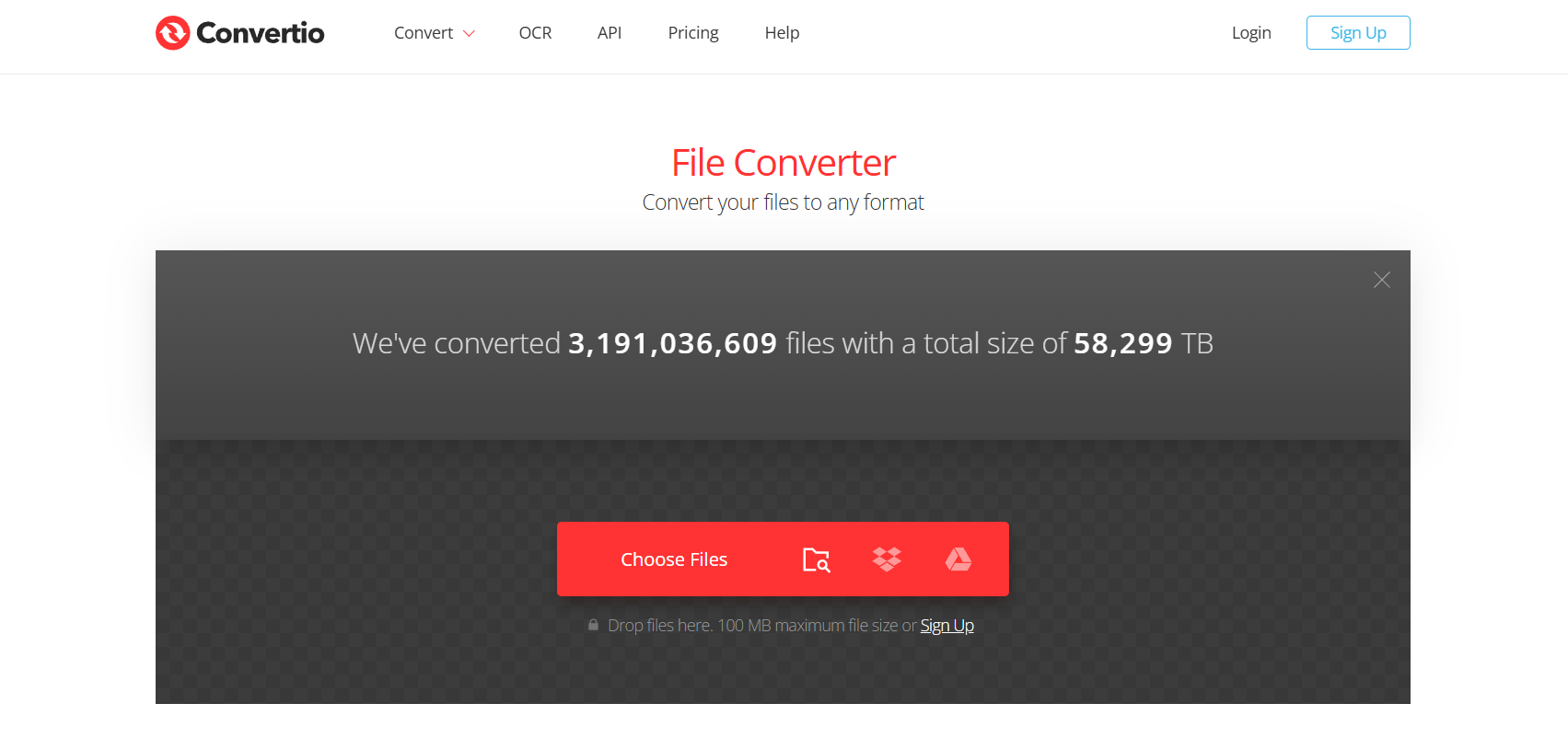
5. Convertio – Mobile-Friendly MKV to MP3 Conversion

Convertio

If you’re working from your phone, Convertio is one of the most convenient tools around. You can use it directly in your mobile browser without installing anything.

Key Features:

  • Works on desktop and mobile
  • Can pull files from Dropbox, Google Drive, or local storage
  • Free and premium options

Pros:

  • Great for smartphone users
  • Modern, easy-to-use interface
  • Wide format support

Cons: 

  • Free plan limits file size
  • Conversion speed depends on internet

Best For: Users who want to convert MKV to MP3 while on the go, especially from their phones.

Pro tip: Convertio remembers your last settings, which makes repeated conversions much faster.

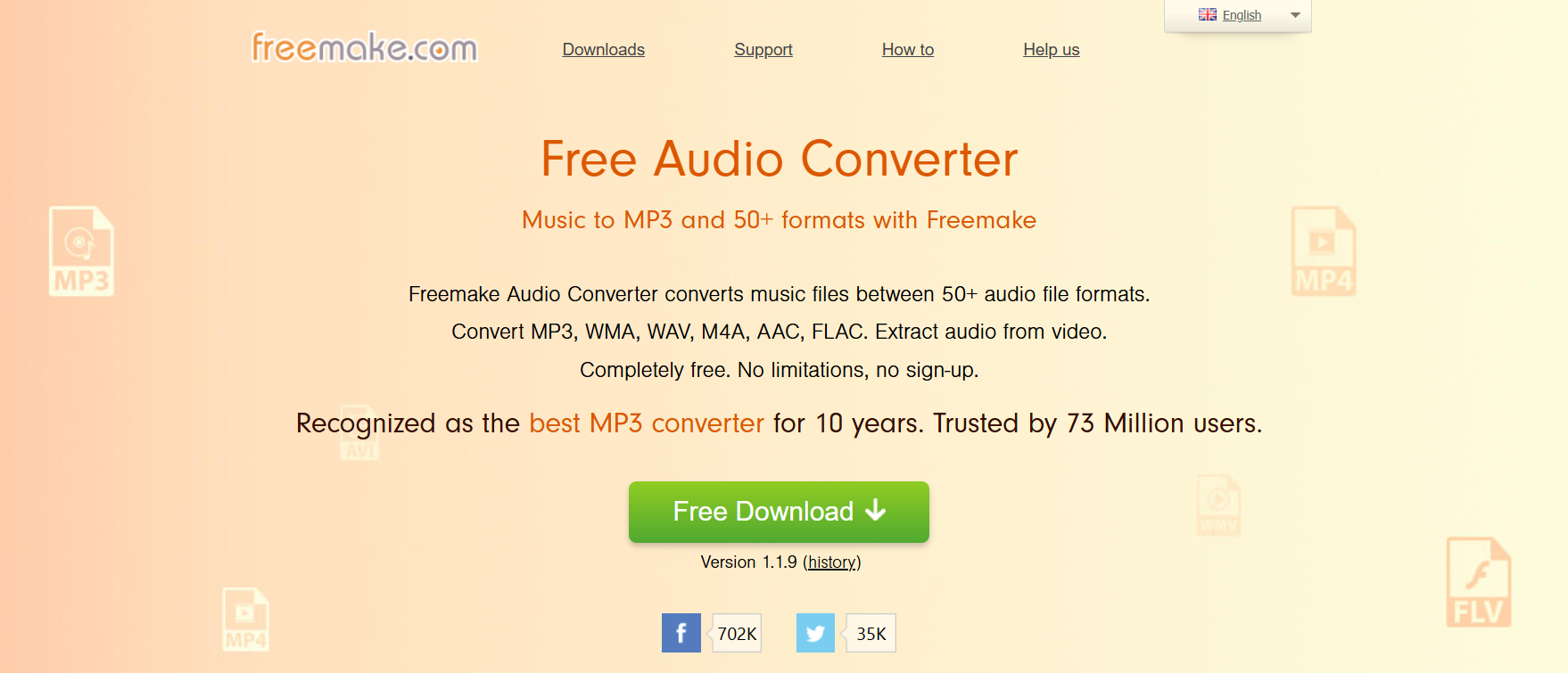
6. Freemake Audio Converter – High-Quality Audio Extraction from MKV

Freemake Audio Converter

Freemake Audio Converter has been around for a long time and still holds up as one of the best free tools for Windows users.

Key Features: 

  • Converts MKV to MP3, WAV, AAC, and more
  • Batch conversion support
  • Allows merging multiple files into one track

Pros:

  • Simple, beginner-friendly design
  • Great audio quality
  • Handles large MKV files with ease

Cons:

  • Windows-only software
  • Free version adds branding (removed with upgrade)

Best For: Windows users who want consistent, high-quality audio extraction.

Bonus: If you have multiple videos to process, Freemake is a lifesaver because it handles batch jobs without slowing down your system.

7. FFmpeg – Multi-Format Video to MP3 Solution

If you’re comfortable with command-line tools, FFmpeg is hands-down the most powerful option. It’s lightweight, incredibly fast, and supports almost every format imaginable.

Key Features:

  • Works on Windows, Mac, Linux
  • Supports nearly every media format
  • Extremely efficient resource use

Pros:

  • Ultra-fast conversions
  • Zero bloat, just raw power
  • Fully customizable with advanced commands

Cons:

  • Requires command-line knowledge
  • Not beginner-friendly

Best For: Tech enthusiasts or developers who want maximum control over their mkv to mp3 conversion process.

Fun fact: Many popular apps and converters actually use FFmpeg under the hood.

How to Choose the Best MKV to MP3 Converter

When picking the right tool, keep these three things in mind:

Speed vs. Quality: What Really Matters

If you just want something fast, stick to online converters like Online Audio Converter or Convertio. But if audio quality is your top priority, programs like Freemake or Audacity give you more control over settings.

Online vs. Desktop Converters

  • Online converters: Great for one-off conversions, lightweight use, or mobile users.
  • Desktop converters: Best for large files, batch processing, and offline use without internet.

Free vs. Paid Options

Most of the tools on this list are free, but paid upgrades usually give you perks like faster speeds, no limits, and extra customization. For example, CloudConvert’s paid plan is worth it if you convert often.

Step-by-Step Guide: How to Convert MKV to MP3 Quickly

Here’s a simple guide using VLC Media Player:

  1. Open VLC and go to Media > Convert/Save.
  2. Add your MKV file to the list.
  3. Click Convert/Save again.
  4. Under Profile, choose Audio – MP3.
  5. Pick your destination folder and file name.
  6. Hit Start and wait until it’s finished.

And that’s it. In just a couple of minutes, you’ll have a clean MP3 file ready to play on your phone, car stereo, or anywhere else.

Pro tip: You can repeat the same process for multiple files and save a ton of time.

Find More: Boost Your Sales With SEO Services

Conclusion

There are plenty of ways to convert MKV to MP3, but not all of them give you the speed, quality, or reliability you need. If you want a free all-in-one option, VLC Media Player is tough to beat. For quick jobs without installation, Online Audio Converter or Convertio are super convenient. And if you care about premium audio quality, Freemake Audio Converter is an excellent choice.

At the end of the day, the best tool depends on what you value most — speed, quality, or convenience. The good news is that every option on this list actually works, so you won’t waste time with sketchy software or unreliable websites.

Pick the one that matches your needs, try it today, and finally make the switch from MKV to MP3 without the headaches.

FAQs

1. Can I convert MKV to MP3 without losing quality?

Yes. Stick to tools like Freemake, VLC, or Audacity, and set the bitrate to 320 kbps for the highest quality output.

2. What is the safest free MKV to MP3 converter?

VLC and Audacity are both open-source, which means they’re transparent and safe. For online conversions, CloudConvert is among the most trustworthy.

3. Do online converters have file size limits?

Almost all of them do. Free plans usually cap uploads around 100–200MB. If you need to handle bigger files, desktop apps like VLC are better.

4. Is it possible to convert MKV to MP3 on mobile?

Absolutely. Convertio works smoothly in mobile browsers, so you don’t even need to download an app.

5. Which MKV to MP3 converter works best for large files?

Freemake and VLC are the most reliable choices when handling big MKV files without crashing.

6. Do I need internet to convert MKV to MP3?

Not always. VLC, Audacity, and FFmpeg work completely offline, which is great if you don’t want to rely on your connection.

Tags:
Everything You Need to Know About Website Responsive Checker

Everything You Need to Know About Website Responsive Checker

With the current digital environment, where mobile phones drive the majority of all the internet traffic, optimizing your web page to work perfectly on all screen resolutions is no longer an option. The website responsive checker has been used as an essential tool that allows developers, designers and business owners to test the flexibility of their page in most electronics devices and picture settings. This super-useful utility will spare you many hours of manual testing as well as giving you in-depth metrics on user experience across multiple platforms. This in-depth article shows all you should know about such a tool and how it can fundamentally change your web developer bag of tricks.

1. Learn the Core Purpose and Functionality 

The site responsive checkers are testing environments in a virtual environment that allows determining the display and functioning of your site on a variety of windows, resolution, and orientation of devices without the necessity to use each type of device respectively. With these tools, it is instantly clear when there is a problem in the layout or individual elements are broken or when things are not easy to use. They duplicate the actual conditions of devices such as touch interfaces, loading times, and behaviors of certain browsers. This simulation ability brings about the availability of responsive testing which is not only comprehensive but also surprisingly very cost effective compared to the traditional or conventional device based testing techniques.

2. Discussing Variations and Techniques of Testing 

Responsive checkers take the form of browser based tools, standalone applications, and integrated development environment plugins with different suites providing different benefits depending on their workflow needs. Browser extensions can be used very quickly during development, whereas the web-based ones can be thoroughly used to analyze and report in-depth analysis. There are tools that are concentrated on visual representation, others are concentrated on performance measures, and the later ones are even on the level of combining several types of testing methodologies to reach a full analysis of responsiveness. Knowledge of these various approaches assists teams in choosing the best tools that employ according to their particular needs on testing and development.

3. Main Properties that Make Testing Efficient 

Current responsive checkers have developed with advanced options such as device setting specifications, manual resolution modifications, screenshot options, side-by-side comparison windows, and performance analytics which help acquire clear knowledge of how the websites are functioning. Advanced tools involve touch simulation, network throttling, accessibility testing, and cross browser compatibility checks that make a critical check based on all user situations. Horizontal features such as collaboration, automated schedules of testing, and granular reporting systems allow team development and communication with the client on many platforms. Such complete sets of features transform purely visual inspection into effective testing processes that enhance the quality of a site in general.

4. Integration Practices and Streamlining of Workflows 

Responsive testing can be effectively done when there is an efficient intervention into the development processes, written into automated testing systems, continuous integration systems, and work reviews that uphold the levels of work quality over project cycles. Most reactive checkers provide API, command-lines and webhook support allowing them to drive automated testing throughout the development process and throughout deployment pipelines. The capability to designate shared testing sessions, annotation tools and progress tracking enables team collaboration to coordinate the responsive testing activities across the distributed development teams. An optimal integration makes responsive testing an aspect of the development but not a burden.

Conclusion 

The development of web responsive testing tools has made them a very important component of the current web development since they have offered very effective and complete testing options that have made sure of creating a great experience to the users on both devices and platforms. Knowledge of their functionality, types, features, how they can be integrated, and suitable practices enables development teams to develop websites that are excellent irrespective of the mode of access by the user.