

7 Best Tools to Download Instagram Audio in Seconds (2026 Guide)
Finding the perfect trending sound on Instagram is easy; saving it to your device for offline use or video editing used to be the hard part. This guide reveals the fastest, safest ways to extract high-quality audio from Reels and videos instantly.
To download Instagram audio, copy the URL of the Reel or video, paste it into a reliable third-party extraction tool like SnapInsta or SaveInsta, select the MP3 format, and click download. These web-based tools convert video files into high-bitrate audio files (320kbps) compatible with all modern editing software and mobile devices.
Find More: 9 Best Times to Post on Instagram Today (Backed by Fresh Data)
Understanding Instagram Audio Extraction
Before diving into the tools, it is essential to understand what Instagram audio download actually entails. When you “save” a sound within the Instagram app, you are merely bookmarking it for use within their ecosystem. To use that audio in a professional video editor or listen to it offline, you must extract the audio data from the video container.
What is an Instagram Audio Downloader?
An Instagram audio downloader is a specialized web-based utility or application designed to strip the visual layer from an Instagram Reel or post, leaving only the audio track. Most modern tools in 2026 output this data in MP3 or WAV formats to ensure universal compatibility.
7 Simple Tools to Download Instagram Audio in Seconds
1. SnapInsta (Best for Speed)

SnapInsta remains a market leader due to its minimalist interface and lack of aggressive pop-up ads. It handles high-traffic requests without slowing down, making it the go-to for creators who need files immediately.
-
Best Feature: One-click MP3 conversion.
-
Compatibility: Browser-based (iOS, Android, PC).
2. SaveInsta (High-Fidelity Audio)
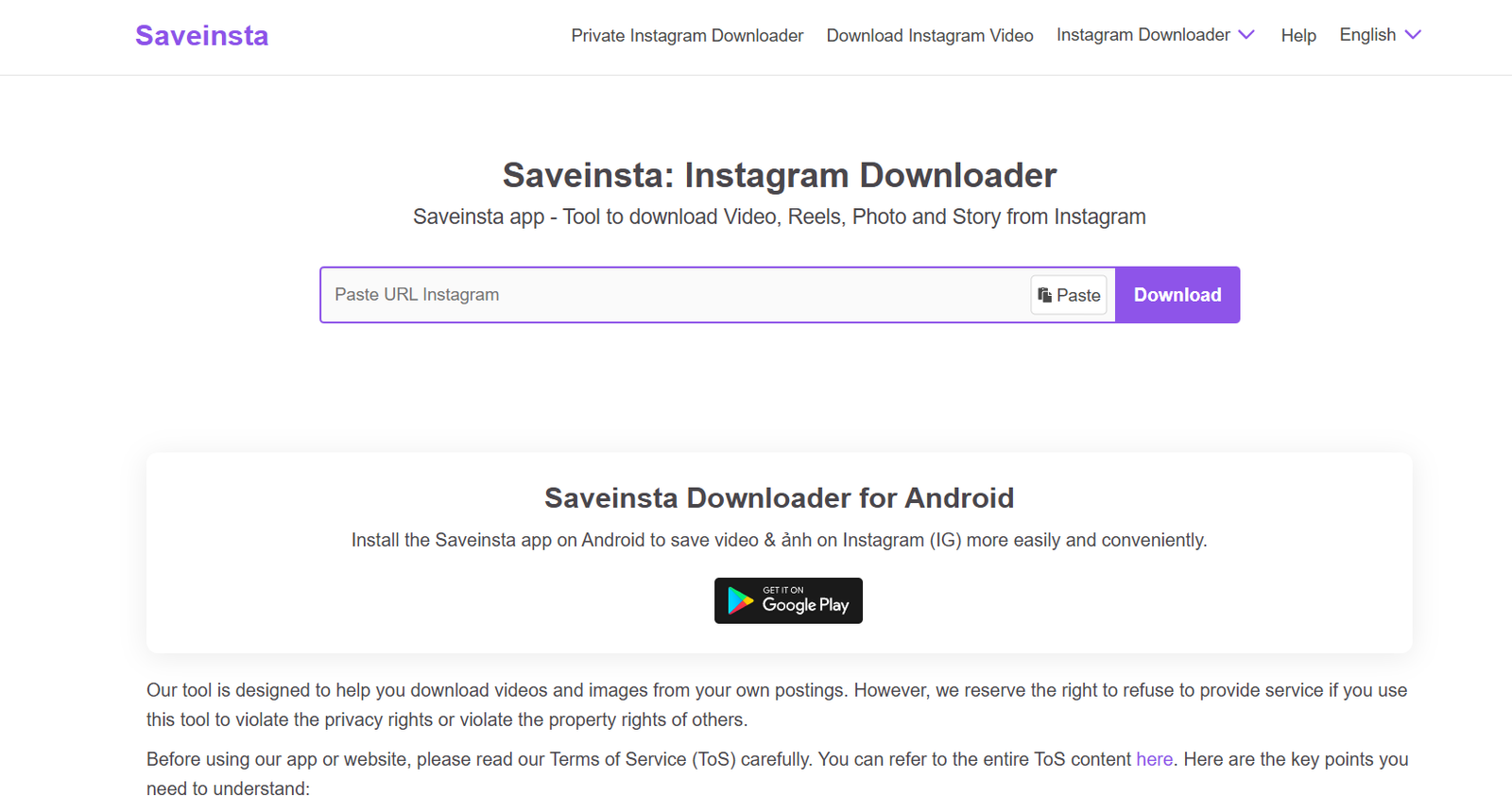
If you are a professional editor, audio quality matters. SaveInsta often preserves the original bitrate of the uploaded audio, preventing the “tinny” sound found in lower-end converters.
-
Best Feature: Supports 320kbps audio exports.
-
Compatibility: All web browsers.
3. InstaVideoSave (Best for Batch Processing)
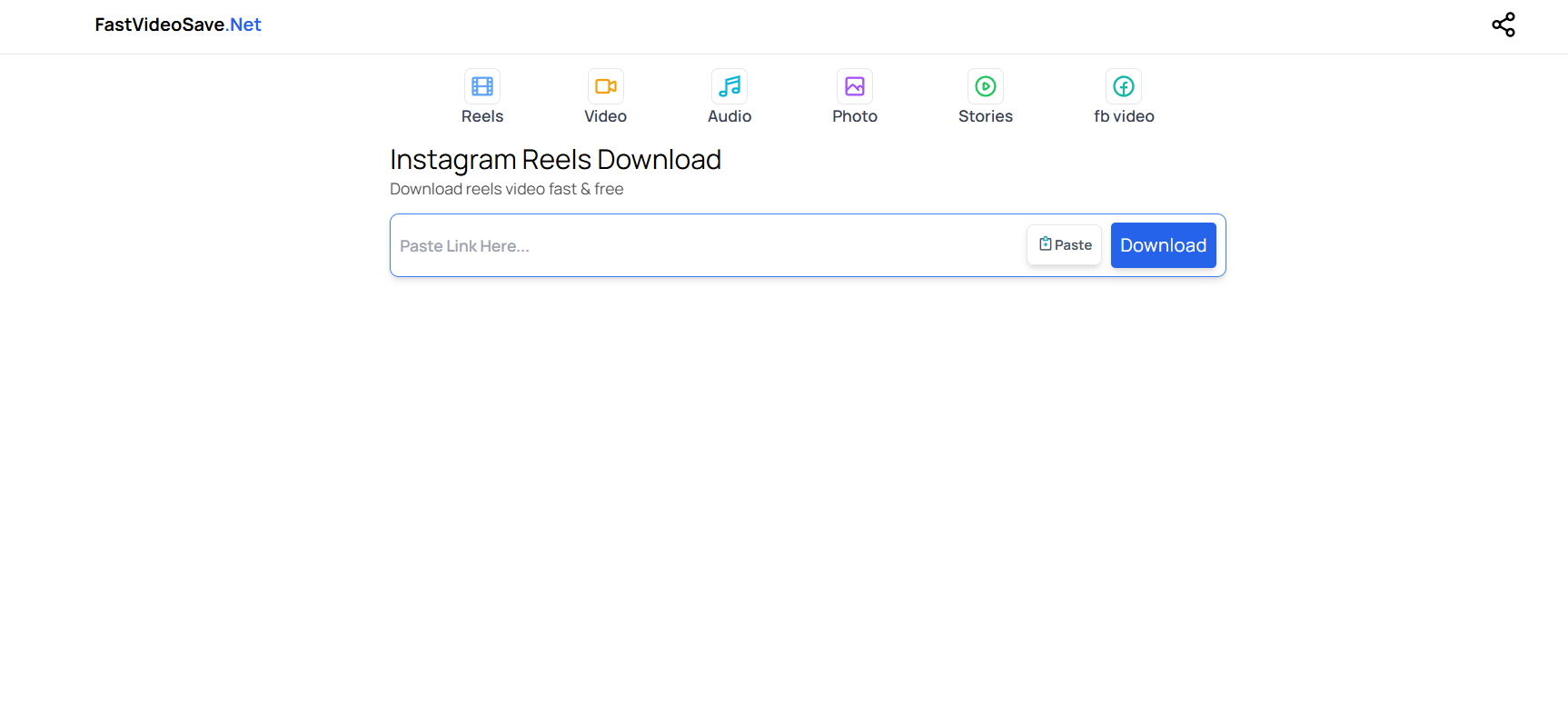
When you are researching trends and need to download ten different sounds at once, InstaVideoSave provides a stable environment for multiple tabs without crashing the browser cache.
-
Best Feature: High stability for long Reels.
-
Compatibility: Mobile-optimized UI.
4. Kapwing (Best for Creators)
Unlike simple downloaders, Kapwing is a full-scale cloud editor. You can paste an Instagram link, and it will load the video into a timeline where you can trim the audio before downloading it.
-
Best Feature: Built-in trimming and fading tools.
-
Note: Requires a free account for some features.
5. FDownloader (Reliable Mirror)
FDownloader is a classic “utility” site. It is extremely lightweight, which makes it perfect for users with slower internet connections or older mobile devices.
-
Best Feature: Extremely low data usage.
-
Compatibility: Works well on older browsers.
6. ReelSaver.net (Dedicated Reel Extraction)
Specifically tuned for the Reels algorithm, this tool is excellent at bypassing the “private account” blocks that sometimes hinder other general-purpose downloaders (provided you have access to the link).
-
Best Feature: Fast processing of 60-90 second audio tracks.
-
Compatibility: Android and iOS.
7. Online-Convert (Best for File Formats)
If you need a specific file type like .ogg or .flac for a specific project, Online-Convert allows you to set advanced parameters before the extraction begins.
-
Best Feature: Customizable sampling rates and channels (Mono/Stereo).
-
Compatibility: Desktop-heavy interface.
The Universal Step-by-Step Framework
Regardless of which tool you choose, the process for a successful Instagram reels audio download follows a standard 4-step framework. Follow these steps to avoid errors:
Step 1: Locate and Copy the Link
Open Instagram and find the Reel or video containing the audio you want. Tap the “Share” icon (the paper airplane) and select “Copy Link.” Ensure you are copying the link to the specific post, not the creator’s profile.
Step 2: Access the Downloader
Open your preferred browser (Chrome, Safari, or Brave) and navigate to one of the tools listed above. Avoid using “in-app” browsers from other social media platforms as they often block downloads for security reasons.
Step 3: Paste and Process
Paste the URL into the input field. Most tools will have a button labeled “Download,” “Convert,” or “Get.” Click it and wait for the server to fetch the video data. This usually takes 2–5 seconds.
Step 4: Save the MP3
Select the “Download Audio” or “MP3” option. On iPhones, the file will typically go to your “Files” app under “Downloads.” On Android, it will appear in your “Downloads” folder or your default music player.
Real-World Examples of Use Cases
-
Content Creation: A YouTuber downloads a trending “meme” sound from Instagram to use as a comedic sound effect in their latest long-form video.
-
Podcast Intros: A podcaster finds an atmospheric lo-fi track shared by an indie artist on Reels and uses it as a background bed for their intro (with permission).
-
Offline Inspiration: A choreographer saves a specific remix of a song to practice their routine in a studio that lacks stable Wi-Fi.
Comparison Table: Top 3 Downloaders
| Feature | SnapInsta | Kapwing | SaveInsta |
| Primary Use | Quick MP3s | Editing/Trimming | High-Quality Audio |
| Speed | ⚡ Fast | 🐢 Moderate | 🚀 Very Fast |
| Account Req. | No | Yes (for some) | No |
| Mobile Friendly | Yes | Desktop Best | Yes |
Common Mistakes to Avoid
- Trying to Download from Private Accounts: Third-party tools cannot access videos from accounts set to “Private” unless the tool specifically has a “Private Downloader” feature that requires you to log in (which is generally not recommended for security).
- Using Low-Quality Bitrates: Many generic converters default to 128kbps. Always look for tools that offer 320kbps to ensure your audio sounds professional when played on speakers.
- Clicking “Fake” Download Buttons: Many free sites are funded by ads. Be careful of large, flashing “Download” buttons that are actually advertisements. The real button is usually smaller and located directly next to the video thumbnail.
- Ignoring Copyright Laws: Downloading audio for personal use is generally fine, but using copyrighted music in commercial projects without a license can lead to legal action or “DMCA” takedowns.
Pro Tips for Power Users
-
Browser Extensions: If you download frequently, look for Chrome or Firefox extensions. They add a “Download” button directly onto the Instagram web interface.
-
Check the “Save” Original: Before downloading, check if the artist has a “Link in Bio” to a high-quality version of the song on Spotify or SoundCloud. Supporting the artist directly is always the best practice.
-
The “Screen Record” Hack: If a tool is down, you can screen record the Reel, then use a “Video to MP3” converter on your phone. It’s a bit slower but works 100% of the time.
Find More: Boost Your Sales With SEO Services
FAQs
1. Is it legal to download Instagram audio?
It is legal for personal, offline use. However, re-uploading someone else’s audio as your own or using it in a commercial advertisement without permission violates copyright laws and Instagram’s Terms of Service.
2. Do I need to provide my Instagram password?
No. You should never use a tool that asks for your Instagram login credentials. Reputable downloaders only require the public URL of the post.
3. Can I download audio from a private Instagram account?
Standard downloaders cannot access private content. To download from a private account, you must be a follower of that account and use a specialized browser-based “Private Downloader” that captures the page source.
4. Why is the audio quality low after downloading?
This usually happens because the original uploader used a low-quality file, or the downloader compressed the file to save server space. Use SaveInsta or SnapInsta for the best results.
5. Where do the files go on my iPhone?
By default, iOS saves downloaded files to the “Downloads” folder within the Files app. You can move these to your Music library or import them into apps like CapCut or LumaFusion.
Key Takeaways
-
Speed is Key: Tools like SnapInsta provide the fastest path from URL to MP3.
-
Quality Matters: Always aim for 320kbps if the option is available to avoid muffled sound.
-
Safety First: Never share your password; use web-based tools that only require a link.
-
Creative Freedom: Use extracted audio to enhance your own content, provided you respect intellectual property rights.
-
Versatility: These tools work across all devices including iPhones, Androids, and desktops.