...
UK: +44 2038074555 info@atamgo.com
7 Best WebM to MP3 Converters You’ll Wish You Found Sooner

7 Best WebM to MP3 Converters You’ll Wish You Found Sooner

mpeg to mp3

Introduction

WebM to MP3 conversion might not sound like the most exciting thing in the world, but if you’ve ever stumbled across a video in WebM format and wished you could just grab the audio — you know how valuable this can be. The WebM format is widely used for videos on the web, especially when you’re downloading from sites that prioritize open-source formats. But what if you don’t need the video? What if you just want the audio — the soundtrack, a lecture, a podcast-style discussion, or maybe a song snippet? That’s when converting .webm to mp3 comes in handy.

MP3 is lighter, universally supported, and works seamlessly across almost every device out there — phones, music players, tablets, even car stereos. So, learning how to convert WebM to MP3 is a practical skill that saves time and storage while keeping your files easy to manage. Whether you’re looking to extract an inspiring TED Talk, capture audio for offline studying, or simply free up space, the right tool makes all the difference.

In this article, I’ll guide you through 7 of the best WebM format to MP3 converters you’ll wish you had known about sooner. Some are lightning-fast online tools, others are trusted desktop apps, and a couple are perfect for mobile users. Plus, I’ll give you tips on how to choose the best converter for your needs, a step-by-step walkthrough for different methods, and answers to FAQs most people run into.

Find More: 7 Best MPEG to MP3 Tools for Lightning-Fast Conversions

7 Best WebM to MP3 Converters You’ll Wish You Found Sooner

1. OnlineVideoConverter – Best for Fast Online Conversions

OnlineVideoConverter

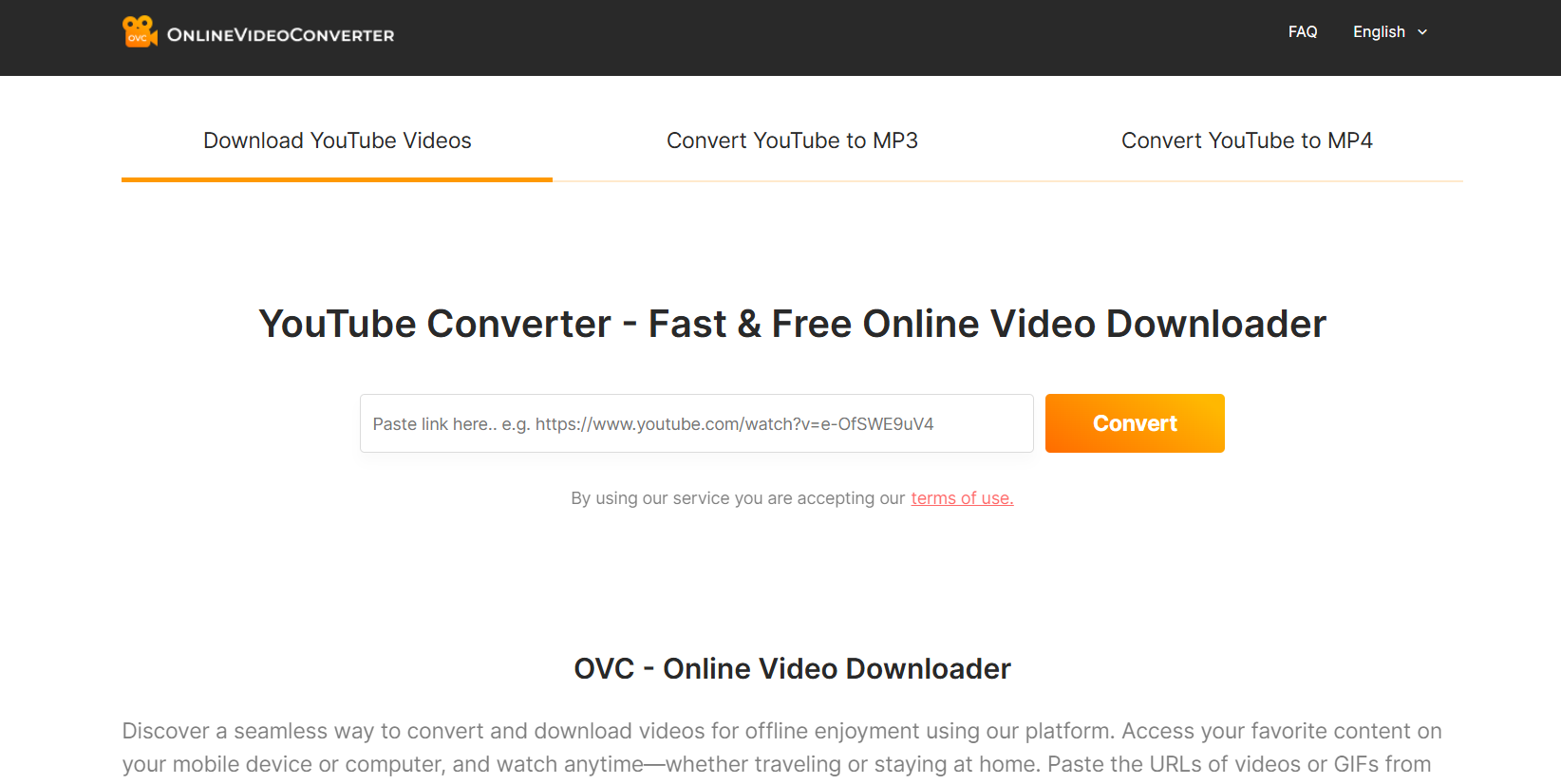
If you want something quick and straightforward without downloading extra software, OnlineVideoConverter is a reliable go-to. Simply upload, choose MP3, and download.

Key Features:

  • Works entirely from your browser.
  • Converts to MP3 and many other formats.
  • Fast enough for short to medium-length files.

Pros:

  • 100% free to use.
  • Easy interface.
  • Mobile-friendly.

Cons:

  • Ads may pop up occasionally.
  • Large file uploads can be slow.

Best For: Students, casual users, or anyone who needs a quick online conversion without hassle.

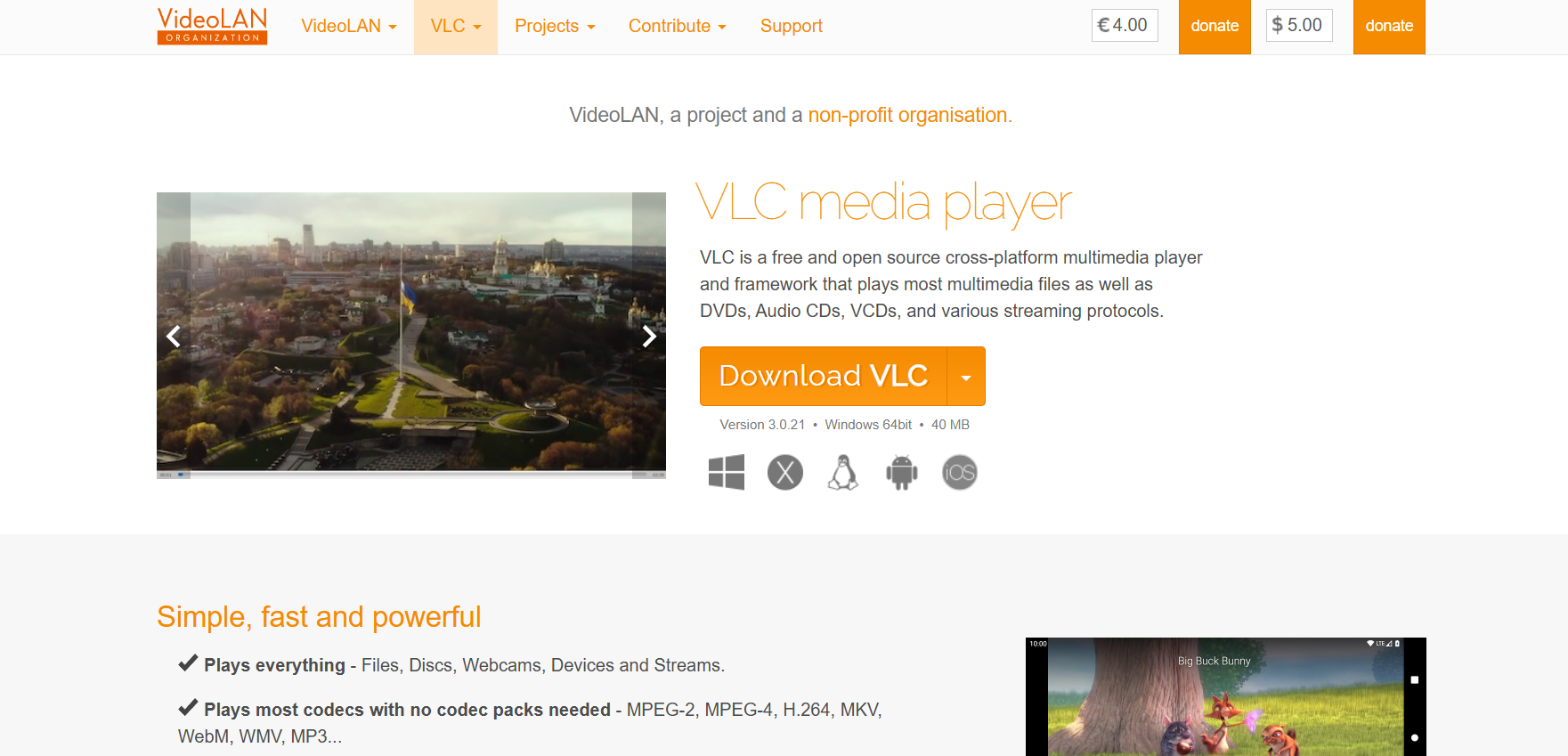
2. VLC Media Player – Reliable Desktop Software Option

VLC Media Player

VLC isn’t just a media player. It doubles as a robust file converter, making it perfect for offline users.

Key Features:

  • Converts WebM to MP3 easily.
  • Runs on Windows, Mac, and Linux.
  • Free, open-source, and secure.

Pros:

  • Handles large files smoothly.
  • No ads, no gimmicks.
  • Completely safe.

Cons:

  • Conversion steps can be tricky for beginners.
  • Doesn’t offer batch conversion natively.

Best For: People who want a trusted offline solution, especially if they already use VLC daily.

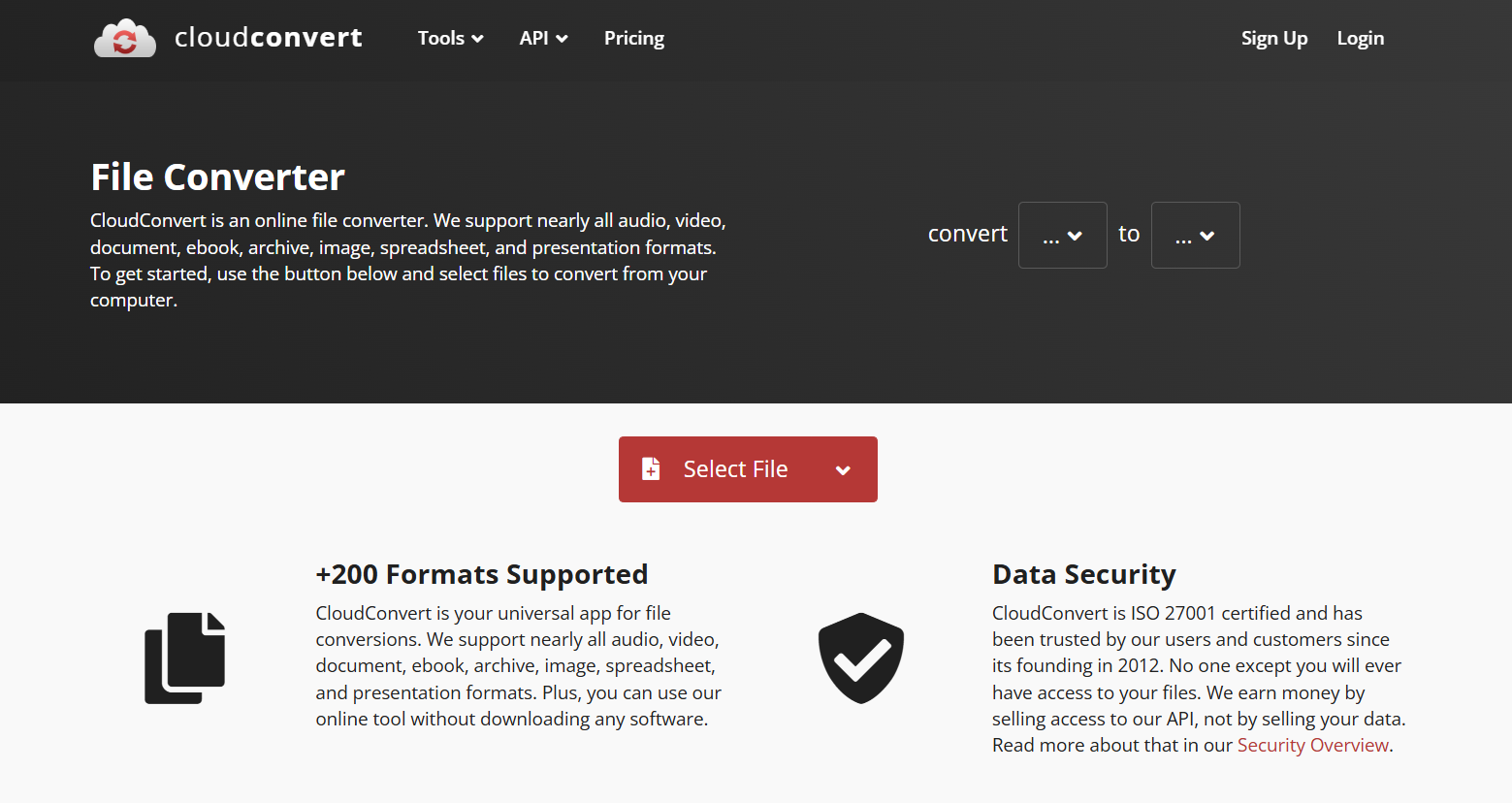
3. CloudConvert – Free WebM to MP3 Converter with No Ads

CloudConvert

CloudConvert has a sleek, modern interface and doesn’t bombard you with ads or fake download buttons.

Key Features:

  • Supports over 200 formats.
  • Lets you tweak audio quality and bitrate.
  • Integrates with cloud storage services.
Pros:

  • Clean, ad-free environment.
  • High-quality output.
  • Easy to use for both personal and professional tasks.

Cons:

  • Daily free conversions are limited.
  • Requires internet.

Best For: Professionals, students, or anyone needing a trustworthy ad-free tool.

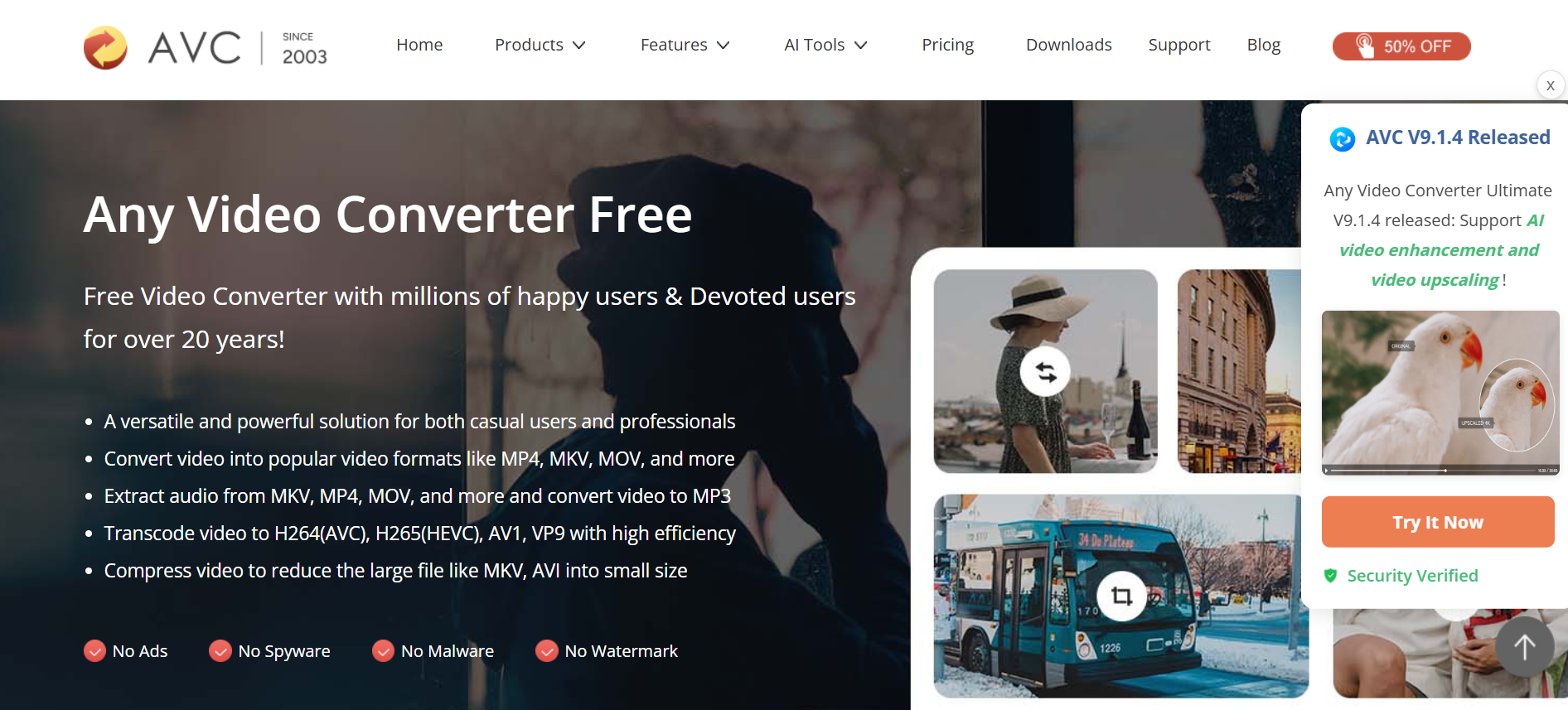
4. Any Video Converter – Simple Drag-and-Drop Converter

This tool makes format conversion almost effortless with drag-and-drop functionality.

Key Features:

  • Converts WebM to MP3 and dozens of other formats.
  • Works offline after installation.
  • Has both free and premium versions.

Pros:

  • Intuitive design.
  • Supports batch conversions.
  • Consistently fast.

Cons:

  • The installer sometimes bundles optional software.
  • Premium version required for full features.

Best For: Users who value simplicity and want a desktop program with batch conversion support.

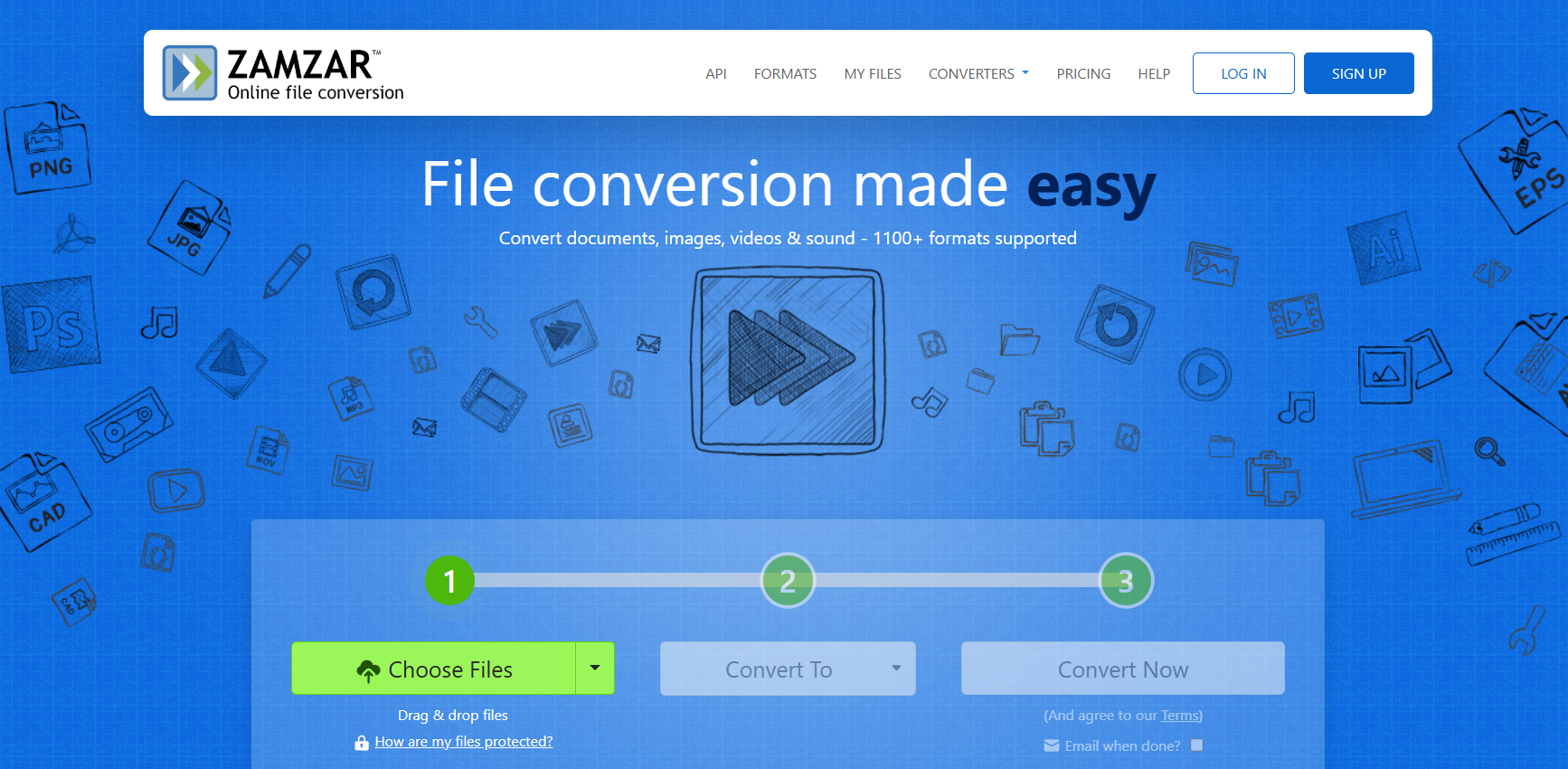
5. Zamzar – Cloud-Based Converter with Storage Options

Zamzar

Zamzar has been a trusted name in file conversions for years and is particularly beginner-friendly.

Key Features:

  • Converts WebM to MP3 with just two clicks.
  • File size limit of 50MB on the free version.
  • Email notifications when files are ready.

Pros:

  • Incredibly easy.
  • Reliable and secure.
  • Works across all devices.

Cons:

  • Not ideal for large or multiple files.
  • Slower than some modern tools.

Best For: Casual users and those who don’t mind waiting a little longer for secure, clean conversions.

6. Freemake Audio Converter – Fast Batch WebM to MP3 Converter

Freemake Audio Converter

Freemake shines when it comes to handling multiple files at once.

Key Features:

  • Converts multiple WebM files to MP3 simultaneously.
  • Supports many other audio formats.
  • Simple interface designed for everyday users.

Pros:

  • Perfect for batch jobs.
  • Quick and straightforward.
  • Works without internet.

Cons:

  • Windows-only.
  • Some features locked in the free version.

Best For: Power users and anyone converting entire playlists or folders at once.

7. MediaHuman Audio Converter – Mobile-Friendly Converter for On-the-Go

This lightweight converter is perfect for people who want a no-frills, efficient solution.

Key Features:

  • Drag-and-drop simplicity.
  • Converts WebM to MP3 smoothly.
  • Supports Mac, Windows, and Ubuntu.

Pros:

  • Free and safe.
  • Runs on multiple platforms.
  • Great for quick everyday conversions.

Cons:

  • Lacks advanced customization.
  • Can be slower with long, high-quality videos.

Best For: Busy professionals, students, or anyone who wants a free, clean, mobile-friendly solution.

How to Choose the Right WebM to MP3 Converter

Picking the right converter depends on your habits, needs, and the types of files you’re working with.

Speed vs. Quality: What Matters More?

If you’re extracting a lecture, speed may be your top priority. But for music lovers who care about crisp sound, choose a converter that allows bitrate adjustments to maintain quality.

Free vs. Paid Converters: Which Is Better?

Free tools work fine for occasional conversions. But if you need daily or bulk conversions, a paid tool can save frustration with faster speeds, unlimited usage, and premium features.

Safety Tips: Avoiding Malware and Fake Download Sites

Not all converters are safe. Many random download sites disguise malware as “free” software. Stick to trusted tools like those listed above to stay safe.

Step-by-Step Guide: How to Convert WebM to MP3 Easily

Using an Online Converter

  1. Visit CloudConvert.
  2. Upload your WebM file.
  3. Select MP3 as the format.
  4. Click “Convert” and download once it’s ready.

Using Desktop Software

  1. Open VLC Media Player.
  2. Go to Media > Convert/Save.
  3. Add your WebM file.
  4. Choose MP3 as the output format.
  5. Click Start and save.

Using a Mobile App

  1. Install MediaHuman Audio Converter.
  2. Import the WebM file.
  3. Pick MP3 as the format.
  4. Convert and save directly to your device.

Conclusion

There you go — the 7 best tools to convert WebM to MP3 without stress. Each of these converters has its own strengths: from lightning-fast online solutions like OnlineVideoConverter and CloudConvert, to trustworthy offline workhorses like VLC and Any Video Converter, to convenient options like MediaHuman for daily use.

The bottom line? If you need something quick, go with CloudConvert or OnlineVideoConverter. For reliable offline performance, stick with VLC. And if you regularly convert multiple files, Freemake will save you hours.

So next time you’re sitting with a WebM file and wondering how to get just the audio, you won’t have to scramble. Pick your tool, hit convert, and enjoy your new MP3 file.

FAQs

1. Is it safe to convert WebM to MP3 online?

Yes, if you stick with trusted platforms like CloudConvert or Zamzar.

2. Do WebM to MP3 converters reduce audio quality?

Some do, but many let you control bitrate and quality settings. Pick tools that allow customization.

3. Can I convert multiple WebM files to MP3 at once?

Yes, Freemake and Any Video Converter both handle batch conversions well.

4. Are WebM to MP3 converters free to use?

Most are free, though some limit daily usage or file size. Paid versions usually remove restrictions.

5. Which converter works best for mobile devices?

MediaHuman Audio Converter is lightweight and cross-platform, making it ideal for mobile or on-the-go use.

6. What is the difference between WebM and MP3 formats?

WebM is a video format often used for online streaming, while MP3 is a compressed audio-only format. Converting strips out the video and keeps just the sound.

Tags:
7 Best MPEG to MP3 Tools for Lightning-Fast Conversions

7 Best MPEG to MP3 Tools for Lightning-Fast Conversions

mpeg to mp3

Introduction – Why Convert MPEG to MP3?

MPEG to MP3 conversion is something almost everyone needs at some point. Maybe you’ve downloaded a video clip in MPEG format but only want the audio, or perhaps you’re trying to save storage space by extracting the sound. Whatever the reason, knowing how to easily convert MPEG file to MP3 can save you a lot of time and headaches.

But why does this matter? MPEG files often store both audio and video, and while that’s great for watching, it’s not ideal when you just need the soundtrack. MP3, on the other hand, is lightweight, super portable, and supported by almost every device or music player out there. You don’t need a fancy media player, and you don’t have to worry about compatibility — MP3 just works.

In this guide, we’ll go over the best MPEG to MP3 converters available today — including online tools, desktop software, and even mobile apps. We’ll also cover how to choose the right one for your situation and give you step-by-step instructions for making the switch. By the end, you’ll know exactly which tool fits your workflow best.

Find More: 10 Best Free FLV to MP3 Tools That Actually Work in 2025

What is MPEG Format?

MPEG stands for “Moving Picture Experts Group,” the team that developed it. It’s a popular format for videos and audio tracks bundled together. You’ve probably seen variations like MPEG-4 (MP4) for videos. MPEG files can carry rich audio and video streams, which makes them great for multimedia but a little heavy when you only want sound.

Why People Prefer MP3 for Audio Playback

MP3 is like the universal language of audio. Whether it’s a car stereo, a phone, or an old-school MP3 player, the format just works everywhere. That’s why people prefer to convert MPEG to MP3 — it makes life simpler. Instead of wrestling with big, complex files, you can have clean audio tracks that are easy to store, transfer, and play.

Quick Benefits of Using MPEG to MP3 Converters

  • Save storage space
  • Extract only the audio you need
  • Enjoy compatibility with all devices
  • Share smaller files easily
  • Make playlists more organized and lightweight

7 Best MPEG to MP3 Tools for Lightning-Fast Conversions

Here’s the part you’ve been waiting for. These are the top MPEG to MP3 converters you can count on in 2025. Each has its own unique strengths, so think about whether you value speed, quality, or convenience the most.

1. Online Audio Converter – Best for Quick Online Conversions

Online Audio Converter

If you want something simple, free, and web-based, Online Audio Converter is a winner. No downloads, no complicated setup — just upload your MPEG file, choose MP3, and hit convert.

Why it’s great:

  • 300+ format support including MPEG-4 to MP3
  • Works directly in your browser
  • Lets you tweak audio quality before converting
  • Supports multiple files at once

Best for: People who don’t want to install software and just need quick results.

2. Zamzar – Best for High-Quality Audio Extraction

Zamzar

Zamzar has been around for years and has a solid reputation. It’s especially good if you want a tool that supports a wide range of conversions beyond just audio.

Why it’s great:

  • Reliable for large files
  • Clean, easy-to-use interface
  • Email option for sending converted files
  • Excellent reputation for security

Best for: Users who convert multiple types of files, not just MPEG to MP3.

3. VLC Media Player – Best Free MPEG to MP3 Converter

VLC Media Player

Most people know VLC as a video player, but did you know it doubles as a powerful converter? It’s free, open-source, and works on Windows, Mac, and Linux.

Why it’s great:

  • Totally free
  • No need for extra software
  • Supports MPEG file to MP3 conversion with ease
  • Offers advanced settings if you want more control

Best for: Anyone who already uses VLC and wants an all-in-one solution.

4. Freemake Audio Converter – Best for Batch Conversions

Freemake Audio Converter

If you’ve got a bunch of files to convert at once, Freemake is a lifesaver. It lets you queue up multiple MPEG files and convert them all to MP3 in one go.

Why it’s great:

  • Handles batch processing
  • Supports over 50 file formats
  • User-friendly design
  • Reliable for both small and large batches

Best for: Users who need to process lots of files at once without babysitting the computer.

5. Wondershare UniConverter – Best Desktop Software for Offline Use

Wondershare UniConverter

Wondershare UniConverter is one of the most feature-rich tools out there. It’s not free, but if you convert files often, the investment is worth it.

Why it’s great:

  • Lightning-fast conversions
  • High-quality output with no loss
  • Built-in editor for trimming audio
  • Extra features like screen recording and DVD burning

Best for: Professionals who need speed and reliability daily.

6. MediaHuman Audio Converter – Best for Mac Users

MediaHuman Audio Converter is a gem for Mac users. It’s lightweight, clean, and straightforward.

Why it’s great:

  • Free and simple
  • Drag-and-drop support
  • Perfect for quick MPEG to MP3 format conversions
  • Integrates well with iTunes

Best for: Mac users who want a no-fuss solution.

7. MP3 Video Converter (Mobile App) – Best for Mobile Users

Video MP3 Converter

For Android users, MP3 Video Converter is a great pick. It lets you convert MPEG-4 to MP3 right on your phone.

Why it’s great:

  • Super convenient
  • Works offline
  • Small file size, easy to install
  • Supports trimming audio before saving

Best for: Anyone who needs conversions on the go.

How to Choose the Right MPEG to MP3 Converter

Not all converters are created equal. Here’s how to figure out which one works best for you:

Speed vs. Audio Quality

If you just need a quick conversion, online tools like Online Audio Converter are fine. But if you care about preserving quality, go for Wondershare UniConverter or VLC. Remember: faster isn’t always better if you lose clarity in the process.

Online vs. Offline Converters

  • Online tools: Easy, fast, but limited by file size and internet speed. Perfect for occasional users.
  • Offline software: Reliable, no upload limits, but takes up space on your computer. Great for frequent use.

Free vs. Paid Tools – Which is Better?

  • Free tools: Great for occasional use, students, or anyone on a budget.
  • Paid tools: Worth it if you’re converting files frequently and need professional features like batch processing, editing, or faster speeds.

Step-by-Step Guide: How to Convert MPEG to MP3 Easily

Here’s a quick breakdown of how to do it, no matter what device you’re on.

Using an Online Converter

  1. Go to a site like Online Audio Converter
  2. Upload your MPEG file
  3. Select MP3 as the output format
  4. Adjust settings if needed
  5. Download your converted MP3
  6. Test the file on your device to make sure the audio quality meets your needs

Using a Desktop Software

  1. Install VLC or Wondershare UniConverter
  2. Open the program and import your MPEG file
  3. Choose MP3 as the target format
  4. Hit convert and wait for it to finish
  5. Save your new file
  6. If needed, edit or trim the file before finalizing

Using Mobile Apps

  1. Download MP3 Video Converter from Google Play
  2. Open the app and select your MPEG-4 file
  3. Choose MP3 as the output
  4. Convert and save directly to your phone
  5. Use your phone’s music player to double-check playback

Conclusion

At the end of the day, the best tool depends on your needs. If you just want something quick and simple, go with Online Audio Converter. For batch conversions, Freemake is your friend. And if you want professional results, Wondershare UniConverter is hard to beat.

Think about what matters most: speed, quality, or convenience. Once you know that, you’ll have a clear winner from this list. The process to convert MPEG to MP3 is easier than ever, so don’t let big files get in your way.

So don’t overthink it — pick a tool, convert your files, and enjoy your audio hassle-free. Your favorite tracks and recordings are only a few clicks away.

Find More: Boost Your Sales With SEO Services

FAQs

1. Is it safe to use online MPEG to MP3 converters?

Yes, but always stick to trusted sites like Zamzar or Online Audio Converter. Avoid shady websites that might bundle in malware. If you’re handling sensitive files, an offline tool is safer.

2. Do free converters reduce audio quality?

Not always. Tools like VLC and Online Audio Converter let you control quality settings, so you don’t lose much. However, some free apps do compress files aggressively.

3. Can I convert MPEG to MP3 on my phone?

Yes! Apps like MP3 Video Converter make it super easy on Android. For iPhone, you may need a desktop tool or a third-party app from the App Store.

4. What’s the fastest way to convert large MPEG files?

Offline desktop software like Wondershare UniConverter or VLC handles big files much faster than online tools. Online converters may struggle if your internet connection is slow.

5. Are there any limitations to free MPEG to MP3 tools?

Yes, some free tools have file size limits or fewer customization options. Paid software usually removes these restrictions, offering more flexibility.

6. Which format is better for music, MPEG or MP3?

If you’re storing full videos, MPEG makes sense. But if you want only audio — especially for music — MP3 is much more efficient.

Tags:
Technical Deep Dive: API-Driven Newsletter Plugins for WordPress

Technical Deep Dive: API-Driven Newsletter Plugins for WordPress

API-driven newsletter plugins for WordPress

In the current scenario, a website is considered to be a part of a much wider branch of interconnected services, rather than being a self-contained entity. This definition is essential when it comes to the case of the continent management system, WordPress. While it has remarkable out-of-the-box solutions in content creation and management, the system is virtually useless in capturing and engaging an audience, particularly in the email marketing domain.

This is the gap that specific, API-based email marketing plugins fill, turning a standard WordPress installation into a sophisticated list building, audience segmentation, and communication automation system. Unlike the earlier tools, these recent plugins do not try to position themselves as ‘all-in-one’ email marketing solutions. 

What are API-Driven Newsletter Plugins?

API-Driven Newsletter Plugins are the WordPress extensions that allow users to design and manage subscription forms and email campaigns with ease and directly talk to third-party ESPs via an exposed API, often of the REST type and handing off data in JSON format. Their use has gained much popularity, directly associated with the growing intricacy of email deliverability.

Furthermore, most shared hosting environments, where WordPress usually ‘rests,’ are infamous for terrible email reputations because of shared IP addresses that are largely associated with spam. Plugin-based APIs are a perfect solution to this problem as they seamlessly transfer the responsibility of sending emails to dedicated ESPs like Mailchimp, SendGrid, ActiveCampaign, or Brevo whose infrastructure and IP pools are explicitly maintained with high deliverability for high deliverability newsletter plugins.

Architectural Paradigm: How API-Driven Plugins Work?

The architectural sophistication of these plugins is crucial for understanding why they are superior. The more traditional method used by older plugins such as the MailPoet built-in sending service or other SMTP-based solutions involves the WordPress host server being the one to start the connection to an outgoing mail server (usually using the `wp_mail()` PHP function paired together with an SMTP library). This approach is always expensive for the host and comes with deliverability problems.  

1. The API Request Flow

A modern API-driven plugin works on a different principle:  

  •  Form Rendering & Data Capture: 

The plugin allows the use of short codes or Gutenberg blocks to render a subscription or other forms to the front end.  When the form is submitted by a user, the form data (email, name, etc.) is captured using AJAX or sent to the WordPress back end as a standard POST request.  


  • Server Side Processing: 

The input data is sanitized and validated by the plugin PHP code on the WordPress server.  


  • API Call Construction: 

The data is not to be stored locally on the plugin or queued for email sending. Instead, the plugin creates an accurately formatted HTTP request (most likely a POST request). This request contains the headers (prolifically an API key for authentication) and a JSON body payload containing the data of the subscriber.

  • External Processing: 

The request is sent using HTTPS to the external ESP’s API endpoint like ‘https://api.mailchimp.com/3.0/lists/{list_id}/members’.

  • ESP Handling:

The request is received by the ESP who then authenticates it using the API key provided, processes the data, adds the subscriber to the list provided, and returns a standard HTTP status code. Success is returned as ‘200 OK’ and client errors such as duplicate email are returned as ‘4xx’.

  • Response Handling: 

The plugin interprets the HTTP response and success or error messages are displayed to the user depending on the ESP’s reply.

2. Data Synchronization and Webhooks

The relationship is often bidirectional. ESPs use webhooks (user-defined HTTP callbacks) to ‘push’ data back to the WordPress site. For example, if a subscriber unsubscribes, the ESP would send a POST request to the WordPress site and the plugin would update the user status, enabling data parity. The underlying systems are still decoupled, showcasing strong API-first design.

Core Technical Components and Features

These functions are often unused as the full potential of the plugins is not appreciated due to lack of understanding the technical features provided that use the ESPs API.

1. Dynamic List and Field Mapping

A more advanced plugin does not only sync an email address. It enables advanced field mapping with WordPress user fields (e.g.  `first_name`, `last_name`, and `user_role`) and ESP custom fields (often referred to as merge tags). 

The plugin does this by invoking GET requests to the ESP’s API, pulling field and list structures for mapping, and displaying them as user-friendly dropdowns for administrators to set the rules corresponding to fields mapped.

2. Behavioral Triggers and Automation

More advanced plugins access the ESP’s automation workflows over API, and are able to trigger them based on WordPress user actions. For instance: 

  • Post Published:  

Automation workflows in the ESP can be triggered by an API from the new post the user just published to send dedicated broadcasts to selected users.

  • User Registration:  

Single API calls can be programmed to add new users to the ActiveCampaign “Onboarding” email sequence.

  • WooCommerce Activity:  

The ESP can be used for advanced remarketing to users based on purchase, cart abandonment, and product view data.

3. Synchronizing Segments and Taxonomies

Powerful add-ons can even sync WordPress taxonomies (like post categories or tags) as segments or tags within the ESP. For example, if a user subscribes through a form on a category page for ‘WordPress Plugins’, the add-on can make an API call to add a ‘Interest: WordPress Plugins’ tag to the subscriber’s profile on the ESP. 

This allows for segmentation that is incredibly precise for highly targeted campaigns, as opposed to having one large list. This is the kind of integration that exemplifies the new suite of developer newsletter tools, enabling complex user journeys customized for interaction on the site.  

Selecting Industry Leading API-Centric Plugins

When choosing a plugin, the developer must go past the value proposition and assess the actual implementation.  

1. Code Quality and API Abstract Conflict  

A well-built plugin will contain a neat boundary for the API interaction in the form of an abstraction. Instead of letting API calls be spread throughout the codebase.

Let’s say the plugin contains a dedicated class like ‘MailchimpAPI’ that’s responsible for all API activities like add_subscriber, get_lists, etc. This makes the code maintainable and testable with a reduced error margin. It also makes it easier to add support for new ESPs.

2. Caching and Error Handling

How a plugin deals with API failures is important. It should take into account efficient retry logic with exponential back off for transient errors (e.g. `429 Too Many Requests`). Also, it should cache API responses that are relatively static.

Such as, the list of fields obtainable from the ESP, to minimize the number of API calls and enhance the admin dashboard responsiveness. Failed calls should be recorded as part of a structured log for a debugging purpose, not gone without a trace. 

3. Extensibility and Hooks

From a developer perspective, the existence of the WordPress actions and filters (`do_action()`, `apply_filters()`) is a must. These hooks enable custom code to be added that intercepts the subscription workflow, modifies the data payload that is sent to the API, and even executes custom logic after the sync is completed. 

This changes the plugin from a self-contained unit to an open framework for integration. The best developer newsletter tools provide extensive hooks for pre-subscribe validation, post-subscribe actions, and payload manipulation. 

The Deliverability Advantage: More Than an API Call

Every newsletter strategy aims for that ultimate goal of landing in the recipient’s inbox. This is where the API driven model provides the newsletter plugins with an undeniable advantage, and is what forms the backbone of what makes a high deliverability newsletter plugins.

Reputation and Infrastructure of the Sender 

 ESPs such as SendGrid and Mailgun focus on deliverability and reputation on the IP level as well as maintaining the reputation of their mailbox infrastructure and email routing. They spend millions of dollars on reputation IP and mailbox infrastructure on negotiating with big inbox providers. 

They deal with level domain SPF, DKIM, and DMARC authentication complexities and elegantly set domain reputation in the DNS records users append. SendGrid and Mailgun are email service providers of choice. You are lending, via their SendGrid and Mailgun WordPress plugins’ infrastructure, their pristine reputation. 

Compliance and Data Handling 

Compliance with GDPR and CAN-SPAM requires the establishment and obtaining of consent for the processing of data. These rules are woven into the fundamental work processes of well-respected ESPs. The use of their APIs ensures compliant infrastructure for the storage of subscriber records, automated management of email unsubscribe, and consent record management. 

Therefore, legally and technically decoupling the WordPress site. This set of infrastructure paired with well designed and reliable plugins eliminates the guesswork on how to achieve and maintain status on best WordPress newsletter plugins.

Conclusion  

The standalone, SMTP-WordPress-reliant sent newsletter plugins of yesteryear have evolved into modern, API-responsive plugins, which demonstrates tremendous growth in the extensibility of the platform. This architectural change nuances the fact that specialization and the division of labor is integral to success in a complex technical landscape. 

The immense technical burdens of email deliverability, compliance, and infrastructure management are unbundled from the WordPress framework and outsourced to specialized email service providers through the advanced APIs offered by these providers. This change converts WordPress from an anemic component within an email marketing funnel to a robust, front-end data capture and trigger engine. 

The Hidden Value of Forgotten Gadgets: What’s Sitting in Your Junk Drawer?

The Hidden Value of Forgotten Gadgets: What’s Sitting in Your Junk Drawer?

Junk Drawer

Many households in the UK keep unused phones, laptops, or gaming consoles, often thinking they might come in handy one day. But more often than not, they remain untouched, gathering dust and losing value. The problem is that while these gadgets sit idle, they could actually be worth money or serve a new purpose elsewhere.

Keeping outdated electronics not only wastes potential cash but also adds to the growing issue of electronic waste. These devices often contain valuable parts that can be reused or recycled. Some can even attract collectors who are willing to pay for older models in good condition. By leaving them in a drawer, people miss the chance to clear space, earn money, and give the devices a second life.

This article takes a closer look at what forgotten gadgets might still be valuable and why it makes sense to finally go through that drawer.

Why We Can’t Let Go of Old Tech

Many people find it hard to throw away or sell their old electronics. Some hold on to devices because of memories attached to them. Others keep them as backups, thinking they might be useful if their current phone or laptop breaks. A lot of people also worry about personal data being left on a device, so they avoid dealing with it altogether.

In the UK, it’s common for homes to have multiple old gadgets tucked away. But holding on to these items has hidden costs. They lose value over time and add to the clutter at home. What’s more, letting devices sit unused means they aren’t being reused or recycled, which increases the demand for new resources.

When people finally decide to clear out their old tech, they often search for quick options and might look up pawn shop near me. While that can be one route, there are safer and more specialised alternatives. PayMore, for example, is a growing retail chain focused on buying, selling, and trading electronics. Unlike pawn shops, they deal only with tech, offering fair valuations, instant cash, and professional data wiping.

For many, this makes it a more convenient and secure choice when parting with unwanted gadgets.

Old Mobile Phones Still Hold Value

Mobile phones are among the most common forgotten items in people’s homes. Even if a phone is a few years old, it may still have a resale value. Certain models, such as early iPhones or classic Nokias, are often sought after by collectors or refurbishment companies. Others can be traded in for store credit or sold online for a fair price.

Beyond resale, phones can be useful for parts. Screens, batteries, and charging ports are often in demand, and many repair services are willing to buy them. Before selling, it’s important to remove all personal data. Most shops and trade-in services offer secure data wiping, which means you don’t have to worry about your information being exposed.

Laptops and Tablets Worth Revisiting

Old laptops and tablets might seem too slow to be useful, but they can still be worth money. Many of their components, such as memory cards, screens, and keyboards, are valuable for repairs. Even devices that no longer power on can be sold for parts.

In the UK, many shops accept laptops and tablets of all ages. Some even offer cash on the spot, while others provide trade-in value towards a newer device. Don’t overlook accessories like chargers or cases, as these can also have resale demand. By selling or recycling an unused laptop, you not only clear space but also ensure it doesn’t end up in a landfill.

Audio Equipment That Still Attracts Buyers

Many people overlook audio gear when clearing out their homes, yet headphones, speakers, and amplifiers can hold value long after purchase. Well-known brands such as Bose, Sennheiser, and Sony are particularly popular in the resale market because of their build quality. Even used items can sell, especially if they remain in good working condition.

Some music enthusiasts look for older amplifiers or stereo systems because they prefer the sound quality of traditional hardware. Portable speakers and gaming headsets also remain in demand. If the equipment no longer works, parts such as cables or speaker drivers may still be useful. Rather than letting them gather dust, selling or recycling audio gear can benefit both you and the buyer.

Smartwatches and Wearable Devices in Demand

Smartwatches and fitness trackers may seem disposable, but they often hold surprising resale value. Models from Apple, Samsung, Fitbit, and Garmin are especially popular among buyers who want wearable tech without paying full price for a new model.

Some older devices are bought by people who prefer simpler features, such as basic step counting and heart-rate tracking, without the complexity of newer versions. Even if a smartwatch no longer holds a charge well, it can often be refurbished by a technician. Accessories such as charging docks or straps are also worth checking, as buyers often look for replacements that are hard to find in shops.

Accessories That Can Still Be Useful

Small accessories such as chargers, cables, docking stations, and controllers are often forgotten at the back of drawers. Yet these items can be surprisingly valuable. Many people are willing to pay for official manufacturer accessories, especially when newer versions are either expensive or unavailable.

For example, original Apple charging bricks and Nintendo controllers are frequently sold online. Even generic cables, if in good condition, can save buyers the trouble of buying new ones. If you have a drawer full of spare wires, it is worth sorting through them to see which ones still match common devices. Listing them online or selling them to a local electronics shop can help free up space and bring in some cash.

Old gadgets left in drawers may seem useless, but they can still carry real value. From mobile phones and laptops to retro consoles, cameras, and accessories, many of these items remain in demand for resale, repair, or recycling. Clearing them out not only frees up space at home but can also put money in your pocket and reduce electronic waste.

The next time you open that drawer, consider what those forgotten devices could still offer. Whether you sell them, trade them, or recycle them, giving them a second life is far better than leaving them to gather dust. The sooner you sort through your old electronics, the sooner you can enjoy the benefits of turning unused clutter into something useful again.

7 Fastest MKV to MP3 Converters That Actually Work

7 Fastest MKV to MP3 Converters That Actually Work

MKV to MP3

Introduction

If you’ve ever searched for MKV to MP3 tools, you already know how confusing it can get. There are hundreds of options out there, but not all of them are fast, reliable, or even safe to use. Sometimes all you really want is to take the audio from a video — maybe it’s a recorded lecture you want to listen to while commuting, a concert performance you love, or even a podcast-style interview stored in MKV format — and keep it as an MP3 file you can play anywhere. That’s where the right MKV to MP3 converter makes all the difference.

In this guide, I’ll walk you through the 7 fastest MKV to MP3 converters that actually work, based on real tools people trust. I’ll explain what makes each one stand out, who they’re best for, and what you should know before using them. I’ll also show you how to pick the best option for your situation and give you a quick step-by-step guide so you can confidently convert MKV to MP3 today.

Let’s get into it.

Find More: 7 Must-Try M4V to MP4 Converters That Actually Work in 2025

7 Fastest MKV to MP3 Converters That Actually Work

Here are the tools that people (including myself) have tested and found reliable.

1. VLC Media Player – Best Overall for Speed & Quality

VLC Media Player

You probably know VLC as the free media player that plays almost any file format you throw at it. But what most people don’t realize is that VLC also doubles as a handy converter. You can easily convert MKV to MP3 in just a few steps.

Key Features:

  • 100% free and open-source
  • Works on Windows, Mac, and Linux
  • Can convert almost any video file, not just MKV
  • No ads, spyware, or hidden limits

Pros:

  • Reliable and safe
  • Doesn’t need internet access
  • Conversion speed is excellent

Cons:

  • Interface feels a little outdated
  • Beginners might need a quick tutorial to get started

Best For: Anyone who wants a simple, free, and trustworthy way to change .mkv to mp3 without installing extra paid software.

Pro tip: Once you learn the basics, VLC becomes a great long-term solution, since you can also use it for other formats beyond MKV.

2. Online Audio Converter – Fastest Online MKV to MP3 Tool

Online Audio Converter

If you don’t want to download anything, Online Audio Converter is one of the easiest tools you’ll find. It’s a browser-based converter where you just upload your MKV file, pick MP3, and hit convert.

Key Features:

  • Free and web-based
  • Supports dozens of formats
  • Batch conversion support
  • Adjust bitrate, sample rate, and channels

Pros:

  • No installation required
  • Easy drag-and-drop interface
  • Lets you tweak audio quality

Cons:

  • Limited file size (depends on internet speed)
  • Requires stable Wi-Fi or data connection

Best For: Quick one-time conversions when you don’t want to clutter your device with extra apps.

Extra note: Since it runs online, you can use it on almost any device — even Chromebooks or work computers where you can’t install software.

3. Audacity – Lightweight Desktop MKV to MP3 Converter

Audacity

Audacity is famous for being a free audio editor, but with the FFmpeg plugin installed, it doubles as a solid mkv to mp3 converter.

Key Features:

  • Advanced audio editing tools
  • Free and open-source
  • Works on Windows, Mac, and Linux

Pros: 

  • Perfect if you want to clean up audio after conversion
  • Free forever
  • Lets you cut, merge, or enhance sound

Cons:

  • Needs FFmpeg plugin for MKV support
  • Slightly more technical than drag-and-drop converters

Best For: Users who not only want to convert MKV to MP3 but also want to edit the audio — like trimming silence, adjusting volume, or creating clips.

Tip: If you’re into podcasting or music editing, Audacity gives you two tools in one — editing and converting.

4. CloudConvert – Free MKV to MP3 Converter with No Signup

CloudConvert

CloudConvert has built a strong reputation as a safe and reliable online converter. Unlike some shady sites, it’s ad-free and gives you professional-level results.

Key Features:

  • Converts over 200 file types
  • Options to customize bitrate, channels, and file size
  • Secure uploads (files auto-delete after conversion)

Pros:

  • High-quality output every time
  • Doesn’t require signup for small jobs
  • Professional and clean interface

Cons:

  • Free plan is limited to a few conversions daily
  • Requires internet access

Best For: People who occasionally need a mkv to mp3 converter but want a polished, trustworthy service.

Fun fact: CloudConvert also integrates with Google Drive and Dropbox, which is super handy if your MKV files are stored in the cloud.

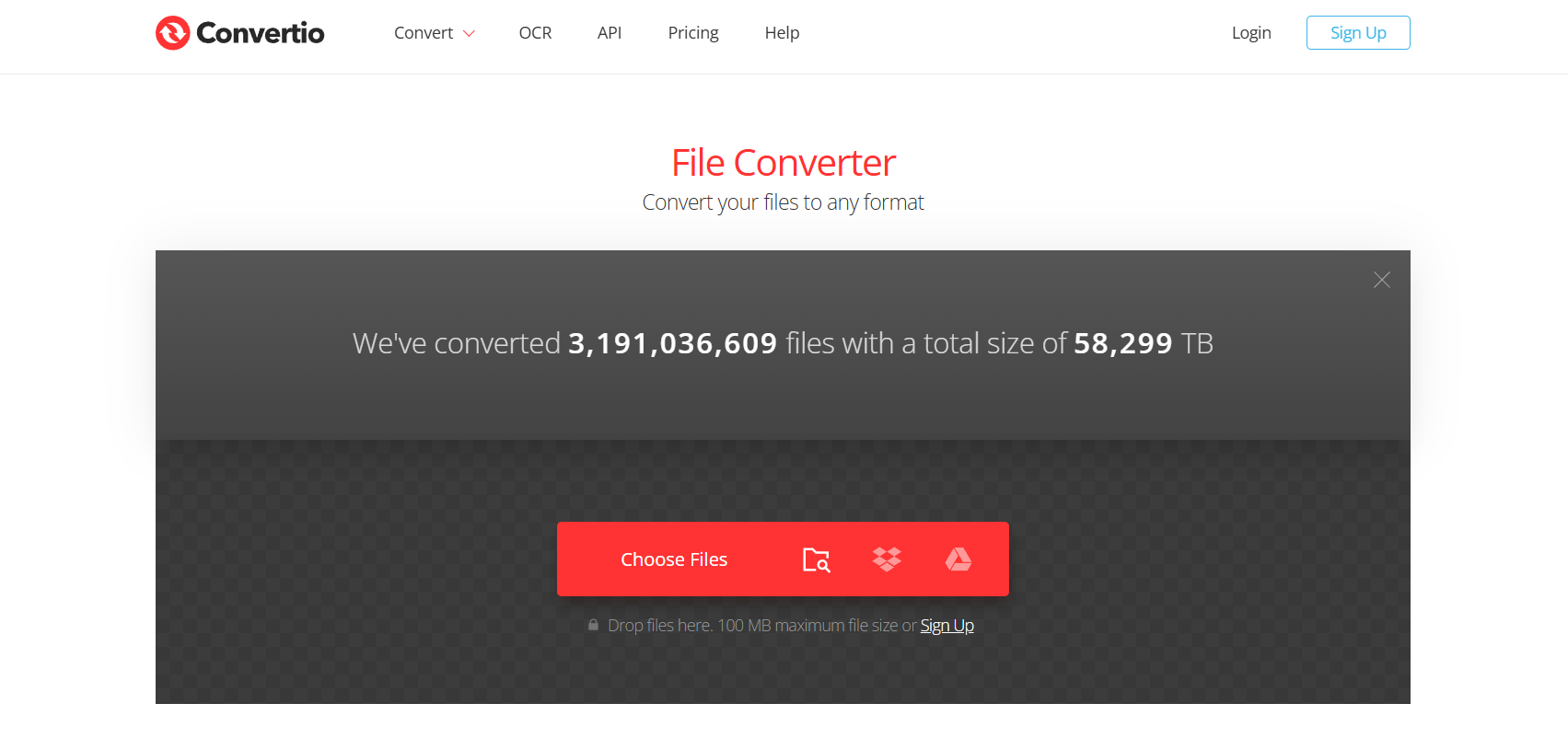
5. Convertio – Mobile-Friendly MKV to MP3 Conversion

Convertio

If you’re working from your phone, Convertio is one of the most convenient tools around. You can use it directly in your mobile browser without installing anything.

Key Features:

  • Works on desktop and mobile
  • Can pull files from Dropbox, Google Drive, or local storage
  • Free and premium options

Pros:

  • Great for smartphone users
  • Modern, easy-to-use interface
  • Wide format support

Cons: 

  • Free plan limits file size
  • Conversion speed depends on internet

Best For: Users who want to convert MKV to MP3 while on the go, especially from their phones.

Pro tip: Convertio remembers your last settings, which makes repeated conversions much faster.

6. Freemake Audio Converter – High-Quality Audio Extraction from MKV

Freemake Audio Converter

Freemake Audio Converter has been around for a long time and still holds up as one of the best free tools for Windows users.

Key Features: 

  • Converts MKV to MP3, WAV, AAC, and more
  • Batch conversion support
  • Allows merging multiple files into one track

Pros:

  • Simple, beginner-friendly design
  • Great audio quality
  • Handles large MKV files with ease

Cons:

  • Windows-only software
  • Free version adds branding (removed with upgrade)

Best For: Windows users who want consistent, high-quality audio extraction.

Bonus: If you have multiple videos to process, Freemake is a lifesaver because it handles batch jobs without slowing down your system.

7. FFmpeg – Multi-Format Video to MP3 Solution

If you’re comfortable with command-line tools, FFmpeg is hands-down the most powerful option. It’s lightweight, incredibly fast, and supports almost every format imaginable.

Key Features:

  • Works on Windows, Mac, Linux
  • Supports nearly every media format
  • Extremely efficient resource use

Pros:

  • Ultra-fast conversions
  • Zero bloat, just raw power
  • Fully customizable with advanced commands

Cons:

  • Requires command-line knowledge
  • Not beginner-friendly

Best For: Tech enthusiasts or developers who want maximum control over their mkv to mp3 conversion process.

Fun fact: Many popular apps and converters actually use FFmpeg under the hood.

How to Choose the Best MKV to MP3 Converter

When picking the right tool, keep these three things in mind:

Speed vs. Quality: What Really Matters

If you just want something fast, stick to online converters like Online Audio Converter or Convertio. But if audio quality is your top priority, programs like Freemake or Audacity give you more control over settings.

Online vs. Desktop Converters

  • Online converters: Great for one-off conversions, lightweight use, or mobile users.
  • Desktop converters: Best for large files, batch processing, and offline use without internet.

Free vs. Paid Options

Most of the tools on this list are free, but paid upgrades usually give you perks like faster speeds, no limits, and extra customization. For example, CloudConvert’s paid plan is worth it if you convert often.

Step-by-Step Guide: How to Convert MKV to MP3 Quickly

Here’s a simple guide using VLC Media Player:

  1. Open VLC and go to Media > Convert/Save.
  2. Add your MKV file to the list.
  3. Click Convert/Save again.
  4. Under Profile, choose Audio – MP3.
  5. Pick your destination folder and file name.
  6. Hit Start and wait until it’s finished.

And that’s it. In just a couple of minutes, you’ll have a clean MP3 file ready to play on your phone, car stereo, or anywhere else.

Pro tip: You can repeat the same process for multiple files and save a ton of time.

Find More: Boost Your Sales With SEO Services

Conclusion

There are plenty of ways to convert MKV to MP3, but not all of them give you the speed, quality, or reliability you need. If you want a free all-in-one option, VLC Media Player is tough to beat. For quick jobs without installation, Online Audio Converter or Convertio are super convenient. And if you care about premium audio quality, Freemake Audio Converter is an excellent choice.

At the end of the day, the best tool depends on what you value most — speed, quality, or convenience. The good news is that every option on this list actually works, so you won’t waste time with sketchy software or unreliable websites.

Pick the one that matches your needs, try it today, and finally make the switch from MKV to MP3 without the headaches.

FAQs

1. Can I convert MKV to MP3 without losing quality?

Yes. Stick to tools like Freemake, VLC, or Audacity, and set the bitrate to 320 kbps for the highest quality output.

2. What is the safest free MKV to MP3 converter?

VLC and Audacity are both open-source, which means they’re transparent and safe. For online conversions, CloudConvert is among the most trustworthy.

3. Do online converters have file size limits?

Almost all of them do. Free plans usually cap uploads around 100–200MB. If you need to handle bigger files, desktop apps like VLC are better.

4. Is it possible to convert MKV to MP3 on mobile?

Absolutely. Convertio works smoothly in mobile browsers, so you don’t even need to download an app.

5. Which MKV to MP3 converter works best for large files?

Freemake and VLC are the most reliable choices when handling big MKV files without crashing.

6. Do I need internet to convert MKV to MP3?

Not always. VLC, Audacity, and FFmpeg work completely offline, which is great if you don’t want to rely on your connection.

Tags:
Full-Stack & Software Engineering Courses to Accelerate Your Career in 2025

Full-Stack & Software Engineering Courses to Accelerate Your Career in 2025

Full-Stack & Software Engineering Courses

With applications to customers, applications to the company, data services and automation, software is the core of product strategies. Being able to create a clean user interface, provide a reliable backend, and ship a cloud-native solution and being able to explain trade-offs in plain language makes you valuable.
In this guide, one will find practical, project-style, full-software applications that can assist working professionals to become ready to work on portfolio projects and also to establish deeper principles.

Factors to Consider Before Choosing a Full-Stack/Software Engineering Course

  • Career objective: entry-level developer, product-minded engineer, or upskilling to senior scope.


  • Experience level: true beginner vs. developer sharpening stack depth (JS/Python/Cloud/DevOps).


  • Learning style: self-paced or mentor-led cohorts with deadlines and live feedback.


  • Certificate & outcomes: employer-recognized certificate, capstone, and portfolio artifacts.


  • Time & budget: weekly hours you can sustain; duration and total cost vs. career impact.


Top Full-Stack/Software Engineering Courses to Launch Your Career in 2025

MIT xPRO — Professional Certificate in Coding: Full Stack (MERN)

Duration: ~6 months
Mode: Online, cohort-based
Offered by: MIT xPRO
Short Overview:
This program focuses on the MERN stack to help you become comfortable building end-to-end applications that employers can evaluate quickly. You progress from core JavaScript to React interfaces, then to Node and Express services backed by MongoDB. Each module includes practical assignments that feed into a portfolio you can present during interviews. Guidance emphasizes readable code, version control, and iterative improvement. The capstone simulates real teamwork and deployment steps, helping you practice how features move from local development to production.

What Sets It Apart? Clear MERN specialization; capstone and portfolio emphasis; structured pace for working pros.
Curriculum/Modules: JavaScript, React, Node/Express, MongoDB, APIs, deployment, capstone.
Ideal For: Professionals who want a rigorous MERN path with strong portfolio outcomes.

The McCombs School of Business at The University of Texas at Austin — Full Stack Software Development Course

Duration: ~6–7 months
Mode: Online (live + self-paced)
Offered by: The McCombs School in Partnership with Great Learning
Short Overview:
Designed for working professionals, this program blends live mentor sessions, structured projects, and guided practice to build confidence across front end, back end, and basic DevOps. You start with fundamentals and progress to React for UI work, Node/Express for APIs, and databases for data integrity. Emphasis is placed on Git workflows, code reviews, and deployable builds. Assignments simulate realistic product tasks implementing features, fixing bugs, improving performance and culminate in a portfolio that showcases business-ready applications and decision-making trade-offs.

What Sets It Apart? Balanced front end, back end, and DevOps exposure; mentor-led sessions; completion certificate from Texas McCombs.
Curriculum/Modules: HTML/CSS/JS, React, Node/Express, databases, Git/GitHub, CI/CD, cloud & deployment, multi-project portfolio.
Ideal For: Newcomers and early-career technologists seeking a structured, mentored path with demonstrable projects.

IBM — Full Stack Software Developer Professional Certificate

Duration: Flexible (self-paced)
Mode: Online
Offered by: IBM
Short Overview:
This certificate builds a job-ready toolchain through practical labs and bite-sized modules that fit busy schedules. You learn front-end layout and interactivity, then implement server logic with common frameworks. Cloud-native topics like containers and CI/CD help you understand how modern teams ship features safely. Exercises encourage incremental delivery, logging, and basic observability. By the end, you will have worked through several small applications, practiced deploying them, and gained familiarity with workflows used in real software teams, from branching strategies to simple automated tests.

What Sets It Apart? Practical, job-ready toolchain; flexible pacing; beginner-friendly on-ramp.
Curriculum/Modules: HTML/CSS/JS, React, Node or Python services, containers, CI/CD, cloud deployment, capstone.
Ideal For: Beginners or cross-skilling professionals who want a structured, self-paced route.

HarvardX—CS50’s Web Programming with Python and JavaScript

Duration: ~12 weeks
Mode: Online, self-paced
Offered by: HarvardX
Short Overview:
This course extends the CS50 foundation into full web engineering, combining Python, JavaScript, and SQL to build robust applications. You will design data models, create APIs, and structure user interfaces with attention to usability and accessibility. The assignments move beyond toy problems, pushing you to handle sessions, authentication, security basics, and performance considerations. You also gain exposure to frameworks like Django and React, learning where each fits. The result is a thoughtful, project-based understanding of how modern web apps are designed, built, and maintained.

What Sets It Apart? Depth beyond basics (databases, security, scalability, UX); strong CS grounding.
Curriculum/Modules: Python, JS, SQL, Django, React, APIs, testing, deployment; project assignments.
Ideal For: Learners who want CS-backed web engineering skills and solid project work.

Great Learning — Software Engineering Courses

Duration: Varies
Mode: Online
Offered by: Great Learning
Short Overview:
This catalog aggregates multiple software engineering paths so you can match learning to your current level and goals. You’ll find beginner foundations, language-specific tracks, and end-to-end full-stack options, alongside focused modules in cloud, DevOps, or data structures. Many courses include certificates and practical projects to document progress. Because durations and workloads vary, you can pick shorter sprints to build momentum or commit to longer programs for depth. It’s a pragmatic way to sample topics, stack credentials, and build a portfolio over time.

What Sets It Apart? Single catalog to explore multiple tracks; mix of paid programs and free courses with certificates; university/industry collaborations.
Curriculum/Modules: Varies by course Java/DSA, full-stack tracks, cloud/devops modules, project work, and assessments.
Ideal For: Professionals comparing tracks and looking for flexible, budget-aware options (including free certificate courses).

Udacity — Full Stack Web Developer Nanodegree

Duration: ~4–6 months (paced)
Mode: Online
Offered by: Udacity
Short Overview:
Udacity’s project-centric approach helps you practice building APIs, integrating front-end clients, and deploying production-style services. Code reviews and mentor touchpoints give actionable feedback on readability, architecture, and testing. You’ll work with databases, authentication, and containerization to understand how features move from development to a running service. The curriculum prioritizes practical deliverables over lectures, so you finish with several portfolio artefacts that demonstrate real capabilities exactly what hiring managers and teams want to see when evaluating full-stack candidates.
What Sets It Apart? Project reviews by mentors; focus on deployable applications; career resources.
Curriculum/Modules: APIs, databases, Docker, CI/CD basics, auth, front-end integration, deployment.
Ideal For: Working professionals who want mentor feedback and portfolio projects.

The Odin Project — Full Stack JavaScript

Duration: Self-paced
Mode: Online (open source)
Offered by: The Odin Project
Short Overview:
This free, community-driven curriculum emphasizes learning by building. You start with fundamentals and gradually assemble full-stack projects using JavaScript across the stack. The path encourages documentation, code reading, and peer support through forums and Discord. Because it is self-paced, you can tackle modules around your schedule, repeat concepts as needed, and expand projects to show real initiative. By the end, you’ll have a body of work that reflects not just syntax knowledge, but the habits and discipline engineers use daily.

What Sets It Apart? No-cost curriculum; strong project culture; active community support.
Curriculum/Modules: Foundations, HTML/CSS, JS, Node, React, databases, testing, full-stack projects.
Ideal For: Self-motivated learners who want a zero-cost route with substantial hands-on practice.

Conclusion

Choose what job you would like to do, have practical goals of studying weekly and attempt to create some projects that are well written and of which you are proud enough to share. Going to a structured program with a mentor or learning independently, look to such core tools as Git, databases, a front-end library and a server library, and deploying to the cloud. Such combination will advance your career.