The biggest asset of any data-based business is the information that it holds. It is crucial to ensure that it operates to the highest standards, meaning that each transaction, customer record, sales trend, and operational decision relies on accurate, secure, and accessible data. Databases inevitably expand as businesses grow, leading to systems becoming more complex, where the need for continuous uptime and protection of the assets becomes even more critical.
Managing this in-house can take up a lot of business resources and finances, especially when new technologies, security threats, and demands evolve faster than the team can keep up. To stay efficient and competitive, many businesses turn to managed IT services to support their infrastructure and safeguard their data as they explore the full service available to them. Having professional support allows businesses to focus on their goals, knowing their systems are in the hands of experts.
Rather than waiting for issues to disrupt operations, managed IT providers continuously monitor systems, detect irregularities early, and resolve problems before they cause downtime. This proactive approach keeps databases running smoothly and reduces the risk of system failures, which can save money, also building confidence among clients and employees, leading to increased retention and customer growth.
Data-based businesses must protect sensitive information from cyberattacks, breaches, and internal vulnerabilities, which include AI threats. Managed IT services use their vast experience to provide advanced security measures such as encryption, firewalls, multi-factor authentication, intrusion detection, and regular audits. They also ensure compliance with industry regulations, which goes a long way to avoiding legal and financial risks.
There can be occasions when a business suffers from potentially damaging hardware failure, cyber incidents, or unexpected outages. Those who make the astute decision to choose managed IT services ensure that their business-critical data is safely backed up and recoverable. Structured disaster recovery plans are put in place so that operations can resume quickly without losing important information, which would otherwise lead to a loss of client confidence.
As data needs expand, a business will continue to require more storage, better performance, and modernized systems being installed. Managed IT partners provide scalable infrastructure that can grow with the size of their clients’ operations, along with access to current technologies and timely updates. The major advantage of this is that a business can save considerable sums in not having to invest heavily in new equipment, which can be spent elsewhere, while also using the best advice to decrease the energy consumption of a data center and save further cash.
Managed IT services offer professional advice on system improvements, software choices, security strategies, and long-term planning. Businesses can gain access to responsive support teams who assist with troubleshooting and user issues, ensuring employees stay focused on their own tasks and confident in the tools that they are reliant on, without any frustration caused by delays.
Protecting data is vital for businesses wanting to retain client confidence and grow, which is why it’s a good reason to use the services of a professional team supplying IT managed services.
The retail industry has undergone a major transformation in the last few decades. Cash registers have evolved from simple mechanical devices into advanced POS systems. With technological advances and customers’ need for convenient and secure transactions, retail stores have adopted modern payment solutions for customer satisfaction and business growth.
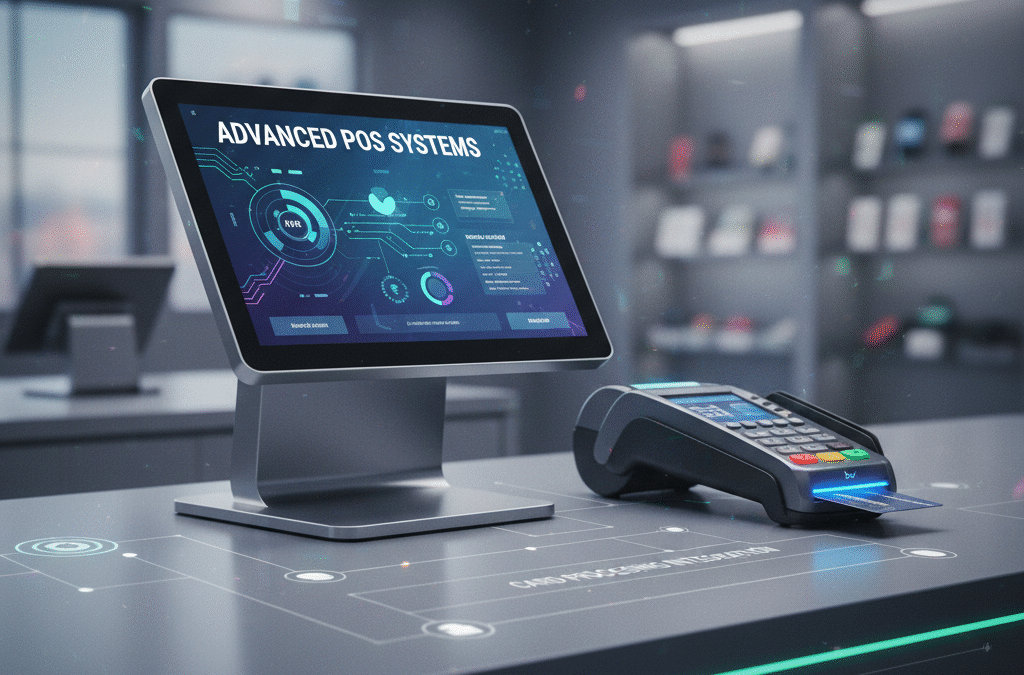
The integration of a POS system with debit and credit card processing enhances customer experience and streamlines operational efficiency, especially for high-risk businesses. Along with swift transactions, the integration provides personalized services and delivers a seamless omnichannel experience. Businesses can also manage inventory, track sales, mitigate risks, and secure customer data with integrated systems. This blog explores the evolution of POS and card processing systems and how their integration is shaping a brighter future for retail payments.
The Evolution of the POS System
A traditional point of sale system consisted of basic cash registers that required manual tallying of sales and storing of cash. Due to advances in technology and customer demands for efficiency and security, modern POS systems are becoming dynamic, cloud-based platforms. The shift to modern POS began with the start of eCommerce. It has been accelerated by mobile POS (mPOS), which helps complete transactions anywhere, from in-store locations and kiosks to pop-up stores.
Modern POS systems also support business functions, including inventory management, employee scheduling, loyalty programs, and marketing tools. They are no longer limited to transactions but can streamline your entire retail business for efficient and profitable operations.
Software-driven POS systems support inventory management, helping to prevent stockouts and overstocking with automated reordering. Similarly, they offer personalized promotions based on purchase history, enhancing customer experience. They also offer real-time trend reports and analysis, empowering owners to make informed business decisions.
Modern POS systems reduce errors, improve efficiency, and allow employees to focus on customer satisfaction rather than manual tasks. It has become an asset that ensures a smooth checkout and an excellent in-store experience.
Introduction to Card Processing
A card processor is not just a tool that assists with payment, but also assures security and efficiency in business transactions. Card processing has evolved from magnetic stripe swipes and carbon copies to modern features like EMV, contactless payments, and mobile wallet solutions. They reduce physical contact and improve transaction time and convenience for both staff and customers.
Tokenization and end-to-end encryption help protect customer data and reduce fraud, while smartwatch payments, tap-and-go, and virtual cards enable smooth, secure transactions across channels. A real estate tokenization development company applies the same security principles to safeguard asset-backed digital transactions and prevent misuse.
Digital wallets, cryptocurrencies, and digital gift cards are alternative payment methods that are enhancing convenience and security. Despite these new innovations, card processors are a vital component of the digital landscape, enhancing customer experience and increasing business profitability.
Benefits of Integration
The integration of POS systems with card processors creates a seamless connection between a system that handles sales and another that facilitates payment. The automatic flow of data eliminates the need for manual data entry and duplicate systems.
For Retailers:
Integration streamlines the checkout process by reducing the steps required to complete a sale. It saves time and reduces friction.
Automatic syncing between POS and card processor reduces human errors, minimizes discrepancies, and makes end-of-day reconciliation easier.
A fast and reliable checkout process, free from errors, improves customer experience and enhances loyalty.
Integration provides real-time data and reporting, enabling owners to analyze sales, inventory, and other critical aspects for quick decision-making.
For high-risk merchants, the integration can help identify suspicious activities before chargebacks occur. POS systems with real-time risk scoring can flag unusual patterns, such as repeat declines and mismatched billing addresses. It can be helpful in effective risk management.
For Customers:
Customers can enjoy faster checkouts with integrated systems as they offer a seamless transaction with no lags.
Customers can enjoy convenience and security regardless of whether they shop in-store or online.
The compliance and fraud protection features of the integrated system improve security and foster customer confidence in the business.
Emerging Technologies Supporting Integration
The integration of POS and card processing systems is powered by innovations in technology.
API and SDKs
Application programming interfaces and software development kits allow developers to customize the integration between POS and card processors with ease. The plug-and-play solutions adapt to any retail POS setup and allow for quick integrations.
IoT and Connected Devices
The Internet of Things is transforming the retail payment landscape. It connects devices like self-checkout kiosks and smart shelves so they can communicate and create an efficient and effective retail environment.
Blockchain and Decentralized Payments
Although in its early stages, blockchain technology shows promise for secure, transparent, and tamper-proof transactions. Decentralized payment options, such as cryptocurrencies, allow for instant, borderless, and low-fee transactions. Although not accepted by mainstream businesses, blockchain may push the boundaries of card processing.
Future Trends
Businesses must adopt new solutions to meet the changing customer preferences. More people are switching to contactless and mobile payments out of convenience and health concerns. Biometric authentication and voice-based transactions are expected to rise in the near future.
The concept of unified commerce, integrated in-store, online, and mobile experiences, is also gaining traction. It will allow customers to begin their transaction in one channel and complete it in another without any hassle.
AI is also making its mark in the shopping and payment landscape. Customers expect personalized recommendations, loyalty programs, and offers to be incorporated in the POS.
In the future, sustainability and ethics will be top priorities for consumers and businesses. Sustainable and carbon-neutral solutions, such as digital receipts and reporting, will be implemented by businesses to cater to eco-friendly customers. Ethical use of customer data will also be a priority for socially conscious consumers and businesses.
Final Thoughts
Integrated POS and card processing systems are transforming the retail business with inventory management, streamlined sales, automated reporting, and data-based decision making. For consumers, these systems are creating a secure and convenient checkout process that leads to a seamless shopping experience.
Businesses should consider their current system and explore opportunities for integration. Staying adaptive and adopting innovations is the key to meeting customer expectations and scaling in a competitive industry.
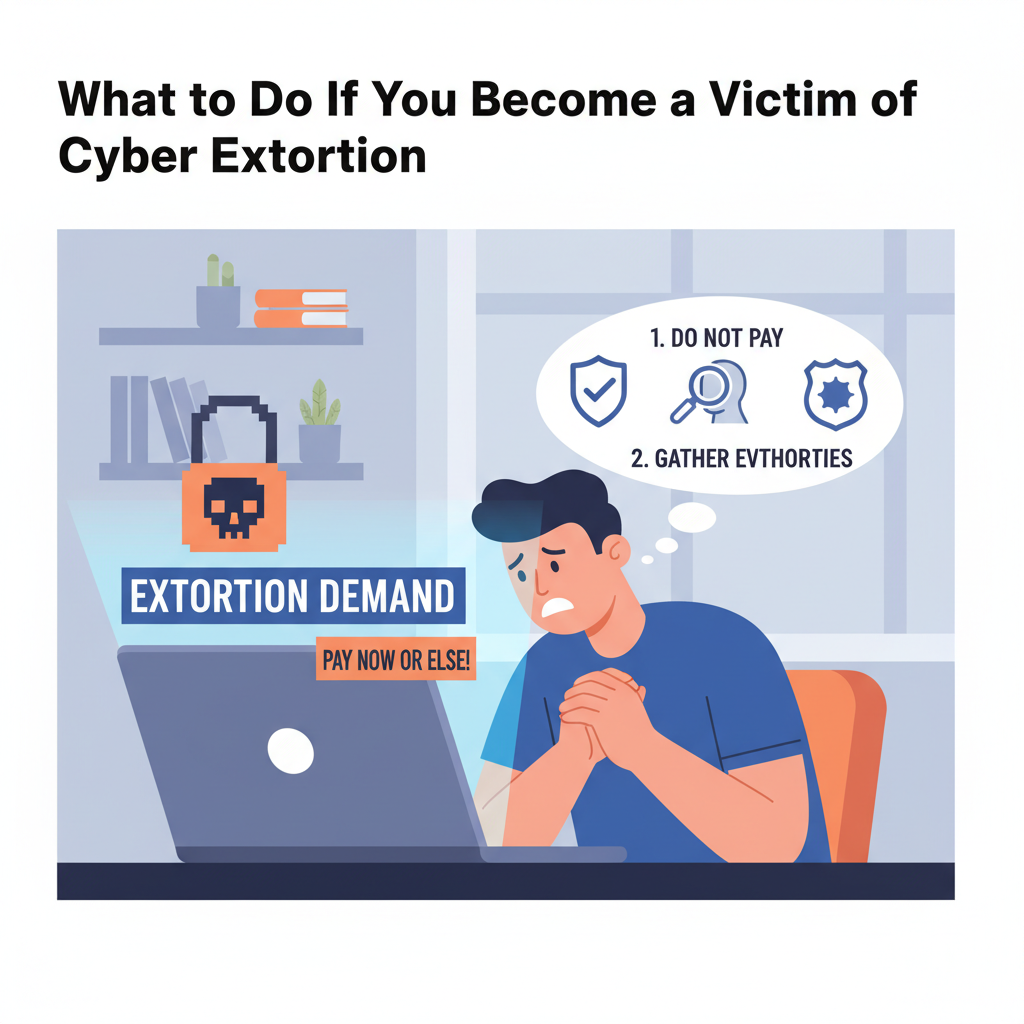
These days, no one is protected from cyber extortion incidents. And it’s not just big corporations that hackers are going for. They are targeting small businesses, freelancers, and pretty much anyone who uses the Internet.
The numbers are pretty unsettling, too. According to the FBI’s Internet Crime Complaint Center, in the USA alone, the number of cybercrime complaints totaled nearly 860,000, making cybercrime the second most common crime in 2024-2025.
Cyberattacks happen every day, and no one is protected from them. But what do you do if you fall victim to a cybercrime? Here’s a detailed guide on how to handle it if you become a victim of cyber fraud or attack.
1. Don’t Panic
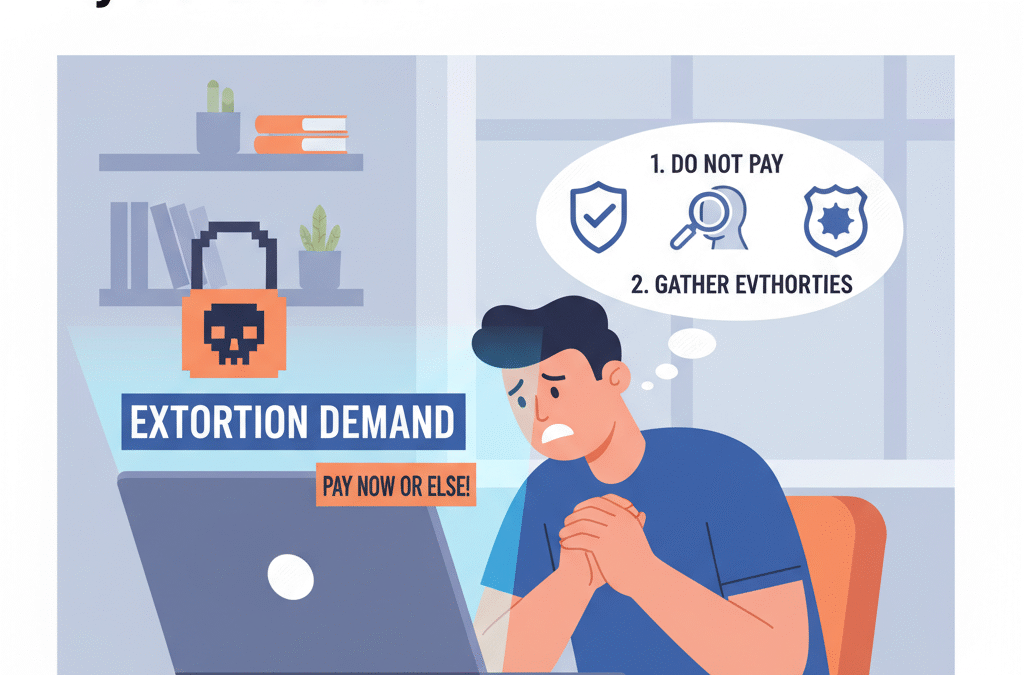
Receiving a message that demands money is discerning. Most people get scared and make rash decisions they later regret. But don’t take that bait. If you agree to pay any money, things can get even worse.
Unfortunately, paying doesn’t guarantee anything. Hackers won’t necessarily give your files back or stop threatening you. In fact, most often they won’t. Once the criminals know you’re willing to pay, they will come back to ask for more.
In this situation, it’s important to stay calm and keep a cool head. Instead of panicking, start collecting evidence. You need screenshots of every threatening message or email you receive. This will serve as proof when you turn to the authorities or a security expert to report fraud.
2. Disconnect and Contain the Threat
Now, you need to stop the attack from spreading. Here are a few steps to do it right:
Unplug your device from the Internet, including Wi-Fi and Bluetooth.
If it’s your work network that’s been affected, let your IT team know right away.
Turn off any automatic syncing so malware doesn’t reach your cloud backups or shared folders.
Don’t plug in a USB or any external drive until you’re 100% sure the malware’s gone.
These simple steps will help you limit hacker access to your systems and protect your other devices from being hacked.
3. Report the Incident
Cyber extortion is a crime—no less serious than theft. Start gathering your evidence: screenshots, ransom notes, emails, anything that shows what happened. Then, reach out to your local law enforcement. In the U.S., for example, you can file a complaint with the FBI’s Internet Crime Complaint Center. Other countries have similar cybercrime agencies.
When you report it, provide as many details as you can:
When and how the attack started;
What data or systems were affected;
Any demands or threats from the hackers;
Evidence of payment requests or how they contacted you.
Even if the hacker’s not local, it’s still worth reporting. Cyber police can sometimes connect your case with others that follow the same pattern.
4. Contact Your IT or Cybersecurity Provider
If you work for a company, it’s time to involve your cybersecurity team. They will assess the full extent of the damage and remove any malware or scripts running in the background.
If you don’t have your own team, you can hire a crisis management firm. They will help you recover lost data and install robust defense tools to prevent future cyberattacks.
The best option is to have cyber extortion coverage. In cases like these, it proves invaluable. Most policies cover not only technical investigations and data recovery but also legal or PR support in the event of damage to your reputation. Without it, dealing with the consequences of cyberextortion can result in significant out-of-pocket expenses.
5. Inform Affected Parties
If hackers stole customer data or employee records, you have to let those people know. It might feel embarrassing, but honesty is crucial. Besides, most countries have strict laws about reporting data breaches, and any attempt to disclose a breach can lead to fines or even lawsuits.
6. Take Security Measures
Once the threat has been found and removed, you need to act quickly. The fact that your system was affected means it’s got weak posts that need fixing.
These simple steps can help prevent future attacks:
Update your passwords;
Enable two-factor authentication on all accounts (if you’ve not done it before);
Patch your software or operating systems immediately.
Additionally, consider getting a subscription for cyber extortion protection tools or services. These may include firewalls and anti-malware, while others may also include insurance coverage for any financial losses involved. The goal is to safeguard your system and make it invulnerable to hackers.
7. Back Up and Recover Your Data Safely
If your files have been encrypted or locked, the best and safest way to recover them is to restore them from backups. That’s why it’s crucial to regularly create off-site backups.
After completely removing malware, use your clean backups to restore your systems. Never restore data until your devices have been fully scanned and cleared; otherwise, you risk reinfection.
If you didn’t have backups this time, don’t worry. Create a reliable backup plan, including cloud-based copies, to avoid losing data if your systems get ever hit again.
Final Thoughts
Cyber extortion is one of those things you hope never happens. But it does happen, and it happens more often than you’d think. That’s why cybercrime awareness is vital, and investing in the right tools from the start makes all the difference.
While no one is immune to an attack, those who have cyber extortion coverage are usually in a better position to recover quickly and minimize the damage. This kind of insurance not only helps recover financial losses but also connects you with cybersecurity professionals who can deal with any consequences of an attack, including lawsuits.
Even if you don’t have one, remain calm and act quickly. By reporting the incident to the authorities and taking security measures, you can stop the damage from spreading and protect your sensitive data.
Introduction: Why You Need to Shrink MP3 Files Without Losing Sound Quality
If you’ve ever tried to send a song or podcast to a friend and got that annoying “file too large” message, you already know why people search for ways to shrink MP3 files. The truth is, even though MP3s are already compressed, there are still smart ways to shrink MP3 file size even more—without messing up the sound quality. Whether you’re trying to upload tracks to your website, share them via email, or just save some space on your hard drive, using the right MP3 file size shrinker can make all the difference.
In this guide, I’ll walk you through seven clever, practical, and proven ways to shrink MP3 size efficiently. No confusing jargon—just simple tools and tips you can start using today.
1. Use an Online MP3 Compressor to Shrink MP3 Instantly
When you just want something quick and easy, online compressors are a lifesaver. These tools let you upload your MP3, pick your compression settings, and download a smaller version in seconds.
Best Free Online Tools for Quick Compression
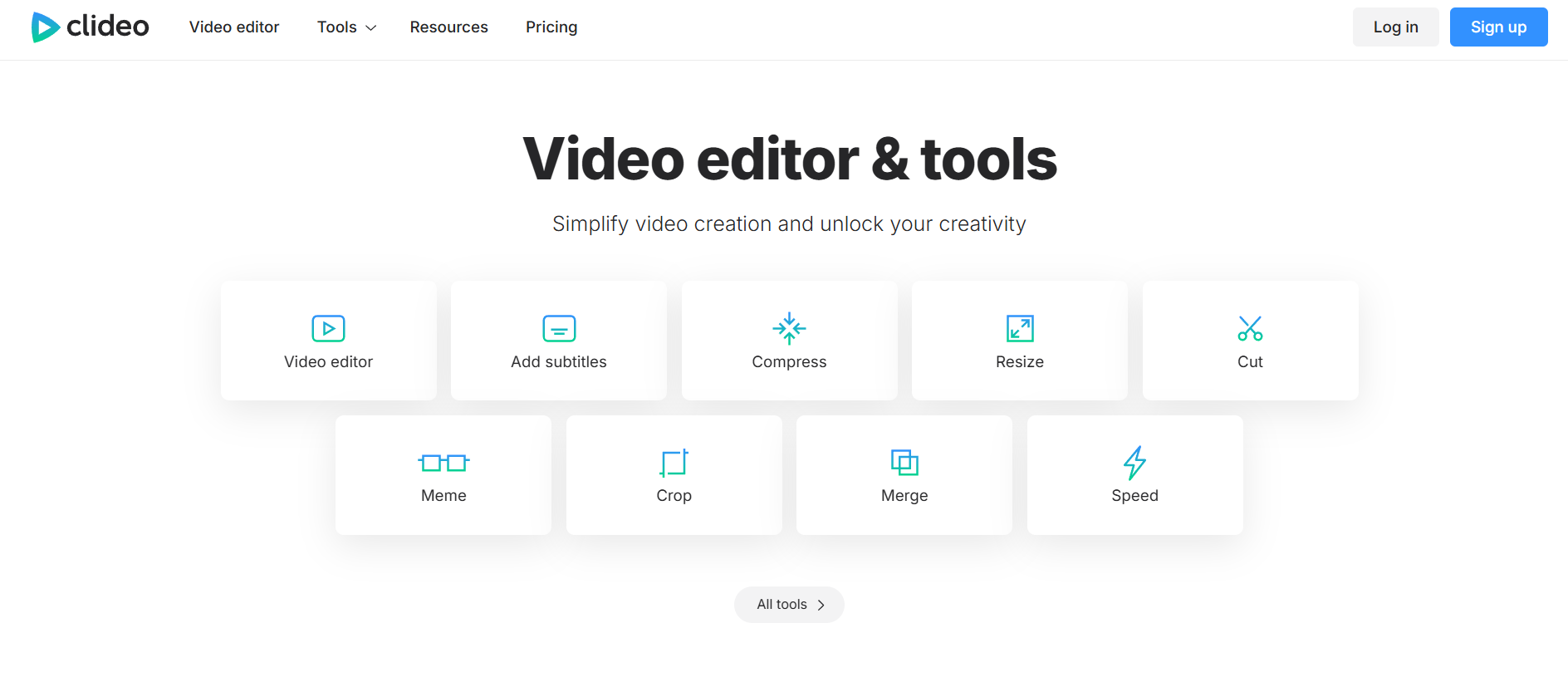
Clideo – Super easy to use and works directly from your browser. Just upload, compress, and download. No installation needed.
YouCompress – Automatically compresses your MP3 while maintaining decent sound quality. It’s perfect for beginners.
MP3Smaller – A simple, no-frills tool specifically designed to shrink MP3 files fast.
How to Choose the Right Compression Settings
When using online compressors, you’ll often see sliders for bitrate or “output quality.” The trick is to find balance: lower bitrates mean smaller files, but too low can ruin the sound. For most music, stick to 128 kbps or 160 kbps. For speech, 96 kbps is often more than enough.
2. Adjust the Bitrate to Reduce File Size Without Noticeable Loss
This is one of the most effective ways to shrink MP3 size without making it sound like a phone recording. Bitrate determines how much data is used per second of audio. The higher the bitrate, the better the quality—and the larger the file.
Understanding Bitrate and How It Affects Quality
Imagine bitrate as the width of a pipe carrying water. A wider pipe (higher bitrate) means more detail flows through, but it takes up more space. For most listeners, there’s a sweet spot between size and quality.
Recommended Bitrate Settings for Music, Podcasts, and Audiobooks
Music: 160 kbps (balance between quality and size)
3. Convert MP3 to a More Efficient Format Like AAC or OGG
If you’re not tied to the MP3 format, converting your files can help a lot. Modern formats like AAC or OGG compress audio more efficiently—meaning you can get the same quality in a smaller file.
Why Modern Audio Codecs Can Shrink MP3 Files Better
AAC, for example, is used by Apple Music and YouTube. It delivers excellent sound at lower bitrates compared to MP3. OGG, popular in open-source communities, does the same but is completely free and patent-free.
Best Free Converters to Try (Windows, Mac, and Online)
CloudConvert – Converts almost any audio format online with custom settings.
AnyConv – Simple, browser-based converter with quick results.
VLC Media Player – Not just for videos—you can convert audio formats too, completely offline.
4. Trim Silence and Unnecessary Parts to Shrink MP3 Files
You’d be surprised how much space those long silences or intros take up. Trimming your MP3 can reduce the file size significantly while keeping the content intact.
How Audio Trimming Helps Reduce File Size
Cutting out dead air, background noise, or extra minutes at the end means fewer seconds of audio—hence, a smaller file. This is especially useful for podcasts, lectures, or music tracks with extended intros.
Tools That Let You Cut and Edit MP3s Easily
MP3Cut – Online tool that lets you trim your MP3 files visually and export them instantly.
Audacity – Great for trimming, fading, and cleaning up tracks with full control.
5. Use Audio Editing Software for Advanced Compression Control
If you want total control over how your MP3s are compressed, editing software is your best bet. You can fine-tune bitrate, sample rate, and other audio parameters to get exactly the balance you want.
Recommended Software: Audacity, Adobe Audition, and More
Audacity – Free, open-source, and powerful. You can reduce bitrate, remove noise, and export with customized settings.
Adobe Audition – Professional-grade audio editing with advanced compression tools.
Ocenaudio – A lightweight alternative with an intuitive interface.
Step-by-Step: How to Shrink MP3 Files Using Audacity
Open your file in Audacity.
Go to File → Export → Export as MP3.
Choose a lower bitrate (128 kbps or 96 kbps).
Hit “Save” — done! You’ve got a smaller MP3 that still sounds great.
6. Lower the Sample Rate While Preserving Clear Sound
Sample rate refers to how many audio samples are captured per second. A higher rate gives you more detail, but it’s often overkill for human hearing.
What Is Sample Rate and How It Impacts Quality
CD-quality audio uses 44.1 kHz, but most people can’t tell the difference between that and 32 kHz. Lowering the sample rate can shrink your file size without noticeable quality loss.
7. Batch Compress Multiple MP3 Files for Maximum Efficiency
If you’ve got a whole library of music or podcasts, compressing them one by one is a nightmare. That’s where batch compression tools come in.
How to Shrink Large Music Libraries at Once
Batch compression means applying the same compression settings to multiple files simultaneously. It saves time and ensures consistent quality across all your audio.
Best Batch Compression Tools for Windows and macOS
Bonus Tip — Optimize Metadata and Remove Hidden Data
It’s not just the audio that takes up space—metadata (like album art, lyrics, or comments) can also increase file size slightly. Cleaning it up can make your MP3s even smaller.
How Unused Metadata Increases File Size
Every MP3 contains information like artist name, album, and sometimes even embedded cover art. While it’s useful, high-resolution cover art can add unnecessary megabytes.
Easy Tools to Clean Up MP3 Tags Safely
MP3Tag – Great for removing or editing tags in bulk.
TagScanner – Another handy tool to clean and organize your MP3 metadata.
Conclusion: Keep Your Music Small, Clear, and Ready to Share
Now that you know the smartest ways to shrink MP3 file size, you can easily manage your audio collection, save space, and make sharing effortless. The key is balance—reduce size just enough to make your files smaller without sacrificing the listening experience. Whether you use an online MP3 file size shrinker or go deep with software like Audacity, it’s all about choosing the right method for your needs. Try one of these tricks today and see how much space you can save!
1. How much can I shrink MP3 files without losing noticeable quality?
Usually, you can reduce your file size by about 30–50% by lowering the bitrate to around 128 kbps or 96 kbps. Most people won’t notice a big difference in sound quality.
2. What’s the best bitrate for MP3 files?
For music, 160 kbps is ideal. For speech or podcasts, 96 kbps is enough to keep voices clear while saving space.
3. Can I shrink MP3 files on my phone?
Yes! Apps like AudioLab (Android) and Audio Converter (iOS) let you compress MP3 files directly from your phone.
4. Is it possible to shrink MP3 files without converting the format?
Absolutely. Just lower the bitrate or trim unnecessary parts of the audio using tools like Audacity or MP3Cut.
5. What’s the safest online tool to shrink MP3 files?
Clideo and MP3Smaller are both safe, secure, and easy to use without downloading any software.
Introduction: Understanding the Real Difference Between MP3 and MP4
When it comes to digital media formats, few debates are as common as MP3 vs MP4. Whether you’re organizing your music library, uploading videos, or converting files for your phone, you’ve probably seen both formats pop up everywhere. But what’s the real difference between MP3 and MP4? And more importantly — which one should you actually use?
In this guide, we’re going to break it all down in plain language. You’ll understand what each format is, how they work, their strengths, and their limitations. By the end, you’ll have a clear picture of when to use MP3 vs MP4 (and vice versa) depending on your needs. So, let’s dive in!
What Is MP3? – The World’s Most Popular Audio Format
How MP3 Compression Works
MP3, short for MPEG-1 Audio Layer III, is one of the most widely used audio formats in the world. It became popular in the late 90s and early 2000s when digital music started taking off. The main reason? It compresses audio files to make them much smaller without a noticeable loss in sound quality. Basically, MP3 removes parts of the sound that our ears can’t easily detect — that’s called lossy compression. The result is a smaller file that still sounds good to most listeners.
Advantages of Using MP3 Files
MP3 files are lightweight, easy to share, and compatible with almost every device out there. Whether you’re using a smartphone, laptop, or even an old MP3 player, this format just works. It’s also perfect for streaming and downloading because it doesn’t eat up much storage or data.
Limitations of MP3 Format
However, MP3 isn’t perfect. Because it’s a lossy format, it sacrifices some audio quality during compression. For casual listening, this might not matter, but if you’re an audiophile or working with professional sound production, the difference can be noticeable. Another limitation is that MP3 only supports audio — no video, no images, and no subtitles.
What Is MP4? – More Than Just a Video Format
How MP4 Handles Audio and Video Together
MP4, also known as MPEG-4 Part 14, is a multimedia format that can hold audio, video, images, and even text like subtitles — all in one file. Think of it as a digital container rather than a single media format. Inside that container, you can have a variety of codecs (compression types) for different media types.
Benefits of the MP4 Format
The biggest benefit of MP4 is its flexibility. It’s perfect for streaming, storing videos, and even saving podcasts that include visuals. MP4 files are supported across almost all modern platforms — YouTube, TikTok, iTunes, Android, Windows, and iOS — making it the go-to format for video content.
Common Uses of MP4 in Streaming and Storage
You’ll find MP4 everywhere in the digital world. From online video platforms and video courses to movies and short social media clips, MP4 dominates. It’s not limited to video either; some people use it to store high-quality audio or music videos with lyrics embedded as text.
MP3 vs MP4 – 10 Key Differences You Must Know
1. File Type and Structure
The most obvious difference is that MP3 is strictly an audio format, while MP4 is a container format that can hold audio, video, and more. Think of MP3 as a music-only box, and MP4 as a multimedia suitcase.
2. Compression and Quality
MP3 uses lossy compression, meaning some data gets removed permanently. MP4 can also use lossy compression, but since it can store higher-quality audio (like AAC), it often provides better sound for the same file size.
3. Supported Media (Audio vs Multimedia)
MP3 only supports audio files. MP4 supports audio, video, images, and even text tracks. So, if you’re watching a video with subtitles, it’s probably MP4.
4. File Size and Storage Efficiency
MP3 files are smaller because they only carry audio data. MP4 files are usually larger since they contain multiple types of data — audio, video, and more.
5. Compatibility with Devices
Both formats are widely compatible, but MP3 has the edge in simplicity. Every device that can play music can handle MP3. MP4 works almost everywhere too, especially for video playback, but older audio devices might not recognize it.
6. Streaming and Playback Capabilities
MP4 is built for modern streaming. Platforms like YouTube and Netflix use MP4 because it efficiently handles both video and audio. MP3 is mainly for music and podcasts, where video isn’t needed.
7. Metadata and Subtitles Support
MP3 files can store basic metadata like artist name, album, and track info. MP4 goes further — it can include subtitles, thumbnails, chapters, and more advanced tags.
8. Use Cases and Applications
Use MP3 when you only need sound — for example, songs, audiobooks, and podcasts. Use MP4 for anything involving visuals or multimedia — like music videos, tutorials, or vlogs.
9. Editing and Conversion Flexibility
Editing MP3 is simple because it’s audio-only. Editing MP4 can be more complex, but it also gives you more creative freedom with video and sound. You can convert between MP3 and MP4 using free online converters or editing software.
10. Future Relevance and Popularity
MP3 will always have its place for music and audio storage, but MP4 is the future of multimedia. As video continues to dominate the internet, MP4 is only becoming more essential.
Which Format Should You Use – MP3 or MP4?
When to Choose MP3
Go for MP3 if your main focus is audio. It’s ideal for storing songs, recording podcasts, or sharing sound files quickly without worrying about file size.
When to Choose MP4
Choose MP4 when you need video or when audio quality is your top priority. MP4 is also great if you want to embed album art, lyrics, or subtitles — making it a more dynamic choice.
How to Convert Between MP3 and MP4 Easily
Converting between formats is easy. There are free online converters and apps that can turn an MP3 into an MP4 or the other way around. Just keep in mind that converting MP3 to MP4 won’t magically add video — it’ll still be audio-only unless you attach a visual component like an image or waveform.
Conclusion – MP3 vs MP4 Simplified
At the end of the day, mp3 vs mp4 isn’t about which is better overall — it’s about which is better for you. If you care about simplicity and small file sizes, MP3 wins. But if you need multimedia capabilities and modern versatility, MP4 takes the crown. The best way to decide? Try both. Convert your favorite audio or video files, compare them, and see which one fits your workflow or entertainment needs better. Once you understand what each format does best, choosing between MP3 and MP4 becomes effortless.
It depends on your priorities. If you want smaller files that work everywhere, go with MP3. If you want better quality and are okay with slightly larger files, MP4 (with AAC audio) might sound better.
2. Can MP3 files contain video?
No, MP3 files can only contain audio data. If you want both video and audio together, you’ll need an MP4 file or another multimedia format.
3. Why are MP4 files usually larger than MP3?
MP4 files can hold more than just audio — they may include video, subtitles, and images, which all take up extra space.
4. How can I convert MP3 to MP4 or vice versa?
You can use free online converters or apps like VLC Media Player, Audacity, or dedicated file conversion tools. The process usually takes just a few clicks.
5. Which format offers better quality for mobile devices?
Both perform well, but MP4 with AAC compression often delivers clearer sound on mobile devices while still keeping file sizes reasonable.
Have you ever wondered how companies in the small software industry are earning colossal profits with no huge teams or investors? That is the magic in the Micro SaaS, the lean and focused brother of the old SaaS businesses.
It is one of the most interesting trends redefining the startup ecosystem at the link building agency FHSEOHub, the new frontier in the latest of SEO, digital marketing, and SaaS innovation. It could be the model that can make you a success whether you are a solopreneur, developer or digital marketer and need to create something scalable but easily manageable.
Learning the SaaS and Micro SaaS Difference
Let us get out of the way: what is the difference between SaaS and Micro SaaS?
SaaS-based (Software as a Service) businesses such as HubSpot, Slack and Salesforce are large-scale platforms serving wide markets. They need enormous teams, large amounts of money and infrastructure.
This Saas, in its turn, is aimed at a particular problem or niche market. It is usually constructed and operated by 1 or two individuals. Would it be the smallest, brightest, and very profitable SaaS?
An illustration is as follows: rather than developing an all-in-one CRM, a SaaS founder can create a basic plug-in that monitors Google Ads leads.
Why Is It Trending in 2025
The simplification and accuracy are the way startups and freelancers are turning in the digital landscape, which is becoming more competitive. Ideas of micro-SaaS startups in 2025 are going on due to:
There is no high barrier to entry you do not require millions of funding.
With the help of automation and AI, it becomes possible to run operations individually.
Remote tools enable an individual to operate a whole business.
Special solution is accepted by niche audiences.
It is the dream of the developers, online marketers, and creators who do not want to work with big teams and to take care of them. This rise of niche-specific software isn’t limited to digital marketing. Trade and construction professionals increasingly rely on hyper-focused tools too. For example, ArcSite’s deck estimating software enables contractors to sketch deck layouts, calculate materials, and generate accurate estimates on-site — a perfect example of how specialized micro-SaaS solutions provide outsized value by solving one problem exceptionally well.
Micro Saas Startup Ideas For 2025
Seeking micro-SaaS innovation which will launch in 2025? These are some of the new niches to consider:
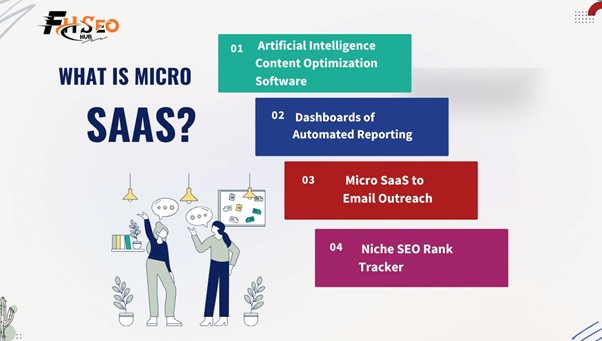
As the key to online success is established through the process of SEO and digital marketing, content-analyzing AI that works with other services such as WordPress or Shopify is a trend.
Dashboards of Automated Reporting
Imagine a tool, which is connected to Google Analytics, Meta Ads and SEO platforms to create automatic reports to the marketers.
Management Plugins Subscription management plugins facilitate the management of subscriptions.
A software add-on that helps to get recurring payments to freelancers or small creators.
Micro SaaS to Email Outreach
An email personalization Chrome extension that helps digital marketers use LinkedIn data to personalize cold emails.
Niche SEO Rank Tracker
A ranking tracker that is focused on a given market such as local businesses or e-commerce brands.
The Micro SaaS Anatomy
To create one, the following is what makes it successful:
Minimal Overhead: You do not have to have an office or large staff.
Concentrated Solution: specialize in one thing and make it excellent.
Automation: Reduce manual work with the help of tools and AI.
Scalability: And sell once, build forever.
The digital marketing insights offered by FHSEOHub can even be used to introduce and market your product.
How Does it Work?
It is similar to any other software company – people pay a subscription fee to have unlimited access to your product. Its difference is in the simplicity and lean form.
Here’s the process:
Find a problem niche (e.g., bloggers that have issues with SEO titles).
Create an information lightweight tool to deal with that issue.
You do not need 100,000 users, even 500 paying subscribers will help your business become profitable.
Successful Marketing Strategies
The most brilliant micro-SaaS concepts do not work without marketing. The following is the way to market your startup:
SEO and Content Marketing
Produce content on problems that your software addresses. Positioning in Google on niche keywords (such as AI content checker to bloggers).
Leverage SaaS Directories
Post your product on such sites as Product Hunt, G2, and AppSumo. These platforms will be able to generate early traction.
Influencer Marketing and Email
Contact micro-influencers and small companies that may be interested in your tool.
Freemium Models
Provide a free access to your SaaS. As soon as users realize the value, they will move up to paid plans.
How to Test a Micro SaaS Idea?
Asking yourself whether your idea is going to work or not? And here is an explanation of how to debug it out first before you write months in code:
Research the Market: Visit Reddit, Facebook communities, and Quora in order to identify common issues.
Design a prototype (Minimum Viable Product): Develop a simple one with no-code applications, such as Bubble or Glide.
Get Feedback: Provide it with no charge to early adopters, and take feedback.
Pricing Test Models: Try monthly pricing, lifetime pricing and or tier pricing.
Conclusion
This SaaS is an invention that heralds the new era of digital entrepreneurs. With creators being able to focus on particular issues and finding solutions that scale efficiently with minimal investment, creators are able to create a high-revenue business.
Knowing the distinction between SaaS and Micro SaaS will make you understand the strength of simplicity less complexity, greater control and quicker outcomes.
We are sure that the future of the FHSEOHub is in the hands of nimble innovators who employ clever tools, SEO, and automation to make a difference. And, having the right attitude, your SaaS concept might become the next in the list of successful stories.
FAQs
How does Micro SaaS work?
It is a slimmed down SaaS that serves only one purpose to a narrow niche audience. It is usually founded and operated by one or small groups of people.
How to validate a Micro SaaS idea?
Begin with identifying pain points, create a bare-bones version of your product, test it with real users and then polish what you have created based on the feedback.
How to launch a profitable Micro SaaS with low budget?
Development Use no-code Development, marketing Use organic SEO, scaling Use automation. This ensures the cost is kept at a minimum and profit maximized.