
9 Secret Tools to Save Instagram Photos Without Losing Quality (2026 Guide)
Struggling with blurry screenshots or losing that “pro” look when saving your favorite IG finds? In 2026, standard downloads often crush image data. Here are the 9 secret tools to save Instagram photos in crystal-clear HD.
To save an Instagram photo without losing quality, use a high-fidelity downloader like SaveInsta, SnapInsta, or 4K Stogram. These tools bypass the app’s compression by fetching the original source URL. Simply copy the post link, paste it into the tool, and select the highest resolution (usually 1080px) to ensure a lossless save to your device.
Understanding Instagram Photo Saving
Before we dive into the toolkit, it is essential to understand why “saving” isn’t as simple as right-clicking.
Definition: Instagram Image Compression
Instagram uses aggressive compression algorithms to make the app load faster. When you take a screenshot, you are capturing a “preview” of the image limited by your screen resolution. A dedicated Instagram photo downloader fetches the original file stored on Meta’s servers before that compression happens.
Find More: 7 Shocking Facts: Does Instagram Notify When You Screenshot? (2026 Update)
Top 9 Tools to Save Instagram Photos in 2026
Here are the most reliable, high-authority tools currently used by professional content curators and beginners alike.
1. SaveInsta (Best for Web-Based Speed)
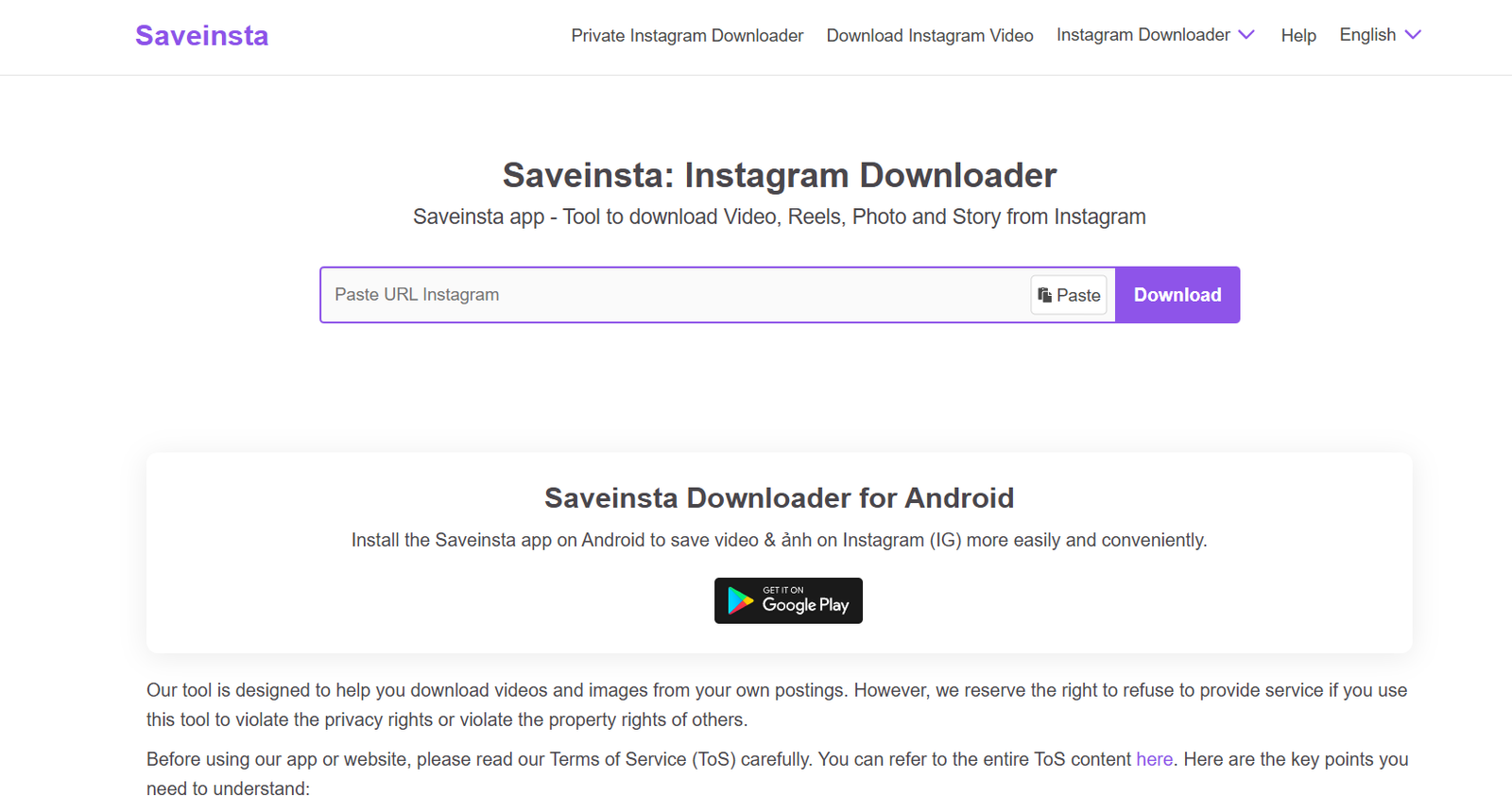
SaveInsta remains the gold standard for browser-based saving. It works on any device and requires no installation.
-
Pros: Fast, free, and supports Carousels (multiple photos in one post).
-
Best for: Quick, one-off saves on mobile or desktop.
2. SnapInsta (Best for High-Definition 4K)

If the original uploader used a high-res file, SnapInsta is the best at identifying and pulling the maximum available pixel count.
-
Pros: Minimal ads compared to competitors; high reliability.
-
Best for: Photographers needing original resolution.
3. 4K Stogram (Best for Bulk Archiving)
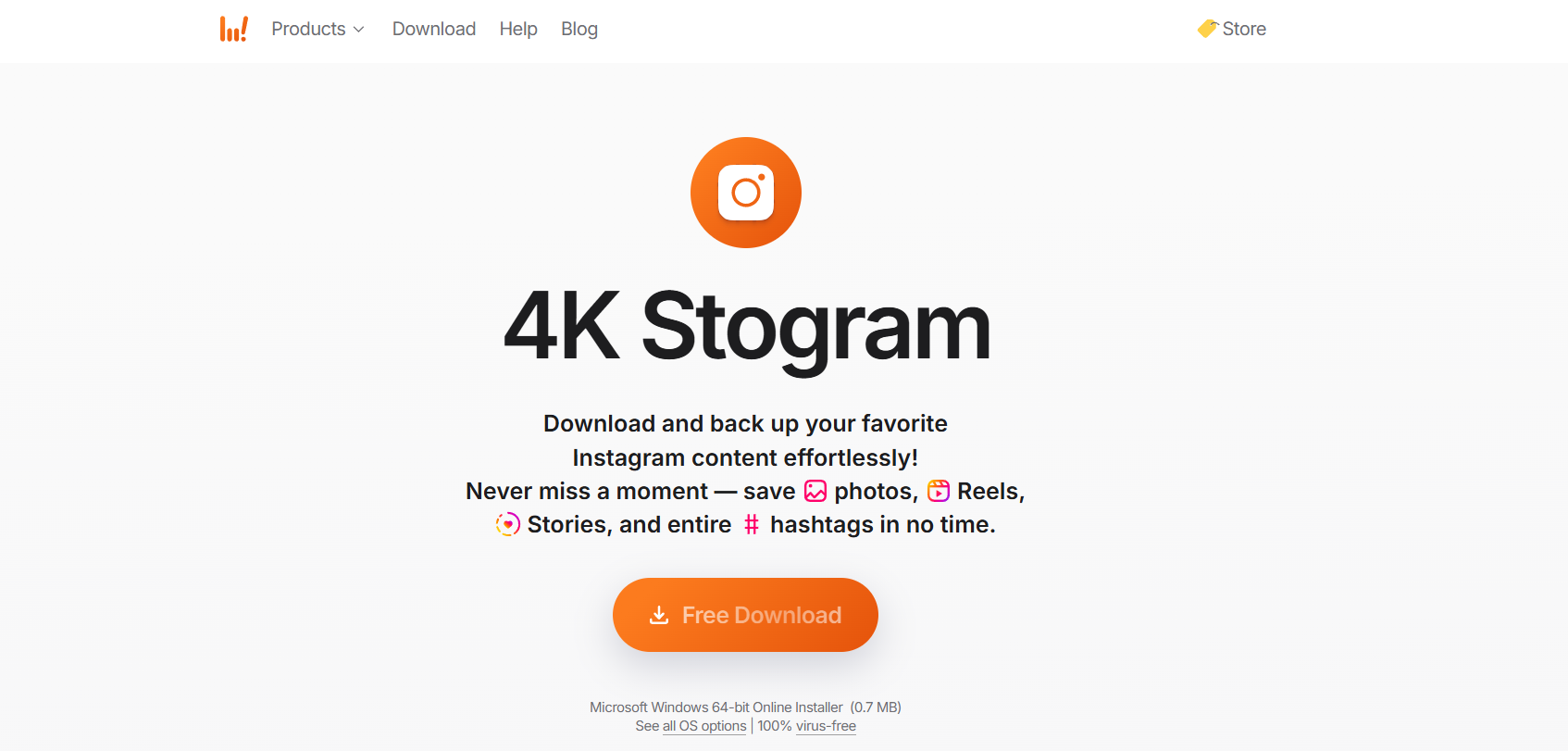
This is a desktop application (Windows/Mac) that allows you to download entire profiles.
-
Pros: Can “subscribe” to an account to automatically save new posts.
-
Best for: Backing up your own account or competitor research.
4. Inflact (The Professional Marketing Toolkit)
Formerly Ingramer, Inflact is more than a downloader; it’s a full dashboard.
-
Pros: Can save Stories and Highlights that haven’t expired yet.
-
Best for: Social media managers.
5. iGram (Best for Carousel Selection)
Most tools force you to download every photo in a slider. iGram lets you pick and choose specific slides.
-
Pros: Very clean interface; excellent for “Top 10” list posts.
-
Best for: Saving specific images from a multi-photo post.
6. Instander (Best for Android Power Users)
This is a modified version of the Instagram app. It adds a “Download” button directly under every post in your feed.
-
Pros: Seamless integration; no need to copy/paste links.
-
Best for: Android users who save content daily.
7. Turbo Downloader (Best Chrome Extension)
If you browse Instagram on a laptop, this extension adds a download icon to every image as you scroll.
-
Pros: One-click saving; works in the background.
-
Best for: Desktop power users.
8. QuickSave (Best Mobile App for iOS/Android)
A dedicated app that monitors your clipboard. When you copy a link in Instagram, QuickSave automatically prepares the download.
-
Pros: Very beginner-friendly; organizes photos into a dedicated gallery.
-
Best for: Casual mobile users.
9. Toolzu (Best for Profile-Wide Saving)
Toolzu allows you to enter a username and see a grid of all their photos, making it easy to save multiple high-res shots at once.
-
Pros: No login required; high-speed fetching.
-
Best for: Building inspiration boards quickly.
How to Save Instagram Photos: The Step-by-Step Framework
Follow this universal process to ensure you never lose image clarity.
Step 1: Locate the Content
Open Instagram and find the specific photo or carousel you want to archive.
Step 2: Copy the Link
Tap the three dots (…) in the top right corner of the post and select “Copy Link.” If you are on a desktop, simply copy the URL from your browser’s address bar.
Step 3: Choose Your Tool
Navigate to a tool like SaveInsta.app or open your downloaded software like 4K Stogram.
Step 4: Paste and Process
Paste the link into the search bar. Click “Download” or “View.” The tool will now “scrape” the high-resolution source file from the server.
Step 5: Select Quality and Save
If given the option, select 1080px or “Original Quality.” Long-press the image (on mobile) or click the download button to save it to your local storage.
Comparison: Native App vs. Third-Party Tools
| Feature | Screenshot (Native) | Professional Downloader |
| Resolution | Limited to Screen Size | Full Original (Up to 1080p) |
| Metadata | Lost | Preserved |
| Compression | High (Blurry) | Zero (Lossless) |
| Carousel Support | Manual (One by One) | Automatic (Bulk) |
| Ease of Use | Instant | 10-20 Seconds |
Common Mistakes Beginners Make
-
Relying on Screenshots: This is the #1 way to get “pixelated” photos. Even on a 2026 smartphone, screenshots lose about 40% of the image’s original detail.
-
Using Low-Quality Apps: Some “free” apps on the Play Store compress the image further to save their own server space. Stick to the verified list above.
-
Downloading via Direct Message (DM): If someone sends you a photo in DMs, Instagram compresses it heavily. Always try to find the original post link.
-
Ignoring File Formats: Saving as a JPEG is standard, but if a tool offers PNG, use it for graphics or text-heavy images to keep edges sharp.
Pro Tips for High-Authority Saving
-
Check the “Upload at Highest Quality” Setting: If you are saving your own photos to a new device, ensure your Instagram settings (Settings > Account > Data Usage) have “Upload at Highest Quality” toggled ON. This ensures the version you’re downloading is the best one possible.
-
Use a VPN: Some downloader tools are region-locked or throttled by ISPs. A VPN can speed up the “fetching” process.
-
Organize with Folders: Don’t let your “Downloads” folder become a mess. Create themed folders (e.g., “Design Inspo,” “Travel Gear”) as you save.
Key Takeaways
-
Screenshots are for convenience; downloaders are for quality.
-
SaveInsta and SnapInsta are the best all-around web tools in 2026.
-
1080px is the maximum width for Instagram photos—always aim for this resolution.
-
Bulk tools like 4K Stogram are essential for creators who need to archive large amounts of data.
-
Respect Copyright: Always credit the original creator if you plan to reshare saved content.
Find More: Boost Your Sales With SEO Services
FAQs
1. Is it legal to save Instagram photos?
Yes, it is legal to save photos for personal use (like inspiration or offline viewing). However, resharing them without permission or using them for commercial purposes can violate copyright laws.
2. Why do my saved photos look blurry?
This usually happens if you used the screenshot method or a low-quality downloader. Use a tool that fetches the source URL (like iGram) to get the original 1080px file.
3. Does the user get notified if I save their photo?
No. Unlike Snapchat, Instagram does not notify users when you screenshot or use a third-party tool to download their feed posts.
4. Can I save photos from a private account?
Most web-based tools cannot access private accounts. To save these, you typically need to use a desktop tool like 4K Stogram and log in with an account that already follows the private user.
5. What is the best format to save Instagram photos?
JPEG is the standard and best for photos. If the image has text or a logo, PNG is preferred as it prevents “ghosting” around the letters.