UK: +44 2038074555 info@atamgo.com
7 Genius Ways to Save TikTok Videos Without Watermark

7 Genius Ways to Save TikTok Videos Without Watermark

Save TikTok Videos Without Watermark

Introduction: Why People Want to Save TikTok Without Watermark

Save TikTok without watermark — if you’ve ever tried to download a TikTok video directly from the app, you already know the struggle. TikTok automatically stamps its logo and the creator’s handle all over the video. While that’s great for giving credit, sometimes you just want a clean version. Maybe you want to share it on Instagram Reels, use it in a presentation, or simply keep it in your phone gallery without the distracting watermark bouncing around.

And honestly, who can blame you? Watermarks can ruin the aesthetic of your content. Imagine putting together a slick video montage for YouTube Shorts, and there’s this TikTok logo bouncing around every two seconds. Not fun. That’s why people search phrases like how to save TikTok without watermark, save TikTok video without watermark, or TikTok save without watermark. Whether you’re a casual TikTok fan or a social media creator looking to repurpose videos, learning how to save a TikTok without the watermark can really make your life easier.

The good news? There are plenty of clever tricks to do exactly that. In this guide, I’ll walk you through 7 genius ways to save TikTok without watermark, breaking down the pros, cons, examples, and real-life scenarios where each method shines. By the end, you’ll know which approach fits your style best.

So, let’s dive in and make your TikTok saving game a whole lot smarter.

Find More: 21 Must-Know TikTok Emojis That Gen Z Use

7 Genius Ways to Save TikTok Without Watermark

1. Use Online TikTok Video Downloaders

Freemake Video Downloader

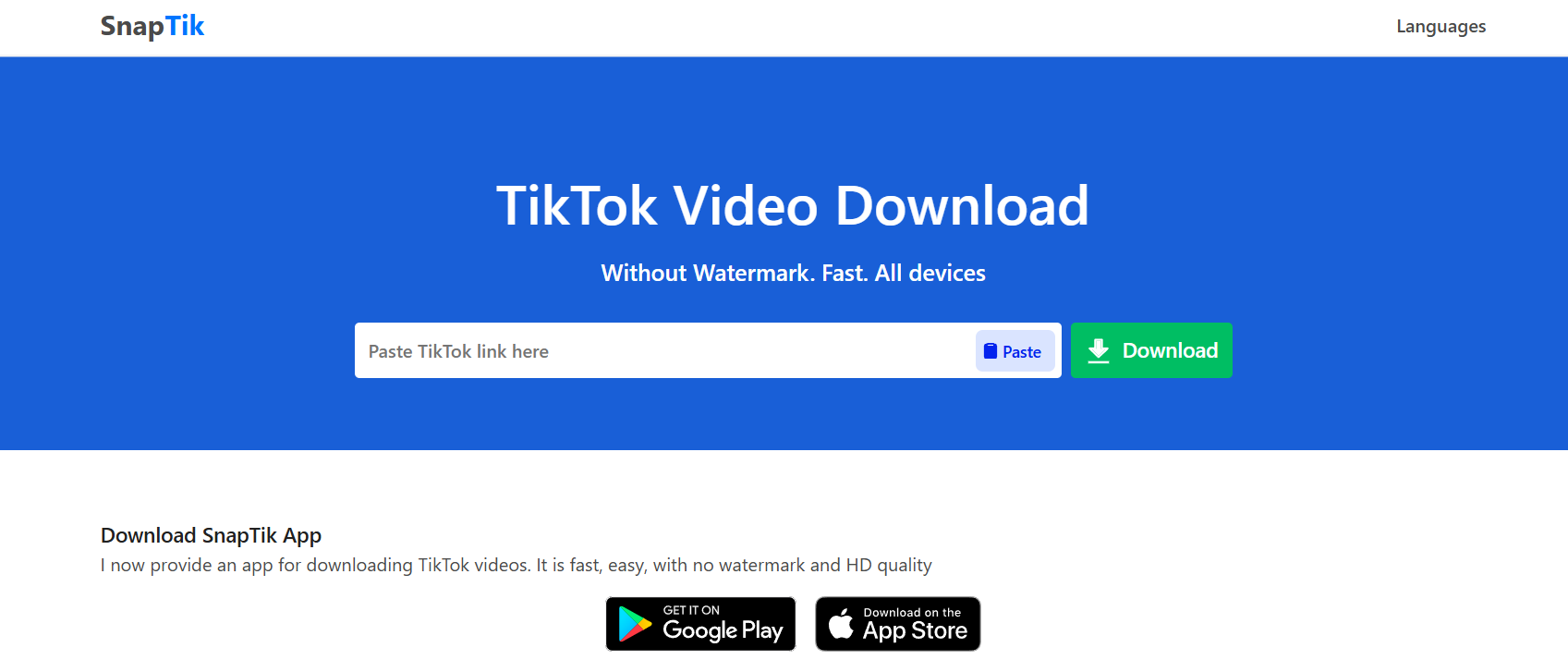
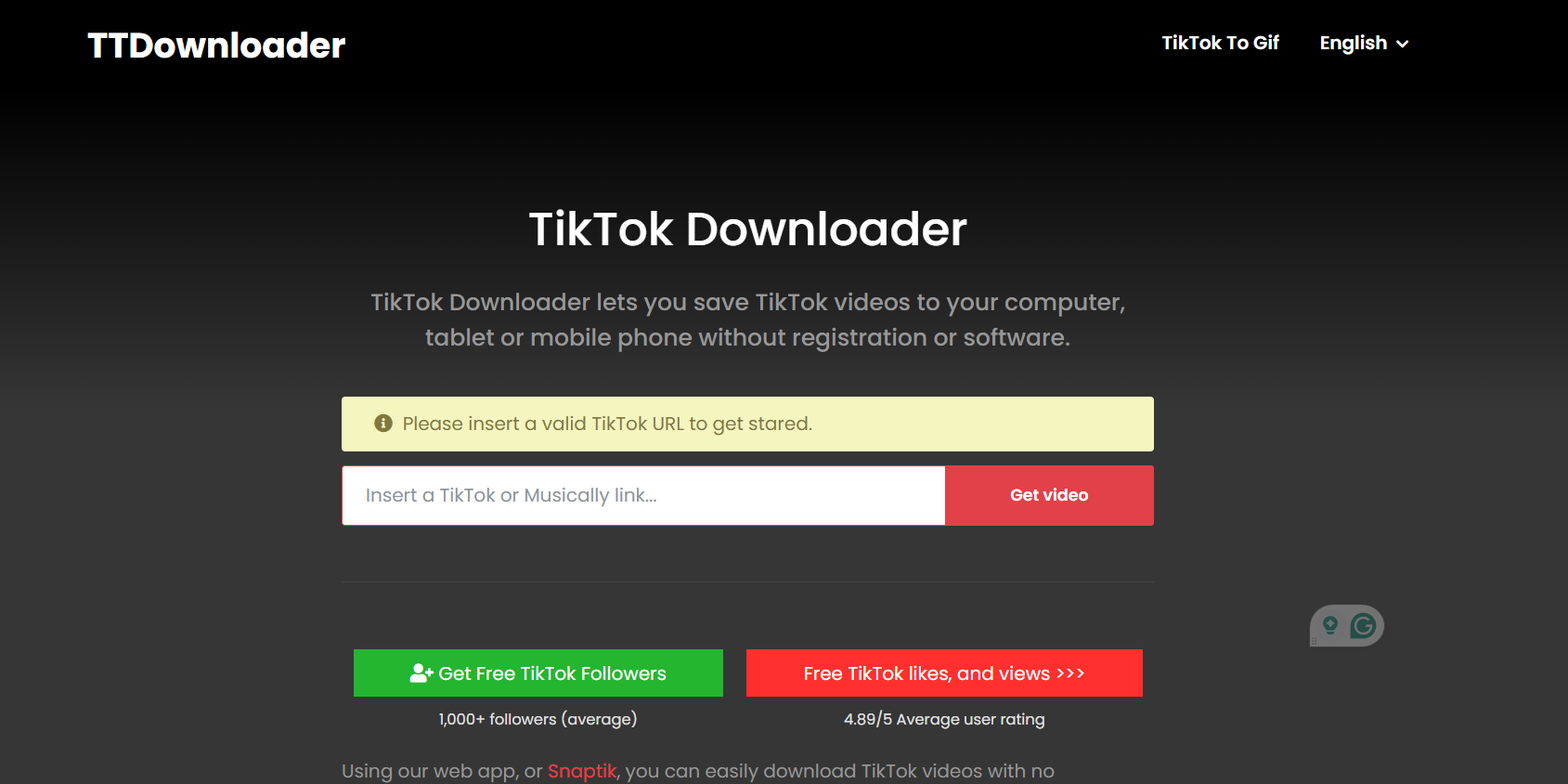
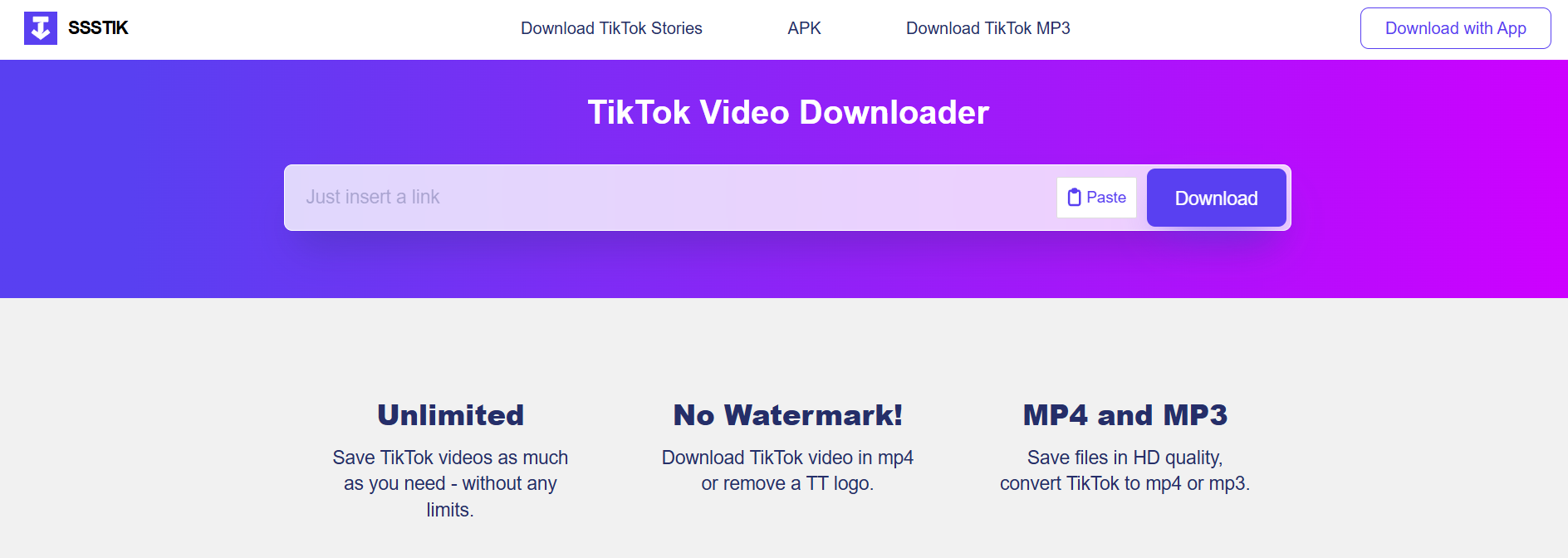
This is probably the most popular option because it’s quick and doesn’t require installing anything. You just copy the TikTok link, paste it into a downloader website, and hit download. Boom — clean video, no watermark.

How it works:

  • Open TikTok and copy the link of the video you want.
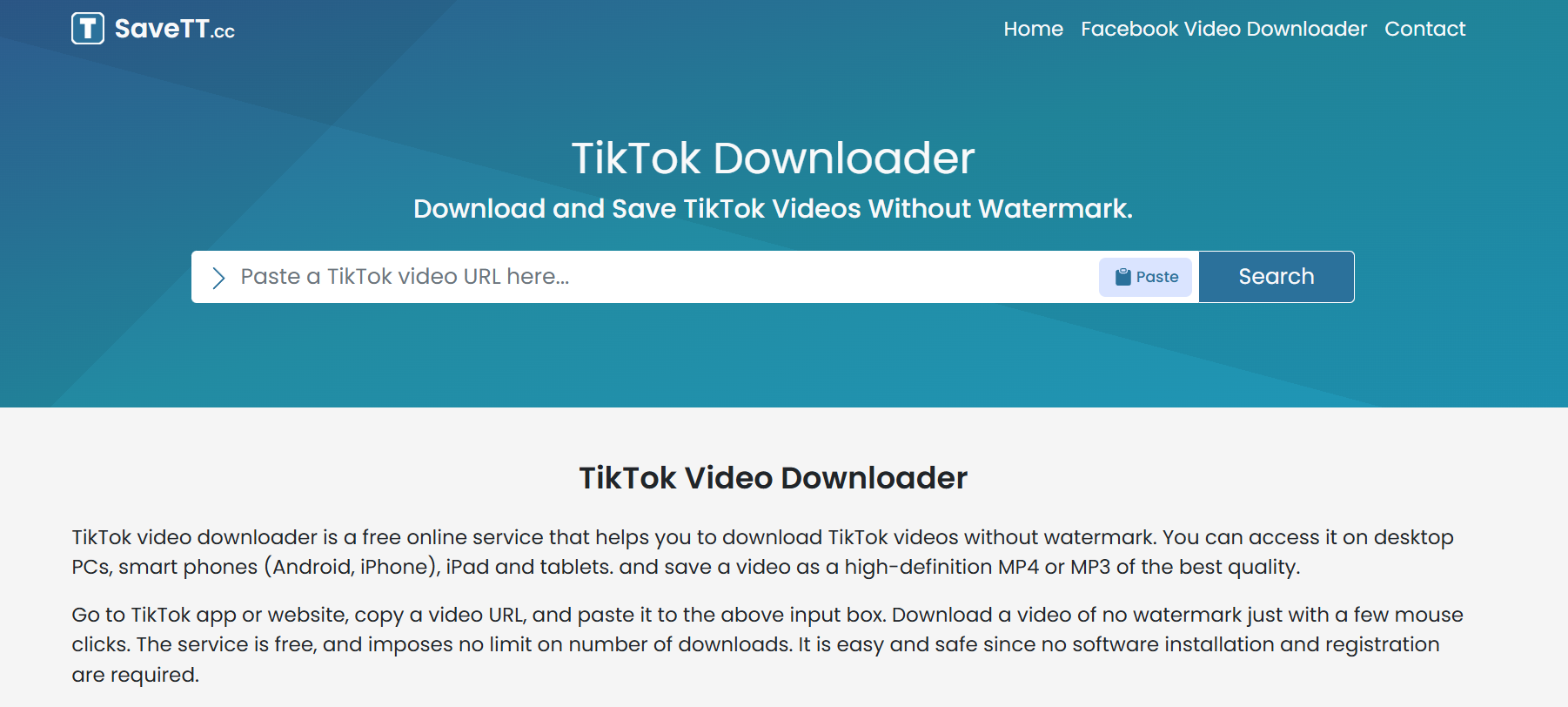
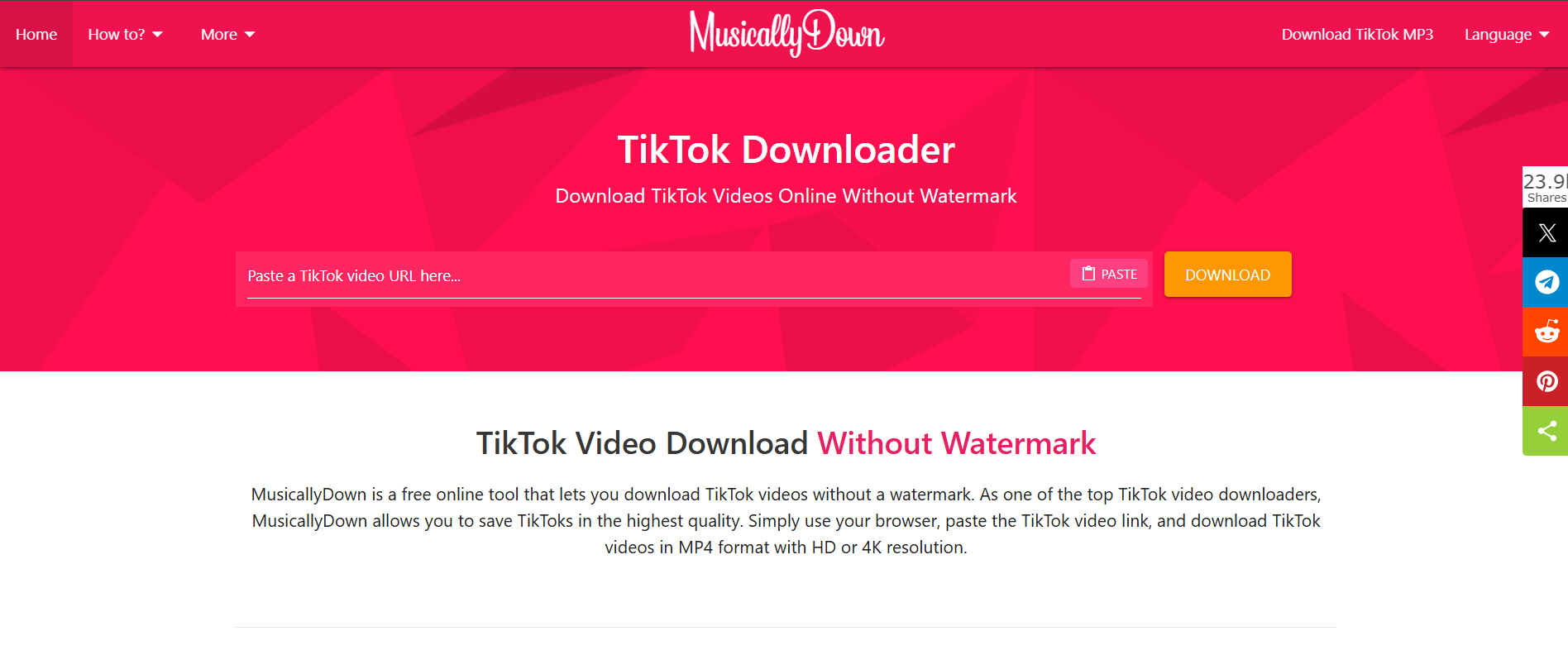
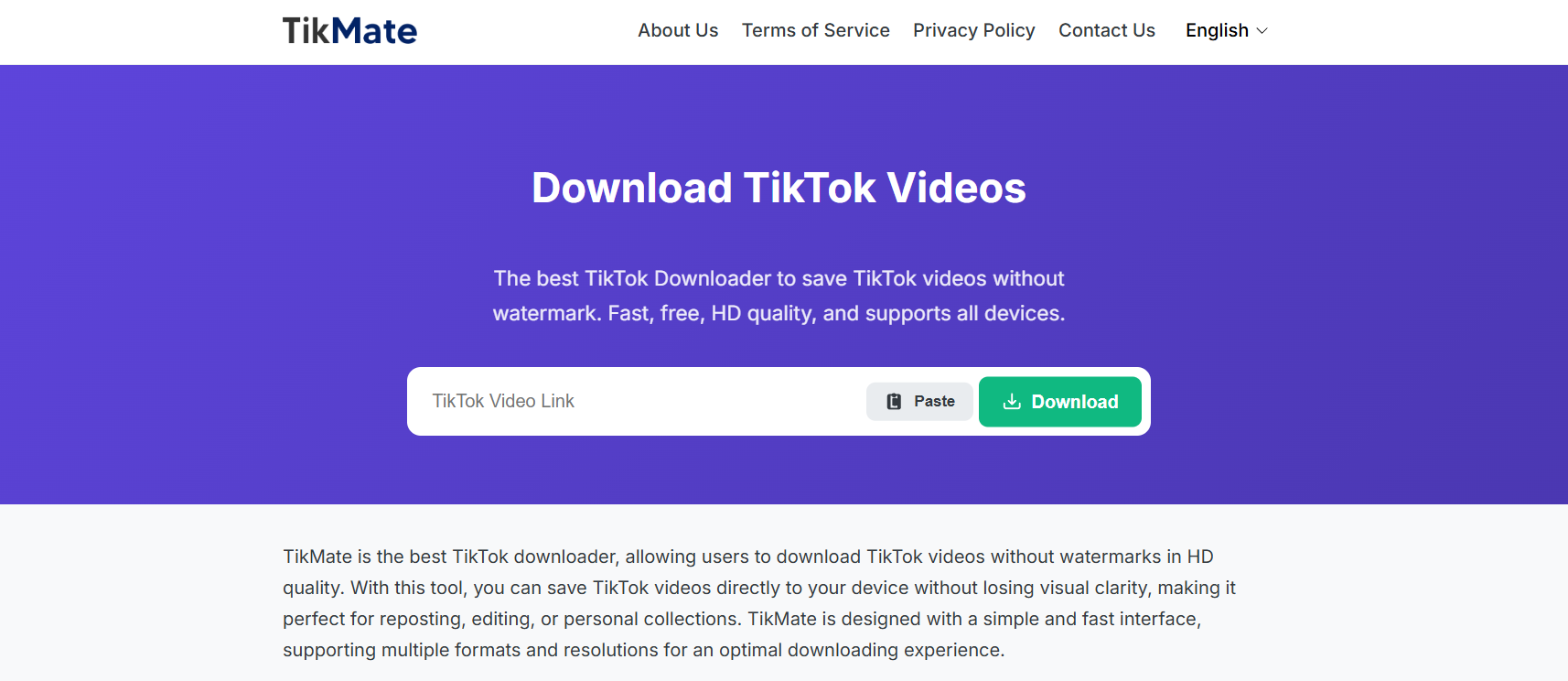
  • Head to a site like SnapTik, SaveTT, or SSSTik.
  • Paste the link and download the watermark-free version.

Real-life scenario: Let’s say you found a cool cooking tutorial and want to keep it in your recipe collection. Using an online downloader means you can save the video cleanly without the watermark cluttering up your notes.

Pros:

  • Free and super easy.
  • Works on both phone and desktop.
  • No need to sign up or create an account.

Cons:

  • Some sites are loaded with ads and pop-ups.
  • Quality might drop slightly depending on the tool.
  • Requires an internet connection.

2. Save TikTok Videos Without Watermark Using Mobile Apps

If you’re always on your phone, a dedicated app can make things smoother. There are apps for both iOS and Android built specifically to download TikTok videos without watermark.

Best options:

  • For Android: Video Downloader for TikTok (many on Play Store)
  • For iPhone: Reposter for TikTok or TikSave

How it works:

  • Copy the link of the TikTok video.
  • Open the app and paste the link.
  • Save directly to your gallery without watermark.

Pros:

  • Super convenient if you download often.
  • Some apps let you manage or edit videos right inside.
  • Saves time compared to online tools.

Cons:

  • Free versions may have ads or watermarks of their own.
  • Some require in-app purchases for HD quality.
  • Not all apps are equally safe, so stick to trusted ones.

3. Download TikTok Without Watermark via Desktop Tools

Tiktok Marketing

If you’re someone who edits videos on your computer, desktop tools are a lifesaver. These programs often give you more control over video quality, file format, and organization.

How to do it:

  • Copy the TikTok link.
  • Use a desktop program like 4K Tokkit or Allavsoft.
  • Download in your preferred resolution (up to 4K in some cases).

Why it’s great: Desktop tools are perfect for people who batch-download. For example, if you run a content curation channel and want to grab 50 TikTok videos at once, tools like 4K Tokkit can handle it easily.

Pros:

  • High-quality downloads up to HD or 4K.
  • Batch downloading possible (great for creators).
  • Some tools allow you to schedule downloads.

Cons:

  • Requires installation.
  • Some premium features are behind paywalls.
  • Slight learning curve if you’re new to video tools.

4. Screen Recording as a Simple Trick

This is the old-school hack, but it still works like a charm. If you don’t want to rely on apps or websites, just screen record while the video plays.

Steps:

  • Start screen recording on your phone (iOS and Android both have this built-in).
  • Play the TikTok video in full screen.
  • Stop recording and trim the beginning and end.

When to use it: Screen recording is handy when downloaders aren’t working or when TikTok restricts certain videos from being saved.

Pros:

  • Doesn’t require third-party tools.
  • Works even if downloaders are down.
  • Flexible: you can record any video, even ones with disabled downloads.

Cons:

  • Quality depends on your device.
  • Requires manual trimming to look clean.
  • Not ideal for large batches of videos.

5. Use Telegram Bots or Cloud Services

If you’re a Telegram user, this is a fun trick. There are bots that automatically download TikTok videos without watermark and deliver them straight into your chat.

How it works:

  • Find a TikTok downloader bot on Telegram (search “TikTok bot”).
  • Send the TikTok link.
  • The bot replies with a clean version you can save.

Example: Imagine you’re sharing funny TikToks in a Telegram group with your friends. Instead of flooding them with links, you can send the clean, watermark-free version right inside the chat.

Pros:

  • No installation needed beyond Telegram.
  • Works fast and keeps your downloads organized.
  • Cloud-based, so you can access them anywhere.

Cons:

  • You need a Telegram account.
  • Bots sometimes go offline or stop working.
  • Limited by Telegram’s file size restrictions.

6. Browser Extensions for Quick Downloads

If you spend more time on TikTok using a web browser, extensions can save you clicks and make downloading seamless.

Steps:

  • Install a TikTok downloader extension for Chrome, Firefox, or Edge.
  • Open TikTok in your browser.
  • Click the extension icon to download watermark-free videos.

Why it’s useful: If you’re browsing TikTok for inspiration at work or school on a laptop, you can quickly save interesting clips without having to switch to your phone.

Pros:

  • Convenient for desktop browsing.
  • One-click downloads.
  • Can save multiple formats.

Cons:

  • Only works on desktop.
  • Some extensions may stop working if TikTok updates its system.
  • Needs regular updates for security.

7. Save TikTok Without Watermark Using Editing Tools

If you’ve already downloaded a TikTok but it has a watermark, don’t worry — you can still fix it with editing software.

Options:

  • Crop the video to cut out the watermark.
  • Use watermark remover tools (InShot, Adobe Premiere, or online removers).
  • AI-powered watermark removers for faster results.

Example: Say you downloaded a travel vlog on TikTok last month but forgot to remove the watermark. With InShot, you can crop or blur out the logo and still keep the video looking clean.

Pros:

  • Gives you control over the final look.
  • Can be used for videos you’ve already saved.
  • Useful for editing other elements too.

Cons:

  • Time-consuming.
  • May lower video quality if not done carefully.
  • Requires basic editing skills.

Conclusion: Choose the Best Way to Save TikTok Without Watermark

So, there you have it — 7 genius ways to save TikTok without watermark. From simple screen recording to powerful desktop tools, there’s a method for every type of user. If you want something quick and free, stick with online downloaders or mobile apps. If you’re a content creator who needs tons of videos in bulk, desktop tools or browser extensions might be your best bet.

At the end of the day, the choice comes down to your needs: convenience, quality, or speed. Try a couple of methods and see which one clicks for you. And remember: while saving videos is handy, always respect the original creator’s work. Give credit when it’s due — especially if you plan to repost.

Find More: Boost Your Sales With SEO Services

FAQs

1. How do I save TikTok videos without watermark for free?

You can use free online downloaders like SnapTik or SSSTik, or even screen record if you don’t want to use third-party apps. Many Telegram bots also work without charging anything.

2. Is it legal to save TikTok videos without watermark?

It depends. For personal use, it’s usually fine. But reposting without credit may violate copyright or TikTok’s terms. If you’re sharing for educational or private use, you’re generally safe.

3. Can I download TikTok videos in HD without watermark?

Yes, many apps and tools offer HD quality downloads, but sometimes you may need the paid version. Tools like 4K Tokkit are especially good for this.

4. What’s the safest TikTok downloader tool?

SnapTik and SaveTT are generally safe, but always watch out for fake or spammy sites. Stick with reputable tools that don’t ask for unnecessary permissions.

5. Can I save TikTok without watermark on iPhone and Android?

Absolutely! Both iOS and Android have apps and workarounds like online downloaders, dedicated apps, or Telegram bots that work perfectly.

6. Which method is best for creators?

If you’re a creator who needs bulk downloads, desktop tools like 4K Tokkit or browser extensions are the best. For casual users, online tools and apps are more than enough.

Tags:
7 Genius Ways to Download Snapchat Videos (No One Tells You About!)

7 Genius Ways to Download Snapchat Videos (No One Tells You About!)

snapchat video download

Introduction

Let’s be honest — if you’ve ever searched for snapchat video download, you’ve probably realized it’s not as straightforward as saving a picture from your gallery. Snapchat was designed to make content temporary, but sometimes you just need to keep that hilarious snap from a friend or save your own story before it disappears. Whether you’re looking for a way to download Snapchat video on your phone, a quick snapchat download video hack, or a reliable video download for Snapchat, this guide will walk you through the smartest and safest methods.

And here’s the twist — I’m not going to bore you with just the basics. I’ll show you 7 genius ways to download Snapchat videos that most people don’t even talk about, plus tips, examples, and some real-life scenarios where each method makes sense.

Find More: 7 Best Snap Story Viewer Apps to Watch Stories Anonymously

Why People Search for Snapchat Video Download Methods

There are plenty of reasons people look for these hacks:

  • Maybe a friend sent you a snap that made you laugh so hard you want to keep it forever.
  • Maybe you shared a story that you forgot to save before it expired.
  • Or maybe you’re a content creator who wants to repurpose your Snapchat videos for TikTok, Instagram Reels, or YouTube Shorts.

Some people even use Snapchat as a quick video editor because of its filters, and then wonder how to pull that content out of the app for later use. Whatever the case, you’re not alone — people search “download Snapchat videos” millions of times every year.

Is It Legal and Safe to Download Snapchat Videos?

Before diving in, let’s clear this up. Saving your own content? Totally fine and encouraged — Snapchat even makes it easy. Saving someone else’s snaps without permission? That’s where things get tricky. Always respect privacy and use these methods responsibly.

Also, beware of sketchy apps and sites that promise you free downloads but might be hiding malware. Later in this article, I’ll share how to avoid those pitfalls so you don’t end up compromising your account or your phone.

Now that’s out of the way — let’s get into the good stuff.

7 Genius Ways to Download Snapchat Videos (No One Tells You About!)

Snapchat Viewer

1. Use Snapchat’s Built-in Save Feature (For Your Own Videos)

The easiest way to download Snapchat videos is already built into the app.

  • Record a snap → Tap the save button → It goes straight to your Memories or Gallery.
  • For Stories, tap the three dots → “Save Story.”

When it’s best: Perfect for saving your own creations, stories, or funny snaps you want to share again elsewhere. If you’re making content for multiple platforms, this built-in save feature is your best friend.

Limitation: This only works for your own snaps, not someone else’s. But if you’re building a brand or want a personal archive, this method is golden.

2. Screen Recording Apps for Snapchat Video Download

One of the most popular hacks is using a screen recorder.

  • On iPhone: iOS has a built-in screen recorder (swipe down → tap the circle).
  • On Android: Most phones now include native screen recorders, but if not, apps like AZ Screen Recorder do the job.

Pro Tip: Snapchat used to notify users if you screen-recorded. On some devices, it still can. Test it with a friend before recording secretly.

Why it’s genius: You can capture anything — videos, chats, even disappearing snaps. Plus, once you have the screen recording, you can trim and edit it down to just the piece you want.

When it shines: If you need a quick solution and don’t want to bother with third-party apps, screen recording is universal and always accessible.

3. Online Snapchat Video Download Tools

If you want a quick, no-fuss option, there are online tools made just for this. Simply paste the link of the snap (if it’s shareable) into a snapchat download video site and hit download.

  • Example tools: SnapSave, SaveSnap, and similar.
  • Works for both stories and spotlight videos.

Pros: Super quick, no installation needed, and many are free.
Cons: Not all sites are trustworthy. Stick to reliable ones to avoid sketchy ads or malware. Always use a secure browser.

Who it’s for: People who don’t want to clutter their phone with new apps and just need a one-time solution.

4. Third-Party Snapchat Saver Apps

4K Video Downloader

Yes, there are dedicated apps that let you download Snapchat videos. They usually work by linking with your account and saving snaps in real time.

  • Examples: Casper (older but still around), SnapSave for Android, and some iOS apps.
  • They let you download without the other person knowing.

Risks: Using third-party apps can get your account flagged or even banned. Be cautious and only use trusted apps that have good reviews and updated versions.

When useful: If you regularly want to save snaps (like if you manage a content account and need constant access), these apps can be convenient. Just weigh the risks carefully.

5. Snapchat Video Download on PC or Mac

If you prefer using a computer, this method is gold.

  • Install a screen recorder for desktop (like OBS Studio or Camtasia).
  • Open Snapchat on your PC using an emulator (like Bluestacks) or Snapchat’s web version.
  • Record or save videos directly.

Bonus: Some browser extensions also let you save snaps, though they can be hit or miss. Always test with non-important snaps first.

Why it’s awesome: Larger storage, better organization, and easier editing. If you’re making compilations or using snaps for professional projects, saving them on a PC gives you more control.

6. Using Cloud Storage for Snapchat Downloads

Sometimes the smartest trick isn’t obvious. Save your own snaps directly to the cloud:

  • Set Snapchat to automatically save to Memories & Camera Roll.
  • Sync your gallery with Google Drive, iCloud, or Dropbox.

Now your Snapchat videos are safe forever, even if you switch phones or lose your device.

Why it’s genius: No need to worry about losing your videos if you delete the app or run out of storage. Plus, you can access your snaps from any device, anywhere in the world.

When to use: If you’re someone who creates a ton of content and doesn’t want to constantly transfer files, automatic cloud backups are a lifesaver.

7. Advanced Methods: File Manager Tricks

This one’s for the tech-savvy.

  • On Android, open a File Manager app.
  • Navigate to “Android → Data → com.snapchat.android → Cache.”
  • Some unsaved videos may still be stored there temporarily.

Heads up: This doesn’t always work and files may be corrupted, but when it does, it feels like magic. It’s almost like finding hidden treasure in your phone.

When helpful: If you accidentally closed Snapchat before saving a video and it hasn’t been fully cleared from your cache yet.

Conclusion

So there you have it — 7 genius ways to download Snapchat videos. From simple built-in features to advanced tricks like file managers, there’s a method for everyone.

  • Want quick and easy? Use Snapchat’s save button or a screen recorder.
  • Want flexibility? Try online tools or saver apps.
  • Want long-term storage? Sync everything to the cloud.

At the end of the day, the best video download for Snapchat method is the one that fits your needs without compromising safety or privacy. Some methods are beginner-friendly, while others are for power users who want total control.

If you found this useful, try one of these methods today, experiment with different approaches, and never lose a snap again.

Find More: Boost Your Sales With SEO Services

FAQs

1. Can I download Snapchat videos without them knowing?
Yes — screen recording or third-party apps can do this. But always respect privacy and think twice before saving someone’s content without consent.

2. Are third-party Snapchat download apps safe?
Some are, some aren’t. Always research before using them, read reviews, and avoid shady apps that ask for too many permissions.

3. How do I download someone else’s Snapchat story?
You can use online tools, screen recording, or saver apps. But again — only with permission. It’s better to ask first.

4. Can I save Snapchat videos to my gallery automatically?
Yes! Change your settings to save every snap to your camera roll. Combine that with cloud storage for a seamless archive.

5. What is the easiest method for Snapchat video download in 2025?
The easiest? Screen recording. The most reliable? Saving directly to your Memories & Camera Roll. The smartest? Setting up cloud backups so you never think about it again.

Tags:
What Is an Invisible Character and How to Use It on Social Media?

What Is an Invisible Character and How to Use It on Social Media?

Invisible Character

Ever noticed blank spaces in usernames or received an empty message in your inbox? But when you try to add such a blank space in your username or want to send a single space in the message or comments, it doesn’t work for you, right? Well, empty messages and invisible usernames don’t contain a simple space. It is a special invisible character that appears blank to human eyes, but algorithms consider it a valid character. 

In this blog, we will explain what an invisible character is, why people use it on social media, and where you can apply it in your own profiles and posts.

What Is an Invisible Character?

The invisible character is a Unicode symbol. It is different from a regular space created by pressing the spacebar on the keyboard. It is still a valid character in digital text and recognized by the system, even though you cannot see it.

There are many invisible characters in Unicode. The most commonly used ones are Zero-width Space, Zero-width Non-Joiner, and Non-breaking Space. 

How to Create an Invisible Character?

Creating an invisible character was difficult using manual methods. But now, there are plenty of online tools that offer these characters. Just search for the “Invisible Character” in your browser. You will see a list of tools and websites there. Choose a reliable tool after checking its reviews and data privacy.

It is important because some unsafe websites might include hidden characters or scripts that could hurt your device or account. We have found this Invisible Character tool reliable after carefully reviewing a lot of tools. So we will use it to generate an invisible character to give you a demo.

Invisible Character

  1. Open the tool, and you will see two different methods for generating the invisible space.
  2. If you need a few characters, you can go with “Method 1.” Just click on the three provided buttons: Copy small, Copy medium, or Copy large. The invisible character will be copied to your clipboard, and you can paste it where needed. Invisible Character
  3. If you need a lot of characters at once, you can go with “Method 2.” Use the + and – buttons, or simply type in the number of characters you need and then click on the “Copy” button. The characters will be copied to your clipboard.Invisible Character
  4. After copying the characters, use the test box below to verify if the invisible characters generated work properly. Paste the characters here, and it will show you the number of characters generated.Invisible Character

How to Use Invisible Characters on Social Media

Create Unique Usernames

When you try to make a new account, sometimes the username you want is already taken. Or the platform does not allow spaces and special symbols. In this case, an invisible character can help. You can add this hidden space between words or at the end of your name. It will look clean and different but still be accepted by the system. This way, your username becomes unique without using extra numbers or strange symbols.

Send Blank Messages for Fun

Some apps or chat platforms, such as WhatsApp and Instagram, do not allow you to send a blank message. If you just press the spacebar and click the send button, it will not work. But if you use an invisible character, you can send an empty message to your friends.

You copy the invisible space, paste it in the chat box, and send it. The message looks empty to the other person, but technically it contains a Unicode character that the system can interpret. So you can use this trick to surprise and have fun with your friends.

Write Clear Bios and Captions

When you try to write a bio or caption, sometimes the text looks packed in one block. Many people add dots, dashes, or emojis only to create spacing, but this makes the profile look messy. By using invisible characters, you can break the lines properly and add space where you want. This way, your bio looks clean and easy to read.

Add Aesthetic Appeal

Most people use social media on their phones. The small screens of phones make text appear crowded. When everything appears in one block, it becomes challenging to read and not very engaging. Invisible characters help you add neat spacing in posts, captions, and even comments. 

This makes the text easy for the eyes, and people stay longer to read it. Instead of stuffing emojis or symbols just to create space, you can keep everything clean. A little spacing with invisible characters can make your posts look more professional, stylish, and creative while also improving readability on mobile screens.

Best Practices for Using Invisible Characters

Invisible characters are useful, but you need to use them with care. If you add too many blank spaces in the text, it may look confusing or even frustrating for the reader. Also, sending repeated blank messages to your friends can make them stressed instead of entertained. It also comes under spamming when you send too many invisible characters to a chat. You may face account restrictions, and in some cases, even account suspension. So always use them in balance.

Another good practice is to test the character before you use it widely. Since the character is invisible, sometimes it may not work on every platform. Some good tools offer a test box where you can paste it first, check the result, and then apply it.

Also, always copy invisible characters from trusted tools or websites. Cybercrime is on the rise, and some unreliable tools or websites may include hidden characters or scripts that could harm your device or account. A safe source helps you avoid security risks while keeping your account secure.

With these practices, you can enjoy the creative side of invisible characters without creating problems for yourself or others.

Final Words

Invisible characters are useful when you want to add space or line breaks on social media. You can use them to make usernames different, write cleaner bios, send blank messages, or format posts in a simple way. 

Do not use them too much because this can confuse people. Always test them before posting and copy from trusted tools to stay safe. If you follow these steps, you can make your profiles and posts look clear, neat, and easy to read.

7 Powerful Vimeo to MP4 Converters You’ll Wish You Found Sooner

7 Powerful Vimeo to MP4 Converters You’ll Wish You Found Sooner

Vimeo to MP4

Introduction: Why You Need a Reliable Vimeo to MP4 Converter

Vimeo to MP4 is one of those search terms that pops up constantly because people love Vimeo’s high-quality videos, but they want the flexibility of watching them offline or sharing them easily. Maybe you’re working on a project and need reference material, maybe you’re traveling and want to keep your favorite tutorials on hand, or maybe you just hate the feeling of buffering ruining your evening. Whatever the reason, being able to convert Vimeo to MP4 can make a huge difference in convenience and peace of mind.

The truth is, Vimeo doesn’t always make it simple to download videos directly. And when you search online, you’ll find dozens of tools that claim to do the job—but not all of them actually deliver. Some are sketchy, some reduce the video quality, and others are so full of pop-ups that you feel like you’re stepping into a spam trap. That’s why I decided to put together this list of tested and trusted Vimeo to MP4 converters. Each one here has real advantages, and by the time you’re done reading, you’ll know which one to rely on depending on your needs.

Find More: 8 Powerful YouTube Subtitle Downloader You Must Try Today

7 Powerful Vimeo to MP4 Converters You’ll Wish You Found Sooner

1. Y2Mate Vimeo Downloader – Fast and Free Vimeo to MP4 Downloads

Y2Mate Vimeo Downloader

If you’re looking for something quick and easy, Y2Mate is one of the most popular online converters for a reason.

Key Features:

  • Quick conversions without requiring sign-up

  • Supports multiple formats including MP4, MP3, and WebM

  • Works directly in your browser without installing anything

Pros: Simple, lightning-fast, and completely free.
Cons: Has some pop-up ads you’ll want to avoid clicking.
Best Use Case: Great for people who want to download from Vimeo to MP4 in just a couple of clicks. Perfect for short videos or quick downloads when you don’t want to waste time.

2. 4K Video Downloader – High-Quality Vimeo to MP4 Online Tool

4K Video Downloader

If video quality is non-negotiable for you, then 4K Video Downloader is a must-try. It’s a desktop tool rather than a browser-based converter, but the quality you get in return is incredible.

Key Features:

  • Download videos in resolutions up to 8K

  • Supports full playlists and even channels

  • Compatible with Windows, Mac, and Linux

Pros: Offers some of the best quality you can get, plus batch downloading.
Cons: The free plan limits playlist downloads, so heavy users may need the paid version.
Best Use Case: Anyone who wants to convert Vimeo to MP4 while keeping the highest possible resolution—perfect for filmmakers, video editors, or anyone picky about clarity.

3. SaveFrom.net – User-Friendly Vimeo to MP4 Converter for Beginners

savefrom

SaveFrom.net is one of the oldest names in the online video conversion world. It’s simple, direct, and doesn’t overwhelm you with features.

Key Features:

  • Just paste the Vimeo link and hit download

  • Offers a Chrome extension for one-click downloads

  • Lets you pick from multiple resolutions

Pros: Very beginner-friendly and works fast.
Cons: The interface looks outdated, and ads can be distracting.
Best Use Case: Perfect for casual users who just want to download Vimeo to MP4 without learning a new tool.

4. VidPaw – Secure Vimeo to MP4 Downloader with No Ads

VidPaw

If you’re tired of dodging pop-ups, VidPaw is a refreshing choice. It’s clean, straightforward, and focused on giving you a smooth experience.

Key Features:

  • 100% ad-free interface

  • Supports HD video downloads

  • Works seamlessly on desktop and mobile browsers

Pros: Safe and stress-free with no annoying ads.
Cons: Slightly slower download speeds compared to others.
Best Use Case: Best for people who value safety and simplicity over speed. If you want to download from Vimeo to MP4 without distractions, VidPaw is the way to go.

5. ClipGrab – Multi-Platform Vimeo to MP4 Tool (Windows, Mac, Mobile)

ClipGrab

ClipGrab is a free, open-source solution that gives you full control and flexibility. It requires installation, but in exchange, you get more stability and customization options.

Key Features:

  • 100% free and open-source

  • Works on Windows, Mac, and Linux

  • Converts into MP4, WMV, OGG, and more

Pros: Reliable, trustworthy, and not tied to a commercial company.
Cons: You’ll need to install it, which may not appeal to everyone.
Best Use Case: Ideal for tech-savvy users who don’t mind downloading software and want a dependable solution that won’t disappear overnight.

6. OnlineVideoConverter – Lightning-Fast Vimeo to MP4 Conversion for Large Files

OnlineVideoConverter

OnlineVideoConverter is a favorite for people who deal with bigger video files. It’s fast, reliable, and works with a ton of different formats.

Key Features:

  • Handles large video files with ease

  • Unlimited free conversions

  • Supports multiple audio and video formats

Pros: Speedy performance, even on videos over an hour long.
Cons: The site occasionally has downtime during peak hours.
Best Use Case: If you often need to convert Vimeo to MP4 for long tutorials, webinars, or lectures, this is a solid pick.

7. Freemake Video Downloader – Best All-in-One Vimeo to MP4 & Video Editing Tool

Freemake Video Downloader

Freemake isn’t just a converter—it’s a full video management tool. While the free plan has some restrictions, it’s a fantastic all-in-one option for people who want more than just downloading.

Key Features:

  • Works with over 10,000 sites including Vimeo, YouTube, Facebook, and more

  • Comes with basic editing tools like trimming and format conversion

  • Supports batch downloads for efficiency

Pros: Versatile and feature-rich.
Cons: Adds a watermark on the free plan, which can be removed with a paid upgrade.
Best Use Case: Perfect for content creators or marketers who want to download from Vimeo to MP4 and also edit clips for projects without using separate software.

How to Choose the Best Vimeo to MP4 Converter for Your Needs

Now that we’ve looked at the top seven tools, let’s talk about how to decide which one is right for you. Not everyone needs the same thing from a converter, and understanding what matters most will help you make the right choice:

  • Speed: If you hate waiting, Y2Mate and OnlineVideoConverter are the clear winners. They’ll get your video downloaded in seconds.

  • Quality: If you’re all about crisp resolution, 4K Video Downloader is unbeatable. It’s the best way to get HD or even 8K quality.

  • Ease of Use: Beginners should stick to SaveFrom.net. It’s nearly foolproof and requires zero learning curve.

  • No Ads: If you value peace of mind, VidPaw is a safe bet with its ad-free environment.

  • Multi-Platform Flexibility: ClipGrab shines if you want something open-source and adaptable.

  • All-in-One Solution: Freemake is your best choice if you want extra editing features bundled with your downloads.

At the end of the day, think about your own workflow. Are you downloading lots of videos for professional use? Do you just need the occasional offline copy? Or are you more concerned with safety and reliability? Answering these questions will lead you straight to the best option.

Find More: Boost Your Sales With SEO Services

Conclusion: Start Converting Vimeo to MP4 Easily Today

Converting Vimeo to MP4 doesn’t have to feel like a chore. With the right tool, it can be as simple as copy-paste-click-download. Each of the converters we’ve gone through here has its strengths, whether it’s speed, quality, security, or extra features like editing.

The next time you want to download from Vimeo to MP4, you won’t need to waste time Googling random converters. Instead, you’ll have a reliable list of tools you can trust. So pick the one that matches your needs, start converting today, and enjoy your videos offline anytime, anywhere. Whether you’re watching on a plane, archiving for work, or just collecting your favorite tutorials, you’ll finally have the flexibility Vimeo itself doesn’t always offer.

FAQs

1. Is it legal to convert Vimeo to MP4?

It depends on the content. Downloading videos for personal, non-commercial use is generally fine, but redistributing copyrighted material without permission is illegal. Always respect the creator’s rights.

2. Can I use Vimeo to MP4 converters on mobile devices?

Yes, absolutely. Tools like SaveFrom.net and VidPaw work directly from your smartphone’s browser. Some apps even make it easier, but web-based tools are usually the most universal.

3. Which Vimeo to MP4 tool is the safest?

VidPaw and 4K Video Downloader are excellent choices for safe, secure downloads. They have fewer ads and don’t bombard you with suspicious links.

4. Do free Vimeo to MP4 converters have limitations?

Yes, many do. Some restrict download quality, file size, or the number of downloads per day. If you’re a heavy user, upgrading to a premium plan or using open-source software like ClipGrab might make sense.

5. How do I convert Vimeo videos to MP4 without losing quality?

Always choose a converter that supports HD or 4K output. Tools like 4K Video Downloader give you the option to pick the highest resolution available, ensuring your video looks just as good offline as it does online.

Tags:
7 Best Instagram Growth Services That Actually Work

7 Best Instagram Growth Services That Actually Work

Best Instagram Growth Service

best instagram growth service — that phrase probably sounds like a promise too good to be true, right? But if you choose wisely, you can use one of the best instagram growth services to actually grow your account, gain real engagement, and build followers who care.  Alongside growth services, using smart engagement tools like an Instagram giveaway picker can also help boost interaction and run transparent giveaways that encourage real comments and participation from your audience. In this post, I’ll walk through what makes a legit growth service (especially a best organic instagram growth service or best instagram follower growth service), compare seven of them, and help you pick the one that fits your goals.

Find More: 10 Powerful Instagram Highlight Downloaders That Actually Work

What Makes the Best Instagram Growth Service

Before I dive into the tools, it’s important we’re on the same page about what you should expect. Because there are a lot of services out there that overpromise.

  • Real followers vs fake numbers: If your follower count is increasing but engagement (likes, comments, reach) stays flat, it’s probably not “best.” The best instagram follower growth service gives you people who actually interact.
  • Organic methods: Meaning minimal risk tactics — targeting real interests, using hashtags, audiences, not shady bots. This is what a best organic instagram growth service focuses on.
  • Transparency & safety: Do they require your password? Do they violate Instagram’s terms? What’s their refund or trial policy?
  • Tracking, analytics & targeting: Knowing where your growth came from, what kind of posts/hashtags worked, what demographic you’re pulling in — those are super helpful.
  • Value for price: How fast results come, how much you pay, and whether you’re paying for what matters (real growth & engagement, not vanity metrics).

The 7 Best Instagram Growth Services That Actually Work

1. GrowthViral – Best Overall Instagram Growth Service

GrowthViral

GrowthViral has built a reputation for being reliable and effective. They focus heavily on real, organic instagram growth. Users say their follower gains last (not dropping off after a few weeks). What stands out is their commitment to quality support, and they also offer free trial options so you can test before paying. If you want sustainable, long-term growth without shady practices, GrowthViral is one of the strongest picks.

2. Path Social – Best for Organic Targeting

Path Social

Path Social stands out because of its “no bots” promise. They use AI-powered targeting and filters to connect you with genuine, interested followers. That means if you’re in a very specific niche, you’ll find followers who actually care about your content. Path Social is a great choice if you value quality over speed.

3. Nitreo – Safe and Steady Growth

Nitreo

Nitreo is another strong option known for safety. It offers a clean dashboard, customizable growth speeds, and a gradual follower increase. What users like is that the growth feels natural — no sudden spikes that could raise flags with Instagram. If you want low-risk, slow-and-steady growth, Nitreo is worth looking into.

4. Flock Social – Beginner-Friendly Service

Flock Social

Flock Social is designed to be simple to use, making it beginner-friendly. It provides organic Instagram growth with solid targeting features, and users like its set‑and‑forget feel. You don’t need to be a marketing pro to use it effectively, which is why many new creators start here.

5. Kicksta – Great for Influencers and Creators

Kicksta

Kicksta has been around for a while and uses an engagement-based growth method. They target followers by looking at similar accounts in your niche, ensuring your new audience is actually relevant. Influencers and content creators often recommend Kicksta because it builds not just numbers, but a community around your content.

6. Ampfluence – Hands-On Growth Management

Ampfluence

Ampfluence is more of a managed growth service. Instead of just giving you a dashboard, they provide a team that works on your account manually. That means higher prices, but also a more personalized and human approach. If you’d rather outsource the heavy lifting to professionals, Ampfluence could be the right call.

7. UpGrow – Balanced AI + Human Oversight

UpGrow

UpGrow combines AI technology with human oversight. That balance makes it both effective and safe. Reviews highlight that they deliver results faster than most organic services while still avoiding the risks of bot-driven growth. Businesses and serious creators looking to scale quickly often gravitate toward UpGrow.

How to Choose the Best Instagram Growth Service for Your Needs

Because “best” is subjective depending on what you want. Here are important criteria to think through.

Avoiding Fake Followers and Bots

  • Check reviews and case studies. If a service promises 10K followers in a week with no effort, be skeptical.
  • Use tools that don’t require giving your password (or very limited access).
  • Ask: do the followers stay and engage, or drop off after a bit?

Key Features That Deliver Real Results

  • Targeting filters (interests, location, hashtags, demographics) so the growth matches your audience.
  • Analytics & reporting — you should see where growth is coming from.
  • Support & communication — if something goes wrong, you want quick help.
  • Scalability — growth should match your budget and ambition.

Pricing & Value for Money Considerations

  • Cheaper isn’t always better if growth is unreliable.
  • Look for trial periods or money‑back guarantees.
  • Focus on engagement and ROI, not just follower counts.

Find More: Boost Your Sales With SEO Services

Conclusion – Which Instagram Growth Service Should You Choose?

If you ask me: for most people trying to pick the best instagram growth service, GrowthViral gives the best balance of growth, safety, and engagement. But if you’re very cautious, Path Social or Nitreo might be a safer bet.

Here’s a quick breakdown:

  • Beginners: Flock Social or Path Social.
  • Influencers/creators: Kicksta.
  • Businesses with budget: UpGrow or Ampfluence.
  • Best all-around: GrowthViral.

Remember: organic growth takes time, but it’s the kind of growth that lasts.

FAQs

1. Are Instagram growth services safe to use?

They can be, but only if they use organic methods. Avoid services that use bots or violate Instagram’s rules.

2. What’s the difference between organic growth and buying followers?

Buying followers usually gives you fake or inactive accounts. Organic services bring in real people who engage with your content.

3. How fast can I expect results?

Most legit services take 2–4 weeks before you see real momentum. Faster isn’t always better if it risks your account.

4. Do growth services guarantee followers?

Some promise numbers, but guarantees are tricky. Focus on engagement quality, not just the count.

5. Which growth service is best for small businesses?

Path Social, Nitreo, or Flock Social are budget-friendly and offer strong targeting for local or niche audiences.

Tags: